
Turn Your ESP32 into a Surveillance Detector for Enhanced Privacy
Turn Your ESP32 into a Surveillance Detector for Enhanced Privacy In an increasingly connected world, privacy concerns are more prevalent than ever. From ubiquitous street cameras to personal smart glasses, it can feel
Turn Your ESP32 into a Surveillance Detector for Enhanced Privacy
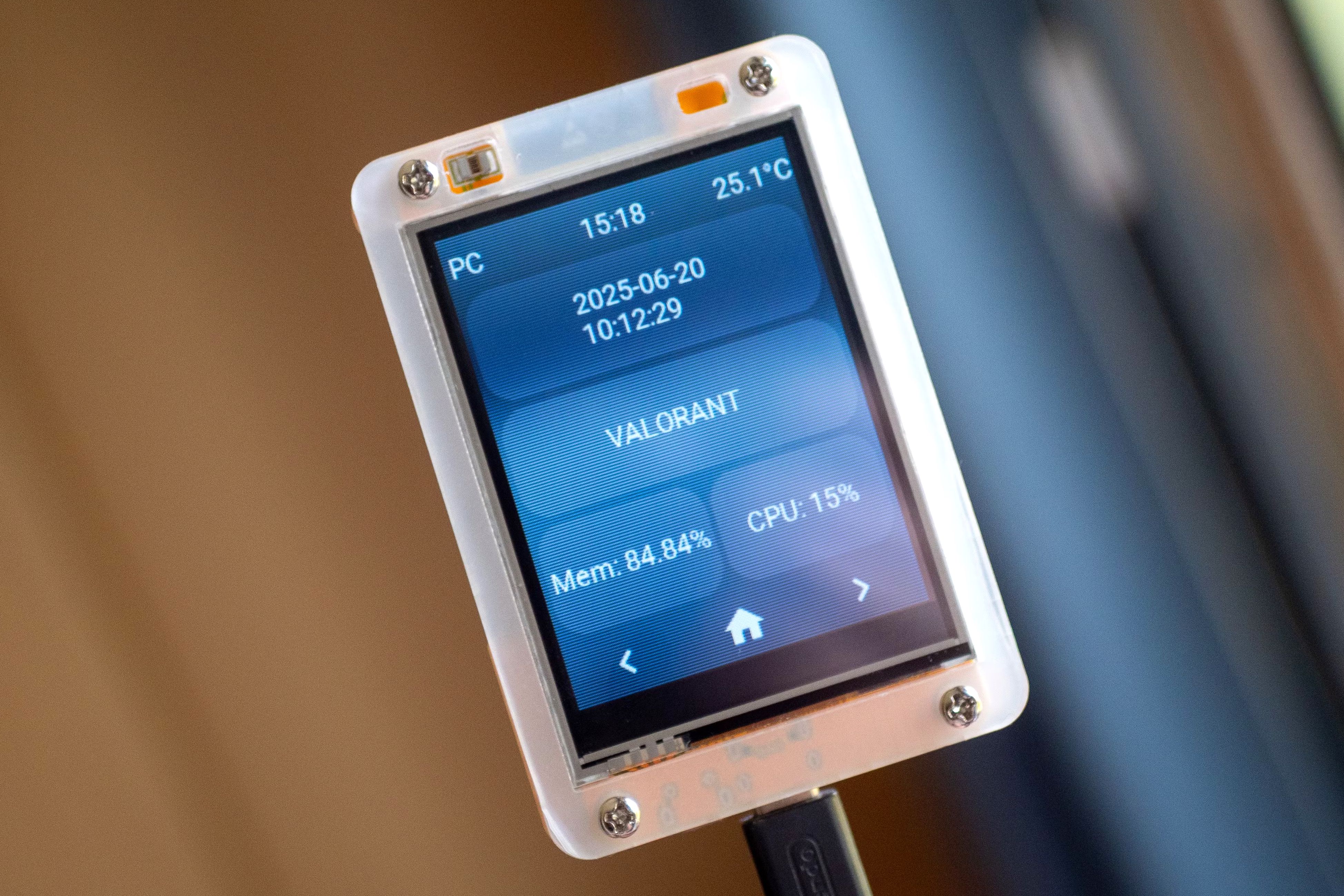
In an increasingly connected world, privacy concerns are more prevalent than ever. From ubiquitous street cameras to personal smart glasses, it can feel like you're constantly under observation. What if you could equip yourself with a simple, portable device to detect nearby surveillance equipment? This guide will show you how to transform an affordable ESP32 microcontroller, specifically the ESP32-2432S028R (often called the "Cheap Yellow Display"), into a powerful surveillance detector using the open-source SquachWatch firmware.
This project empowers you to identify a range of common surveillance and tracking devices, including Flock Safety license-plate readers, Ray-Ban Meta glasses, Axon equipment, Ring cameras, AirTags, and drones. Unlike map-based alternatives that rely on reported locations, this DIY detector actively scans for unique Wi-Fi and Bluetooth signals, providing real-time alerts without requiring you to share your own location data. By following these clear, step-by-step instructions, you'll gain a valuable tool for maintaining your personal privacy.
What You Will Accomplish
Upon completing this guide, you will have successfully:
- Flashed the SquachWatch firmware onto your ESP32-2432S028R board.
- Understood how your device detects surveillance equipment by analyzing Wi-Fi and Bluetooth signals.
- Learned to interpret the alerts, which include the device type, vendor, broadcast name, MAC address, and signal strength.
- Become proficient in using "Hunt Mode" to pinpoint the exact location of detected devices.
This project is perfect for anyone looking to understand their environment better and take a proactive stance on digital privacy.
Prerequisites
Before you begin, ensure you have the following items ready:
- ESP32-2432S028R Board: This is the specific ESP32 model, often referred to as the "Cheap Yellow Display." Ensure it is in working condition.
- USB-C to USB-A Data Cable: A reliable USB cable capable of data transfer (not just charging) to connect your ESP32 board to your computer. Most modern smartphone charging cables will work.
- A Computer with a Web Browser: Any modern computer (Windows, macOS, Linux) with a compatible web browser (e.g., Chrome, Edge, Brave, Opera) is suitable.
- Internet Connection: Required to access the SquachWatch website for flashing the firmware.
Step-by-Step Guide: Flashing Your ESP32 with SquachWatch
The SquachWatch firmware is designed for easy installation directly from your web browser, eliminating the need for complex IDEs or manual repository cloning. Follow these steps to get your surveillance detector up and running.
Step 1: Prepare Your ESP32 Board
Unbox your ESP32-2432S028R board. Make sure there are no loose connections or visible damage. Familiarize yourself with the USB port on the board.
Step 2: Connect Your ESP32 to Your Computer
Using your USB-C to USB-A data cable, connect the ESP32-2432S028R board to an available USB port on your computer. Your computer may attempt to install drivers; allow this process to complete if prompted. For most operating systems, generic USB serial drivers are sufficient and often installed automatically.
Step 3: Access the SquachWatch Flasher Website
Open your preferred web browser and navigate to the official SquachWatch installation website: https://squachwatch.com/.
Step 4: Select Your Board and Initiate Installation
Once on the SquachWatch website, you will typically see an interface designed for web-based flashing.
- Select Your Board: Look for an option to select your specific ESP32 board model. While the site is tailored for the "Cheap Yellow Display," confirming your model ensures compatibility.
- Click "Connect and Install": After selecting your board, locate and click the "Connect and Install" button. Your browser will then prompt you to select the serial port corresponding to your connected ESP32 board. Choose the correct port from the list.
Step 5: Monitor the Flashing Process
Once you select the serial port, the SquachWatch firmware will begin flashing onto your ESP32 board. This process typically takes a few minutes. You should see progress indicators or messages within the web interface confirming the successful upload and installation. Do not disconnect your board or close your browser during this time.
Step 6: Power On and Start Detecting
After the flashing process is complete, the website will confirm success. You can now safely disconnect your ESP32 board from your computer. The board should power on automatically, or you may need to press a reset button if one is present. Your ESP32-based surveillance detector is now operational!
It will immediately begin scanning for Wi-Fi and Bluetooth signals. When it detects a known surveillance or tracking device signature, the Cheap Yellow Display will show an alert. This alert will include critical details such as the device type (e.g., "Flock Camera," "Meta Glasses"), the vendor, its broadcast name, the MAC address, and the signal strength. Higher signal strength indicates closer proximity.
Step 7: Utilize "Hunt Mode"
For more precise detection, SquachWatch offers a "Hunt Mode." This mode allows you to move around while observing the signal meter on the display. As you get closer to a detected device, the signal strength reading will increase, helping you narrow down its exact location. This feature is invaluable for active reconnaissance.
Troubleshooting Tips
While the web flasher simplifies the process, you might encounter minor issues. Here are some common troubleshooting steps:
- Board Not Detected:
- Check USB Cable: Ensure your USB cable is capable of data transfer. Some cables are charge-only. Try a different cable.
- Try a Different USB Port: Sometimes, a particular USB port on your computer might have issues. Switch to another one.
- Driver Installation: While often automatic, some systems might need manual driver installation for the ESP32's USB-to-serial chip. Search online for "ESP32 USB serial drivers" if needed.
- Flashing Fails or Stalls:
- Internet Connection: Verify your internet connection is stable throughout the process.
- Browser Compatibility: Try using a different browser (e.g., if you're on Firefox, try Chrome or Edge). Ensure your browser is up to date.
- Re-plug ESP32: Disconnect and reconnect your ESP32, then try the installation again from Step 4.
- No Detections After Flashing:
- Power Supply: Ensure the ESP32 board is properly powered. If running standalone, confirm your battery solution is functional (if applicable).
- Environment: Detections rely on nearby devices. Try moving to different areas where surveillance devices are more likely to be present to confirm functionality.
- Firmware Integrity: If all else fails, repeat the flashing process from Step 3.
Tips and Best Practices
- Stay Updated: The SquachWatch project is open-source and likely to receive updates. Periodically check the
squachwatch.comwebsite or the official GitHub repository (https://github.com/skizzophrenic/SquachWatch-CYD) for newer firmware versions to ensure you have the latest detection capabilities. - Understand Broadcast Names: Pay attention to the broadcast names and MAC addresses. While SquachWatch identifies known surveillance gear, understanding these details can help you differentiate between generic Wi-Fi signals and targeted devices.
- Privacy-First Design: Remember that a key advantage of SquachWatch is its independence. It does not require an internet connection while scanning, nor does it share your location data, ensuring your privacy remains intact while you monitor your surroundings.
Next Steps
Now that you have your surveillance detector, consider these next steps:
- Explore the SquachWatch GitHub Repository: Dive into the project's source code to understand how it works and perhaps even contribute.
- Customize Your Device: If you have programming experience, explore ways to customize the display or integrate additional features based on the open-source nature of the project.
- Learn More About ESP32 Projects: The ESP32 is a versatile microcontroller. Discover other exciting projects you can build with it, from smart home devices to environmental sensors.
FAQ
Q: What specific types of surveillance and tracking devices can SquachWatch detect?
A: SquachWatch is designed to spot devices such as Flock Safety license-plate readers, Ray-Ban Meta glasses, Axon equipment, Ring cameras, AirTags, and various drones by recognizing their unique Wi-Fi and Bluetooth signatures.
Q: Do I need to install special software or an IDE (Integrated Development Environment) on my computer to flash the SquachWatch firmware?
A: No, one of the significant advantages of SquachWatch is its user-friendly installation. You can flash the firmware directly through a compatible web browser on the official SquachWatch website, eliminating the need for any additional software installations or complex development environments.
Q: Will using SquachWatch compromise my privacy by sharing my location or data?
A: Not at all. SquachWatch is engineered with privacy in mind. It operates by passively listening for Wi-Fi and Bluetooth signals and does not require an active internet connection to function. This means it detects devices without transmitting your location or any other personal data to a third party.
Related articles
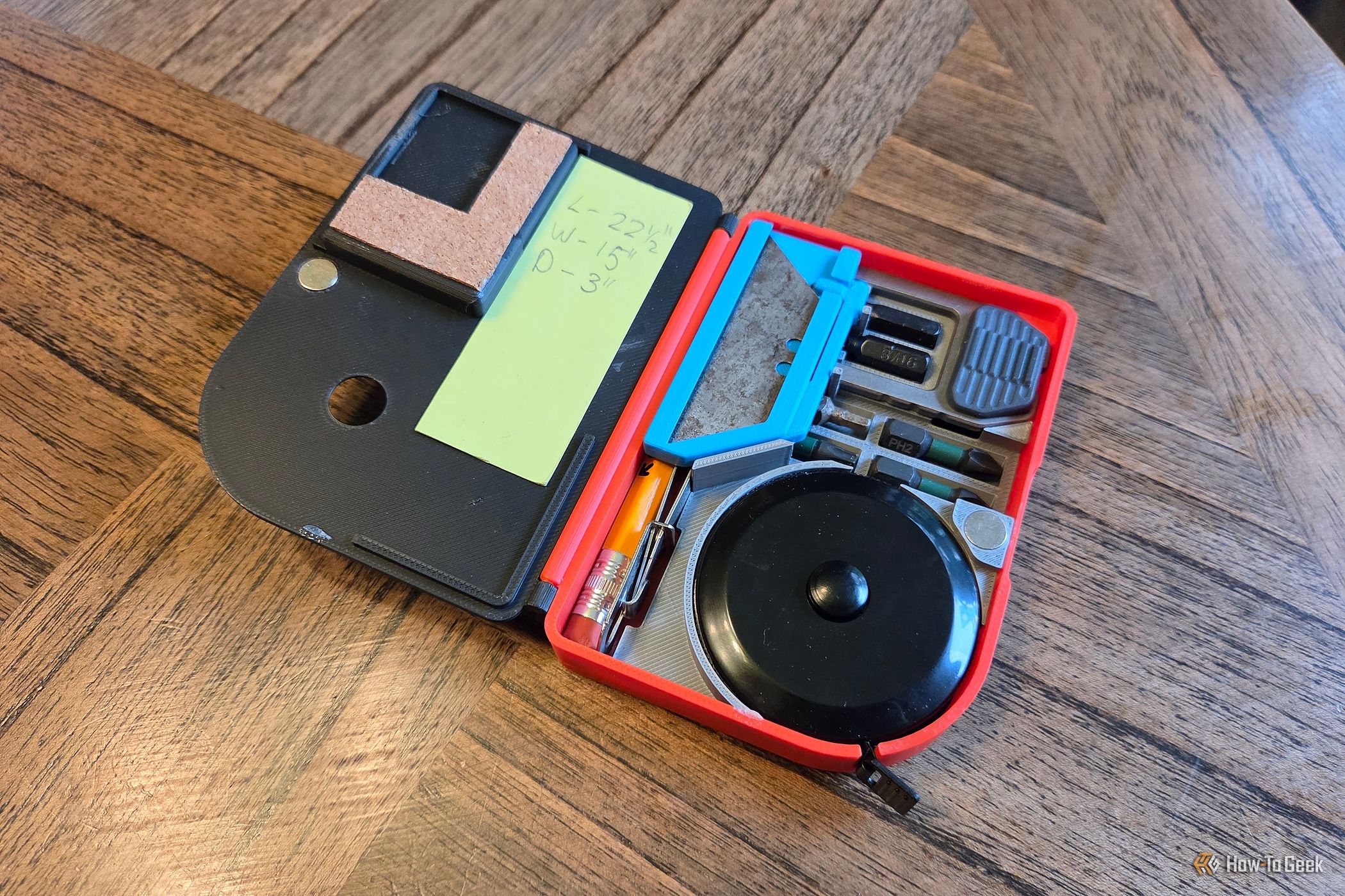
Build Your Own Pocket EDC Toolbox: 6 Tools & Phone-Attachable
Do you often find yourself needing a compact set of tools for quick fixes and everyday tasks? Imagine having a small, portable toolbox that fits right in your pocket or even attaches magnetically to your phone. This
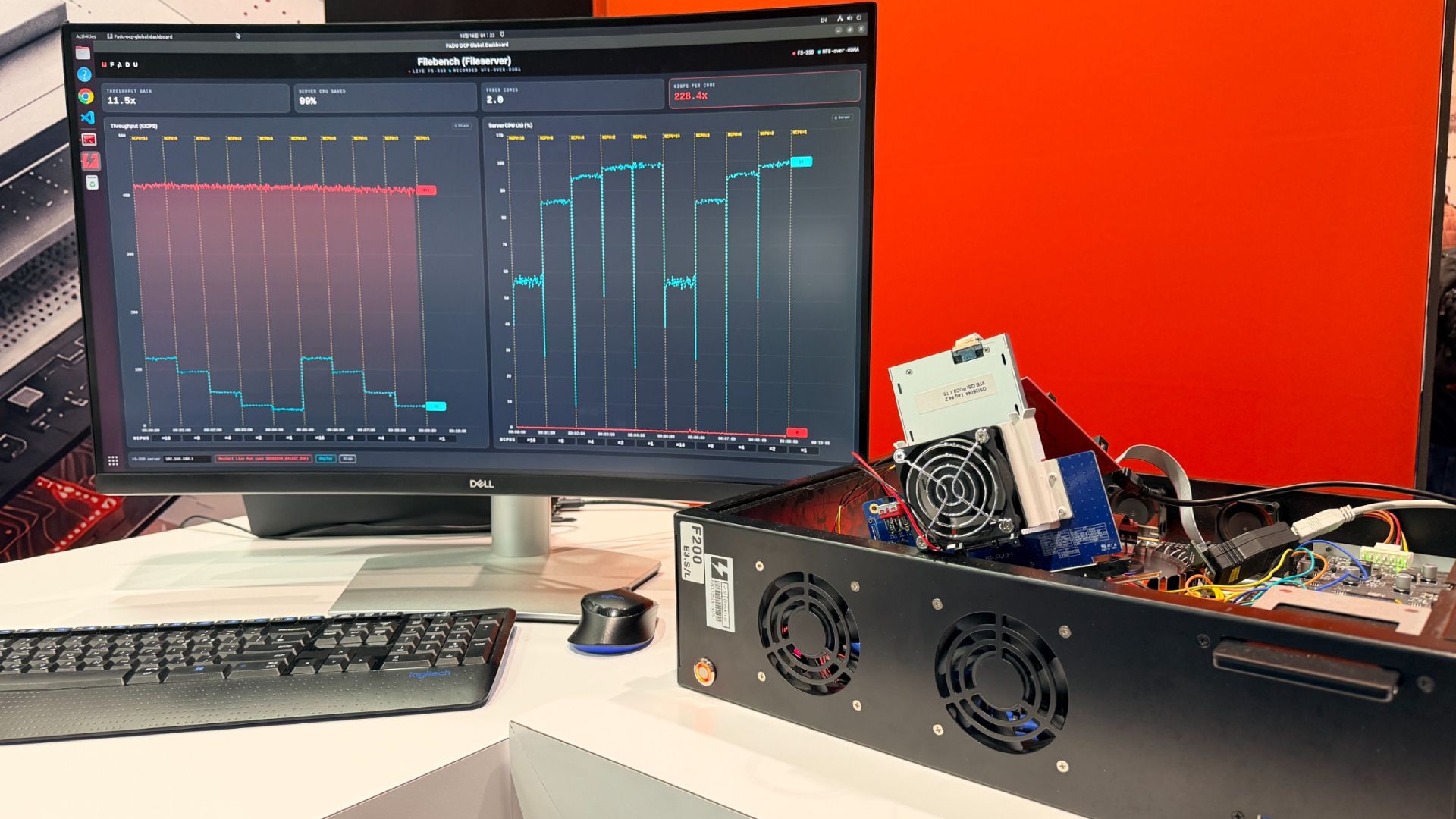
FADU FS-SSD: A Glimpse into the Future of Storage
FADU's File-Semantic SSD moves the filesystem directly into the drive, aiming to dramatically reduce host CPU overhead for file operations, especially for GPUs and DPUs. Promising early results, but a long wait for samples (Q3 2027).

Get Ready for iQOO 16: India Launch, Expected Features & Specs
Discover the highly anticipated iQOO 16, confirmed for India. This guide covers its expected features, powerful specifications, design, camera, battery life, and potential pricing to help you prepare for its launch.

Secure Your Secrets: Lock ChatGPT Conversations with a PIN
Worried about curious eyes peeking at your private ChatGPT conversations? You're in luck! ChatGPT now offers a "Locked Chats" feature, allowing you to hide your sensitive discussions behind a four-digit PIN or biometric

Xbox Game Pass Poised for Massive Overhaul: Farewell, All-You-Can-Eat
Well, gamers, if you thought Xbox Game Pass had settled into its groove, think again. Reports are swirling that Microsoft is preparing for a significant shake-up of its flagship subscription service, moving away from
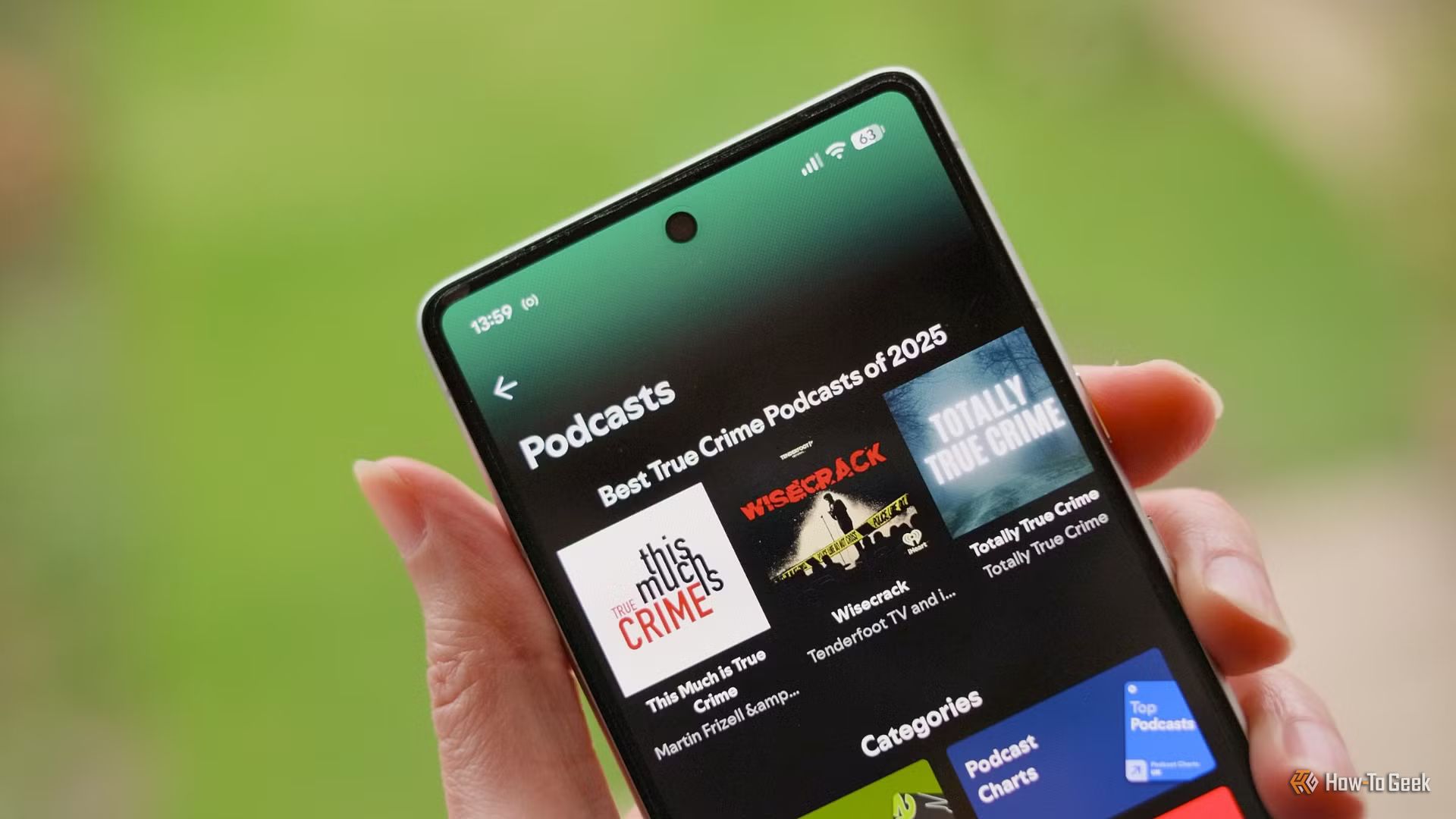
How to Subscribe to Spotify Podcast Memberships - Support Your
Learn to easily subscribe to Spotify podcast Memberships directly within the app, supporting creators with perks like exclusive content and early access, and understand the financial implications for podcasters.