
Secure Your Secrets: Lock ChatGPT Conversations with a PIN
Worried about curious eyes peeking at your private ChatGPT conversations? You're in luck! ChatGPT now offers a "Locked Chats" feature, allowing you to hide your sensitive discussions behind a four-digit PIN or biometric

Worried about curious eyes peeking at your private ChatGPT conversations? You're in luck! ChatGPT now offers a "Locked Chats" feature, allowing you to hide your sensitive discussions behind a four-digit PIN or biometric authentication. This guide will walk you through setting up and using this helpful privacy tool, ensuring your personal AI interactions stay just that – personal to your device.
What You'll Accomplish
By the end of this guide, you'll know how to:
- Set up a unique PIN for your ChatGPT account.
- Move existing conversations into a locked state.
- Initiate new conversations directly within a locked environment.
- Access and manage your private locked chats.
- Understand the true scope of this privacy feature.
Prerequisites and Requirements
Before you dive in, make sure you meet these requirements:
- ChatGPT Plan: The Locked Chats feature is available on ChatGPT Free, Go, Plus, Pro, Business, Enterprise, and Edu plans.
- Access: You'll need access to the ChatGPT mobile or desktop app.
- Device: For biometric authentication, your device must support methods like Face ID or Touch ID.
- Feature Availability: OpenAI is rolling out this feature gradually, so if you don't see it immediately, it may be coming soon.
Important Limitations:
- This feature is not available for ChatGPT for Healthcare plans.
- You cannot lock temporary chats, archived chats, or group chats.
- Conversations with shared links, scheduled tasks, background tasks, or meeting recordings are also ineligible for locking.
How to Set Up and Use Locked Chats
Let's get your private conversations secured!
Step 1: Set Up Your Account PIN (If You Don't Have One)
If this is your first time using the Locked Chats feature, ChatGPT will prompt you to create an account PIN. Here's how to do it:
- Initiate the process to lock a chat (as described in Step 2 or 3).
- When prompted, select Create a PIN.
- Enter a unique four-digit code that you will remember.
- Re-enter the same four-digit code to confirm it.
- You may also be given the option to enable biometric authentication (like Face ID or Touch ID) in your Account PIN settings for quicker access on mobile devices.
A word of caution: If you ever reset your account PIN, all of your locked chats will be permanently deleted and cannot be recovered. Choose your PIN carefully and remember it!
Step 2: Lock an Existing Conversation
Do you have a conversation already in progress that you want to move to your locked chats?
- Open the existing conversation within ChatGPT that you wish to make private.
- Locate and open the options menu for that specific chat (this is usually an icon with three dots or a similar indicator next to the chat title).
- From the options, select Lock chat.
- Confirm your choice by selecting Lock chat again.
- If you have already set up your PIN, you will be prompted to enter it (or use your biometric authentication).
- Once authenticated, the conversation will be moved into your special "Locked chats" project.
Step 3: Start a Brand New Locked Conversation
If you want to start a conversation with ChatGPT directly in a private, locked environment:
- Navigate to your Projects section within the ChatGPT interface.
- Select Locked chats.
- Enter your account PIN or use your device's biometric authentication to gain access to the locked space.
- Once inside, simply type your message as you normally would to launch a new, private conversation.
Step 4: Access Your Locked Conversations
To revisit or continue any of your private discussions:
- Go to the Projects section in your ChatGPT interface.
- Choose Locked chats.
- You will be prompted to enter your account PIN or complete biometric authentication.
- After successful authentication, you will see a list of all your locked conversations, allowing you to select and continue them.
Step 5: Secure Your Locked Chats After Use
When you're finished with your private conversations, it's good practice to close access:
- While viewing your locked chats, look for a Lock now option (this may appear on the screen or within a menu).
- Select Lock now to immediately end access to your locked chats and hide them from the sidebar, ensuring they are out of sight until you choose to access them again.
Important Considerations and Best Practices
Understanding What "Locked" Means
It's crucial to understand the scope of the Locked Chats feature. While it adds a valuable layer of privacy on your device, making conversations inaccessible to others who might use your computer or phone, it does not change how OpenAI handles your data.
- Device-Level Privacy Only: Locked chats are hidden from your regular chat history, pinned chats, and general conversation search on your device.
- Not Encrypted End-to-End: These chats are not suddenly encrypted from end to end, nor are they placed in a separate, encrypted vault that OpenAI cannot access.
- OpenAI's Data Retention: Locking a chat does not prevent OpenAI from retaining or using the conversation data. Your privacy settings, such as the "Improve the model for everyone" option (found in Settings > Data controls), still govern how OpenAI uses your information.
Therefore, while this feature is excellent for local device security, it does not offer additional protection against OpenAI's data policies or remove any information ChatGPT has already collected about you.
Troubleshooting Tips
- Feature Not Showing Up? The Locked Chats feature is rolling out gradually. If you don't see it yet, it might arrive with a future update. Ensure your ChatGPT app is up to date.
- PIN Reset Consequences: Remember, resetting your account PIN will permanently delete all your locked chats. There is no recovery option for these conversations once the PIN is reset. Only reset your PIN if you are absolutely sure you want to delete all locked chat history.
- Ineligible Chats: Double-check that the chat you're trying to lock isn't a temporary, archived, or group chat, or one with shared links or scheduled tasks, as these cannot be locked.
Next Steps and Related Topics
Now that you know how to secure your device-level ChatGPT conversations, consider exploring other privacy options:
- Data Controls: Review your "Improve the model for everyone" setting in Settings > Data controls to manage how your data is used by OpenAI.
- Temporary Chats: For conversations you truly don't want saved by default, consider using the temporary chat feature. Remember, these are not saved, so they cannot be locked for later retrieval.
By combining Locked Chats with other privacy settings, you can gain greater control over your ChatGPT experience.
FAQ
Q: What exactly does the Locked Chats feature protect?
A: Locked Chats protect your conversations from being seen by anyone who has access to your physical device (e.g., someone looking over your shoulder or using your phone/computer). They are hidden from your regular chat history, pinned chats, and search results on that device. It's a device-level privacy layer.
Q: Does locking a chat prevent OpenAI from using or retaining my conversation data?
A: No, locking a chat does not prevent OpenAI from retaining or using your conversation data. It is not an end-to-end encryption feature, nor does it place your data in a separate, encrypted vault from OpenAI's perspective. Your data privacy with OpenAI is governed by your general data control settings, such as turning off "Improve the model for everyone."
Q: What happens if I forget my PIN and need to reset it?
A: If you reset your account PIN, all of your locked chats will be permanently deleted and cannot be recovered. It's crucial to remember your PIN, as resetting it has irreversible consequences for your private conversations.
Related articles

AI Model Lock-in? It's Not the Model, It's Everything Else
A recent survey reveals that while swapping AI models is becoming common, the real lock-in risk for enterprises lies in the surrounding infrastructure: integrations, agent workflows, and guardrails. Despite concerns about vendor lock-in, it often ranks lower than immediate priorities like security and cost in AI purchasing decisions. However, multi-model adopters are proactively building open, flexible architectures, demonstrating a path to mitigate future migration headaches.
Build Your Own Pocket EDC Toolbox: 6 Tools & Phone-Attachable
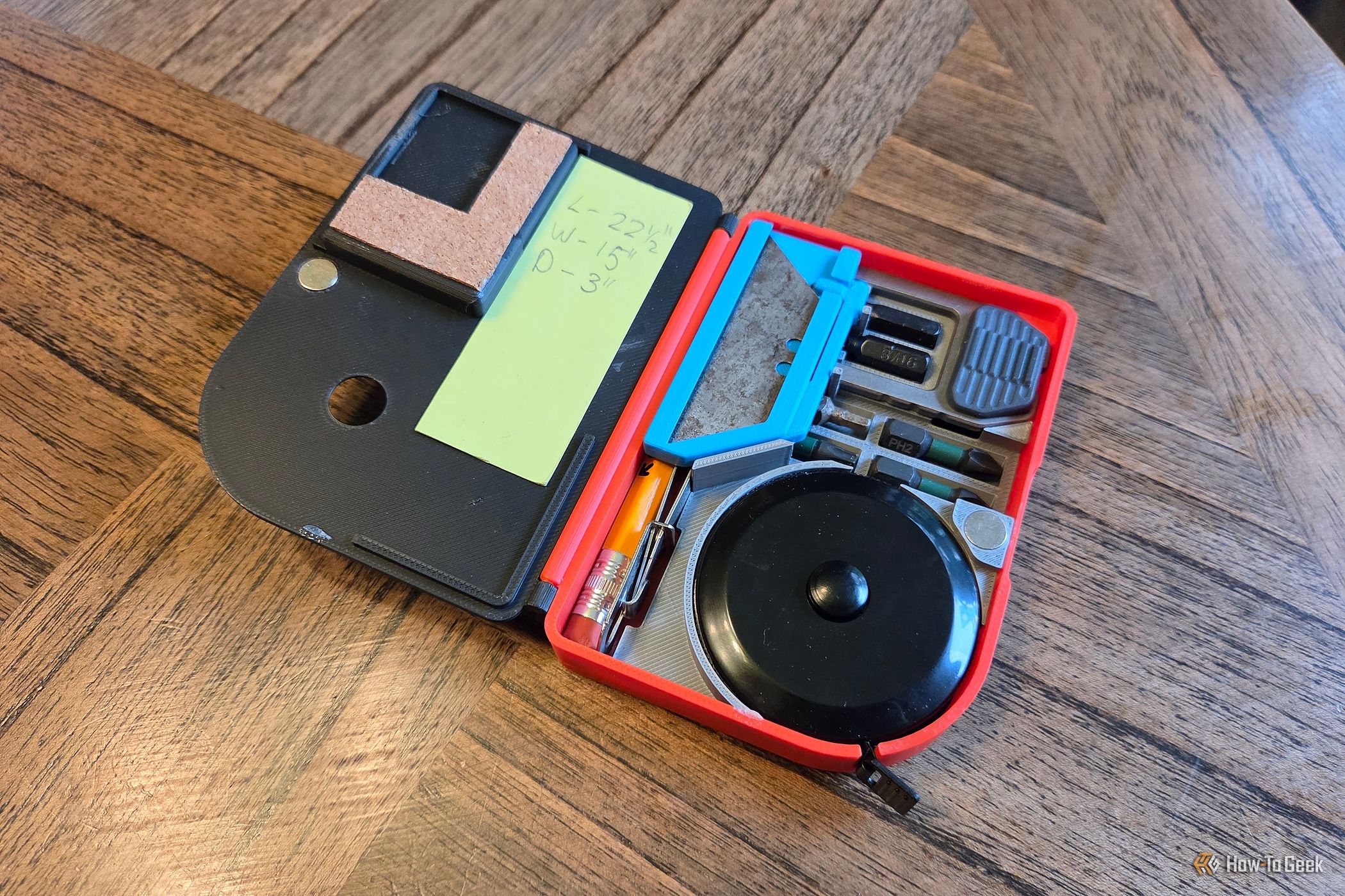
Do you often find yourself needing a compact set of tools for quick fixes and everyday tasks? Imagine having a small, portable toolbox that fits right in your pocket or even attaches magnetically to your phone. This
FADU FS-SSD: A Glimpse into the Future of Storage
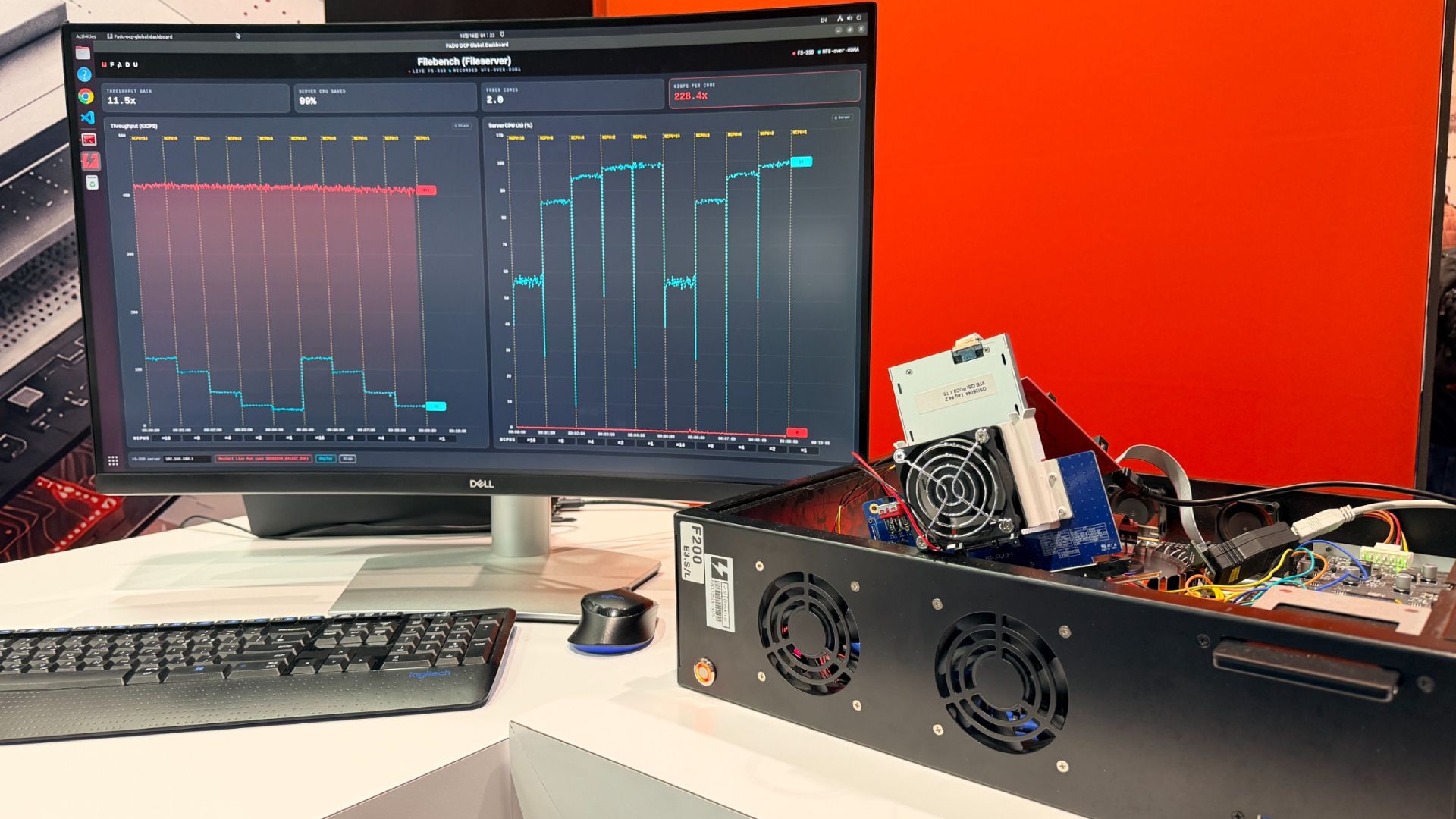
FADU's File-Semantic SSD moves the filesystem directly into the drive, aiming to dramatically reduce host CPU overhead for file operations, especially for GPUs and DPUs. Promising early results, but a long wait for samples (Q3 2027).

Get Ready for iQOO 16: India Launch, Expected Features & Specs
Discover the highly anticipated iQOO 16, confirmed for India. This guide covers its expected features, powerful specifications, design, camera, battery life, and potential pricing to help you prepare for its launch.

Anthropic Pitches AI Safety Bill: Blocking Models at 50+ Deaths
Anthropic has pitched a draft AI safety bill to Congress that would allow blocking an AI model's release if it poses a "catastrophic risk" – defined as potentially causing over 50 deaths or $1 billion in damages through specific threats. The controversial proposal mandates that federal agencies seek judicial approval to halt a model's distribution, limiting their independent authority. This move comes amid ongoing debates over AI regulation and concerns about agentic hacking.

SpaceX's AI Business Fuels Explosive Q3 2026 Revenue Growth
SpaceX reported Q3 2026 revenues of $14.6 billion, a 161% jump, primarily driven by an 830% year-over-year surge in its Super Intelligence (SI) division. This growth was fueled by new cloud services, the Cursor acquisition, and wider Grok AI adoption, alongside robust performance in its Starlink Connectivity business.