
Turn on These 3 Android Settings to Thwart Phone Thieves
Learn to enable three critical Android security settings in minutes to protect your phone from theft, making it almost useless to thieves with automatic locks and biometric safeguards.
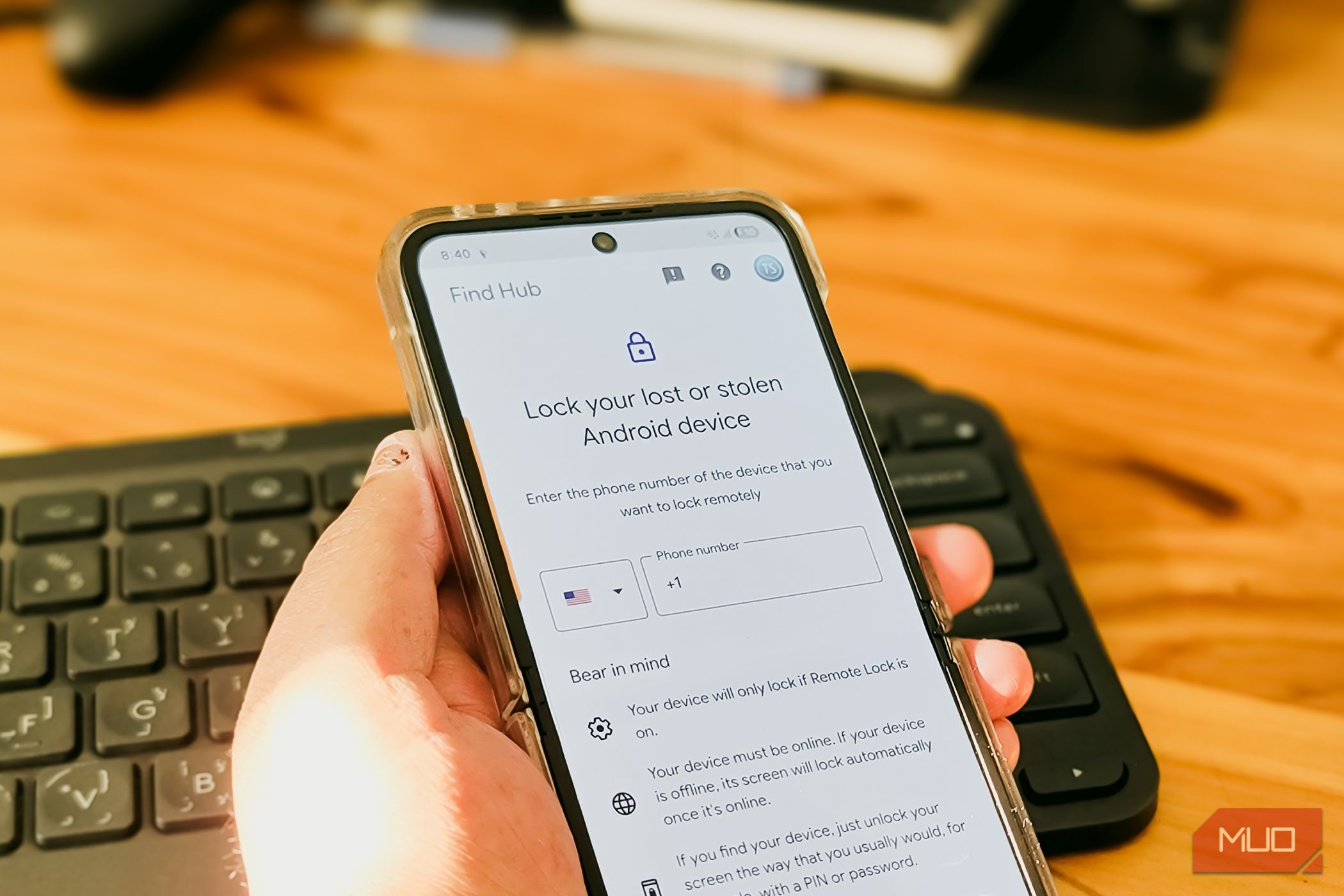
Worried about your Android phone falling into the wrong hands? While no security measure is absolutely foolproof, Google has built powerful anti-theft protections into Android that can make stealing your phone almost pointless. Most of these advanced features, however, are disabled by default.
This guide will walk you through enabling three crucial layers of protection – Device Protection, Identity Check, and Theft Protection – that can significantly reduce the value and usability of a stolen device. By spending a few minutes to set these up, you'll equip your phone with automatic locks, biometric safeguards, and data protection mechanisms that deter thieves and give you peace of mind.
What You'll Accomplish
By following this guide, you will:
- Enable a comprehensive security suite that hardens your device against unauthorized access and data extraction.
- Set up biometric verification for sensitive settings, preventing thieves from disabling security features even if they know your PIN.
- Activate automatic locks that trigger in common theft scenarios, such as snatch-and-run incidents or when your phone goes offline.
- Learn how to remotely lock your phone quickly without a full Google account sign-in.
Prerequisites
Before you begin, ensure your Android device meets these general requirements. Specific features may have additional version requirements, which will be noted in their respective sections:
- Biometric Authentication: Have fingerprint or face unlock set up and enabled on your device.
- OEM Account (e.g., Samsung Account): Be logged into your device manufacturer's account if applicable, as some features require it.
- Up-to-Date Software: Ensure your phone is running a recent version of Android or your OEM's UI (e.g., Android 15/16, One UI 7/8) to access the latest features.
- Trusted Locations: Identify safe places like your home or office for certain features to function optimally.
Let's secure your phone!
1. Enable Device Protection (Android 16+)
Device Protection is a bundled security suite introduced with Android 16 that strengthens your phone's defenses against theft. It activates multiple protections simultaneously.
How Device Protection Works:
- Inactivity Reboot: If your phone remains locked for three days, it automatically restarts into a fresh, encrypted state, requiring a PIN or biometric to access data.
- Intrusion Logging: Encrypted activity logs are stored on Google's servers, allowing you to review them if your phone is compromised.
- Google Play Protect: Keeps Play Protect consistently active.
- Blocks Unknown Sources: Prevents app installations from sources outside the Play Store, reducing malware risks.
- 2G Connection Blocking: Helps prevent downgrade attacks from fake base stations.
- Android Safe Browsing: Provides real-time blocking of malicious websites.
- Stronger Spam Filtering: Enhances spam detection in Google Messages.
Steps to Enable Device Protection:
- Go to Settings.
- Tap on Security & privacy.
- Select Advanced Protection.
- Toggle on Device protection.
- Confirm your choice.
- Restart your phone as prompted.
For Samsung Devices with One UI 8:
- Go to Settings.
- Tap on Google.
- Select All services.
- Look for and enable Advanced Protection.
Important Consideration:
- Sideloading Restriction: While Device Protection is active, you will not be able to sideload apps from outside the Google Play Store. If you rely on such apps, keep this trade-off in mind.
2. Set Up Identity Check (Android 15+ / One UI 7+)
Identity Check addresses a critical vulnerability: what if a thief knows your PIN? This feature ensures that even if your PIN is compromised, sensitive changes to your device security require biometric verification when you're outside trusted locations.
How Identity Check Works:
- Trusted Locations: During setup, you'll define one or more trusted locations (e.g., home, office). Your phone behaves normally within these zones.
- Biometric Requirement: Outside trusted locations, any attempt to change the device PIN, modify biometrics, disable theft protection, or access passkeys will require a fingerprint or face unlock. Your PIN alone won't be sufficient.
Availability:
- Pixel devices running Android 15.
- Samsung Galaxy phones with One UI 7 or newer. (On Samsung, it also adds enhanced protection for your Samsung Account).
Steps to Enable Identity Check (Samsung):
- Go to Settings.
- Tap on Security and privacy.
- Select Lost device protection.
- Look for and enable Identity Check.
Prerequisites for Samsung:
- You must be signed into your Samsung account.
- Fingerprint authentication must be set up and enabled on your device.
Note: Feature names and exact settings may vary slightly across different Android OEMs, but the core functionality remains the same.
3. Configure Theft Protection (Android Specific Features)
Beyond the broader protections, Android also offers three dedicated features under Theft protection that proactively lock your phone in specific theft scenarios.
3.1. Theft Detection Lock (One UI 7.0+)
This feature uses motion sensors and machine learning to identify "snatch-and-run" movements. If your phone is suddenly grabbed while in use and the person runs, it instantly locks the screen.
How Theft Detection Lock Works:
- Motion Sensor Analysis: Detects sudden, rapid movements indicative of theft.
- Location Awareness: Also checks if you've moved away from trusted Bluetooth or Wi-Fi networks.
- Disabling Protection: Turning off Theft Detection Lock requires your PIN or biometric authentication, preventing a thief from easily disabling it.
Steps to Enable Theft Detection Lock (Samsung One UI 7.0+):
- Go to Settings.
- Tap on Security and privacy.
- Select Lost device protection.
- Tap on Theft protection.
- Enable Theft detection lock.
3.2. Offline Device Lock
Thieves often immediately cut off a stolen phone's internet connection, preventing you from using "Find My Phone" or sending remote commands. Offline Device Lock counters this by automatically locking your phone if it remains offline for an extended period.
How Offline Device Lock Works:
- Network Monitoring: Continuously monitors your phone's network status.
- Automatic Locking: If connectivity is lost for too long, the phone automatically locks.
- Blocks Network Disabling: Prevents attempts to turn off Wi-Fi or enable Airplane mode while the phone is locked.
- Accidental Disconnection: If you accidentally lose Wi-Fi, simply unlock your phone as usual.
Important Note:
- This feature is limited to two automatic locks per day.
3.3. Remote Lock
Remote Lock provides a quick and simplified way to lock your phone remotely without needing to sign into your full Google account, which can be invaluable in a stressful situation.
How Remote Lock Works:
- Simplified Access: Uses only an associated phone number and a security question to trigger a lock.
- Faster Than Find My Device: Eliminates the need for a complete account sign-in process, saving precious time.
Steps to Set Up Remote Lock:
- Go to Settings (or find the option under a similar "Security" or "Lost device" menu, depending on your OEM).
- Locate and enable Remote Lock.
- Set up an associated phone number.
- Create and confirm a security question and answer.
How to Use Remote Lock:
- Visit android.com/lock on a web browser.
- Enter your associated phone number.
- Answer your security question.
- Trigger the remote lock command.
Conclusion: Raise the Bar for Thieves
While no phone can ever be 100% theft-proof against a highly determined and technically skilled individual, enabling these three layers of Android protection significantly raises the bar for most real-world theft scenarios. These features make a stolen Android phone far less useful and much harder for a thief to access, unlock, or format.
By taking a few minutes to activate these settings, you're not just protecting your device; you're safeguarding your personal data and making your phone a far less appealing target. Your phone already has the tools to help you find it if it's lost; these features ensure that very little can be done with it even before you get to that point.
FAQ
Q: Will enabling these features prevent me from installing apps from sources other than the Google Play Store?
A: Yes, if you enable "Device Protection" (part of Advanced Protection), it will block app installations from unknown sources. This means you won't be able to sideload apps while this feature is active.
Q: Does "Identity Check" protect my phone if a thief knows my PIN and I'm at home?
A: No, "Identity Check" is designed to require biometric authentication for sensitive changes specifically when you are outside your defined trusted locations (like your home or office). Within trusted locations, your phone behaves normally, and your PIN would suffice for such changes.
Q: How many times can "Offline Device Lock" automatically lock my phone per day?
A: "Offline Device Lock" is limited to two automatic locks per day to prevent excessive locking due to intermittent connectivity issues.
Related articles

The Party's Back! Tales from '85 Unleashes Season 2 on Netflix
Stranger Things: Tales from '85, the animated spin-off, returns to Netflix on September 17th with 10 new episodes. Set between seasons 2 and 3 of the original live-action series, Season 2 sees The Party facing ghostly apparitions and strange creatures around Valentine's Day. While it received mixed reactions initially, it retains the 80s vibe and core characters.

Seattle Warned on Big Tech Reliance; Microsoft/OpenAI Sued; Apple's
A new City of Seattle study warns of the city's risky economic over-reliance on a few dominant tech companies. Simultaneously, the Seattle Times and Newsday are suing Microsoft and OpenAI for alleged AI training data theft, while Apple's new foldable iPhone Duo evokes memories of Microsoft's defunct Surface Duo.

Understanding the Anti-Woke Right's Challenge with Grand Theft Auto VI
Welcome to this guide on understanding the current cultural conversation surrounding the highly anticipated game, Grand Theft Auto VI. This resource is designed to help you navigate the specific challenges and

in-depth: The Best 3-in-1 Apple Charging Stations After Testing 30
Wired has released its top picks for 3-in-1 Apple charging stations, extensively tested for iPhone, Apple Watch, and AirPods. The guide highlights six leading models, from premium speedy options to budget-friendly and compact designs, all focused on decluttering and optimizing charging for Apple users.

How to Quote Movies Accurately - Avoid Common Misquotes
Learn to identify and correct 10 frequently misquoted movie lines to impress your friends and become a true cinematic aficionado.

AI's Impact on Malware Detection: Next-Gen Protection Deep Dive
The landscape of cybersecurity has transformed dramatically. Gone are the days when a simple virus attached itself to a file, easily quarantined by an antivirus scanner. Today, malware is sophisticated, multifaceted,