
How to Jump to Directories Faster in Linux with zoxide
Master directory navigation in Linux by replacing the traditional 'cd' command with 'zoxide', an intelligent, 'frecency'-based tool that learns your habits for quicker jumps.
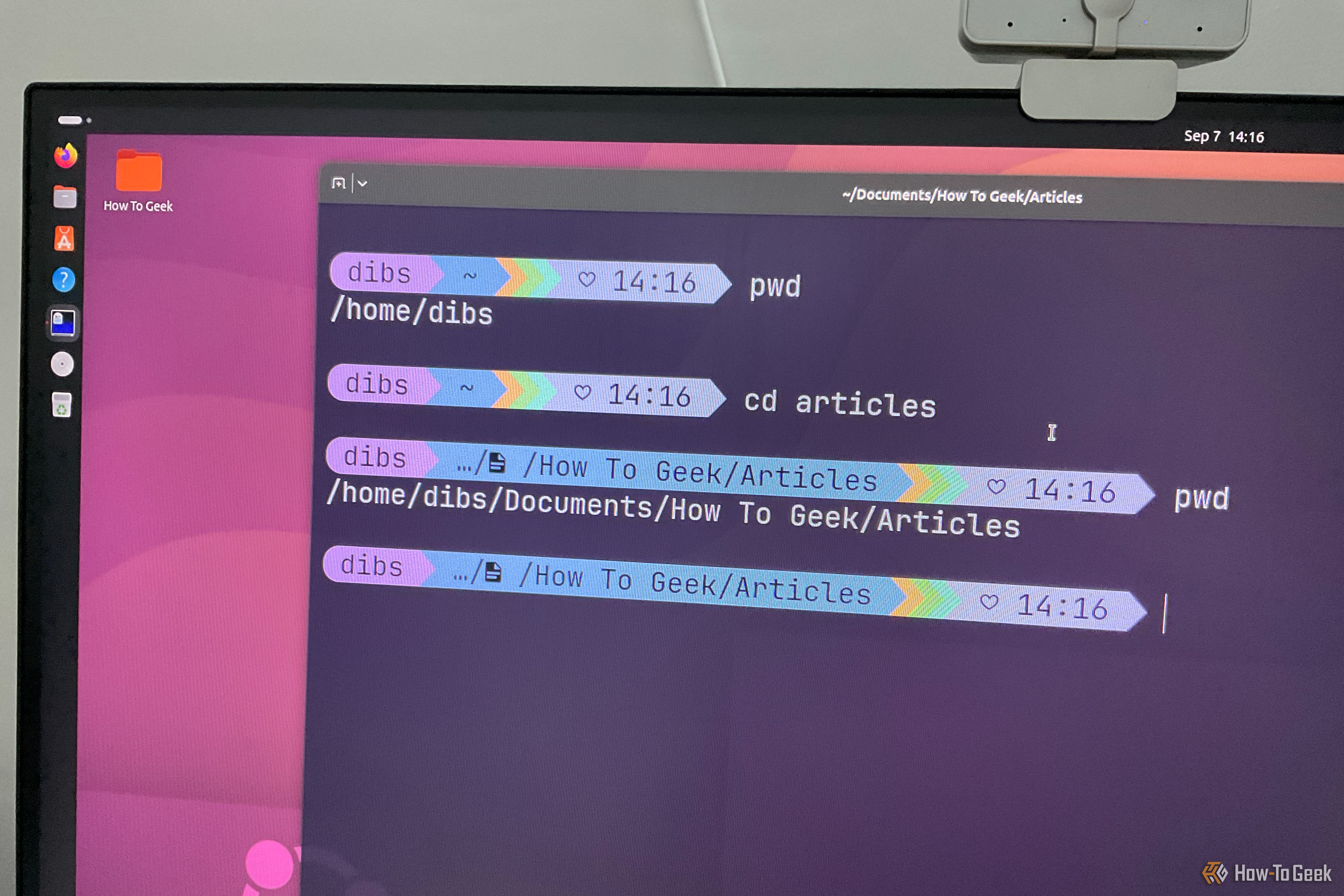
Navigating the Linux terminal using the cd (change directory) command is a foundational skill, but it's not always the most efficient. cd requires you to know the exact path to your destination, turning directory changes into a memorization task or a hunt with ls and tree. What if your terminal could learn your habits and intelligently jump to your most-used directories with minimal typing? This guide introduces zoxide, a modern and smarter alternative. You'll learn how to install and configure zoxide to streamline your Linux terminal navigation, making your workflow significantly faster and more intuitive.
Prerequisites
To follow this guide, you'll need:
- Access to a Linux terminal.
sudoprivileges for package installation (if applicable).- Basic familiarity with your preferred shell (Bash, Zsh, or Fish).
- Optional:
fzffor interactive directory selection.
The Limitations of the Traditional cd Command
The cd command requires precise paths (absolute or relative), making navigation a memorization task rather than an intuitive search. Even with Tab completion, recalling exact directory structures can be cumbersome, forcing you to use ls or tree to find your way. This traditional approach often slows down workflow in complex file systems.
Introducing zoxide: Your Intelligent Directory Jumper
zoxide is a Rust-based command-line utility designed to make directory navigation faster and smarter than cd. It works by tracking the directories you visit, then using a 'frecency' algorithm (combining frequency and recency) to learn your preferred locations. This allows zoxide to intelligently jump to directories based on just a few keywords, eliminating the need to type out long, precise paths. It’s about navigating by destination, not by direction.
How zoxide Revolutionizes Directory Navigation
Once installed, zoxide logs every directory you visit, assigning it a 'frecency' score. This score, a blend of frequency and recency, helps zoxide prioritize your most-used locations. Type z articles from anywhere, and zoxide intelligently jumps to ~/Documents/"How to Geek"/Articles if that's your most frequent 'Articles' directory. It's also case-insensitive. When multiple directories share similar names (e.g., ~/Documents/"How to Geek"/Articles and ~/Documents/Forbes/Articles), zoxide will favor the one with the higher frecency. To specify, use z forbes articles; the order of keywords matters. For manual selection, install fzf and use zi articles to launch an interactive picker showing all matches and their scores.
Step-by-Step: Installing and Setting Up zoxide
Installing and configuring zoxide is straightforward and quick.
Step 1: Install zoxide
Install zoxide using your distribution's package manager:
- Arch Linux (and derivatives):
sudo pacman -S zoxide - Ubuntu/Debian (and derivatives):
sudo apt install zoxide - Fedora (and derivatives):
sudo dnf install zoxide
Alternatively, use the official installation script: bash curl -sSfL https://raw.githubusercontent.com/ajeetdsouza/zoxide/main/install.sh | sh
Step 2: Initialize zoxide with Your Shell
zoxide needs to be initialized to integrate with your shell. Add the appropriate line to your shell's configuration file and then reload it.
- Bash: Add
eval "$(zoxide init bash)"to~/.bashrc, thensource ~/.bashrc. - Zsh: Add
eval "$(zoxide init zsh)"to~/.zshrc, thensource ~/.zshrc. - Fish: Add
zoxide init fish | sourceto~/.config/fish/config.fish, thensource ~/.config/fish/config.fish.
Step 3: (Optional) Make cd Use zoxide's Logic
If you prefer to keep typing cd, you can configure it to use zoxide's intelligent jumping. This is ideal for those with strong muscle memory.
- Bash: Add
eval "$(zoxide init bash --cmd cd)"to~/.bashrc(replacing or following the previousinitline), thensource ~/.bashrc.
Now, cd will behave like z, intelligently jumping to directories based on your input.
Tips for Effective zoxide Use
- Practice makes perfect: The more you navigate with
zoxide, the more accurate its 'frecency' algorithm becomes. - Refine searches: Use multiple keywords (e.g.,
z project docs) to target specific directories, remembering the order of terms matters. - Interactive choice: When unsure or when
zoxideoffers multiple valid jumps, usezi(iffzfis installed) to pick your destination from a list.
FAQ
Q: What if zoxide jumps to the wrong directory with a short keyword?
A: This usually means zoxide needs more data to learn your preference, or there are multiple strong matches. Try being more specific with additional keywords (e.g., z dev python instead of z python). If fzf is installed, use zi [keywords] to open an interactive selector and manually choose the correct path. zoxide improves with continued use.
Q: Can I still use the standard cd command for specific paths?
A: Yes, even if you configure cd to use zoxide's logic, the traditional cd /absolute/path or cd ../relative/path commands will still function exactly as they always have. zoxide simply adds a smarter way to jump using partial names without removing cd's fundamental capabilities.
Q: Does zoxide pose any privacy or security risks by tracking my directories?
A: No, zoxide is a local-only utility. It tracks your directory visits within your terminal session to build its 'frecency' database, which is stored securely on your local system, typically in your home directory. It does not transmit any information externally, nor does it track activities outside of its purpose to improve your command-line navigation.
Conclusion
Adopting zoxide transforms your Linux terminal experience, making directory navigation swift and intuitive. By leveraging its intelligent 'frecency' system, you save time and mental effort previously spent on recalling paths. Embrace zoxide today and elevate your command-line productivity!
Next Steps
Experiment with zoxide in your daily workflow to fully appreciate its benefits. For even more command-line power, explore fzf as a general fuzzy finder or delve into zoxide's advanced configuration options by consulting its documentation.
Related articles

How to Stop Google Using Your Gmail & Drive Data for Ads
Google's "Personal Intelligence" feature, designed to offer more tailored AI responses, may inadvertently lead to your personal data from apps like Gmail, Google Drive, and Google Photos being used for targeted

Google Fitbit Edge Review: Your Anti-Smartwatch Fitness Sweet Spot
Learn if the Google Fitbit Edge is the right fitness tracker for you, balancing core health features with a simplified experience. Discover its design, advanced tracking, and software insights to make an informed decision.

Unlock Your Pixel's Hidden Potential: Essential Features to Enable
Learn to enable six essential features on your Pixel phone, including Lockscreen Widgets, Screen Saver, Notification History, Clear Calling, Smooth Display, and Adaptive Vibration, to enhance your user experience in just a few steps.

Enable LE Audio on Android for Longer Earbud Battery Life
Learn to enable LE Audio on your Android phone in just a few steps to significantly extend your earbud's battery life, improve audio sync, and enhance connection stability.
6 3D Printing Projects to Make Your Home Feel Custom-Built
Discover 6 creative 3D printing projects to customize your home, from organizing cables and enhancing lighting to creating custom smart device mounts and modular storage systems, making your space truly your own.

LG’s brilliant C6 OLED TV is already $400 off ahead of Black Friday
LG has launched an early Black Friday sale, offering up to $400 off its C6 OLED TV, including an all-time low price for the 55-inch model. This deal, available at major retailers and LG's site, features the advanced 4K TV with a faster processor, brighter display, and enhanced gaming features, despite recent privacy discussions.