
Boost Home Assistant Alerts: Beyond Basic Phone Notifications
Phone notifications are easily overlooked for critical smart home events like a water leak or automation failure. For these crucial situations, relying solely on a phone ping isn't enough. This guide shows you how to
Phone notifications are easily overlooked for critical smart home events like a water leak or automation failure. For these crucial situations, relying solely on a phone ping isn't enough. This guide shows you how to set up robust Home Assistant alerts beyond basic phone notifications, ensuring you're always aware of what matters most in your home, even when your phone is silent.
What You'll Accomplish
You'll learn to implement a variety of high-impact notification strategies using your existing smart home devices. Create a resilient system that delivers critical information through spoken announcements, visual light changes, dedicated phone calls, and smart TV alerts. This ensures immediate, undeniable alerts for truly important events, wherever you are in your home, or even outside of it.
Prerequisites
Before you begin, ensure you have the following in place:
- Home Assistant Installation: A fully configured and running Home Assistant server.
- Smart Speakers: Devices integrated with Home Assistant (e.g., Google Home, Alexa, or DIY ESPHome speakers).
- Color Smart Bulbs: At least one color-changing smart bulb integrated with Home Assistant. (Standard white smart bulbs can also work).
- Smartphone: An iPhone or Android device with the Home Assistant companion app installed.
- Smart TV: An internet-connected smart TV that supports Home Assistant integration (e.g., Android TV, Samsung Tizen, LG WebOS).
- Optional - SIP Phone: A Voice over IP (VoIP) phone if you wish to set up desk-specific call alerts.
- Optional - Presence Detection: For enhanced targeting (e.g., using Bluetooth presence like Bermuda, or other sensors).
Set Up Unmissable Home Assistant Alerts
Here are several effective methods to get your attention when standard notifications just aren't enough:
1. Spoken Announcements via Smart Speakers
Smart speakers excel at delivering alerts that are difficult to ignore, especially with increased volume. An instant announcement, for example, can notify you if a critical automation has failed silently.
How to Implement:
- Integrate Speakers: Ensure your smart speakers are integrated with Home Assistant.
- Create an Automation: In Home Assistant, navigate to “Settings” > “Automations & Scenes” and create a new automation.
- Define Trigger: Set your trigger for the critical event (e.g., a water sensor detects a leak, or an automation failure).
- Add Action: For the action, choose a
media_playerservice likemedia_player.play_mediaortts.speak. Specify your smart speaker's entity ID and the spoken message. - Adjust Volume: Consider adding steps to temporarily increase the speaker's volume before the announcement and restore it afterward.
Tip: With room presence detection (like Bermuda), you can target the speaker closest to your location or play the announcement on all speakers for extremely critical alerts.
2. Flashing Your Smart Bulbs
Visual alerts are highly effective. Flashing lights immediately draw attention, particularly when paired with color changes.
How to Implement:
- Integrate Smart Bulbs: Ensure your smart bulbs are integrated with Home Assistant.
- Create an Automation: Set up a new automation with your chosen critical trigger.
- Add Action: For the action, use a
lightservice likelight.turn_onwithflash: true. For color bulbs, specifycolor_name(e.g.,red) orrgb_colorto make the alert more noticeable. You might also increase brightness. - Restore State (Recommended): After a short delay, add another action to return the lights to their previous or default state.
Tip: During the day, a simple white light flash might be missed. Use a color smart bulb to flash a vivid color like red. In darkness, even a brief white flash is effective as it momentarily creates darkness.
3. Calling Your Desk Phone (Niche but Effective)
If you frequently work at a desk, having Home Assistant directly call a SIP phone there can be incredibly effective.
How to Implement:
- Hook Up SIP Phone: This typically requires integrating your SIP phone with Home Assistant, possibly via an Asterisk/FreePBX server or a direct SIP integration. This is an advanced setup.
- Create an Automation: Define an automation with your critical trigger.
- Add Action: Use the appropriate Home Assistant service to initiate a call to your SIP phone.
- Spoken Message: When the call is answered, configure Home Assistant to play a spoken message that repeats until you hang up, ensuring clarity.
Tip: Use presence detection for your office. The phone should only ring if you're detected at your desk, avoiding unnecessary interruptions.
4. Notifications on the Smart TV
For many, the smart TV is a primary focus in the evenings. Using it for notifications can be highly effective.
How to Implement:
- Integrate Smart TV: Ensure your smart TV is integrated with Home Assistant.
- Create an Automation: Set the trigger for your important event.
- Add Conditions: Critically, add conditions to ensure the TV is on and people are detected in the room before the notification triggers.
- Add Action: Use a
notifyservice targeting your TV to display a message. Consider adding an action to temporarily pause any currently playing media for a few seconds; this sudden sound interruption will draw attention to the screen. - Resume Media (Optional): After a short delay, you can add an action to resume the paused media.
Tip: Keep notification duration brief (e.g., a few seconds) to avoid obscuring content. A momentary media pause is often sufficient to grab attention.
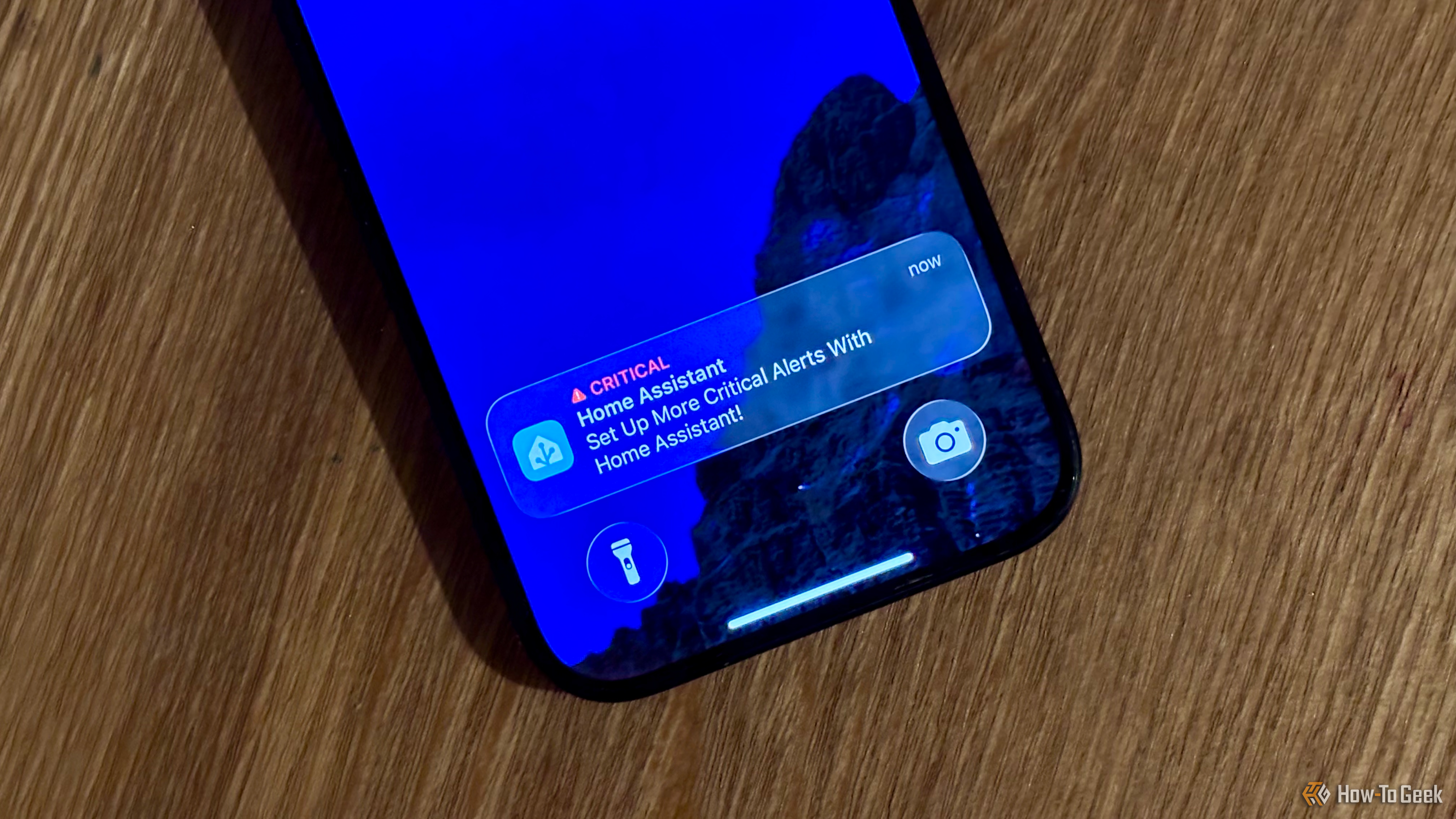
5. Critical Phone Alerts (Ignoring Silent Mode)
While this guide emphasizes alternatives, “critical alerts” are a powerful exception. These bypass your phone's silent mode or Do Not Disturb settings, ensuring an audible sound always plays.
How to Implement (iPhone):
- Home Assistant App: Ensure the Home Assistant companion app is installed and configured.
- Create Automation: In Home Assistant, define your critical alert trigger.
- Add Action: Use the
notify.mobile_app_your_iphone_nameservice. Includeapns_critical_alert: trueand specify a distinct, attention-grabbingsound. - Grant Permission: On your iPhone, grant the Home Assistant app permission for critical alerts in your phone settings.
How to Implement (Android):
- Home Assistant App: Ensure the Home Assistant companion app is installed and configured.
- Create Automation: Define your critical alert trigger.
- Add Action: Use the
notify.mobile_app_your_android_phone_nameservice. Specify achannelconfigured to override Do Not Disturb. The Home Assistant app allows custom notification channels. - Grant Permission: On your Android phone, enable the required permission for that notification channel in your phone's settings to override Do Not Disturb.
Tip: This method is invaluable for alerts when you're away from home, ensuring you receive critical alerts regardless of location or your phone's quiet mode.
Troubleshooting Common Issues
- Alert Not Triggering: Double-check automation triggers and conditions. Review Home Assistant logs for errors.
- No Sound/Light: Verify devices are online and integrated. Ensure volumes are adequate or brightness levels are high enough.
- Permissions (Phone Alerts): Confirm the Home Assistant app has necessary permissions to bypass Do Not Disturb or silent mode.
- Presence Detection Issues: Ensure sensors report accurately and states are correctly reflected in Home Assistant.
Best Practices for High-Impact Alerts
- Layer Notifications: For critical events (e.g., fire alarm, water leak), combine multiple methods (spoken announcement and flashing red lights) for maximum impact.
- Contextual Alerts: Use presence detection or time-of-day conditions to make alerts relevant. Avoid unnecessary notifications, like a flashing TV at 3 AM.
- Distinct Sounds/Colors: Use unique, recognizable sounds or colors for different alert types to quickly understand the nature of the emergency.
- Test Thoroughly: Always test your critical automations to ensure they trigger as expected and deliver the message effectively.
Next Steps
Now that you've mastered unmissable Home Assistant alerts, consider further enhancing your smart home:
- Two-Way Interaction: Explore setting up voice commands on your SIP phone or smart speakers to acknowledge alerts or take immediate action.
- Dashboards: Create a dedicated Home Assistant dashboard for critical system statuses, providing a quick visual overview of your home's health.
- Remote Actions: Set up automations that take immediate action based on critical alerts, such as turning off a water main if a leak is detected.
FAQ
Q: Why should I use these methods instead of just standard phone notifications?
A: Standard phone notifications are often overlooked due to notification fatigue, or they might be silenced by your phone's Do Not Disturb mode. For critical events, these alternative methods provide immediate, undeniable alerts through auditory or visual cues in your environment, ensuring you react promptly.
Q: Can I combine multiple alert methods for a single critical event?
A: Absolutely! Combining methods is highly recommended for the most critical situations. For example, a water leak could trigger a spoken announcement on all smart speakers, flash all smart bulbs red, and send a critical alert to your phone, ensuring you receive the message no matter your location or activity.
Q: Do these advanced alerts work when I'm away from home?
A: Most in-home methods (smart speakers, flashing lights, TV notifications, SIP phone calls) are for when you are present. However, critical phone alerts (bypassing silent mode/Do Not Disturb) are specifically designed to work even when you are outside your home, making them an indispensable part of a comprehensive alert strategy.
Related articles

Enable LE Audio on Android for Longer Earbud Battery Life
Learn to enable LE Audio on your Android phone in just a few steps to significantly extend your earbud's battery life, improve audio sync, and enhance connection stability.
6 3D Printing Projects to Make Your Home Feel Custom-Built
Discover 6 creative 3D printing projects to customize your home, from organizing cables and enhancing lighting to creating custom smart device mounts and modular storage systems, making your space truly your own.

in-depth: Best Pet Camera of 2026: Furbo, Petcube, and Enabot: Pet
Wired's October 2026 review highlights the top pet cameras, featuring Furbo and Petcube models, alongside evaluations of devices like the Enabot Ebo Max FamilyBot. These cameras offer peace of mind through advanced features like treat dispensing, 360-degree views, and two-way audio for remote pet interaction and monitoring.
Stop Wasting Time: Automate Windows Chores with PowerToys
Are you tired of repetitive, manual tasks on Windows that eat into your valuable time? Whether it's resizing images one by one, retyping text from a screenshot, or struggling to arrange your windows, these small

Ars Technica's Spaceport Search: Critical Insights, Urgent Challenge
Quick Verdict Ars Technica's article, "Inside the Pentagon, the pressure is on to find a home for a new spaceport," delivers a concise yet crucial look into the United States Space Force's ambitious plans to establish a
GameMaker's GMRT: A New Era of Free Commercial Indie Development
GameMaker's GMRT runtime will be free for commercial use from January 1, 2027, democratizing development for desktop, mobile, web, and GX Games. This pivotal move includes source code access, boosting creative freedom for indie creators.