
Stop Wasting Time: Automate Windows Chores with PowerToys
Are you tired of repetitive, manual tasks on Windows that eat into your valuable time? Whether it's resizing images one by one, retyping text from a screenshot, or struggling to arrange your windows, these small
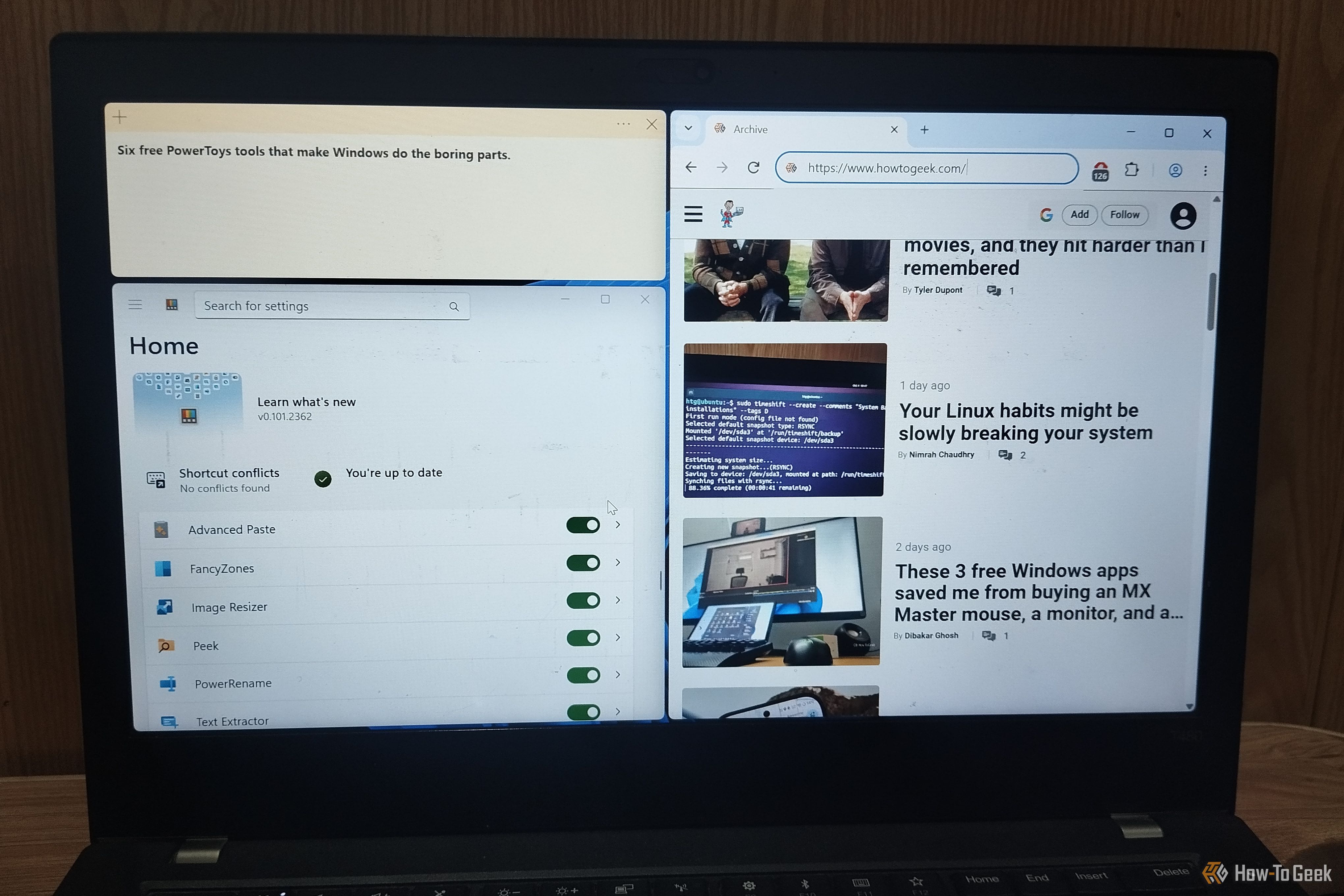
Are you tired of repetitive, manual tasks on Windows that eat into your valuable time? Whether it's resizing images one by one, retyping text from a screenshot, or struggling to arrange your windows, these small inefficiencies add up. The good news is that Microsoft offers a powerful, free solution called PowerToys. This collection of over 30 utilities is designed to streamline your workflow and automate those tedious Windows chores with just a few clicks or keyboard shortcuts.
You don't need to master every single PowerToy to see a significant benefit. Even integrating a handful of these tools into your daily routine can dramatically boost your productivity. This guide will walk you through six essential PowerToys features that are worth trying, helping you understand what they do, how to use them, and offering tips to make the most of their capabilities.
Getting Started with PowerToys
Before diving into the specific utilities, you'll need to install PowerToys and enable the features you want to use.
Prerequisites:
- A Windows PC (Windows 10 v1903+ or Windows 11).
- An internet connection to download PowerToys.
Installation Steps:
- Install PowerToys: Download and install PowerToys directly from the Microsoft Store. You can search for "PowerToys" in the store and follow the installation prompts.
- Open PowerToys Settings: Once installed, launch the PowerToys application.
- Enable Features: In the PowerToys Settings window, you'll see a list of available utilities on the left sidebar. Simply click on the name of a utility and toggle its switch to the "On" position to enable it. You can also customize related settings and keyboard shortcuts for each tool here.
Now, let's explore six PowerToys features that can transform your Windows experience.
1. FancyZones: Custom Window Layouts for Seamless Multitasking
Windows' default window snapping is useful, but it can feel restrictive, especially on large or multi-monitor setups. FancyZones allows you to define custom zones on your desktop, making window arrangement incredibly efficient.
What it does:
FancyZones lets you create and save custom grid layouts for arranging application windows. Instead of manually dragging and resizing windows, you can snap them into predefined areas with ease.
How to use it:
- Open PowerToys Settings, navigate to FancyZones, and click Open layout editor.
- Choose from a selection of preset layouts, or create your own custom layout by splitting and merging zones.
- Once a layout is active, hold down the Shift key while dragging a window. The predefined zones will appear, allowing you to drop the window into your desired area.
Tips:
- FancyZones truly shines on ultra-wide monitors or multiple display setups where default snapping is insufficient.
- While the
Shift+ drag method might feel like an extra step initially, it offers repeatable, precise window placement that manual resizing can't match.
2. Text Extractor: Grab Text from Anywhere on Your Screen
How often have you needed to copy text from an image, a paused video, or a scanned document? The traditional methods involve retyping, or uploading the image to an online OCR (Optical Character Recognition) tool. Text Extractor eliminates these steps.
What it does:
This utility uses OCR technology to recognize and copy text displayed anywhere on your screen directly to your clipboard, ready for pasting.
How to use it:
- Press Win + Shift + T.
- Your screen will dim, and a crosshair will appear. Click and drag your mouse to select the area containing the text you wish to extract.
- Release the mouse button. The recognized text will automatically be copied to your clipboard.
Troubleshooting & Tips:
- OCR isn't flawless. Unusual fonts, blurry images, or low-resolution text can sometimes lead to inaccuracies. Always give the extracted text a quick proofread before using it.
- This tool is incredibly handy for quickly pulling information from screenshots, presentations, or non-editable documents.
3. Advanced Paste: Paste Content Exactly How You Need It
Copying text is simple, but pasting it into the correct format can often be a hassle, especially when dealing with unwanted formatting. Advanced Paste provides robust control over your clipboard content.
What it does:
Advanced Paste enhances the standard paste function, allowing you to transform content before pasting it. Options include pasting as plain text, Markdown, JSON, or even converting it into files like .txt, .html, or .png.
How to use it:
- Copy any content (text, images, etc.) to your clipboard.
- Press Win + Shift + V.
- A small pop-up window will appear, presenting various paste options. Select your desired format or action (e.g., "Paste as plain text," "Paste as Markdown").
- Optionally, enable "Paste with AI" (disabled by default) to leverage AI for transformations like grammar correction or summarization before pasting.
Tips:
- This feature is a godsend for web developers, writers, or anyone who frequently works with structured data or needs to strip formatting without resorting to Notepad as an intermediary step.
- Experiment with the different paste options to see how they can streamline your content workflow.
4. PowerRename: Batch Renaming Made Easy
Renaming multiple files one by one is one of the most tedious manual chores. PowerRename turns this into a quick, error-checked process.
What it does:
PowerRename allows you to rename large batches of files or folders using find-and-replace functionality, support for regular expressions, and sequential numbering.
How to use it:
- In File Explorer, select all the files or folders you want to rename.
- Right-click on your selection and choose PowerRename.
- In the PowerRename window, enter the text you want to find and the text you want to replace it with.
- Observe the live preview at the bottom to see how your files will be renamed before you commit the changes.
- Click Rename.
Tips:
- The live preview is your best friend here, preventing potential renaming mishaps. Always check it carefully.
- Use regular expressions for complex renaming patterns, like extracting specific dates or codes from filenames.
- It's indispensable for organizing downloaded files, screenshots, or large photo collections.
5. Image Resizer: Resize Images in a Snap
Opening an image editor just to scale down a few photos for email or web uploads is an unnecessary time sink. Image Resizer provides a fast, integrated solution right within File Explorer.
What it does:
This utility lets you resize one or multiple images to predefined dimensions or custom sizes directly from their context menu in File Explorer.
How to use it:
- Select the image(s) you want to resize in File Explorer.
- Right-click on your selection and choose Resize with Image Resizer.
- In the dialog box, select a preset size (e.g., Small, Medium, Large) or enter custom dimensions.
- Click Resize.
Tips:
- By default, Image Resizer creates resized copies and leaves your original images untouched, providing a crucial safety net.
- Combine it with PowerRename: rename your batch of photos first, then resize them, all without ever leaving File Explorer.
- It's perfect for quickly preparing images for email attachments, blog posts, or social media sharing, ensuring your files are optimized without being oversized.
6. Peek: Quickly Preview Files Without Opening Them
Navigating through folders with similarly named files or generic icons can be frustrating. Opening each file just to identify its content is inefficient. Peek offers an instant preview.
What it does:
Peek enables you to quickly preview the contents of supported files directly from File Explorer with a single key press, without fully opening the associated application.
How to use it:
- In File Explorer, select the file you wish to preview.
- Press the Spacebar.
- A preview pane will pop up, displaying the file's content.
- Press the Spacebar again to close the preview.
Tips:
- Peek supports a wide range of formats, including images, PDFs, documents, videos, and text files.
- It's incredibly useful for quickly scanning through a
Downloadsfolder to find the right invoice, checking which version of a document is correct, or sifting through a collection of photos. - This tool significantly reduces the number of applications you need to open and close throughout your workday.
Stop Doing the Little Things the Hard Way
PowerToys is a treasure trove of utilities, but not every tool will fit every workflow. The key is to identify the features that address your most frequent annoyances. Start by picking one or two from this list that resonate with your daily tasks and build a habit around them. For example, some users find Peek, Text Extractor, and Advanced Paste indispensable, while others might prefer FancyZones for complex window management.
Remember, you can always remap keyboard shortcuts in the PowerToys settings to make these tools feel more natural and integrated into your routine. Empower your Windows experience and stop wasting time on manual chores when automation is just a few clicks away.
FAQ
Q: Is PowerToys free to use? A: Yes, PowerToys is a completely free collection of utilities provided by Microsoft.
Q: Where can I download PowerToys? A: You can download PowerToys from the Microsoft Store on your Windows PC or through the official Microsoft PowerToys GitHub page.
Q: Can I customize the keyboard shortcuts for PowerToys features? A: Absolutely! You can access the PowerToys Settings, navigate to the specific utility you want to customize, and change its activation keyboard shortcuts to suit your preferences.
Related articles
Solve Annoying PDF Problems Locally in Your Browser with BentoPDF
Dealing with PDFs can often feel like a never-ending series of small, annoying tasks. You might need to combine several documents, reduce the size of a bulky file, or even make an image-only scan searchable. Typically,

Your Guide to LG's 115-inch QNED evo TV: Features, Gaming & Price
Welcome to an exciting exploration of LG's latest innovation in home entertainment: the colossal 115-inch QNED evo AI Mini LED TV. This guide is designed to walk you through everything you need to know about this

How to Stop Google Using Your Gmail & Drive Data for Ads
Google's "Personal Intelligence" feature, designed to offer more tailored AI responses, may inadvertently lead to your personal data from apps like Gmail, Google Drive, and Google Photos being used for targeted

Wildwood: Laika Unleashes a Dark Fairy Tale From The Decemberists
Laika's *Wildwood*, from The Decemberists' Colin Meloy and artist Carson Ellis, brings a dark stop-motion fairy tale to life. Embracing unsettling folklore and a rare PG-13 rating, the film delves into the grimmer side of storytelling, inspired by classics like *The Dark Crystal*.

OpenAI's Deepfake Defense: A Timely, Imperfect Solution
Quick Verdict OpenAI's new safeguard against political deepfakes, by forcing politically sensitive image generations into a cartoon style, is a practical and timely step to protect election integrity. While not a

Google Fitbit Edge Review: Your Anti-Smartwatch Fitness Sweet Spot
Learn if the Google Fitbit Edge is the right fitness tracker for you, balancing core health features with a simplified experience. Discover its design, advanced tracking, and software insights to make an informed decision.