
Unlock Your Phone's Hidden Button: Back Tap Shortcuts
Learn to activate hidden back tap shortcuts on your smartphone to automate common tasks quickly and easily with a simple double or triple tap on the back of your device.
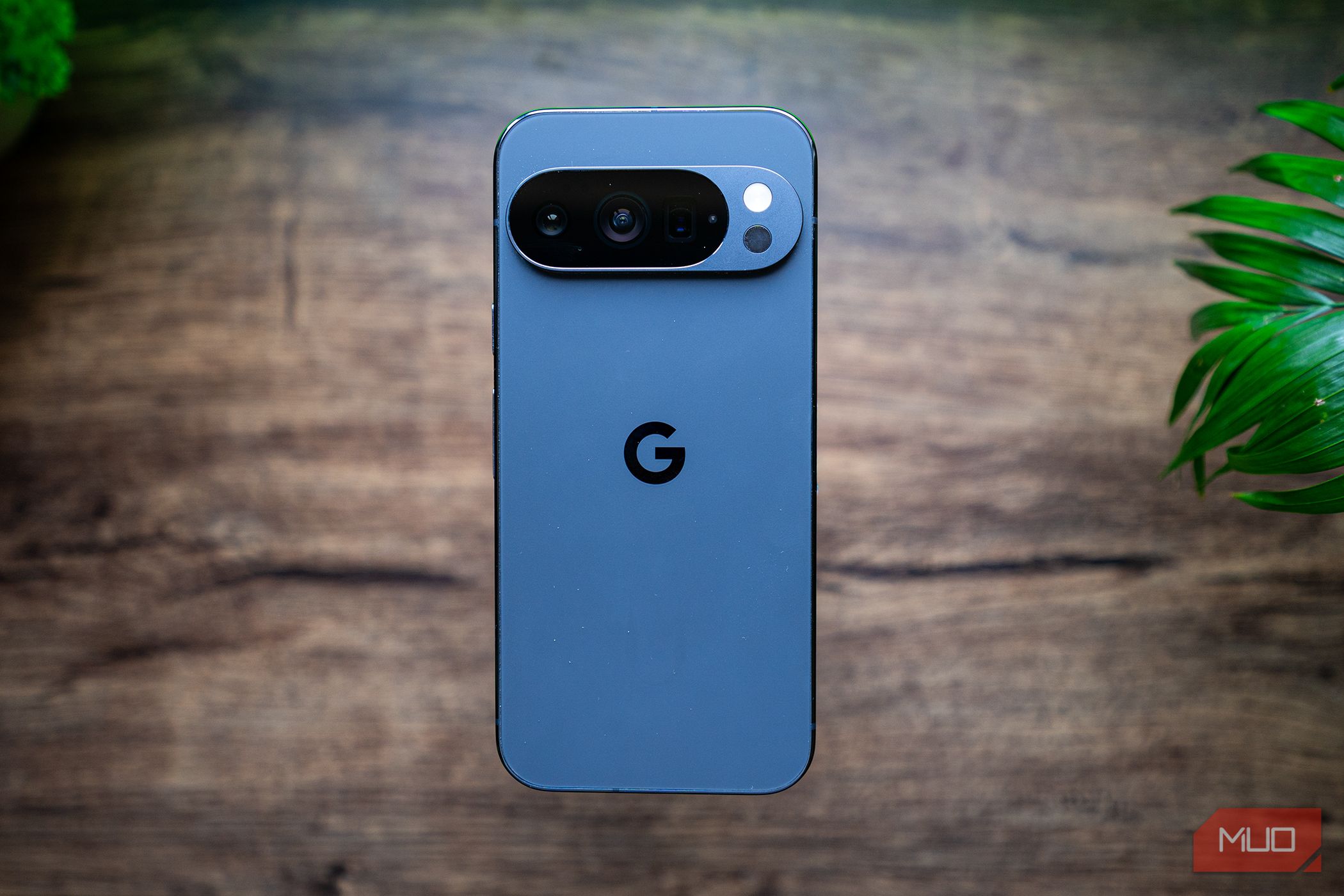
Ever feel like your smartphone has hidden capabilities you're not using? There's a powerful shortcut tool literally hiding on the back of your device: the back tap feature. Often overlooked, this simple gesture can transform how you interact with your phone, turning its rear case into a customizable button. Imagine launching your favorite app, toggling your flashlight, or taking a screenshot with just a quick double or triple tap. This guide will walk you through setting up and mastering back tap shortcuts, helping you automate common actions and save valuable time.
Smartphones typically rely on a limited number of physical buttons, often requiring complex button combinations or voice commands for simple tasks like screenshots or activating digital assistants. However, your device's sensors can detect taps on its back, offering an intuitive, one-handed alternative. This 'invisible button' reduces reliance on traditional hardware buttons, making everyday phone use more efficient and less cumbersome.
Prerequisites for Back Tap Shortcuts
Before diving in, let's confirm your phone's readiness. The good news is, this feature is incredibly widespread. Most modern iPhones, Google Pixel phones, Samsung Galaxy devices, and Motorola smartphones support back tap functionality right out of the box, regardless of whether they're budget-friendly or flagship models. For Samsung Galaxy users, an additional step involves downloading the "Good Lock" app and its "RegiStar" module from the Galaxy Store to unlock this feature.
Step-by-Step: Setting Up Your Back Tap Shortcuts
The core idea is simple: a quick double or triple tap on the center of your phone's back will trigger a predefined action. While the underlying technology is similar, the exact path to enable it varies by manufacturer. Follow the instructions below for your specific device.
On iPhone (Back Tap)
For iPhone users, the process is straightforward and allows for powerful custom automations via Apple Shortcuts:
- Open your phone's Settings app.
- Tap on Accessibility.
- Select Touch.
- Scroll down and tap Back Tap.
- Choose either Double Tap or Triple Tap.
- From the list, select the action or custom shortcut you wish to assign. You can choose system actions like taking a screenshot or locking the screen, or map it to a complex, multi-step shortcut you've created in the Apple Shortcuts app.
On Google Pixel (Quick Tap)
Pixel owners can quickly enable "Quick Tap" through their system gestures:
- Navigate to Settings.
- Tap System.
- Select Gestures.
- Find and tap Quick Tap.
- Toggle on Use Quick Tap.
- Pick your desired action from the available options, such as taking a screenshot, accessing your digital assistant, or opening a specific app.
On Motorola Phones (Quick Launch)
Motorola devices also offer a simple setup, often including useful recording functions:
- Go to Settings.
- Tap Gestures.
- Select Quick Launch.
- Choose the action you want to trigger with a back tap, which may include options like voice recorder or screen recorder.
On Samsung Galaxy Phones (Back-Tap Action via Good Lock)
Samsung Galaxy users have a slightly more involved but equally rewarding setup, requiring a separate app:
- Download the Good Lock app from the Galaxy Store.
- Inside Good Lock, install the RegiStar module.
- Open RegiStar and find the Back-Tap action feature.
- Customize the double or triple tap actions to your preference. This module unlocks the back tap functionality for various tasks on your Galaxy device.
Choosing Your Back Tap Actions: Tips and Best Practices
Once enabled, the possibilities for what your back tap can do are quite extensive, though they differ between iOS and Android. Finding the right action for you can significantly speed up everyday tasks.
iPhone Advantage: Custom Shortcuts for Complex Workflows
Apple's integration with its Shortcuts app makes back tap incredibly powerful. iPhone users can design complex, multi-step automations from scratch within the Shortcuts app and then map them to a double or triple tap. This means you could, for instance, create a shortcut to simultaneously turn your security cameras on or off, skip to the next music track, enable your personal hotspot, or even jump directly into a specific app's settings menu. This level of customization is unmatched and truly streamlines complex workflows into a simple gesture.
Android Options: Practical Predefined Actions
While Android's back tap currently doesn't support the same level of custom, multi-step shortcuts as iOS, it still offers highly practical predefined actions. On Pixel phones, you can choose from options like taking a screenshot, accessing your digital assistant, playing or pausing media, viewing recent apps, showing notifications, toggling the flashlight, or opening a specific app. Motorola phones expand on this, adding convenient shortcuts for voice recording and screen recording, eliminating the need to fumble through quick settings menus.
Capturing screenshots is a particularly popular and beneficial choice for many users across all Android devices, as it frees your hands from awkward volume/power button presses, making it much simpler and quicker.
Experiment and Optimize
Don't be afraid to experiment with different actions until you find what truly enhances your daily phone usage. Consider which actions you perform most often and which ones could benefit from single-hand access or bypassing multiple taps on the screen. The goal is to make your smartphone experience more intuitive and efficient.
Troubleshooting and Refinement
One of the great advantages of the back tap feature is its reliability. Accidental triggers are infrequent, and many devices offer the option to adjust the tap sensitivity or intensity required to activate the shortcut. This ensures your shortcuts activate only when intended, giving you full control over this powerful feature. If you find taps aren't registering reliably or are triggering too easily, check your device's specific back tap settings for sensitivity adjustments.
Next Steps
The back tap feature is a surprisingly powerful yet often underutilized tool that can significantly streamline your smartphone experience. By transforming the back of your phone into an intuitive, invisible button, you gain quick access to your most-used actions and automations. Take a few moments to set up your preferred shortcuts today – you might be surprised how much time and effort you save with just a simple tap. Continue exploring your phone's accessibility and gesture settings for other hidden gems that can make your digital life easier.
FAQ
Q: Which phones support back tap shortcuts?
A: Most modern smartphones, including iPhones, Google Pixel, Samsung Galaxy, and Motorola devices, support this feature, often across both budget and flagship models.
Q: Can I create custom, multi-step shortcuts on any phone?
A: Apple iPhones, through the Shortcuts app, allow for highly complex and custom multi-step automations to be assigned to back taps. Android phones (Pixel, Motorola) currently offer a selection of predefined actions, with Samsung Galaxy users gaining more flexibility via the RegiStar module in the Good Lock app.
Q: What if my back tap triggers accidentally too often?
A: Accidental triggers are rare, but many phones offer settings to adjust the required tap intensity or sensitivity for the back tap feature. Check your device's back tap settings for this option to fine-tune its responsiveness.
Related articles

Ditch Merge & Center: The Better Way to Align Text in Excel
Learn to use Excel's "Center Across Selection" to align text across cells without merging, avoiding common data manipulation issues. This guide provides steps to utilize this newly accessible feature and add it to your Quick Access Toolbar.

Ars Technica's Rocket Report: Your Essential Space Industry Briefing
Quick Verdict Ars Technica's Rocket Report, presented by veteran space reporter Stephen Clark, offers an invaluable and meticulously organized weekly (or similar frequency, implied by "Edition 9.15") digest of the most
Apple iPhone Duo: A Daring Debut with Notable Compromises
Apple's highly anticipated iPhone Duo, priced at $2,000, has gone on pre-order. While hailed as "Apple's most exciting device in a decade" for its innovative foldable design and immersive display, it comes with significant drawbacks like the absence of FaceID and a premium camera.

Stop Android Auto Battery Drain: Essential Features to Disable and
Android Auto offers unparalleled convenience, bringing your phone's most useful features directly to your car's display. From navigation and calls to messages and music, it keeps you connected without distracting you

Beyond the Bugs: Conquering Studio Headaches in Indie Dev
This guide, part three in a series on running an indie studio, tackles the crucial but often overlooked aspect of dealing with non-development related issues. It introduces creating a shared 'studio backlog' for collective problems and using the IDS (Identify, Discuss, Solve) framework to address them constructively. The core message is to build powerful habits that keep studios from getting quietly derailed by lingering challenges.

Turn Your Android Phone into a Powerful Desktop Replacement
Learn how to transform your Android phone into a full-fledged desktop computer using external displays and accessories, providing a cost-effective and integrated alternative to new Googlebooks.