
Control Your Phone's Hidden Location Tracking Beyond GPS
Learn how your phone tracks your location using Wi-Fi, cellular, IP, and Bluetooth, even with GPS off. This guide provides actionable steps to review app permissions, disable system-wide location, and manage scanning settings to enhance your digital privacy.
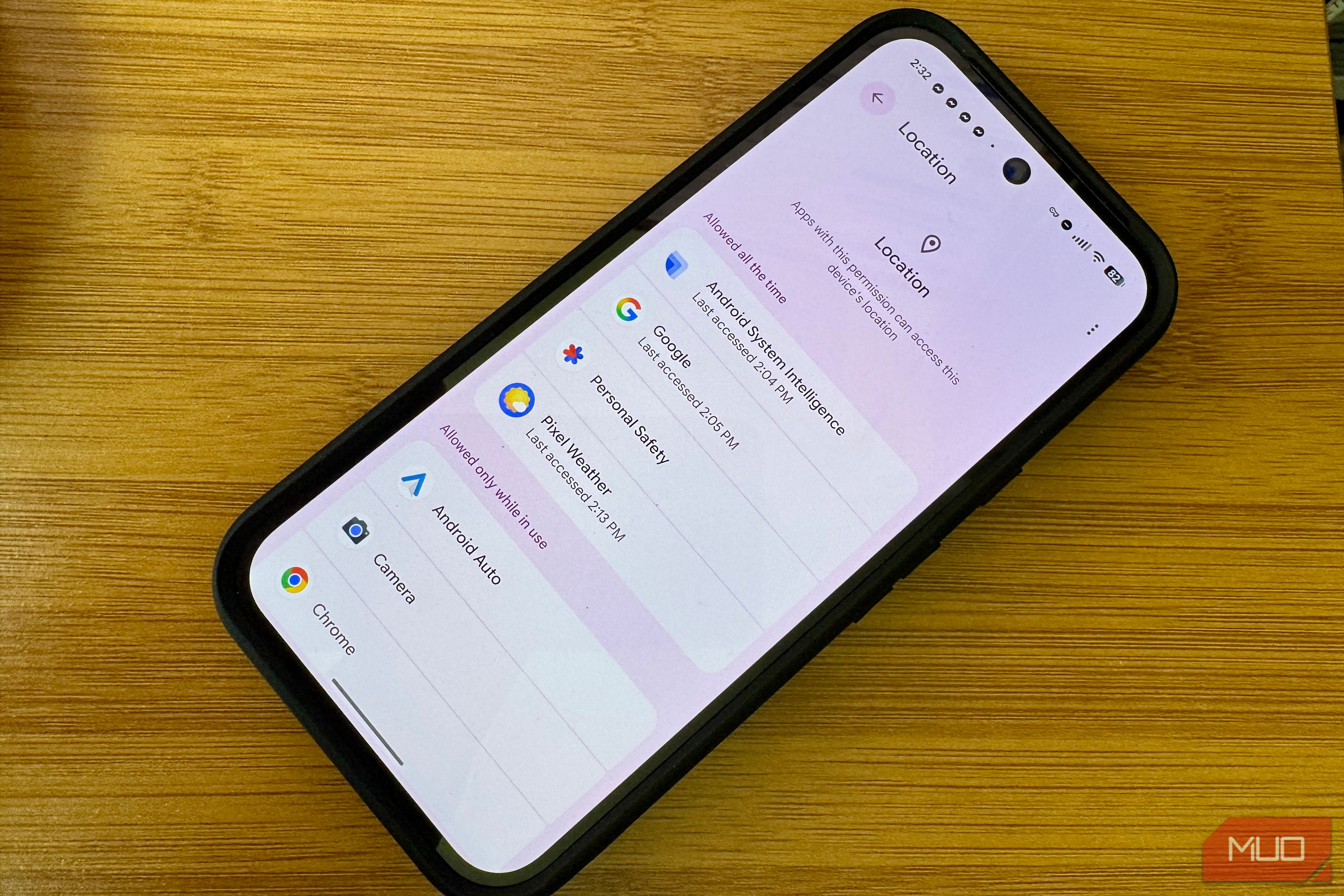
Have you ever wondered if turning off GPS truly makes your phone location-blind? The surprising truth is, your smartphone has a sophisticated system for pinpointing your whereabouts, often using methods that operate independently of GPS. Even with GPS disabled, your device can still make a solid estimate of your location. This guide will help you understand the four primary ways your phone tracks you without GPS and, more importantly, empower you to manage these settings for greater privacy.
What You'll Accomplish
By the end of this guide, you will:
- Understand how your phone utilizes Wi-Fi, cellular networks, IP addresses, and Bluetooth for location tracking.
- Learn why disabling GPS alone isn't enough for comprehensive location privacy.
- Discover actionable steps to review and adjust your phone's location settings to gain more control over your personal data.
Prerequisites
To follow this guide, you'll need:
- A smartphone (Android or iPhone).
- Basic familiarity with navigating your phone's settings menus.
- An awareness that specific menu names and options may vary slightly based on your phone's model and operating system version.
Understanding Your Phone's Blended Location System
GPS, while widely known, is just one component of a larger, integrated location system on modern smartphones. Both Android and iOS employ a "fused location" or "blended location" approach that combines multiple signals to provide accurate, speedy, and battery-efficient location data. When GPS signals are weak or unavailable (like indoors or in dense urban areas), your phone intelligently switches to other methods. Here are the four key ways your phone tracks your location even when GPS is off:
1. Wi-Fi and Cell Tower Positioning
Your phone doesn't need to be actively connected to a Wi-Fi network to use it for location. Instead, it scans for nearby Wi-Fi network names and measures their signal strengths. This information is then cross-referenced with extensive databases that map the geographic locations of millions of Wi-Fi routers worldwide. This method often provides more precise location data than cellular information, especially in areas with many access points.
Similarly, cellular positioning works by triangulating your phone's position based on the signal strength from multiple nearby cell towers. While less precise than Wi-Fi (often placing you within a neighborhood or general area), it's highly effective in wide-open spaces and can still be used for emergency services or regional advertising. Both Apple and Google build these crowdsourced databases by periodically collecting geotagged locations of Wi-Fi hotspots and cell towers from devices with Location Services enabled. For Wi-Fi network owners concerned about privacy, appending "_nomap" to their network's name can prevent it from being included in these databases.
2. IP-Based Geolocation
Unlike sensor-based location methods, IP-based geolocation isn't determined by your phone itself. It's a server-side estimation based on the unique IP address assigned to your device by your internet service provider. When you access websites or online services, their servers can approximate your location (usually to a city or regional level) by looking up your IP address in a public database. This process happens on the server, not your phone, and is entirely independent of your phone's GPS or other location sensors. Therefore, turning off app location permissions on your phone won't prevent online services from inferring your general geographic location based on your IP address.
3. Bluetooth Scanning
Bluetooth is often overlooked as a location tool, but it plays a significant role, particularly in indoor environments where GPS struggles. Your phone can detect nearby Bluetooth beacons or other Bluetooth-enabled devices. By using their known or inferred locations, your phone can refine its own position estimate. This is especially useful in places like malls, airports, public transit hubs, or large buildings where a network of Bluetooth devices can act as a localized positioning system.
Crucially, on many Android devices, Bluetooth scanning can occur even when you've seemingly turned Bluetooth off from the quick settings. This is because Android (and similar systems) often have a separate "Bluetooth scanning" setting that allows apps and system location services to use these signals in the background, regardless of the main Bluetooth toggle. Wi-Fi scanning operates on the same principle, allowing location services to continue using Wi-Fi signals even when your primary Wi-Fi connection is off.
Taking Control: Steps to Enhance Your Location Privacy
Simply disabling GPS is often insufficient for comprehensive location privacy. To gain tighter control, focus on these layered settings:
Step 1: Review and Adjust App Location Permissions
Individual apps can request access to your precise location. It's common to grant these permissions initially and then forget about them. Regularly review which apps have access.
- On Android: Go to
Settings>Location>App location permissions. Review each app and set permissions toAllow only while in use,Ask every time, orDon't allowas appropriate. Look for aPrecise locationtoggle for each app and disable it if you only want approximate location. - On iPhone: Go to
Settings>Privacy & Security>Location Services. Tap on each app and chooseNever,Ask Next Time Or When I Share, orWhile Using the App. Toggle offPrecise Locationfor apps where it's not essential.
Step 2: Disable System-Wide Location Services / Location Accuracy
This is a broader control than just the GPS toggle.
- On Android: Go to
Settings>Location. Here, you'll often find a toggle forUse Location(or similar). Turn this off to disable all location services. You might also see a setting likeGoogle Location Accuracy(or similar, sometimes found underLocation Services). Turn this off to prevent your phone from using Wi-Fi, mobile networks, and Bluetooth to improve location accuracy. - On iPhone: Go to
Settings>Privacy & Security>Location Services. You can toggle offLocation Servicesentirely here. Be aware that this will affect many system functions, including Find My iPhone/iPad.
Step 3: Turn Off Hidden Wi-Fi and Bluetooth Scanning
These background scanning features can operate even when Wi-Fi and Bluetooth are otherwise 'off.'
- On Android: Navigate to
Settings>Location>Location Services(or similar, the exact path varies by manufacturer). Look for options likeWi-Fi scanningandBluetooth scanningand turn them off. Disabling these will prevent apps and services from scanning for Wi-Fi networks and Bluetooth devices in the background for location purposes. - On iPhone: Apple's Location Services settings integrate Wi-Fi and Bluetooth more directly. Disabling
Location Services(as in Step 2) generally covers this. However, you can also individually manageNetworking & WirelessunderSystem ServiceswithinLocation Servicesto prevent system features from using these for location data.
Step 4: Address IP-Based Geolocation and Browser Settings
Since IP-based location is server-side, controlling it involves different strategies.
- Use a VPN (Virtual Private Network): A VPN encrypts your internet traffic and routes it through a server in a location of your choice, effectively masking your real IP address and making it appear as though you are browsing from the VPN server's location.
- Browser Location Permissions: Many web browsers (like Chrome, Firefox, Safari) ask for permission to access your location. You can deny these permissions in your browser's settings to prevent websites from directly requesting location data from your phone's sensors.
Troubleshooting Tips
- Still Seeing Location-Based Ads? Remember that IP-based geolocation is hard to completely bypass without a VPN. Advertisers might also use other data points or past location history. Ensure app permissions are thoroughly checked.
- Location Services Keep Turning On? Some emergency features or critical system updates might re-enable certain location components. Periodically re-check your settings.
- Impact on Functionality: Disabling all location services can impact apps like maps, weather, ride-sharing, and even some system features. Find a balance that suits your privacy needs and usability.
Best Practices for Location Privacy
- Regularly Audit Permissions: Make it a habit to check app permissions every few months.
- Understand "Precise Location": Use the "Precise Location" toggle to grant only approximate location access when exact coordinates aren't necessary.
- Be Mindful of Connections: Anytime your phone connects to Wi-Fi, cellular networks, or active Bluetooth devices, there's a potential for location inference.
- Consider a VPN: For general online privacy and to mask your IP address, a reliable VPN is a strong tool.
FAQ
Q: Does airplane mode completely stop location tracking?
A: Airplane mode disables cellular, Wi-Fi, and Bluetooth radios, which are primary components of non-GPS location tracking. While it significantly reduces your phone's ability to determine and transmit its location, some internal components might still record data locally, and IP-based tracking (if you're on Wi-Fi before activating airplane mode) is a server-side function. For ultimate privacy, power off your device.
Q: If I turn off Wi-Fi and Bluetooth scanning, will my battery life improve?
A: Yes, turning off these background scanning features can contribute to improved battery life. Continuously scanning for Wi-Fi networks and Bluetooth devices, even when not actively connected, consumes power. Disabling them reduces this constant activity.
Q: Can apps still track me if I deny them location permission?
A: While denying explicit location permission prevents an app from directly accessing your phone's location sensors, some apps might attempt to infer a general location using your IP address (if you're online) or through other data points. However, denying the permission significantly limits their ability to pinpoint your precise whereabouts through the phone's built-in location services.
Next Steps
Now that you have a better understanding of your phone's location capabilities, explore:
- How to manage other privacy settings on your smartphone.
- The implications of granting microphone and camera permissions to apps.
- Ways to secure your home Wi-Fi network for enhanced privacy.
Related articles

Apple Unveils iPhone Duo: Pricey Foldable Sees Soaring Demand
Apple has officially entered the foldable smartphone arena with the long-anticipated launch of the iPhone Duo. Priced starting at a hefty $1,999, the device features a 5.4-inch outer display and a larger 7.6-inch inner

Ditch Merge & Center: The Better Way to Align Text in Excel
Learn to use Excel's "Center Across Selection" to align text across cells without merging, avoiding common data manipulation issues. This guide provides steps to utilize this newly accessible feature and add it to your Quick Access Toolbar.

Ars Technica's Rocket Report: Your Essential Space Industry Briefing
Quick Verdict Ars Technica's Rocket Report, presented by veteran space reporter Stephen Clark, offers an invaluable and meticulously organized weekly (or similar frequency, implied by "Edition 9.15") digest of the most
Apple iPhone Duo: A Daring Debut with Notable Compromises
Apple's highly anticipated iPhone Duo, priced at $2,000, has gone on pre-order. While hailed as "Apple's most exciting device in a decade" for its innovative foldable design and immersive display, it comes with significant drawbacks like the absence of FaceID and a premium camera.

Stop Android Auto Battery Drain: Essential Features to Disable and
Android Auto offers unparalleled convenience, bringing your phone's most useful features directly to your car's display. From navigation and calls to messages and music, it keeps you connected without distracting you

Turn Your Android Phone into a Powerful Desktop Replacement
Learn how to transform your Android phone into a full-fledged desktop computer using external displays and accessories, providing a cost-effective and integrated alternative to new Googlebooks.