
Unlock Premium Sound: 4 Android Settings for Better Cheap Headphones
Learn to dramatically improve your Bluetooth headphone audio quality by adjusting 4 key Android settings in just a few steps, no new hardware needed.
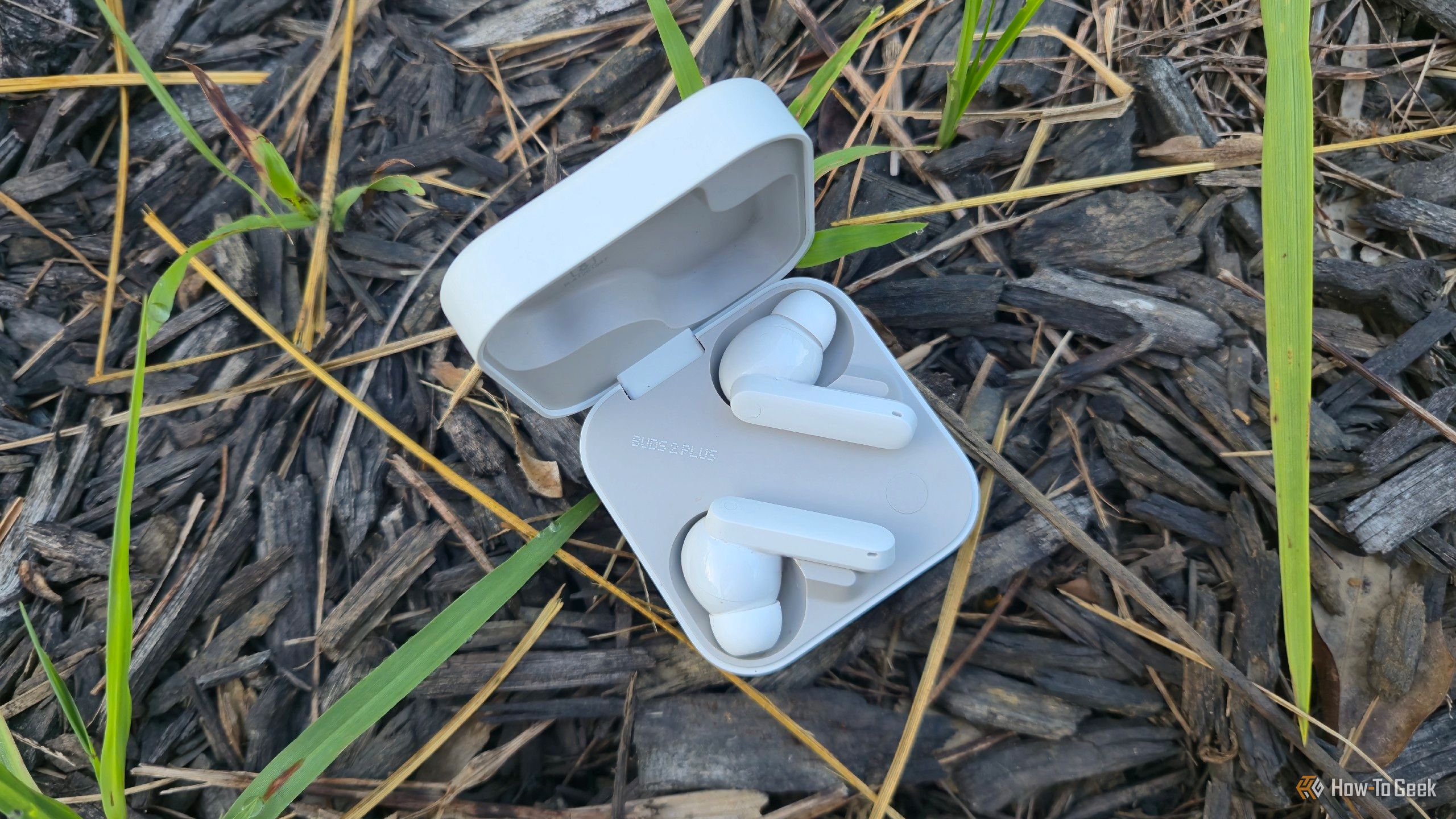
Even the most affordable Bluetooth headphones or earbuds can deliver surprisingly good audio quality with a few simple tweaks to your Android phone's settings. You don't need to spend a fortune on high-end gear to get a rich, clear listening experience. Often, the perceived limitations of your cheap headphones aren't the hardware itself, but how your Android device processes and transmits audio. This guide will walk you through four overlooked settings that can transform your budget headphones, making them sound remarkably similar to premium options like AirPods.
By following these steps, you'll learn to optimize your audio output, refine sound frequencies, ensure consistent volume control, improve Bluetooth transmission quality, and eliminate artificial sound processing. The best part? These enhancements won't cost you a dime.
Prerequisites
Before you begin, ensure you have the following:
- An Android Smartphone: These settings are specific to the Android operating system.
- Bluetooth Headphones or Earbuds: Any wireless audio device will work.
- Enabled Developer Options: Several critical settings are hidden here. To enable them, go to
Settings > About phoneand tap on theBuild number(or similar, likeMIUI versionorSoftware information) seven times. You'll see a toast notification confirming "You are now a developer!". - An Equalizer App (Recommended): While some phones have built-in EQ, a system-wide app like Wavelet or Poweramp Equalizer offers more granular control.
1. Fine-Tune Your Sound with Equalizer (EQ) Tweaks
Adjusting the equalizer is one of the most impactful ways to customize your audio. Many cheap headphones tend to overemphasize bass or have harsh highs, leading to a muddy or tinny sound. A good EQ can balance these frequencies.
Steps:
- Install a System-Wide Equalizer App: While some music players have built-in EQs, a system-wide app like Wavelet (which supports AutoEq profiles for specific headphones) or Poweramp Equalizer will affect all audio from your phone.
- Identify Sound Issues: Listen to your favorite music and pinpoint what bothers you. Is the bass too boomy or undefined? Are vocals clear, or are cymbals piercing?
- Adjust Bass Frequencies:
- For muddy, undefined bass: Slightly roll off (reduce) the lower-end frequencies. Experiment with small reductions around 60-100 Hz.
- For a strong thump without muddiness: Boost the frequencies in the 250-500 Hz range just slightly.
- Adjust Treble Frequencies:
- For harsh, ear-piercing highs (e.g., cymbals): Gently lower the frequencies in the 4 kHz–8 kHz range. Start with a 1-2 dB reduction.
Tips:
- Small Adjustments are Key: Even minor changes of 1-2 dB can make a significant difference. Overdoing it can make the sound unnatural or lose detail.
- Experiment and Listen: What sounds good is subjective. Play various genres of music to find a balanced sound you enjoy.
Troubleshooting:
- Sound loses detail: If your audio sounds dull or muffled, you might have reduced the higher frequencies too much. Increase them slightly.
2. Disable Absolute Volume for Consistent Control
Absolute Bluetooth Volume (sometimes called "Device volume sync") attempts to synchronize your phone's volume with your Bluetooth headphones' internal amplifier. While seemingly convenient, this feature can lead to inconsistent volume steps, make precise adjustments difficult, and even cause audio clipping at higher volumes.
Steps:
- Connect Your Bluetooth Headphones: Ensure your headphones are actively paired and connected to your Android phone.
- Go to Developer Options: Navigate to
Settings > System > Developer Options(the exact path might vary slightly by phone model). - Locate Absolute Volume Setting: Scroll down to find "Absolute Bluetooth Volume" or "Device volume sync." On some phones (like OnePlus), you might find "Device volume sync" by tapping on your connected Bluetooth earbuds in the main Bluetooth menu.
- Toggle Off the Setting: Disable this option.
Benefit:
- You'll gain more consistent and precise control over your audio volume, preventing jarring jumps and potential clipping, resulting in a cleaner sound signal.
3. Force a Better Bluetooth Codec
Bluetooth codecs are crucial for transmitting audio wirelessly. They compress and decompress audio data, directly impacting sound quality and latency. Many Android devices default to basic codecs, even if your headphones support better ones.
Understanding Codecs:
- SBC (Subband Codec): The most basic and universal codec. It's widely supported but generally offers lower quality (up to 328kbps).
- AAC (Advanced Audio Coding): More efficient than SBC and generally offers better sound, especially for Apple devices.
- aptX (Qualcomm's Codecs): A family of codecs (aptX, aptX HD, aptX Adaptive) that provide higher quality audio than SBC/AAC, often with lower latency.
- LDAC (Sony's Codec): Considered the highest-quality mainstream Bluetooth codec, capable of transmitting up to 990kbps, ideal for lossless audio if both your phone and headphones support it.
Steps:
- Connect Your Bluetooth Headphones: Make sure your headphones are connected.
- Go to Developer Options: Navigate to
Settings > System > Developer Options. - Find Bluetooth Audio Codec: Scroll down to the "Networking" section and tap on "Bluetooth Audio Codec."
- Select a Preferred Codec: Choose the highest quality codec your headphones support (e.g., LDAC, aptX HD, AAC). If you're unsure, try LDAC first, then aptX codecs, and finally AAC.
Tips:
- Match Headphone Support: Your headphones must support the codec you select for it to work. Check your headphones' specifications if you're unsure.
- Consider Source Quality: If you're primarily listening to standard MP3s (e.g., 320kbps), the difference between SBC and higher-end codecs like aptX might be subtle, but LDAC still offers superior fidelity for lossless files.
Troubleshooting:
- Codec Switches Back Automatically: If the codec reverts to SBC or another default, or you experience audio dropouts and artifacts, your headphones or phone likely don't fully support the selected high-quality codec. Try a slightly lower-tier codec.
4. Turn Off Spatial Audio for a More Natural Sound
Many Android phones offer virtual surround sound effects (like Dolby Atmos or proprietary systems) designed to create a 3D soundstage. While these can enhance movies and games, they often detract from music playback.
Why Disable it for Music?
Most music is mastered in stereo. When spatial audio is enabled, your phone tries to artificially reconstruct a 3D environment, which can introduce unnatural artifacts, distort the original mix, and make the sound less clear and authentic.
Steps:
- Go to Phone Settings: Open your Android phone's main
Settingsapp. - Search for Sound Effects: Use the search bar within Settings and type "sound effects," "Dolby Atmos," "audio effects," or similar terms.
- Disable Spatial/Surround Sound: Locate and turn off any virtual surround sound, spatial audio, or proprietary sound enhancement features (e.g., OReality, Dolby Atmos presets).
Tips:
- Auto Mode: Some phones have an "auto" mode that switches spatial audio on/off based on the content (e.g., movie vs. music). If this mode is unreliable, it's usually better to disable spatial audio entirely for consistent music playback.
- Use for Movies/Games: If you frequently watch movies or play games, you might consider re-enabling it for those specific activities, as it can be beneficial there.
Conclusion
Before you blame your cheap headphones or the limitations of Bluetooth technology for subpar audio, take the time to explore these often-overlooked Android settings. The difference between acceptable and exceptional Bluetooth audio quality often comes down to these simple toggles and minor adjustments. By optimizing your equalizer, disabling absolute volume, forcing a better Bluetooth codec, and turning off spatial audio for music, you can unlock a surprisingly rich and natural sound, making your budget earbuds sound like they cost a lot more.
FAQ
Q: Do I need to buy a new app for EQ, or is there a built-in option?
A: While some Android phones and music players have basic built-in equalizers, a dedicated system-wide app like Wavelet or Poweramp Equalizer typically offers more advanced control, AutoEq profiles, and affects all audio from your device, not just one app. It's highly recommended for the best results, though not strictly required if your phone has a decent system-wide EQ.
Q: What if I can't find "Developer Options" on my phone?
A: To enable Developer Options, go to your phone's Settings, then About phone (or About device). Look for an entry like Build number, MIUI version, Software information, or Kernel version. Tap on this entry rapidly seven times. You'll receive a message confirming that Developer Options have been unlocked. After this, you should find it under Settings > System or directly in the main Settings menu.
Q: Can changing these settings damage my headphones or phone?
A: No, adjusting these software settings will not damage your headphones or phone hardware. These are designed to optimize audio output and can be reversed at any time. The only potential issue is sound quality becoming worse if settings are improperly configured (e.g., over-boosting frequencies on the EQ), but this is easily fixed by reverting the changes.
Related articles

Ditch Merge & Center: The Better Way to Align Text in Excel
Learn to use Excel's "Center Across Selection" to align text across cells without merging, avoiding common data manipulation issues. This guide provides steps to utilize this newly accessible feature and add it to your Quick Access Toolbar.
Apple iPhone Duo: A Daring Debut with Notable Compromises
Apple's highly anticipated iPhone Duo, priced at $2,000, has gone on pre-order. While hailed as "Apple's most exciting device in a decade" for its innovative foldable design and immersive display, it comes with significant drawbacks like the absence of FaceID and a premium camera.

Ubisoft Proposes German Studio Workforce Reduction Amidst
Ubisoft is planning a voluntary departure program for about 100 employees across its Düsseldorf, Berlin, and Mainz studios in Germany. This move is part of a larger, ongoing cost-reduction and restructuring effort by the publisher, aiming to better position its studios for future projects.

Stop Android Auto Battery Drain: Essential Features to Disable and
Android Auto offers unparalleled convenience, bringing your phone's most useful features directly to your car's display. From navigation and calls to messages and music, it keeps you connected without distracting you

Turn Your Android Phone into a Powerful Desktop Replacement
Learn how to transform your Android phone into a full-fledged desktop computer using external displays and accessories, providing a cost-effective and integrated alternative to new Googlebooks.
Android Auto 18 Beta: Glimpse into Google's Car Makeover
Verdict: A Sneak Peek at Tomorrow's Drive Android Auto 18.0 beta isn't the flashy, fully-realized redesign many might be hoping for, but it offers an invaluable look under the hood. What Google is signaling here,