
Uncover Hidden Startup Apps with Autoruns for a Faster PC
Are you tired of slow Windows boot times, even after carefully disabling apps in Task Manager's Startup tab? You're not alone. What Task Manager shows you is merely a fraction of what actually launches when your
Are you tired of slow Windows boot times, even after carefully disabling apps in Task Manager's Startup tab? You're not alone. What Task Manager shows you is merely a fraction of what actually launches when your computer starts. Many programs, both legitimate and unwanted, can bypass Task Manager entirely, clinging to your system like digital barnacles and slowing everything down.
This guide will empower you to dig much deeper, revealing every single program, service, and driver configured to run automatically on your Windows machine. We'll use a powerful, free tool from Microsoft's own Sysinternals suite called Autoruns. By the end of this guide, you'll know how to identify these hidden culprits, safely disable them, and enjoy a noticeably faster, more responsive PC.
What You'll Accomplish
By following these steps, you will:
- Learn why Task Manager doesn't show you everything.
- Download and use Microsoft's Autoruns tool.
- Identify all autostart entries across over 200 possible locations.
- Understand how to safely disable unwanted programs and services.
- Improve your Windows boot times and overall system performance.
Prerequisites
Before you begin, make sure you have:
- A Windows PC (Autoruns supports various Windows versions).
- An internet connection to download Autoruns.
- Administrator privileges on your Windows account (essential for Autoruns to function fully).
Step 1: Get Autoruns and Run It with Admin Privileges
Autoruns requires no installation, making it incredibly easy to get started.
- Download Autoruns: Navigate to the official Microsoft Sysinternals page (a quick search for "Autoruns Sysinternals" will get you there) and download the Autoruns ZIP file.
- Extract the ZIP File: Once downloaded, right-click the
Autoruns.zipfile and select "Extract All" (or use your preferred unzipping software). Choose a convenient location, like your Downloads folder or a dedicatedSysinternalsfolder. - Run as Administrator: Inside the extracted folder, you'll find
Autoruns64.exe(for 64-bit systems) orAutoruns.exe. It's crucial to right-click the correct executable and select "Run as administrator." Without elevated privileges, Autoruns cannot access certain system locations, and you won't be able to modify some entries.
Step 2: Navigate the Initial Interface and Understand Color-Coding
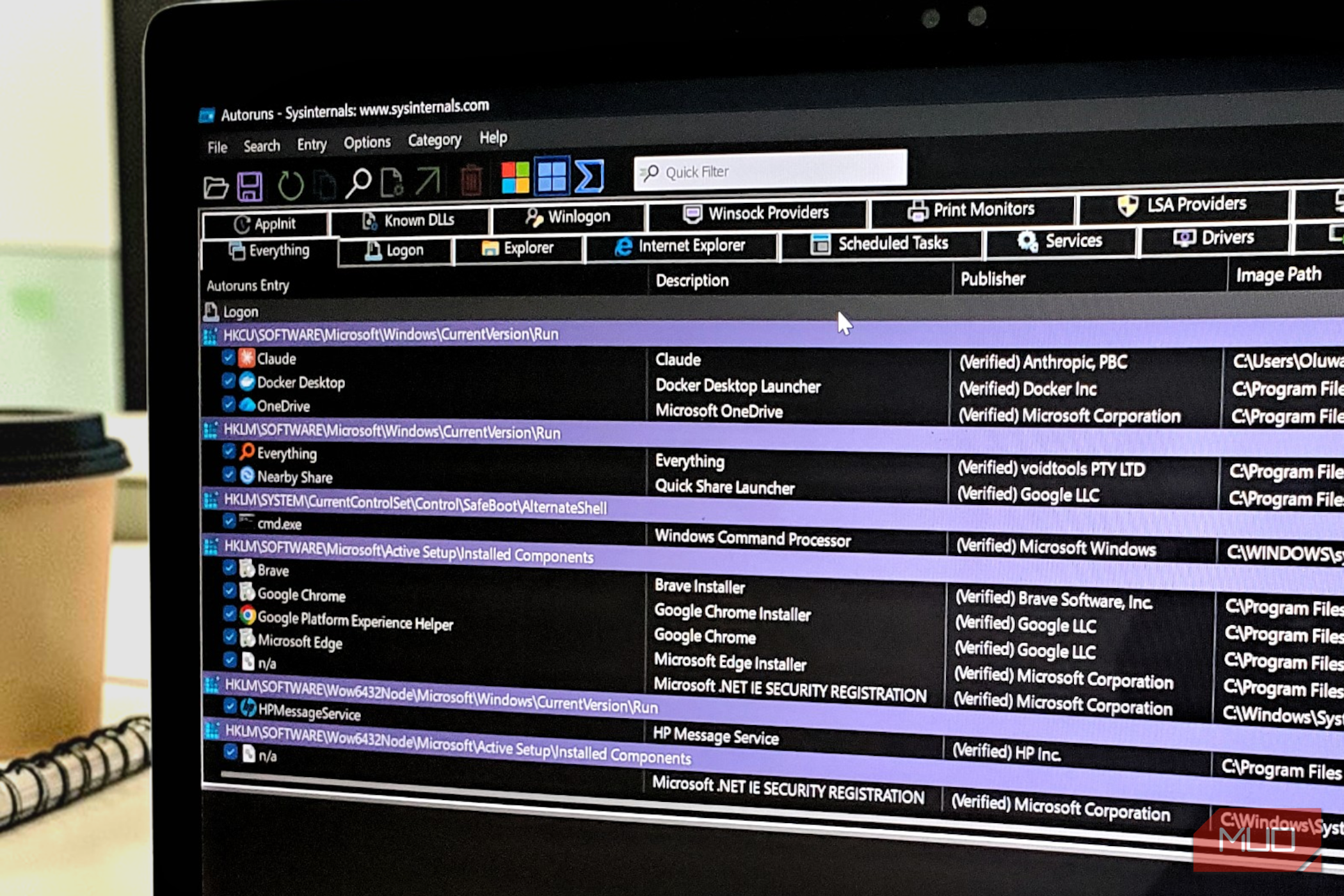
When Autoruns first launches, you might feel a bit overwhelmed – it's designed to expose everything. By default, you'll land on the Everything tab, which is a comprehensive, scrollable list of every autostart entry on your system, processed in roughly the same order as Windows during boot.
Autoruns uses color-coding to help you quickly identify different types of entries:
- Yellow: These entries typically point to files that no longer exist. They are often leftover registrations from programs that were uninstalled but didn't clean up after themselves. These are usually safe to disable or delete.
- Pink/Red: Entries without a valid digital signature. This doesn't automatically mean malware, but it's a significant red flag that warrants closer inspection. Legitimate software is almost always digitally signed.
- Green: This color appears when comparing two different Autoruns scans, highlighting new entries added since a previous save.
- Purple: This highlights the specific path or location of an entry, such as within the Task Scheduler.
Tip: To enhance your initial scan, go to Options -> Scan Options and enable Verify Code Signatures. This makes Autoruns check each entry's cryptographic signature against its listed publisher, helping you quickly spot anything tampered with or masquerading as something legitimate.
Step 3: Explore Key Autostart Locations
The tabs across the top of Autoruns represent different categories of autostart locations. While the Everything tab shows all, understanding these specific tabs helps you target your investigation:
- Logon: This tab covers the familiar areas like the Windows startup folder and the
RunandRunOnceregistry keys. This is the closest equivalent to what Task Manager shows, but Autoruns goes deeper by listing exact registry paths and file locations. - Scheduled Tasks: A critical area often overlooked by Task Manager. Here, you'll find applications that register tasks to trigger at logon or boot. Cloud sync services, update managers, and even software you thought you'd uninstalled months ago often lurk here.
- Services: This tab exposes lower-level Windows services configured to launch automatically. Tread carefully here, as disabling essential services can cause system instability. However, it's invaluable for fixing slow boot times caused by third-party services.
- Drivers: Displays kernel-mode drivers that load even before your desktop appears. This is advanced territory, but occasionally, problematic drivers can cause significant boot delays or system issues.
- Explorer: Reveals shell extensions – the small additions that software installs into File Explorer for right-click menus, preview pane features, and more. These load every time File Explorer opens, potentially impacting performance on cluttered systems.
- Winsock Providers: One of the more obscure but telling tabs. Sysinternals notes that malware has historically favored this location because so few tools can detect or remove entries here. Autoruns gives you a crucial foothold by allowing you to disable them.
Step 4: Filter Out Windows Entries to Focus Your Scan
The sheer volume of entries can still be daunting. To make the list manageable, filter out verified Windows and Microsoft components:
- Go to the
Optionsmenu. - Enable
Hide Windows Entries. - Enable
Hide Microsoft Entries.
This will dramatically shorten the list, showing you only third-party applications and services. This is where you'll find most of the culprits impacting your system.
Tip: Before applying these filters, take a quick scroll through the unfiltered Everything tab just once. It gives you a sense of the immense activity Windows juggles behind the scenes every time you sign in.
Step 5: Safely Manage Unfamiliar Entries
When you encounter an unfamiliar entry, resist the urge to immediately delete it. Autoruns is built around reversible decisions:
- Disable First: To disable an entry, simply uncheck the box next to it. This doesn't remove the entry but prevents it from launching. If something unexpected happens after a reboot, you can easily re-check the box, and the entry will be re-enabled.
- Restart and Observe: After disabling an entry, restart your system to see if it resolves the issue or if any unintended side effects occur.
- Delete When Sure: Only once you are absolutely certain that an entry is unnecessary and causes no problems should you consider deleting it. Right-clicking an entry and selecting "Delete" is a permanent action.
Right-Click Options: Right-clicking any entry offers powerful investigative tools without leaving Autoruns:
- Jump to Entry: Opens the associated registry key or folder location.
- Open Path: Opens the file's location in File Explorer.
- Search Online: Performs a web search for the entry's name, helping you identify its purpose.
- Submit to VirusTotal: Sends the associated file to VirusTotal for a multi-engine malware scan, a great way to check suspicious items.
Step 6: Regular Housekeeping for Optimal Performance
Treat Autoruns like occasional system housekeeping. Run it every few months, or whenever you install new software that seems a little too eager to stick around. Over time, you'll develop a clearer picture of what your machine is truly doing when you're not actively watching.
By taking control of these hidden startup entries, you're not just speeding up your boot time; you're also reclaiming valuable system resources and enhancing your overall computing experience. Congratulations on taking a deeper dive into your Windows machine's inner workings!
FAQ
Q: Is Autoruns safe to use, especially if I'm not a tech expert?
A: Yes, Autoruns is safe as long as you follow the principle of "disable before delete." By unchecking entries, you're merely preventing them from launching, which is completely reversible. Use the "Hide Windows Entries" and "Hide Microsoft Entries" filters to focus on third-party software, which is generally safer to experiment with.
Q: What if I accidentally disable something important?
A: If you disable an entry and experience unexpected issues (like a program not starting or a feature not working), simply re-open Autoruns (as administrator), find the entry you disabled, and re-check the box next to it. After a reboot, everything should return to normal. This reversibility is a key safety feature of Autoruns.
Q: How often should I use Autoruns?
A: It's a good practice to run Autoruns periodically, perhaps every few months, or specifically after installing new software, especially if you notice a dip in performance. It helps catch new unwanted entries and maintain a clean startup environment.
Related articles
How to Use Kodi: The Simple, Server-Free Way to Watch Your Media
Learn to set up Kodi to watch your personal media library directly on your TV, bypassing complex servers and subscription fees, in just a few steps.

Understanding the Anti-Woke Right's Challenge with Grand Theft Auto VI
Welcome to this guide on understanding the current cultural conversation surrounding the highly anticipated game, Grand Theft Auto VI. This resource is designed to help you navigate the specific challenges and

Nscale Adds Former OpenAI Exec Fidji Simo to Board Ahead of IPO
Nscale, the U.K.-based AI data center startup, has appointed former OpenAI, Meta, and Instacart executive Fidji Simo to its board of directors. This high-profile addition comes as Nscale prepares for a potential IPO this fall, leveraging Simo's extensive experience in scaling major tech platforms and guiding a company through a successful public offering.

How to Quote Movies Accurately - Avoid Common Misquotes
Learn to identify and correct 10 frequently misquoted movie lines to impress your friends and become a true cinematic aficionado.
Unofficial Sony Headphone PC Apps: Ditch Your Phone, Take Control
Tired of Sony's mobile app? These unofficial, open-source PC tools like Sony Device Center and SonyBridge offer desktop control over your Sony headphones' ANC, EQ, and more. A convenient, albeit unofficial, solution for Windows, Linux, and Mac users looking to ditch their phone for audio adjustments.

How to Choose and Maximize Your Bissell Pet Carpet Cleaner Deal
Dealing with unexpected pet messes or persistent carpet stains can be a real headache. Whether it’s muddy paw prints, accidental spills, or allergens from pet dander, keeping carpets clean and fresh is an ongoing