
Master the <= Excel Operator for More Accurate Formulas
Learn to accurately handle boundary conditions in your Excel formulas by mastering the "less than or equal to" (`<=`) operator. This guide covers its use in IF statements and criteria functions like COUNTIF and SUMIFS, along with best practices and troubleshooting.
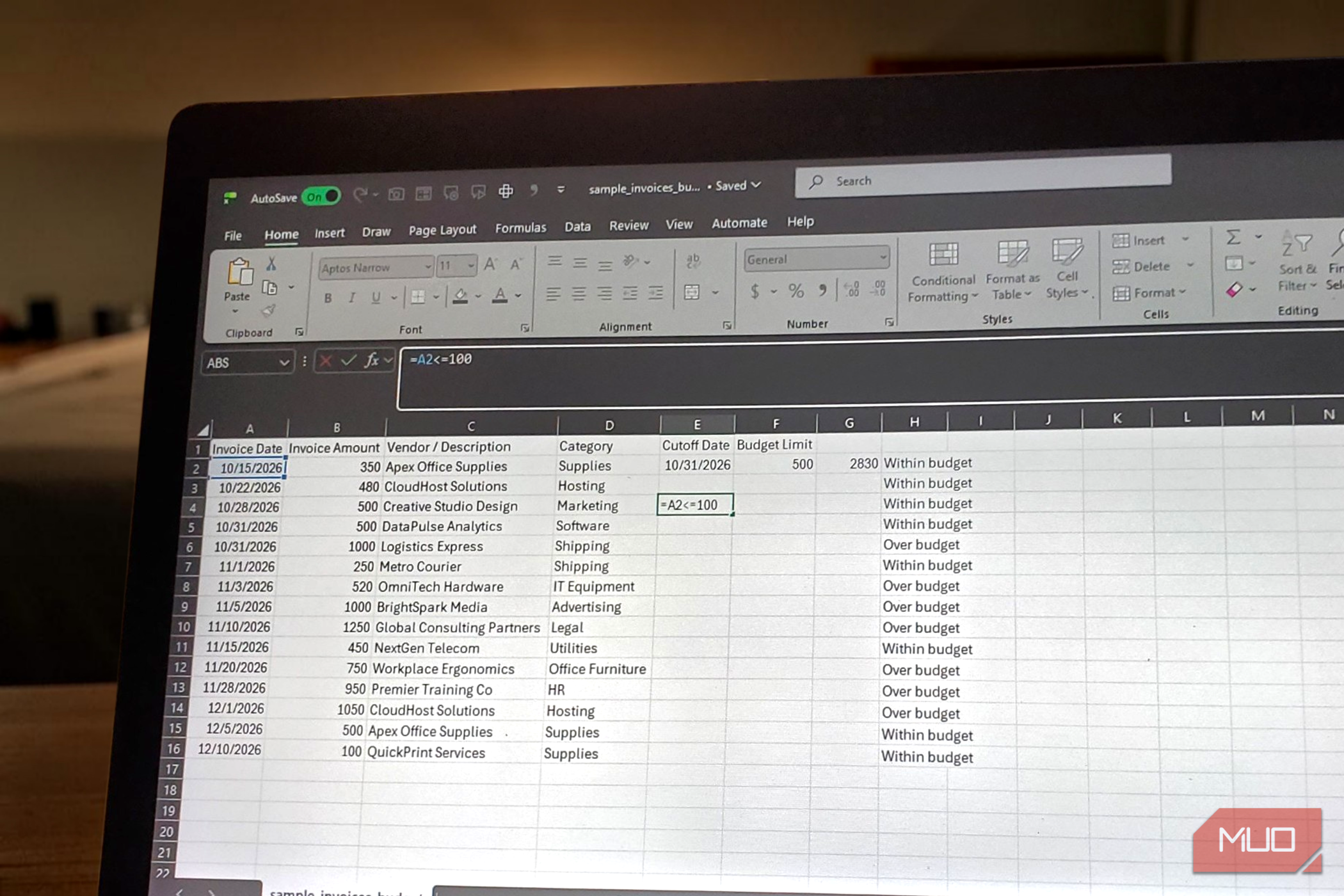
Excel is a powerful tool for managing data and automating calculations, but a subtle difference in its comparison operators can lead to unexpected results. Many users, myself included, have discovered that overlooking a single character can make a significant impact on formula accuracy, especially when dealing with boundary conditions.
This guide will show you how to correctly use the "less than or equal to" (<=) operator to ensure your Excel formulas capture values at the exact limits you define, preventing common errors in inventory management, budget tracking, and data analysis.
Prerequisites
To get the most out of this guide, you should have:
- Basic familiarity with Microsoft Excel.
- An understanding of how to enter simple formulas into cells.
- Knowledge of basic Excel functions like
IF,COUNTIF, andSUMIFSis helpful but not strictly required, as we'll explain their use here.
Why <= Beats < for Boundary Conditions
Excel's comparison operators evaluate two values and return either TRUE or FALSE. The less than (<) operator is straightforward: it checks if a value is strictly smaller than another. For instance, the formula =A2<100 will return TRUE if cell A2 contains 99, but FALSE if A2 has 101. The crucial point is that if A2 contains 100, this formula still yields FALSE, because 100 is not less than 100.
This behavior, while mathematically correct, often doesn't align with real-world scenarios in spreadsheets. Imagine you need to trigger a restocking alert when a product's stock level reaches 100 units or fewer. If your formula uses <100, the alert won't fire when the stock hits exactly 100, only when it drops to 99 or below. This can lead to critical oversights.
This is where the "less than or equal to" (<=) operator becomes indispensable. By changing the formula to =A2<=100, Excel will now return TRUE for 99, 101 (still FALSE), AND 100. This simple addition ensures that the boundary value itself is included in your condition, making your formulas much more robust and accurate.
Consider these practical applications:
- Spending Limits: If your monthly budget is $1,000, a formula
B2<1000will report you're over budget if you spend exactly $1,000. UsingB2<=1000correctly shows you're still within limits. - Inventory Thresholds: Reorder stock when units are 10 or fewer. The operator
Units<=10ensures that a stock of exactly 10 units triggers the reorder. - Temperature Ranges: A manufacturing process requires temperatures to stay at or below a maximum.
CurrentTemp<=MaxTempcorrectly accounts for the maximum allowed temperature.
Always decide whether the exact limit value should be included in your comparison, then select the appropriate operator.
Using <= within IF Statements
The IF function is one of Excel's most versatile tools, allowing you to perform conditional logic. Integrating the <= operator into an IF statement helps create dynamic responses based on your defined boundaries.
Here’s an example:
excel =IF(B2<=500, "Within budget", "Over budget")
In this formula:
B2<=500is the logical test. If the value in B2 is 500 or less, the condition isTRUE."Within budget"is the value returned if the condition isTRUE."Over budget"is the value returned if the condition isFALSE(i.e., B2 is greater than 500).
So, if B2 contains 500, you'll see "Within budget". If it contains 501, you'll see "Over budget".
It's important to understand operator precedence. When arithmetic operations (like addition, subtraction, multiplication, division, or exponentiation) are combined with comparison operators, Excel processes the arithmetic first. For example:
excel =L2+55<=120
Excel will first calculate the sum of L2 and 55, then compare that result to 120 using the <= operator. For simple expressions like this, you usually don't need extra parentheses. However, if your formula becomes complex, adding parentheses can improve readability and ensure calculations happen in the intended order.
Leveraging <= in COUNTIF, SUMIFS, and AVERAGEIFS
Functions like COUNTIF, SUMIF, COUNTIFS, SUMIFS, and AVERAGEIF are designed to perform calculations on cells that meet specific criteria. When these criteria involve comparison operators, Excel expects the criterion to be provided as text, meaning you need to enclose the operator and the value in quotation marks.
For example:
excel =COUNTIF(A2:A100,"<=100")
This formula counts how many cells in the range A2:A100 contain a numeric value that is 100 or less.
Similarly, with SUMIF:
excel =SUMIF(A2:A100,"<=100",B2:B100)
This formula adds up the values in column B, but only for those rows where the corresponding value in column A is 100 or less.
This principle also applies to dates. Suppose column A holds invoice dates and column B contains invoice amounts. You could sum all invoices issued on or before October 31, 2026, like this:
excel =SUMIFS(B2:B100,A2:A100,"<=10/31/2026")
While this works, hardcoding dates or numbers into formulas can make them less flexible. A more robust approach is to use a cell reference for your cutoff value. If cell E2 contains the cutoff date, you can write:
excel =SUMIFS(B2:B100,A2:A100,"<="&E2)
Here, the "<=" remains in quotation marks as part of the text criterion, and the ampersand (&) concatenates it with the value from E2. If you later change the date in E2, the formula will automatically update to use the new cutoff. The same technique works for numeric limits:
excel =COUNTIF(B2:B100,"<="&E2)
If E2 holds 50, this counts items priced at $50 or below. Change E2 to 75, and the formula immediately adapts to the new ceiling.
Best Practice: Centralizing Your Thresholds
If you use the same limit or threshold value in multiple formulas across your workbook, hardcoding it repeatedly creates extra work and potential for errors. For instance, a budget ceiling of 500 might appear in an IF statement, a COUNTIF formula, a conditional formatting rule, and a summary calculation. If that limit changes, you'd have to find and update every single instance.
A better strategy is to define your limit in one clearly labeled cell and reference it in all your formulas. Let's say cell F2 contains your budget ceiling. Your formulas would then look like this:
- For an
IFstatement:=IF(B2<=F2, "Within budget", "Over budget") - For a
COUNTIFfunction:=COUNTIF(B2:B50,"<="&F2)
By centralizing the threshold in F2, updating that one cell automatically adjusts every dependent formula. This significantly improves maintainability and reduces the chance of inconsistencies.
You can take this a step further by making the threshold cell dynamic. It could be a simple drop-down list of predefined limits, or even a cell whose value is calculated by another complex formula. This empowers users to change key parameters of a dashboard or report without needing to modify any formulas directly.
Troubleshooting Common Issues
Even with the correct operator, formulas can sometimes go awry. Here are a couple of troubleshooting tips:
- Quotation Marks: When copying formulas from websites, chatbots, or other documents, ensure that Excel uses straight quotation marks (
") for criteria. Curly quotation marks (“or”) can cause formulas to fail, as Excel interprets them differently. - Operator as Text vs. Live Operator: Remember the distinction between
IFstatements and criteria functions (likeCOUNTIF).- In an
IFstatement (e.g.,=IF(B2<=F2,...)), the comparison operator (<=) is used directly, without quotation marks around it. - In criteria functions (e.g.,
=COUNTIF(B2:B50,"<="&F2)), the comparison operator must be part of a text string, often concatenated with a cell reference using an ampersand (&). You cannot place the operator<=>directly into a cell and expect a standardIFformula to dynamically interpret it as an executable comparison.
- In an
Conclusion
It's easy to view < and <= as minor variations of the same operator. However, when your Excel formulas interact with real-world thresholds—be it a payment cap, an inventory reorder point, or a reporting cutoff date—the presence or absence of that single equals sign is critical. Understanding when and how to use the "less than or equal to" operator ensures that your formulas accurately include boundary values, preventing logical errors and making your spreadsheets more reliable and useful. Don't leave your limits out; choose the operator that precisely defines your rule.
FAQ
Q: What's the main difference between < and <=?
A: The main difference lies in whether the boundary value itself is included in the comparison. < (less than) is a strict comparison; it only evaluates to TRUE if a value is smaller than the comparison number. <= (less than or equal to) is an inclusive comparison; it evaluates to TRUE if a value is smaller than or equal to the comparison number. For example, A1 < 10 is FALSE if A1 is 10, but A1 <= 10 is TRUE if A1 is 10.
Q: Why do some Excel formulas require quotation marks around <= and others don't?
A: Formulas like IF statements (=IF(A1<=10,...)) use comparison operators directly as part of their logical test, so no quotes are needed. However, functions designed to evaluate criteria within a range, such as COUNTIF, SUMIF, or SUMIFS, expect their criteria argument to be a text string. Therefore, the comparison operator and the value (or a reference to it) must be enclosed in quotation marks, like "<=10" or "<="&B1.
Q: Can I use cell references with <= in criteria functions like SUMIFS?
A: Yes, absolutely! This is a best practice for making your formulas dynamic. Instead of hardcoding a value (e.g., "<=100"), you can reference a cell (e.g., B1) that contains your threshold. To do this, you concatenate the operator (as a text string) with the cell reference using an ampersand (&). The syntax would be "<="&B1 for a criterion that means "less than or equal to the value in cell B1".
Related articles

Get the Honeywell Smart Color Thermostat for $80 and Start Saving on
Learn to get and install the Honeywell Home Wi-Fi Smart Color Thermostat for just $80, a 55% saving, and start reducing your utility bills by leveraging its Energy Star certified features and smart home integration.

Seamlessly Connect Your Android to Windows with NectarLink
Learn to connect your Android phone to Windows using NectarLink, a free, open-source hub, in a few simple steps. Get notifications, sync files, mirror screens, and control your phone securely without cloud accounts.

CNET's Wordle #1972 Guide: A Solid Daily Puzzle Companion
Quick Verdict CNET's daily offering of Wordle hints, answers, and strategic help for puzzle #1972 is a robust and reliable resource for both casual players and those seeking to refine their game. While the concept of a

Make 8GB of RAM Work on Windows 11 - Boost Performance
Optimize your Windows 11 PC with 8GB RAM for better performance by updating Windows, managing background apps, optimizing your browser, configuring virtual memory, and using lightweight software alternatives.

How to Understand Leaked Vivo X500 Series Prices for India Launch Prep
Get a clear, step-by-step breakdown of the rumored Vivo X500 series prices, configurations, and how they compare to previous models, helping you prepare for the official India launch.

CNET's NYT Connections Guide: A Daily Puzzle Solver's Companion
Quick Verdict CNET's daily guide for NYT Connections delivers exactly what it promises: timely, well-structured hints and answers for the popular word puzzle. With clear, progressively helpful clues and immediate