
Make 8GB of RAM Work on Windows 11 - Boost Performance
Optimize your Windows 11 PC with 8GB RAM for better performance by updating Windows, managing background apps, optimizing your browser, configuring virtual memory, and using lightweight software alternatives.
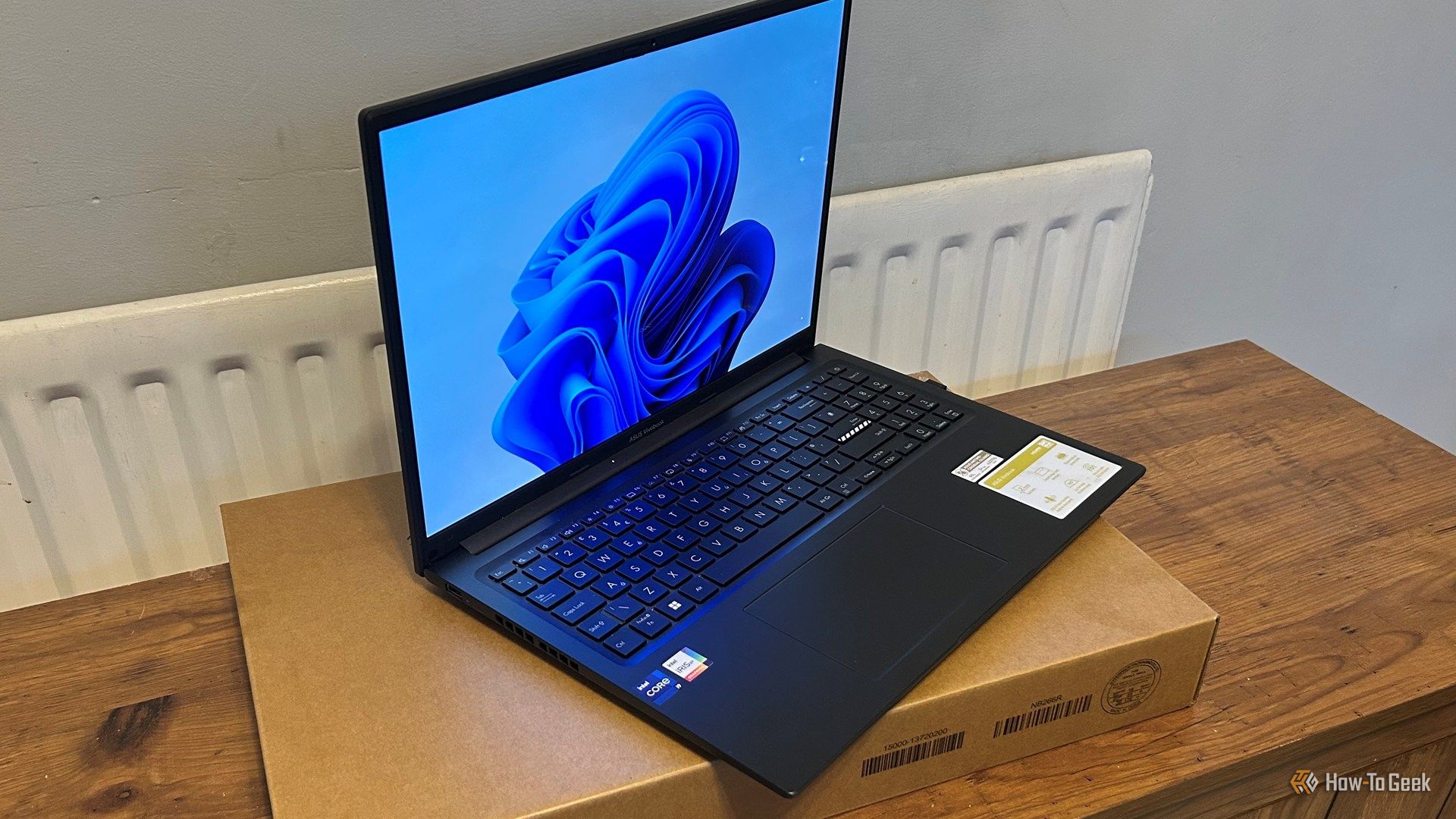
Even in 2026, many of us find ourselves with Windows 11 PCs equipped with just 8GB of RAM. While this amount is increasingly challenging for modern computing, especially with rising RAM prices and soldered memory in some devices, there's good news. Microsoft has introduced significant optimizations in its latest Windows 11 update (version 26H2), and combined with some smart management on your part, you can significantly improve your PC's responsiveness and usability.
This guide will walk you through a series of actionable steps to stretch your 8GB of RAM, helping your machine feel snappier for everyday tasks like web browsing, document editing, and content consumption. You'll learn how to leverage Microsoft's built-in improvements and identify areas where your PC might be unnecessarily consuming precious memory.
Prerequisites
Before you dive into optimizing your system, ensure you have the following:
- A PC running Windows 11: Specifically, for the best results, you'll want Windows 11 version 26H2 (build 26300.9818 or newer), as this update includes crucial memory optimizations.
- Basic familiarity with the Windows interface: You'll be navigating Task Manager and System Settings.
- An internet connection: Necessary for downloading and installing system updates.
Step 1: Install the Latest Windows 11 Update
Microsoft understands the challenge of limited RAM and has actively worked to improve the situation. The Windows 11 version 26H2 update, released in early November, brings a suite of optimizations specifically designed for PCs with 8GB of RAM. These improvements are not just minor tweaks; Microsoft claims this update can lead to a 20% boost in general system responsiveness and a remarkable 40% faster multitasking experience.
These gains are achieved through better memory compression, smarter management of applications in memory, and optimizations within Windows' day-to-day operations and built-in apps.
To ensure you benefit from these critical enhancements:
- Open Windows Settings: Press
Windows Key + I. - Navigate to Windows Update: In the left-hand menu, select "Windows Update."
- Check for updates: Click "Check for updates."
- Install all pending updates: Allow Windows to download and install any available updates. You may need to restart your PC multiple times to complete the process. Confirm your system is running version 26H2 (or newer) to ensure you have the latest memory optimizations.
Step 2: Audit and Manage Background Applications
Background applications are notorious for quietly consuming significant amounts of RAM. Many apps launch automatically with Windows or remain active even after you've closed them, steadily eating away at your available memory. By reining them in, you can free up substantial resources.
To identify and manage these memory hogs:
- Open Task Manager: Press
Ctrl + Shift + Escsimultaneously. - Go to the "Processes" tab: This tab shows all currently running applications and background processes.
- Sort by "Memory" usage: Click on the "Memory" column header. This will arrange processes with the highest RAM usage at the top.
- Identify and close unnecessary running apps: Look for applications you aren't actively using, such as communication apps (e.g., WhatsApp) or media players (e.g., Spotify), that might be consuming hundreds of megabytes or even half a gigabyte of RAM. Select them and click "End task." Remember, you can always reopen them when you need them.
- Manage startup applications: In Task Manager, switch to the "Startup apps" tab. Here, you'll see programs configured to launch automatically when your PC starts. Disable anything you don't genuinely need to run immediately. This can even include companion software for your mouse or keyboard, as most devices function perfectly well without their software running in the background.
- Consider Windows' built-in apps: Beyond your installed software, certain Windows services and built-in apps can also consume RAM. While Windows naturally uses some memory, apps like Widgets, Outlook, Edge, and OneDrive can be surprisingly resource-intensive. In a notable instance, MSN Weather was found to use over a gigabyte of RAM in the background. While not all can be disabled easily, being aware of their impact is the first step towards better management.
Step 3: Optimize Your Web Browser Usage
Your web browser is likely the most used application on your PC, and it's also one of the biggest RAM consumers. Google Chrome, in particular, is known for its memory appetite, but much of its usage can be attributed to how we use it.
To make your browser more memory-efficient:
- Close unused tabs: Every open tab consumes RAM. Make it a habit to close tabs once you're done with them.
- Disable unnecessary extensions: Browser extensions, while useful, each add to your browser's memory footprint. Review your installed extensions and disable or remove any that you don't actively use.
- Enable Chrome's "Memory Saver" feature: If you use Chrome, head to its settings. You'll find a "Memory Saver" feature designed to free up memory from inactive tabs, making it available for other tasks. Ensure this is enabled.
- Consider alternative browsers: If your workload consistently involves a large number of tabs or you find Chrome too demanding even with optimizations, switching browsers can help. Mozilla Firefox generally handles many open tabs more efficiently, while Brave and Thorium are Chromium-based browsers specifically optimized for lower RAM usage.
Step 4: Ensure Virtual Memory is Properly Configured
When your physical RAM runs out, Windows relies on "virtual memory" to prevent applications from crashing. This feature uses a portion of your internal storage (SSD) as a temporary extension of your RAM. It's a critical component for systems with limited physical memory.
To verify your virtual memory settings:
- Open Windows Search: Press
Windows Key + S. - Type "View advanced system settings" and click on the first result.
- In the "System Properties" window, under the "Performance" section, click "Settings...".
- Go to the "Advanced" tab.
- Under "Virtual memory," click "Change...".
- Ensure "Automatically manage paging file size for all drives" is checked. If you've previously set a manual size, it's recommended to switch back to automatic management and let Windows handle it. This allows the system to dynamically adjust the paging file as needed.
Important Tip: Virtual memory works best when it has ample space on your storage drive. Modern NVMe SSDs, especially more affordable QLC DRAMless models, can experience performance degradation as they fill up. To ensure optimal performance for your virtual memory and your entire PC, aim to leave at least 20% of your storage drive free. More free space can make your system feel noticeably snappier.
Step 5: Switch to Lightweight App Alternatives
Many commonly used applications, even those that seem simple, can consume surprising amounts of RAM. For example, Microsoft's built-in Photos app, Microsoft Word, and Adobe Acrobat Reader can each use hundreds of megabytes of RAM. Replacing these with lighter, more efficient alternatives can collectively free up gigabytes of memory.
Consider these lightweight alternatives for common tasks:
- For viewing images (instead of Photos): Try IrfanView or ImageGlass.
- For opening PDFs (instead of Adobe Acrobat Reader): SumatraPDF is a fast, minimalist option.
- For basic note-taking and text editing (instead of Word or Obsidian): Notepad++ is an excellent, resource-friendly choice.
By making a few simple adjustments to your daily workflow and choosing more efficient software, you can significantly reduce your PC's overall RAM usage.
What to Do If You Still Need More Performance
While these optimization steps can substantially improve the performance of an 8GB RAM Windows 11 PC for basic tasks like web browsing, homework, and content consumption, it's important to set realistic expectations. 8GB of RAM is a modest amount for modern applications.
If your daily workloads involve more demanding tasks such as video editing, heavy gaming, or running multiple complex applications simultaneously, these optimizations might only go so far. In such cases, you might eventually need to consider upgrading your RAM (if your machine allows it) or investing in a more powerful PC to meet your performance requirements.
FAQ
Q: How much RAM does Windows 11 itself typically use? A: While Windows itself uses a baseline amount of RAM to operate, its built-in applications and services can significantly add to this. For example, Windows' MSN Weather app was once observed consuming over a gigabyte of RAM in the background. Optimizing these system components, as outlined in this guide, can help reclaim valuable memory.
Q: Is 8GB of RAM truly enough for a modern PC in 2026? A: In 2026, 8GB of RAM is generally considered far from ideal for a modern PC, with 16GB often seen as the minimum for even simple tasks. However, with Microsoft's recent optimizations and the steps detailed in this guide, you can make an 8GB RAM PC quite usable for basic activities like web browsing, schoolwork, and media consumption for a few more years, especially if upgrading isn't an option.
Q: Why is it so difficult or expensive to upgrade RAM right now? A: The source content notes an ongoing global RAM shortage, which has driven prices up considerably for both DDR4 and DDR5 memory. Additionally, for many modern laptops and mini PCs, the RAM is soldered directly onto the motherboard, making physical upgrades impossible. In such cases, the only way to increase RAM is to replace the entire machine.
Related articles
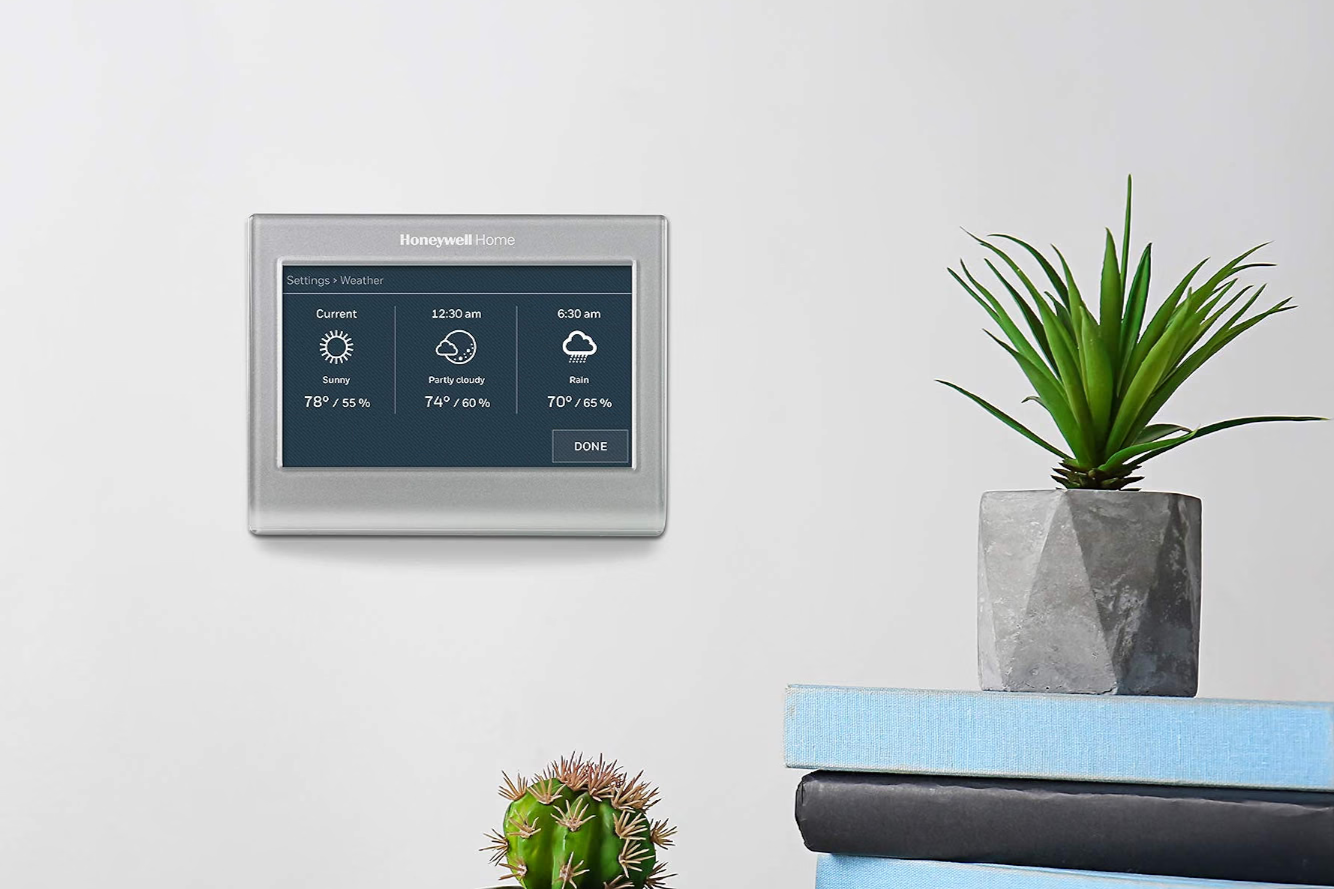
Get the Honeywell Smart Color Thermostat for $80 and Start Saving on
Learn to get and install the Honeywell Home Wi-Fi Smart Color Thermostat for just $80, a 55% saving, and start reducing your utility bills by leveraging its Energy Star certified features and smart home integration.
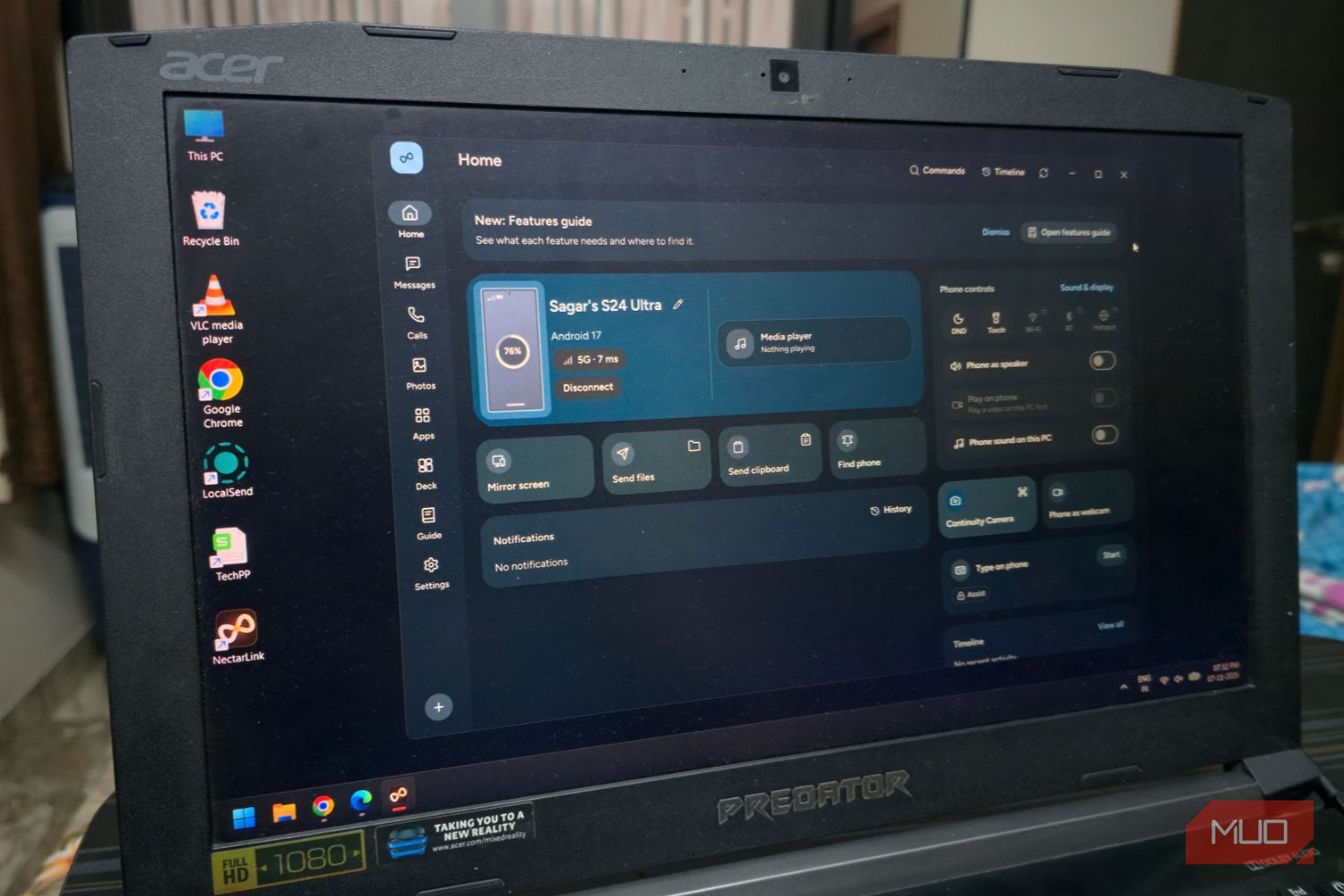
Seamlessly Connect Your Android to Windows with NectarLink
Learn to connect your Android phone to Windows using NectarLink, a free, open-source hub, in a few simple steps. Get notifications, sync files, mirror screens, and control your phone securely without cloud accounts.

How to Understand Leaked Vivo X500 Series Prices for India Launch Prep
Get a clear, step-by-step breakdown of the rumored Vivo X500 series prices, configurations, and how they compare to previous models, helping you prepare for the official India launch.
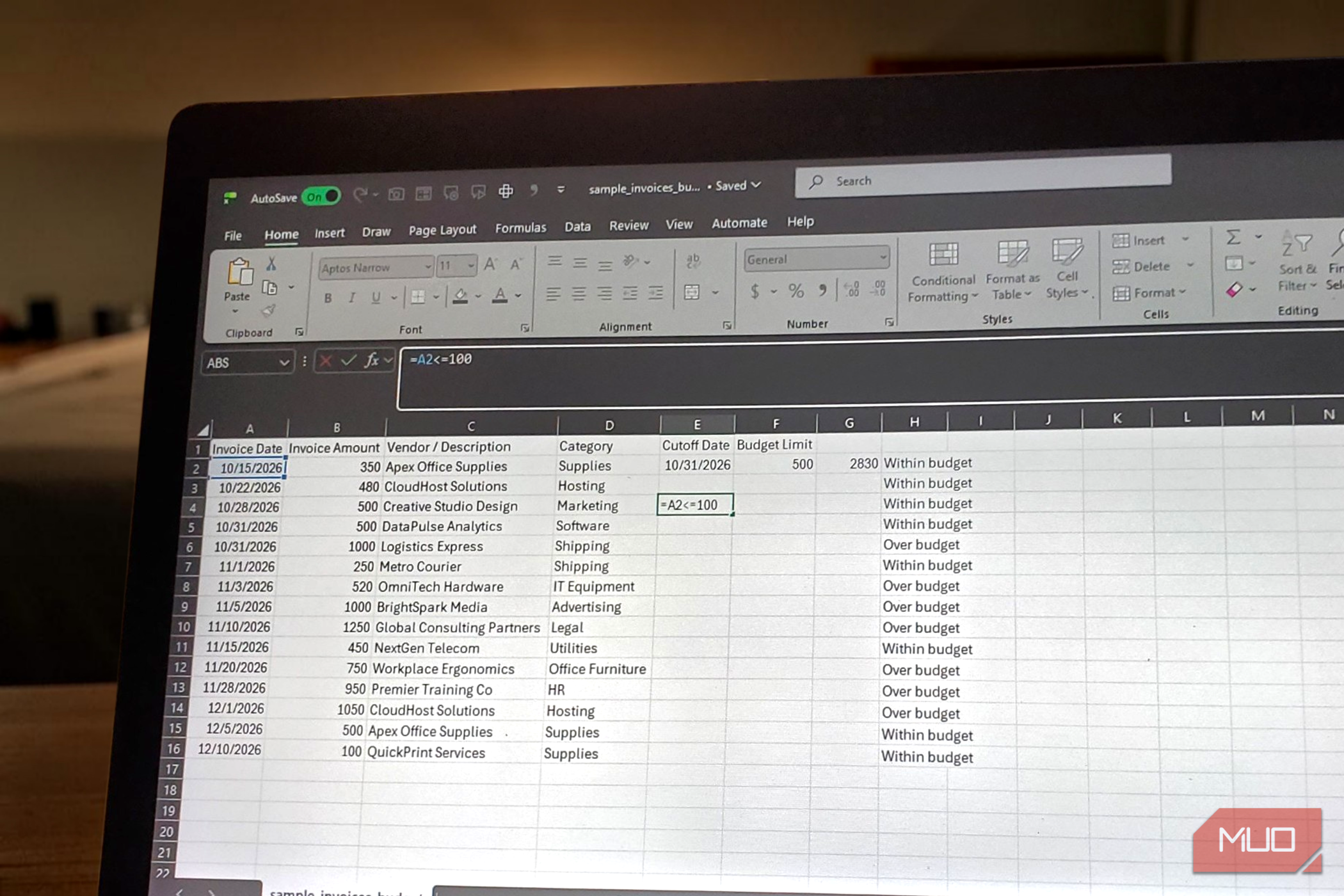
Master the <= Excel Operator for More Accurate Formulas
Learn to accurately handle boundary conditions in your Excel formulas by mastering the "less than or equal to" (`<=`) operator. This guide covers its use in IF statements and criteria functions like COUNTIF and SUMIFS, along with best practices and troubleshooting.

Sony Shutting Down PlayStation Plus PC App Next Month
Sony is discontinuing its PlayStation Plus app for Windows PCs on December 10th, citing less than 0.4% user engagement. This move aligns with Sony's broader pivot from PC gaming, though streaming still works on consoles and PlayStation Portal.

PS Plus Drops a Stacked November 2026 Lineup (Even With GTA 6!)
The November 2026 PS Plus Catalog update brings a fantastic lineup for Extra and Premium subscribers, even amidst the GTA 6 hype. Headlining the additions is Death Stranding 2, joining other highly-rated games like Atomfall, Like a Dragon: Pirate Yakuza in Hawaii, and Dragon Quest III HD-2D Remake.