
Boost Gaming Immersion: Webcam Head Tracking with Free Software
Transform your gaming immersion by adding webcam-based head tracking with free software. This guide covers setup, tweaking, and best practices to get you looking around virtual cockpits and car interiors in just a few steps for a more engaging experience.
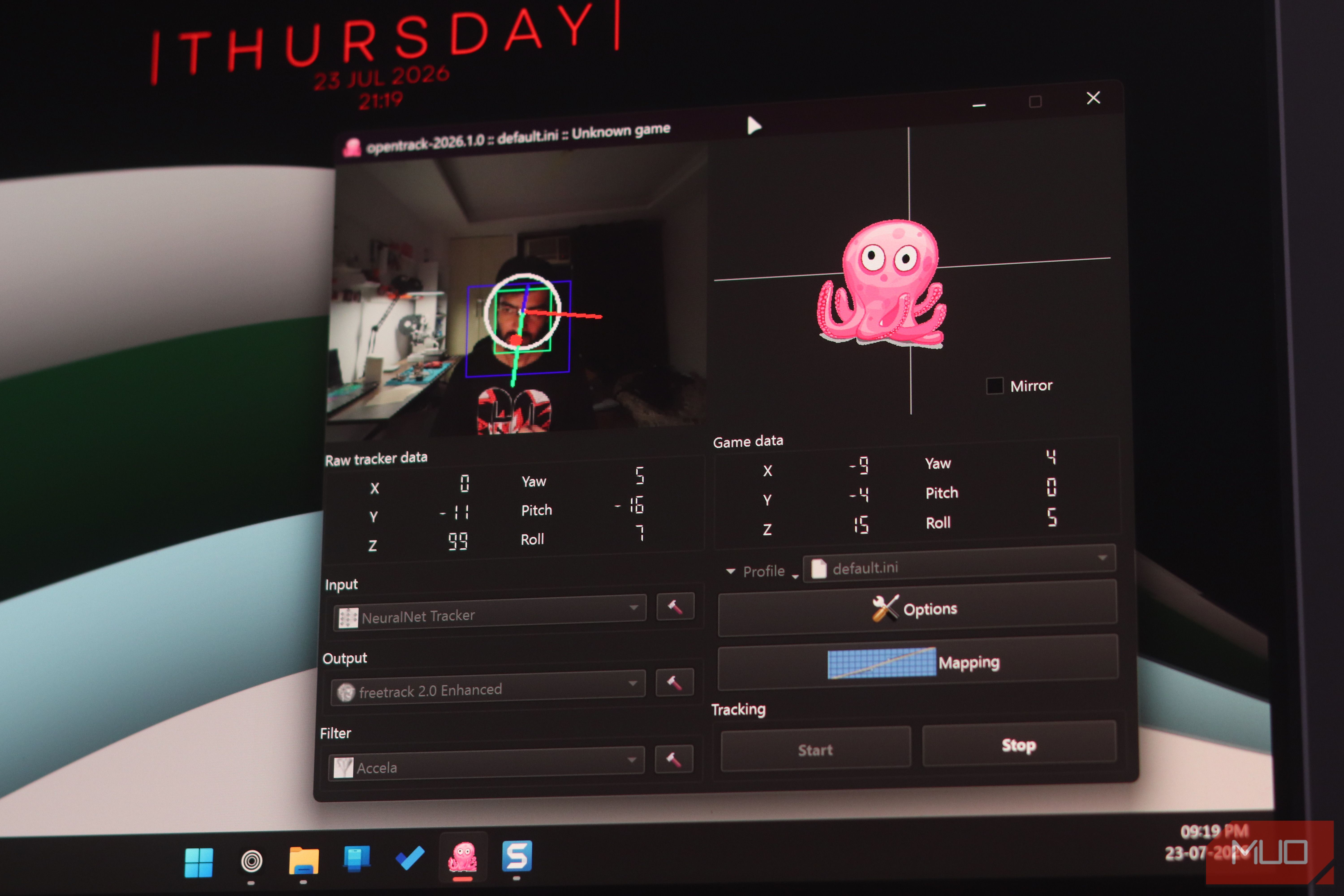
Looking to enhance your gaming immersion without breaking the bank on expensive VR setups or dedicated head tracking hardware? You can transform your sim racing or flight simulator experience using just your existing webcam and a powerful, free open-source tool called OpenTrack. This guide will walk you through setting up webcam-based head tracking, allowing subtle head movements to translate into dynamic in-game camera controls.
Traditionally, achieving realistic cockpit views required costly equipment. However, OpenTrack, with its built-in neural network tracker, makes this advanced feature accessible to everyone. You'll be surprised how a little setup and tweaking can deliver a significantly more engaging gaming experience.
Prerequisites
Before you begin, ensure you have the following:
- A Webcam: Any standard USB webcam capable of 640x480 resolution at 60 frames per second (FPS) will typically suffice. Higher resolutions like 800x600 are also acceptable. If you don't have one, you can even use your Android phone as a webcam.
- A Windows PC: OpenTrack is primarily a Windows application.
- Supported Games: Head tracking is particularly impactful for simulation games like racing sims (e.g., iRacing, Assetto Corsa) and flight sims, but many other titles support it as well.
Step-by-Step Setup for Head Tracking
Follow these steps to get OpenTrack up and running with your webcam:
1. Download and Install OpenTrack
First, download the most recent version of OpenTrack from its official GitHub repository. You can choose either the installer or the portable version. If you opt for the portable version, simply extract the archive to a location on your computer.
2. Configure Input and Output
Once OpenTrack is installed or extracted, launch the application. You'll see dropdown menus for "Input" and "Output" on the main interface:
- Input: Set this dropdown to NeuralNet Tracker. This integrated tracker uses your webcam to detect and interpret your head movements.
- Output: Set this to freetrack 2.0 Enhanced. This is the common compatibility layer that most games recognize for head tracking data.
3. Customize Webcam Settings
Next, you need to configure OpenTrack to recognize and optimize your webcam for tracking:
- Click the hammer icon located next to the "Input" dropdown menu.
- In the settings window, select your webcam from the Camera name dropdown, especially if you have multiple cameras connected.
- Adjust the resolution to a suitable setting like 640 x 480 or 800 x 600. While your camera might support higher resolutions, using the lowest possible resolution that still allows for reliable face tracking is recommended. Unnecessarily high resolutions can introduce performance overhead.
- Set the FPS to 60, or 30 if your camera doesn't support 60 FPS. A higher frame rate generally results in smoother tracking.
4. Set a Centering Shortcut
Calibrating your view is crucial, especially if you shift in your chair or move away from your desk. A centering shortcut allows you to quickly reset your in-game camera to the default position:
- Navigate to the Shortcuts tab within OpenTrack's settings.
- Assign a convenient keyboard shortcut for the Center function. This will be invaluable for recalibrating your view mid-game if the tracking gets offset or loses your face.
Advanced Tweaking for Optimal Performance
While the basic setup gets you started, fine-tuning OpenTrack's settings can dramatically improve your experience, making the tracking feel natural and responsive.
1. Adjust Mapping Curves for Sensitivity and Deadzones
The Mapping tab is where you define how your physical head movements (yaw, pitch, roll, and X/Y/Z translations) translate into in-game camera motion. Each axis has its own graph:
- Understanding the Curves: The graph allows you to create a response curve by dragging points. The horizontal axis represents your physical head movement, and the vertical axis represents the corresponding in-game camera movement.
- Deadzones: By creating a flat segment near the origin, you can establish a deadzone. This prevents tiny, involuntary head movements from causing jittery in-game camera motion.
- Sensitivity: Adjust the steepness of the curve to control sensitivity. A steeper curve means smaller head movements result in larger in-game movements.
- Game-Specific Tuning: Expect to adjust these parameters for each game. For sim racing titles like iRacing or Assetto Corsa, subtle movements are often preferred. You might even want to keep movements mostly to yaw (looking left/right) and roll (tilting head) to avoid motion sickness. For flight simulators, you'll likely want a greater range of motion across all axes to explore the detailed cockpits. Don't be afraid to disable axes you don't need for a particular game.
2. Optimize Your Environment and Camera Placement
The physical environment plays a significant role in tracking quality:
- Lighting is Key: OpenTrack's neural net tracker performs best in a well-lit environment. In dimly lit rooms, you might experience jittering or the tracker mistakenly locking onto random objects in the background (as mentioned in the source, a 3D printer's filament spool was a culprit). Ensure you have adequate lighting, ideally with some light on your face.
- Camera Position: Place your webcam as close to your face as comfortably possible. If your camera has a wide field of view, leaning too far back can cause the tracker to lose sight of your face. Keeping it closer helps maintain a consistent lock.
3. Automate Game Detection and Startup Options
For a seamless experience, you can configure OpenTrack to automatically start and apply profiles:
- Game Detection: Use the Game detection tab to create individual profiles for different games. This allows OpenTrack to automatically activate head tracking with your preferred settings when you launch a supported game.
- Windows Startup: For convenience, you can place OpenTrack in your Windows Startup folder. This ensures the application launches quietly in the background every time you boot your PC, ready to provide head tracking whenever you start a game.
Conclusion
For no financial cost and just a short period of initial setup and fine-tuning, you can significantly elevate your gaming immersion. Using a standard webcam and the free OpenTrack software provides a surprisingly capable head-tracking system. While it may not fully replace dedicated hardware or virtual reality headsets, the improved ability to naturally glance around a virtual cockpit or lean into a turn is a compelling upgrade. This accessible solution delivers a substantial jump in gaming realism for minimal effort and zero expense.
FAQ
Q: What kind of webcam do I need?
A: Any standard USB webcam with a reasonable resolution (640x480 or 800x600) and frame rate (30 or 60 FPS) should work well. You don't need specialized hardware like IR blasters. You can even use an Android phone as a webcam.
Q: My head tracking is jittery or locks onto wrong objects. What can I do?
A: Jittering and misidentification often occur in dimly lit environments. Ensure your gaming space is well-lit, and try to have some light directly on your face. Also, positioning your camera as close to your face as possible can help prevent it from losing track or focusing on background elements.
Q: How do I reset my in-game view if it gets misaligned?
A: You can set a centering shortcut in OpenTrack's Shortcuts tab. Assign a key that you can easily press during gameplay. This shortcut allows you to instantly recalibrate your in-game view back to its default position, which is very useful if you move away from your desk or if the tracking momentarily gets thrown off.
Related articles
howto: 4 Photoshop plugins so essential they should be built-in
Discover four essential Photoshop plugins that streamline your workflow, save time, and unlock new creative possibilities, making you wonder why they aren't built-in features.

Solve Annoying PDF Problems Locally in Your Browser with BentoPDF
Dealing with PDFs can often feel like a never-ending series of small, annoying tasks. You might need to combine several documents, reduce the size of a bulky file, or even make an image-only scan searchable. Typically,

Your Guide to LG's 115-inch QNED evo TV: Features, Gaming & Price
Welcome to an exciting exploration of LG's latest innovation in home entertainment: the colossal 115-inch QNED evo AI Mini LED TV. This guide is designed to walk you through everything you need to know about this

Wizards of the Coast Crowns New President, Signaling a Digital Future
Dan Ayoub, former Senior VP of D&D and an ex-Halo studio head, is the new President of Wizards of the Coast and Hasbro Digital Games. His appointment signals a strong push into digital and video games for the company, creators of Magic: The Gathering and Dungeons & Dragons. Upcoming titles include the sci-fi RPG Exodus and the D&D action-adventure Warlock.

How to Stop Google Using Your Gmail & Drive Data for Ads
Google's "Personal Intelligence" feature, designed to offer more tailored AI responses, may inadvertently lead to your personal data from apps like Gmail, Google Drive, and Google Photos being used for targeted

UK Gaming's Future on the Line: UKIE Pushes for Modern Tax Credits
UKIE is urging the government to modernize the Video Games Expenditure Credit (VGEC) and introduce a new 'Games Scale-Up Fund' ahead of the Autumn Budget. This move is critical to keep the UK competitive in global game development, address outdated rules, and prevent studios and talent from relocating, ensuring a vibrant future for British-made games.