
howto: 4 Photoshop plugins so essential they should be built-in
Discover four essential Photoshop plugins that streamline your workflow, save time, and unlock new creative possibilities, making you wonder why they aren't built-in features.
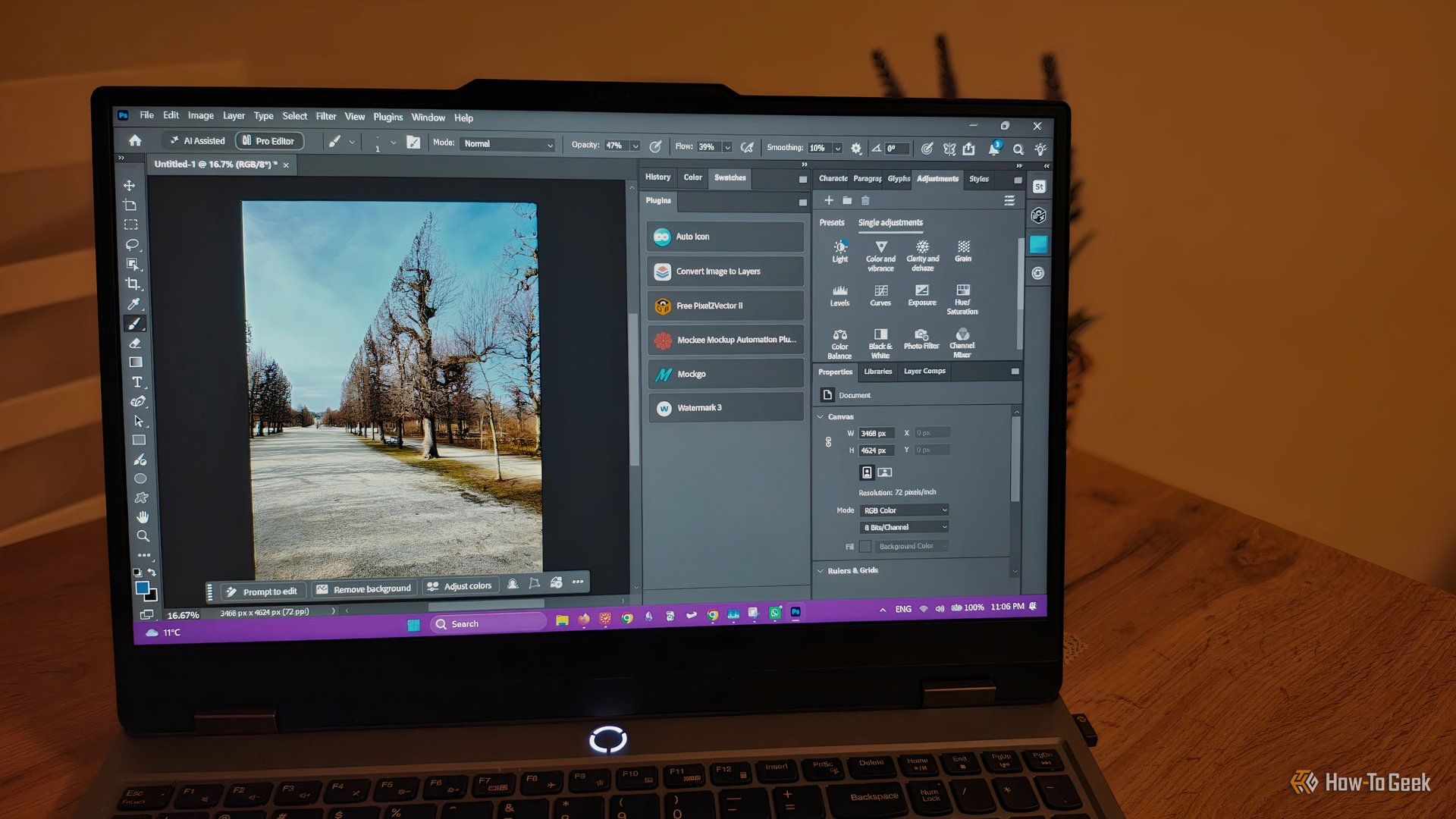
Photoshop stands as an industry standard, not just for its powerful native features, but also for its incredible extensibility through third-party plugins. While Adobe continuously updates the software and integrates new AI tools, certain essential functionalities often remain outside its core offerings. This is where a vibrant ecosystem of add-ons comes in, simplifying complex tasks and unlocking new creative possibilities.
In this guide, we'll explore four standout Photoshop plugins that streamline your workflow, save precious time, and enhance your creative output significantly. By integrating these tools, you'll discover efficiencies that make you wonder why they aren't part of Photoshop's built-in suite already.
What You'll Accomplish
By the end of this guide, you'll understand the immense value these four plugins bring to your Photoshop experience. You'll learn how they address common challenges, from sourcing free stock images and batch watermarking to professional-grade photo editing and intelligently deconstructing flat designs into editable layers. Get ready to elevate your design process and boost your productivity!
Prerequisites
Before diving in, make sure you have the following:
- Adobe Photoshop: An active installation of Photoshop (Windows or macOS). Many plugins are compatible with recent versions.
- Internet Connection: Required for downloading and installing plugins, and for plugins like StockSolo that fetch online resources.
- Basic Photoshop Knowledge: Familiarity with Photoshop’s interface and layer concepts will help you integrate these tools smoothly.
Let's explore these game-changing plugins!
1. StockSolo: Your Gateway to Free Stock Images
Accessing high-quality, free stock images can be a tedious process, often involving juggling multiple browser tabs and meticulously checking licensing rules. StockSolo eliminates this hassle by bringing millions of free images directly into Photoshop.
What it Does: StockSolo is a free extension for Windows and macOS that lets you search and embed royalty-free images from a vast database combining resources like Adobe Stock (free assets), Unsplash, Pixabay, and Pexels.
How to Use It:
- Installation: After installation, launch Photoshop.
- Access: In the latest Photoshop versions, navigate to
Window>Extensions (legacy)and selectStockSolo. - Search: A panel will open, allowing you to type keywords and browse images directly within Photoshop.
- Insert: Once you find an image you like, you can easily insert it into your current project.
Why It's Essential: StockSolo's biggest advantage is saving you time. It ensures that every image you see is free for commercial use, removing the need to manually verify attribution rules. While Photoshop's native Adobe Stock panel exists, its free offerings are more limited, and the beta version with enhanced filtering is still in development. For now, StockSolo remains the go-to for quick, compliant image sourcing.
Tip: Keep an eye on Photoshop Beta's Stock Panel improvements, but StockSolo provides a robust solution today for accessing diverse, free stock imagery.
2. Watermark 3: Batch Watermark Your Work Effortlessly
Protecting your original artwork with watermarks is crucial when sharing online or sending previews to clients. However, applying watermarks to multiple images can be incredibly monotonous. Watermark 3 transforms this chore into a quick, automated process.
What it Does: Watermark 3 is a straightforward plugin for macOS and Windows designed for batch watermarking. It allows you to process up to 50 images simultaneously, adding either your custom logo or text-based watermarks.
How to Use It:
- Prepare Images: Place all the images you wish to watermark into a single 'source' folder.
- Define Output: Create an empty 'destination' folder where the watermarked images will be saved.
- Customize Watermark: Within the Watermark 3 panel, you can:
- Upload your logo or create a text watermark.
- Adjust font, color, opacity, and strokes (free version).
- Set the size (small/medium/large) and position (right/center/left) using presets.
- Run Batch: Select your source and destination folders, then click "Run Batch." In moments, all your images will be watermarked according to your specifications.
Pro Version Insights: If you frequently handle more than 50 images or require more advanced control, the Pro version offers unlimited batch processing, exact watermark size control, and the ability to create full-image watermark patterns.
Tip: This plugin is invaluable for creatives who publish work online or provide proofs to clients, ensuring your intellectual property is protected without consuming excessive time.
3. Nik Collection 9: Professional-Grade Photo Editing Suite
For photographers and designers seeking advanced control over color grading, creative filters, and sophisticated post-processing, the Nik Collection has long been a favorite. This comprehensive suite offers a simplified yet powerful workflow for achieving professional-looking photo edits.
What it Does: Nik Collection 9 is a suite of seven powerful add-ons for photo editing, compatible with Windows and macOS. Each module serves a specific purpose, covering everything from nuanced color adjustments and noise reduction to HDR processing and artistic effects. It integrates seamlessly with Photoshop and other editors like Affinity Photo or DxO PhotoLab.
How to Use It:
- Access Modules: From Photoshop, you can launch individual Nik Collection modules separately (e.g.,
Filter>Nik Collection). - Apply Presets: Explore a wide range of reusable presets tailored for different styles and effects.
- U-Point Technology: Utilize the intuitive U-Point technology to target specific areas in your photos for adjustments without the need for complex manual selections or layer masks.
- Color Efex: Offers diverse color filters, contrast adjustments, and texture enhancements.
- Analog Efex: Provides vintage-style presets and filters for a classic look.
- Silver Efex: A highly acclaimed module for stunning black and white photography conversions.
Why It's Essential: While Photoshop has built-in editing features, Nik Collection provides an alternative, often more streamlined, workflow for achieving specific high-quality results. Its U-Point technology alone is a game-changer for precise local adjustments, giving you unparalleled control over your image's aesthetic.
Tip: Take advantage of the 30-day free trial to explore the full capabilities of the Nik Collection and see how its unique tools can transform your photo editing process.
4. Convert Image to Layers: Deconstruct Flat Designs into Editable Elements
Ever found yourself needing to edit an old design, only to realize you've lost the original layered file? Convert Image to Layers is a lifesaver, designed to intelligently break down flat raster graphics into individual, editable layers.
What it Does: This free Photoshop plugin for Windows and macOS specializes in splitting flat graphics (not photos) into separate, manageable layers. It's particularly useful for recovering editable elements from legacy assets.
How to Use It:
- Open Flat Image: Load the flat graphic you need to edit into Photoshop.
- Run Plugin: Access the
Convert Image to Layersplugin. - Specify Layers: Choose how many layers you'd like the image to be split into (up to 8). Consider the complexity of your design when making this choice.
- Edit Layers: Once split, you can move, hide, rotate, and resize the newly created layers. Crucially, the plugin attempts to identify text, converting it into an editable format (often Myriad Pro), allowing you to change fonts, colors, and even the text content itself.
Limitations & Best Practices: While incredibly useful, the plugin works best with simpler designs. Complex images with many distinct elements might exceed the 8-layer limit. Also, while its text identification is robust, highly stylized or complicated scripts might occasionally pose a challenge for exact content recovery. The plugin generally does well at grouping elements but might sometimes separate items that ideally belong together.
Tip: This tool saves immense time that would otherwise be spent rebuilding designs from scratch. It's an indispensable resource for updating old graphics when source files are missing.
Possibilities Are Endless
These four plugins are just a glimpse into the vast world of Photoshop extensions. They solve common pain points and offer efficiencies that truly feel like built-in features. Adobe Stock, along with other online marketplaces, hosts a massive library of plugins, both free and paid, catering to virtually any creative need.
Don't hesitate to explore and experiment. If you encounter a specific challenge or wish to automate a repetitive task, a quick search for a relevant plugin could unveil the perfect solution to enhance your workflow and unleash new creative possibilities.
FAQ
Q: Are all these plugins free to use? A: Not all of them. StockSolo and Convert Image to Layers are free. Watermark 3 has a free version with core features and a Pro version for advanced capabilities. Nik Collection 9 is a one-time purchase tool, but it offers a 30-day free trial so you can test its full suite before committing.
Q: How do I install Photoshop plugins?
A: Installation methods can vary slightly by plugin. Generally, you'll download an installer from the plugin developer's website. For many extensions, once installed, you can access them via Window > Extensions (legacy) in Photoshop. Always follow the specific installation instructions provided by each plugin developer for the best results.
Q: Can these plugins replace Photoshop's built-in features entirely? A: These plugins often offer a simplified workflow, specialized tools, or expanded capabilities that complement Photoshop's native features rather than completely replacing them. For example, StockSolo offers a broader free stock image database than Photoshop's native panel, and Nik Collection's U-Point technology provides a unique approach to local adjustments. They fill gaps and enhance efficiency, making your overall Photoshop experience richer.
Related articles

Solve Annoying PDF Problems Locally in Your Browser with BentoPDF
Dealing with PDFs can often feel like a never-ending series of small, annoying tasks. You might need to combine several documents, reduce the size of a bulky file, or even make an image-only scan searchable. Typically,

Your Guide to LG's 115-inch QNED evo TV: Features, Gaming & Price
Welcome to an exciting exploration of LG's latest innovation in home entertainment: the colossal 115-inch QNED evo AI Mini LED TV. This guide is designed to walk you through everything you need to know about this

Apple's Touchscreen MacBook Pro: A Long-Awaited Touch
The Verdict Apple's rumored touchscreen MacBook Pro represents a long-overdue evolution, promising to blend the convenience of direct screen interaction with the powerful macOS laptop experience. While not an essential

How to Stop Google Using Your Gmail & Drive Data for Ads
Google's "Personal Intelligence" feature, designed to offer more tailored AI responses, may inadvertently lead to your personal data from apps like Gmail, Google Drive, and Google Photos being used for targeted

Volunteers Mobilize Nationwide with Tech to Counter ICE at Polls
In a significant demonstration of civic readiness, massive groups of volunteers across the United States are organizing to respond should federal immigration agents appear at polling stations on the upcoming Election

Google Fitbit Edge Review: Your Anti-Smartwatch Fitness Sweet Spot
Learn if the Google Fitbit Edge is the right fitness tracker for you, balancing core health features with a simplified experience. Discover its design, advanced tracking, and software insights to make an informed decision.