
Android Data Saver Mode: A Welcome Relief for Limited Data Users
Android's Data Saver mode offers a crucial solution for users with limited mobile data, preventing background data usage and reducing overcharges. Easy to activate and customize, it provides granular control over app data, though it requires managing exceptions.

Android's Data Saver mode emerges as a valuable tool for anyone navigating the tricky waters of limited mobile data plans. This built-in feature offers a straightforward way to rein in data consumption, preventing unexpected overcharges and providing a significant sense of relief for budget-conscious users. While it requires a bit of user interaction to customize, its core function of restricting background data and managing media loading makes it an indispensable ally against data plan woes.
The Data Dilemma and Android's Solution
For many, an unlimited data plan is a luxury they can't afford, making every gigabyte count. The struggle is real when your phone dings with an ominous warning that you've burned through your monthly allowance, prompting you to 'put the brakes on' your usage. This is precisely where Android's Data Saver mode steps in, offering a robust, built-in solution to a common problem. It's not uncommon for users to find themselves exceeding data limits, sometimes without even realizing which apps are responsible for the heavy usage.
What is Android Data Saver Mode and How It Works
At its heart, Data Saver is designed to curtail applications from sending or receiving data when they're not actively in use in the background. What does this practically mean for your day-to-day usage? Imagine visiting a website in your browser: with Data Saver enabled, those data-heavy images won't just pop up automatically; you'll need to tap them individually to load. Similarly, videos and audio clips will not play automatically, giving you explicit control over when and if that data is consumed. This proactive approach significantly reduces passive data drain, ensuring your mobile allowance is spent only on what you truly intend to use. It's a smart way to gain immediate control over your data spending habits.
User Experience and Granular Control
Activating Data Saver is remarkably simple, designed to be accessible to all Android users. The feature is integrated directly into the system settings, requiring just a few quick taps. You can typically open the Settings app by pulling down the Notification Shade twice and tapping the gear icon in the bottom right, or by locating and launching 'Settings' from your App Drawer. Once inside Settings, navigate to 'Network & internet' (note that on some Android phones, this feature might be found under 'Mobile network'). On that page, you'll easily locate and tap 'Data Saver.' A straightforward On/Off switch for 'Use Data Saver' allows you to activate the feature instantly. Once toggled to the 'On' position, Android immediately begins restricting background data usage across your device. This immediate effect is a huge relief, as it removes the constant worry of inadvertently crossing your data threshold.
However, the true sophistication of Data Saver isn't just in its broad restrictions; it's in its granular control. Android thoughtfully includes an 'Unrestricted mobile data' option. This feature acknowledges that while most apps can function with data restrictions, some critical applications might require constant background data access to perform correctly – think messaging apps for notifications, or navigation apps for real-time updates. If you notice an essential app behaving strangely, perhaps not updating or syncing as expected, you can easily access this list. Simply tap 'Unrestricted mobile data' on the Data Saver page, scroll through your installed apps, find the one that needs full data access, and tap its associated On/Off slider to the 'On' position. This level of customizable control ensures that while you're effectively saving data where it counts, your critical applications remain fully functional. It's a thoughtful design choice that perfectly balances robust data saving with practical, uninterrupted usability.
Pros and Cons of Android Data Saver Mode
Pros:
- Significant Data Savings: Directly addresses the problem of exceeding data limits by preventing background data usage from unknown or less critical applications.
- Cost Control: Helps users avoid expensive overage charges on limited data plans, offering genuine financial relief and predictability in monthly bills.
- Enhanced User Control: Empowers users to decide which apps can use data in the background and which cannot, granting a clear sense of agency over their phone's behavior and data expenditure.
- Simple Activation: The feature is straightforward to locate and enable within Android's system settings, making it accessible even for less tech-savvy individuals.
- Customizable Exceptions: Offers the flexibility to grant specific apps unrestricted data access, ensuring essential services continue to function without interruption, even while general data saving is active.
Cons:
- Potential for Impaired App Functionality: By default, Data Saver applies to all apps, which can lead to a degraded experience (e.g., images not auto-loading, videos not auto-playing) or even broken functionality for some applications until exceptions are manually configured.
- Requires Manual Toggling for Exceptions: Users must actively identify and exempt apps that need unrestricted data, adding a slight initial setup step to ensure all critical apps work as expected.
- User Oversight Required for Optimal Use: The feature requires users to remember to disable it when no longer at risk of exceeding data limits (e.g., when on Wi-Fi or with a temporary unlimited plan). Failure to do so might unnecessarily restrict app functionality, indicating it's not a purely set-it-and-forget-it solution for all scenarios.
Recommendation
Android's Data Saver mode is not just a feature; it's a financial lifeline for anyone on a limited mobile data plan. If you frequently find yourself staring down the barrel of an overage charge or simply want more granular control over your phone's data consumption, this tool is an absolute must-use. Its ease of activation, coupled with the ability to create exceptions for essential apps, makes it incredibly versatile. While it requires a brief period of setup to fine-tune app permissions and a bit of user vigilance to toggle it off when not needed, the peace of mind and substantial cost savings it offers far outweigh these minor inconveniences. Our recommendation is clear: if you have limited mobile data, enable Data Saver today. It's a core Android feature, meaning you don't need to download any third-party alternatives; it's right there, ready to save you money and worry.
FAQ
Q: Is Data Saver easy to enable?
A: Yes, Data Saver is integrated directly into your Android phone's settings. You can typically find and activate it with just a few taps through the 'Settings' app under 'Network & internet' or 'Mobile network.'
Q: Does Data Saver affect all apps equally?
A: By default, Data Saver restricts background data for all installed apps. However, Android provides an 'Unrestricted mobile data' option, allowing you to selectively exempt specific apps that require full, uninterrupted data access to function properly.
Q: Should I keep Data Saver on all the time?
A: While Data Saver is highly beneficial for limited data plans, the source suggests remembering to turn it off when you're no longer at risk of exceeding your data limit, such as when connected to Wi-Fi. This ensures optimal functionality for all apps when data conservation isn't a primary concern.
Related articles
Android 17 QPR2 Beta 7.1: The Performance Relief You've Been Waiting
Android 17 QPR2 Beta 7.1: Finally Fixing the QPR1 Performance Woes Verdict: Android 17 QPR2 Beta 7.1 is a crucial and highly anticipated software update for Google Pixel users, specifically targeting and resolving the

DJI Solo Video Setups: Smart Choices for Lone Creators
This review delves into DJI's recommended solo video setups, highlighting the Osmo Pocket 3 Creator Combo as a top pick for its integrated camera, gimbal, and mic. It also covers stabilizers like the Osmo Mobile 8 and RS 4, and the DJI Mic Mini series for enhanced audio, providing honest pros, cons, and clear buying advice.

Ditch Merge & Center: The Better Way to Align Text in Excel
Learn to use Excel's "Center Across Selection" to align text across cells without merging, avoiding common data manipulation issues. This guide provides steps to utilize this newly accessible feature and add it to your Quick Access Toolbar.

Ars Technica's Rocket Report: Your Essential Space Industry Briefing
Quick Verdict Ars Technica's Rocket Report, presented by veteran space reporter Stephen Clark, offers an invaluable and meticulously organized weekly (or similar frequency, implied by "Edition 9.15") digest of the most
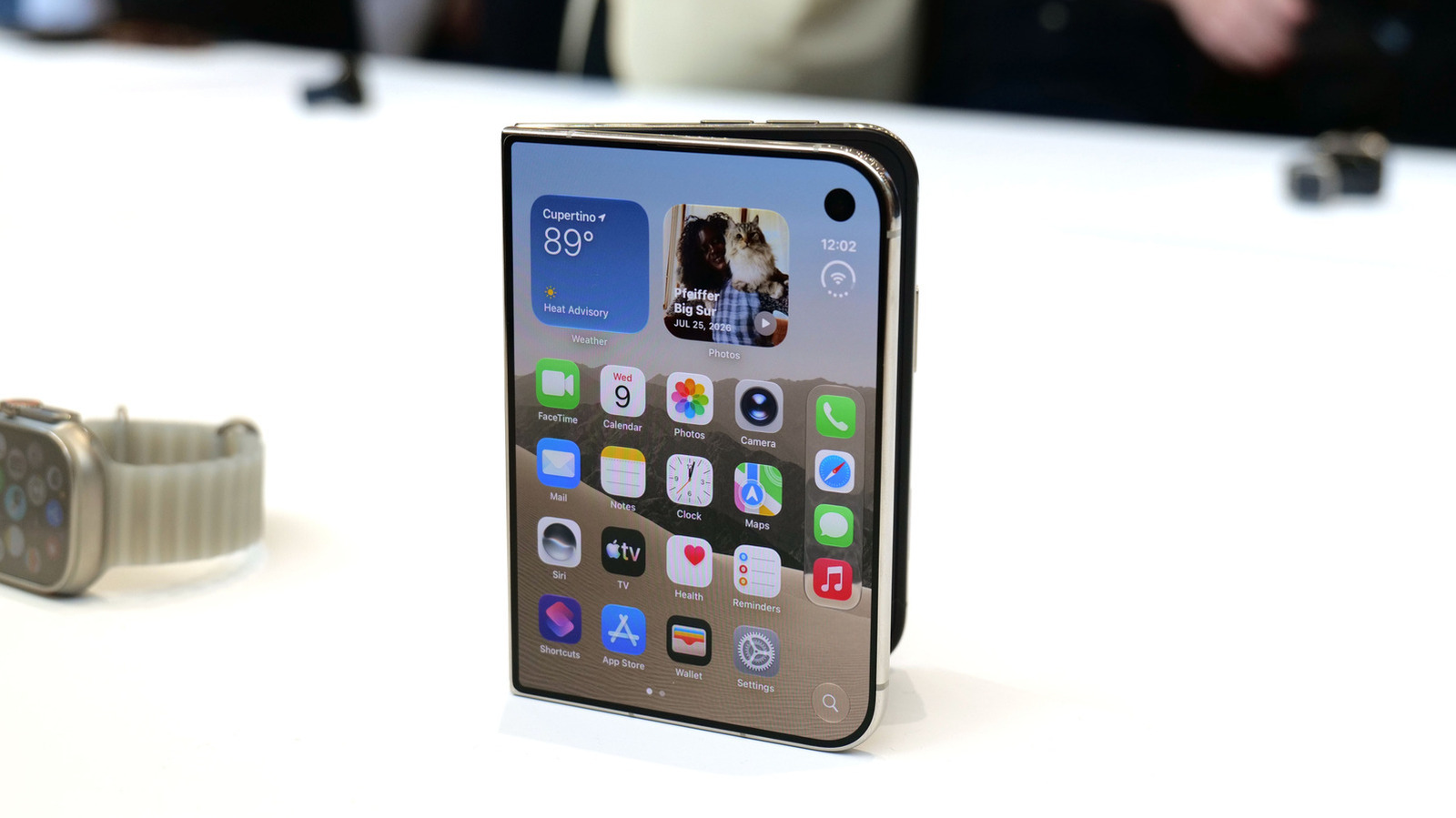
Apple iPhone Duo: A Daring Debut with Notable Compromises
Apple's highly anticipated iPhone Duo, priced at $2,000, has gone on pre-order. While hailed as "Apple's most exciting device in a decade" for its innovative foldable design and immersive display, it comes with significant drawbacks like the absence of FaceID and a premium camera.

AI's Confidence vs. Formal Methods' Rigor: Design Flaws & Verification
While AI accelerates code generation, formal methods remain critical for ensuring system correctness. Languages like TLA+ and tools like Quint enable developers to model and verify system designs before coding, catching subtle flaws. Quint makes formal methods more accessible with developer-friendly syntax and executability. This approach is vital for verifying AI-generated code through trace validation and model-based testing, ensuring reliability against real-world data.