
Your Galaxy's Always-On Display Draining Battery? Schedule a Hidden
Reclaim Your Battery: Schedule Your Galaxy's Always-On Display Your Samsung Galaxy's Always-On Display (AOD) is a handy feature, showing you the time and notifications at a glance. However, keeping it active all day can
Reclaim Your Battery: Schedule Your Galaxy's Always-On Display
Your Samsung Galaxy's Always-On Display (AOD) is a handy feature, showing you the time and notifications at a glance. However, keeping it active all day can quietly drain your battery, often without you realizing it. If you're wearing a smartwatch or constantly in front of a computer, your AOD might be doing a redundant job, costing you precious battery life. Luckily, Samsung built in a clever, often overlooked feature: AOD scheduling.
This guide will walk you through the simple steps to schedule your Always-On Display, allowing it to activate only when you truly need it. By implementing this hidden fix, you can significantly reduce unnecessary battery consumption and end your day with more power.
What You'll Accomplish
By following this guide, you will learn how to set a custom schedule for your Galaxy's Always-On Display. This will enable AOD only during specific hours, preventing it from running unnecessarily throughout the day and night. The result? A noticeable improvement in your phone's battery life – potentially 5-10% more power by day's end.
Prerequisites
- A Samsung Galaxy smartphone with Always-On Display functionality.
- Your phone should be running a relatively recent version of Android/One UI, as menu options may vary slightly on older devices.
Step-by-Step: Setting Your Always-On Display Schedule
Scheduling your AOD is straightforward. Here’s how to do it:
-
Open Settings: From your home screen, swipe down from the top to open the Quick Settings panel, then tap the gear icon (Settings).
-
Navigate to Lock screen settings: Scroll down and tap Lock screen and AOD.
-
Access Always on Display settings: Tap Always on Display.
-
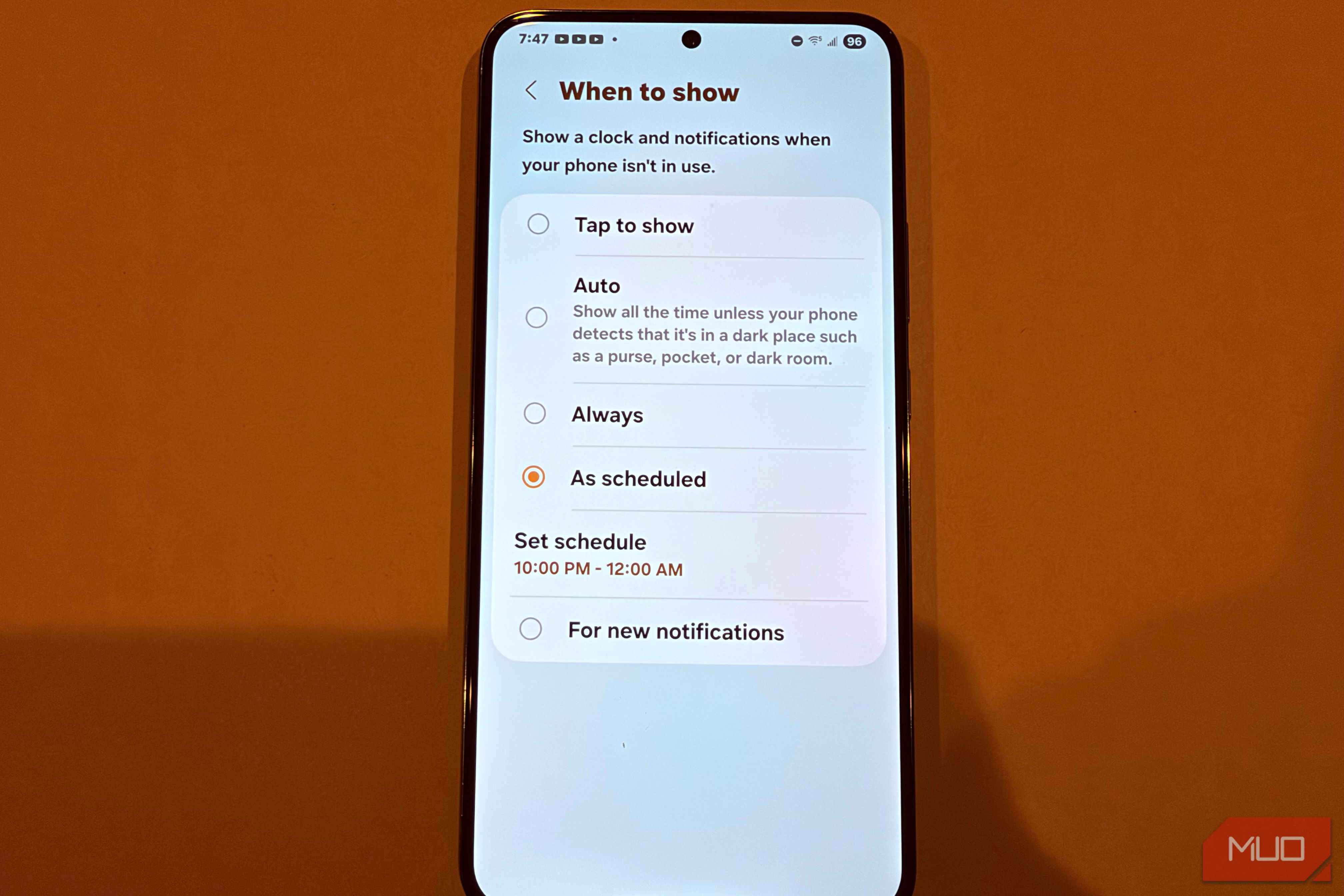
Choose When to Show: Look for the option labeled When to Show and tap on it.
-
Select As scheduled: From the available options, choose As scheduled. This will reveal settings to define your preferred active times.
-
Set Your Schedule:
- Tap on Set schedule.
- Use the time pickers to set your desired Start time and End time for when AOD should be active. For instance, you might set it from 5:00 PM to 10:00 PM if those are the hours you're typically away from other screens and not wearing a smartwatch.
- Tap Done or Apply to save your schedule.
Once set, your Always-On Display will only illuminate during the hours you've specified, conserving battery during off-peak times.
Why Scheduling AOD Saves Battery
While Always-On Display uses power-efficient AMOLED technology (where only illuminated pixels draw power), it's not entirely free. Even on newer Samsung flagships with LTPO displays that can refresh as low as 1Hz (once per second), thousands of pixels are still powered. Unless a pixel is truly black (drawing zero power), it consumes battery. Running AOD for 24 hours a day adds up to unnecessary power drain.
Scheduling ensures that AOD only operates when it truly benefits you, such as when you're not at your computer, not wearing a smartwatch, or during specific times you prefer to glance at your phone for information. This targeted usage minimizes the continuous, low-level power draw that accumulates over a full day.
Alternatives to Always-On Display
If scheduling isn't enough, or if you want to further conserve battery, consider these alternatives:
Use a Smartwatch
If you own a smartwatch, it already provides the time and notification status directly on your wrist, making your phone's AOD redundant. Smartwatches are designed for low power consumption, fulfilling the same basic function without the added drain on your phone.
Enable Lift to Wake
Lift-to-wake is a fantastic middle ground. It briefly turns on your phone's screen when you pick it up, allowing you to quickly check the time and notifications. This feature uses your phone's accelerometer, drawing minimal power compared to AOD. To enable it:
- Go to Settings.
- Tap Advanced Features.
- Select Motion & gestures.
- Toggle on Lift to wake.
This provides on-demand information without the constant battery drain. Note that Tap to wake, while convenient, can be a bigger battery waster as it keeps your phone's digitizer active, even when in your pocket, making it more prone to accidental activation and power consumption.
Tips and Best Practices
- Analyze Your Usage: Consider when you actually look at your phone for quick glances. For example, if you're at work, your computer or smartwatch might already provide the time. Schedule AOD for when your phone is your primary time/notification source, such as evenings or weekends.
- Test Your Schedule: Start with a few hours and observe your battery life. Adjust the schedule as needed to find the perfect balance between convenience and power saving.
- Combined Savings: While AOD savings might seem small (5-10%), combining this with other battery-saving practices (like disabling unnecessary background location polling or adjusting refresh rates) can lead to a significantly longer battery life.
Troubleshooting Tips
- Option Not Visible? Ensure your Samsung Galaxy phone supports Always-On Display. Most modern Galaxy devices do, but older models might not have all the same settings. Also, make sure your phone's software is updated to the latest version, as menu structures can change with updates.
- AOD Still On? Double-check your scheduled times. Make sure the start and end times are correctly set for when you want AOD active. If it's still always on, try toggling AOD off and then back on, then re-applying your schedule.
- Restart Your Phone: A simple restart can often resolve minor software glitches that might prevent settings from applying correctly.
Next Steps
Now that you've optimized your AOD, consider exploring other battery-saving features on your Samsung Galaxy. Look into settings related to background app usage, display refresh rate, and power-saving modes to further extend your device's endurance. Each small optimization contributes to a more efficient and long-lasting phone experience.
FAQ
Q: How much battery can I realistically save by scheduling Always-On Display?
A: According to testing, scheduling your AOD instead of keeping it on all the time can result in saving 5-10% of your daily battery life. While not a massive saving, it's significant enough to make a difference, especially on busy days.
Q: Does Always-On Display still drain battery on newer Samsung Galaxy phones with LTPO screens?
A: Yes, even on newer Galaxy phones with power-efficient LTPO displays that can refresh as low as 1Hz, AOD still consumes battery. Thousands of pixels are powered to make AOD work, and unless a pixel is truly black (drawing zero power), the screen is using energy. The drain is minimal but constant when AOD is active.
Q: Is this AOD scheduling feature available on all Android phones?
A: This specific AOD scheduling feature is a hidden fix built into Samsung Galaxy phones and is part of Samsung's One UI customization. While other Android phones may have Always-On Display, the exact scheduling options and menu locations may differ or be absent on non-Samsung devices.
Related articles
How to Pick the Best Firefox for Your Android: A Guide to All 5
Explore the five distinct versions of Firefox for Android to find the perfect browser for your privacy, extension needs, or everyday use.
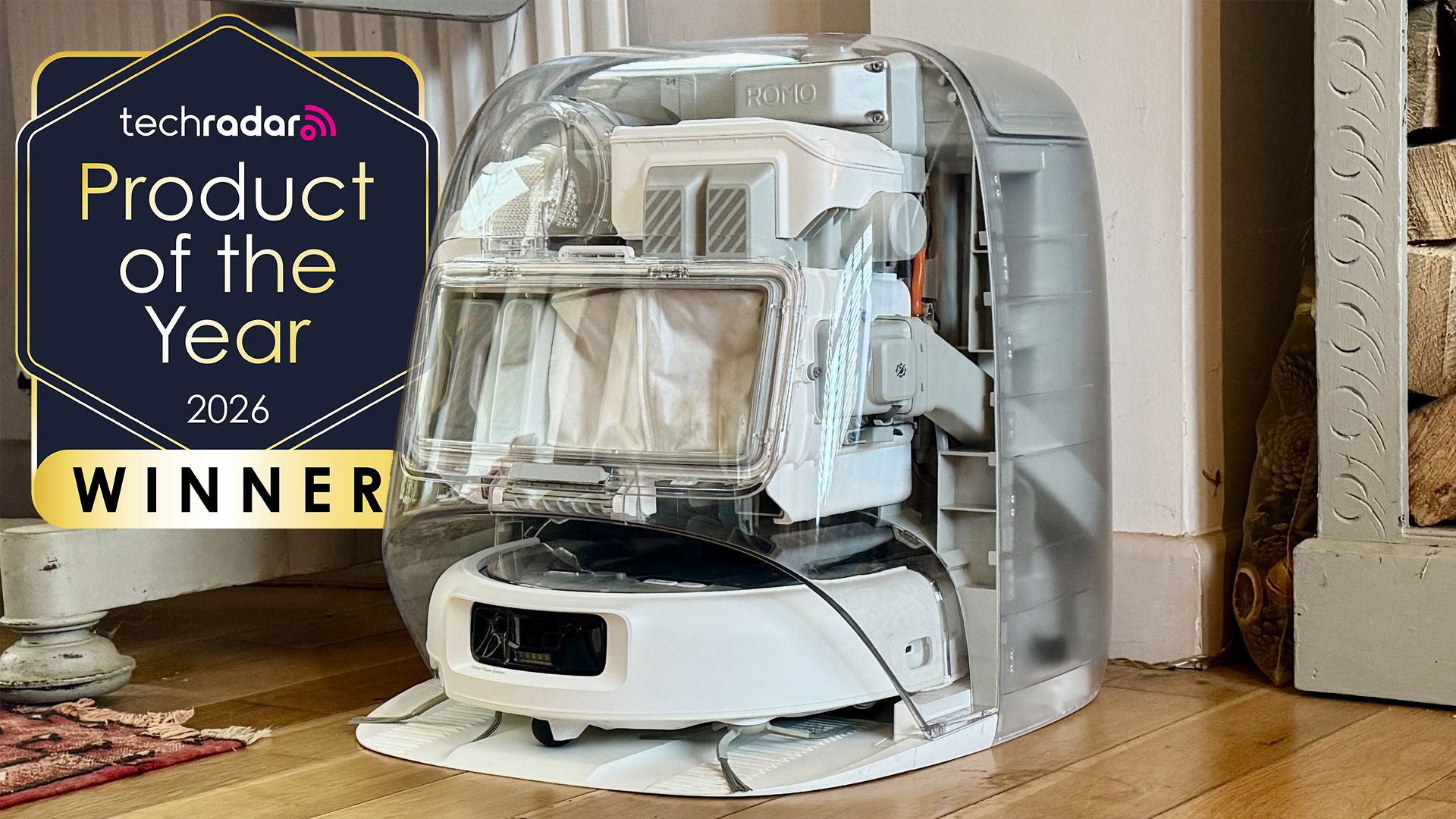
DJI Romo P Review: Drone Navigation Hits Your Floors with Impressive
Quick Verdict The DJI Romo P, our Home Device of the Year for 2026, marks an astonishing debut for DJI in the robot vacuum market. Leveraging its unparalleled drone-navigation technology, the Romo P offers class-leading

November 2026 Skywatching Guide: Your Stellar Companion for Autumn
The "November 2026 Skywatching Guide: Meteors, Planets, Stars and a Full Moon" from CNET positions itself as an essential companion for celestial enthusiasts. This comprehensive guide delivers a detailed roadmap to the
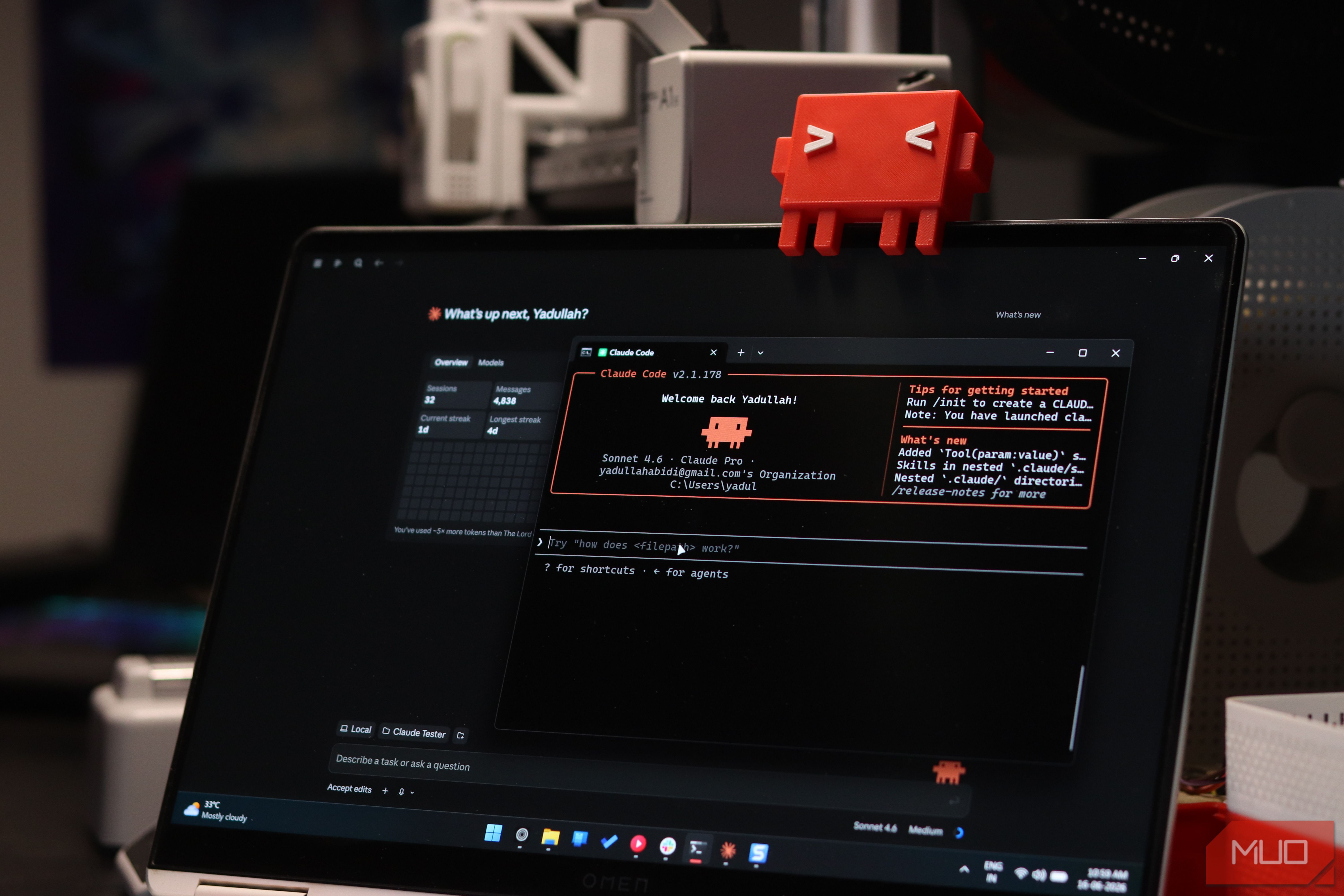
Securely Empower Your Smart Home: Integrating Claude Code with Home
Learn to integrate Claude Code with Home Assistant to automate and manage your smart home devices, focusing on secure practices for token usage and deployment.
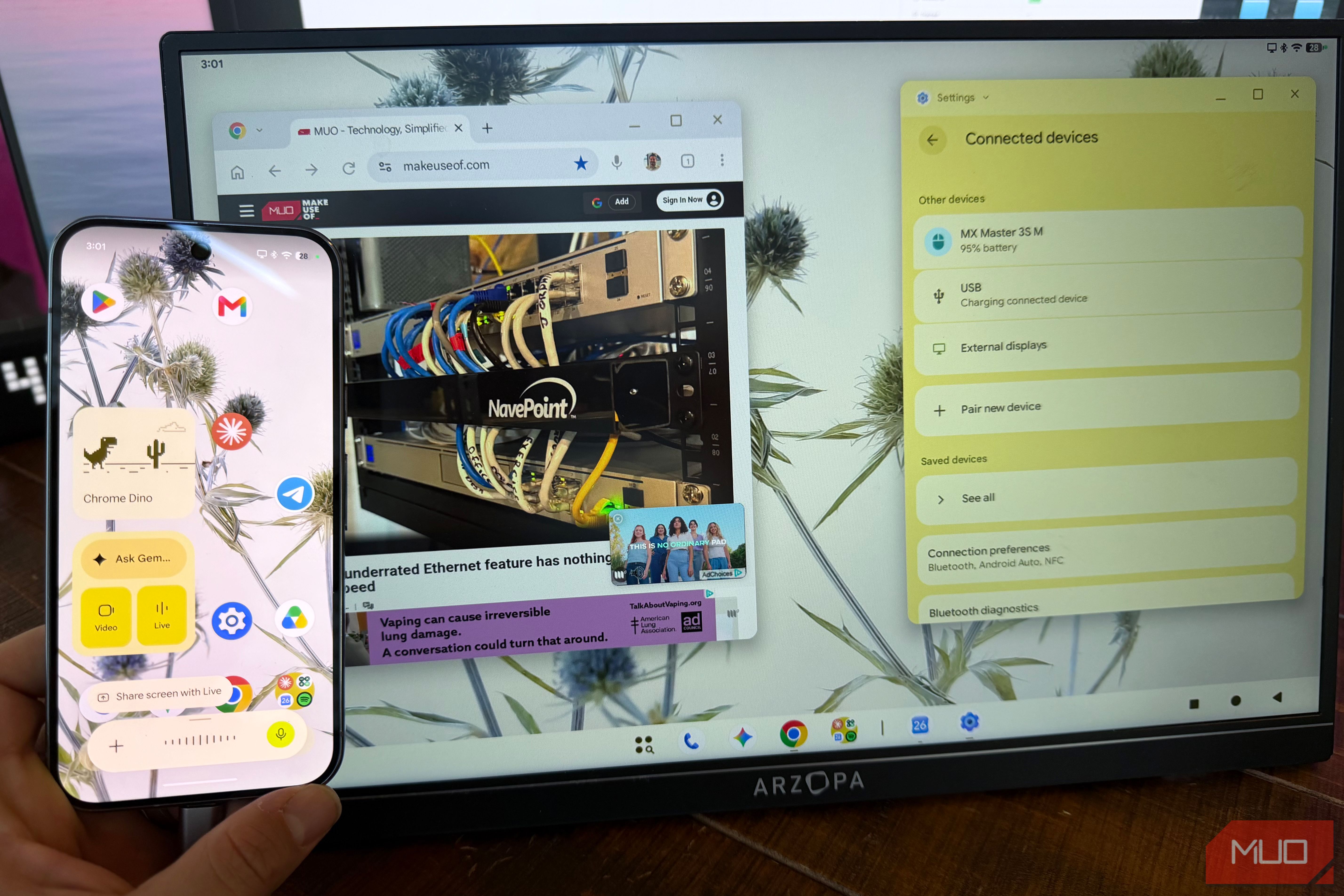
Unlock New Capabilities: Transform Your Devices with a USB-C Monitor
A portable USB-C monitor can surprisingly transform how you use your smartphone, gaming handheld, and even your tablet. Originally purchased to expand laptop screen real estate, these monitors offer far more versatility

How to Pick 3 Brilliant Netflix Documentaries for Your Weekend Binge
Discover 3 brilliant Netflix documentaries—covering music, comedy, and a beloved actor's legacy—to binge-watch this weekend (October 30-November 1).