
Unlock New Capabilities: Transform Your Devices with a USB-C Monitor
A portable USB-C monitor can surprisingly transform how you use your smartphone, gaming handheld, and even your tablet. Originally purchased to expand laptop screen real estate, these monitors offer far more versatility
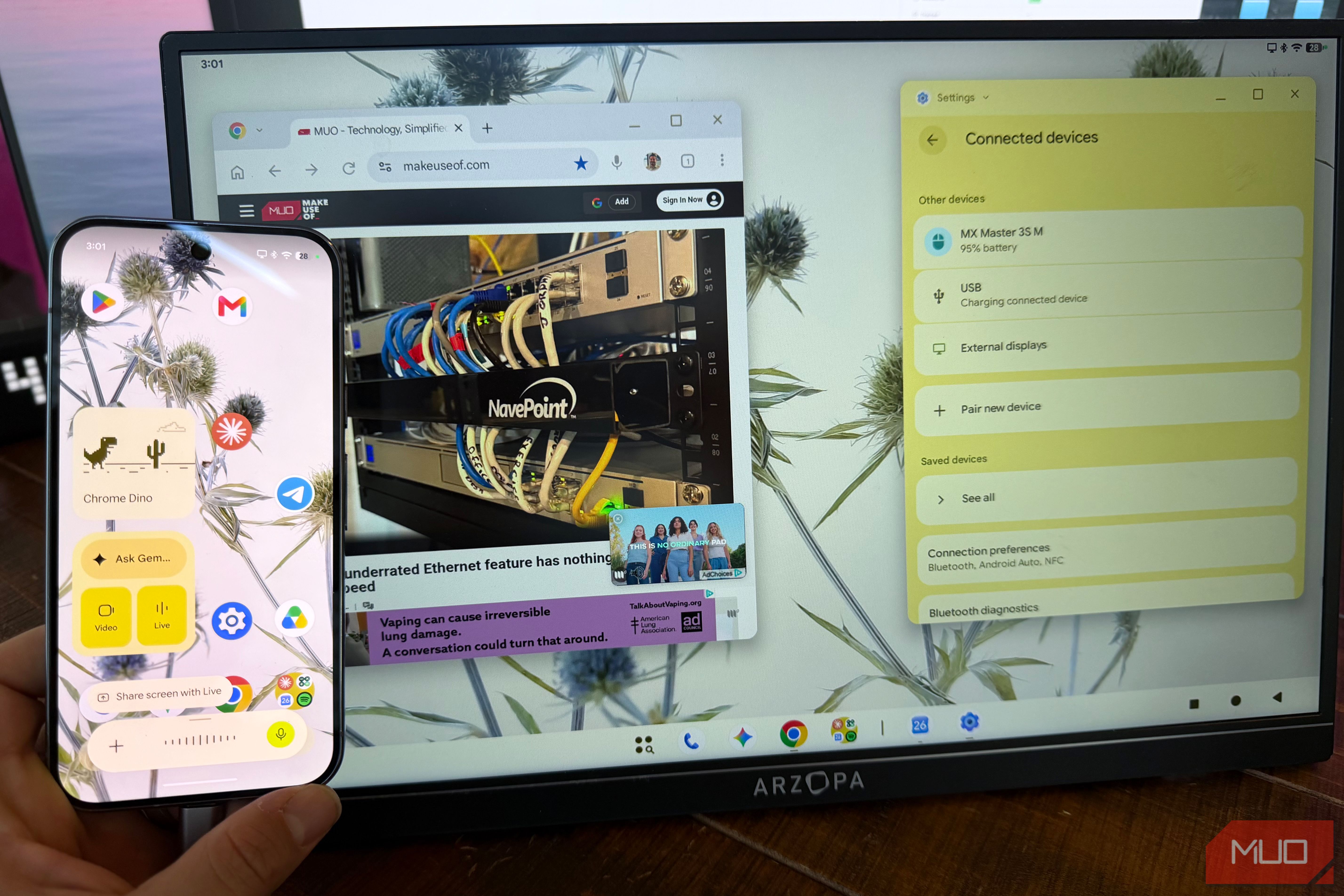
A portable USB-C monitor can surprisingly transform how you use your smartphone, gaming handheld, and even your tablet. Originally purchased to expand laptop screen real estate, these monitors offer far more versatility than initially meets the eye. This guide will walk you through how a compact, affordable USB-C monitor can turn your portable devices into powerful workstations or immersive entertainment hubs, enhancing productivity and gaming on the go.
What You'll Accomplish
By following this guide, you will learn to:
- Transform your Android phone into a multi-window desktop environment, perfect for productivity.
- Connect your gaming handheld directly to a larger screen for an enhanced gaming experience without a dock.
- Mirror your Apple iPhone or iPad display for larger viewing of photos, videos, or presentations.
- Understand best practices for power management and peripheral use with your portable monitor.
Prerequisites
Before you begin, ensure you have the following:
- A Portable USB-C Monitor: Such as the ARZOPA 16" 2.5K portable monitor (or a similar model). This guide specifically references a model that is 16 inches, features a 2560x1600 IPS display at 60Hz, a 16:10 aspect ratio, 350 nits brightness, and includes two USB-C ports and one mini HDMI port.
- Compatible Device: A smartphone, gaming handheld, or tablet with a USB-C port that supports DisplayPort Alt Mode. Examples include most modern Android phones (e.g., Samsung Galaxy, Google Pixel with Android 17+), gaming handhelds (e.g., Steam Deck, ROG Ally, Legion Go), and USB-C equipped iPads or iPhones.
- USB-C to USB-C Cable: Usually included with the monitor, this cable transmits both video and power.
- Optional: External Power Adapter for Monitor: A USB-C charger for the monitor if you wish to prevent battery drain from your connected device.
- Optional: Bluetooth Keyboard and Mouse: Recommended for a more productive desktop experience with Android phones.
- Optional: Mini HDMI to HDMI Cable: For connecting to laptops or other devices that lack USB-C DisplayPort Alt Mode.
Setting Up Your Portable USB-C Monitor
Portable USB-C monitors are designed for simplicity. Most models are lightweight (around 1.46 lbs) and thin (approximately 0.36 inches), making them easy to carry. They typically feature a built-in kickstand for quick setup.
- Position the Monitor: Place your portable monitor on a stable surface and extend its built-in kickstand.
- Locate Ports: Identify the USB-C input ports on the monitor. These are usually designed to accept video, data, and power.
- Consider Audio: While these monitors often have built-in speakers, they can be quiet. For better audio, consider using your device's speakers or connecting to a Bluetooth speaker.
Step-by-Step Guides for Different Devices
1. Transform Your Android Phone into a Desktop Workstation
Modern Android phones, especially Samsung Galaxy devices with DeX and Google Pixel phones running Android 17+, can offer a full desktop-like experience when connected to an external monitor.
- Connect Your Phone: Plug one end of the USB-C to USB-C cable into your Android phone and the other end into one of the USB-C input ports on the portable monitor.
- Activate Desktop Mode: Your phone should automatically detect the monitor and prompt you to enter desktop mode (e.g., Samsung DeX or Android's native desktop mode).
- Control Your Desktop:
- Samsung DeX: Your Samsung phone's screen will transform into a touchpad, allowing you to control the cursor on the external monitor. For a more traditional experience, connect a Bluetooth keyboard and mouse.
- Pixel Desktop Mode: Pixel devices typically require an external mouse to navigate the desktop environment. Most Android apps will support resizable windows, offering a true multi-tasking experience.
- Choose Display Mode (Pixel): If using a Pixel, you may get a pop-up asking whether you want to use the external display as a 'desktop' or 'mirror' your phone's screen. Select 'desktop' for multi-window functionality or 'mirror' for simple screen sharing.
Tip: To avoid draining your phone's battery rapidly, power the monitor separately by plugging a USB-C charger into the monitor's dedicated power input port (if available).
2. Connect Your Gaming Handheld for a Bigger View
Gaming handhelds like the Steam Deck, ROG Ally, or Legion Go can output video directly to a portable USB-C monitor, eliminating the need for a bulky dock.
- Connect Your Handheld: Use a single USB-C to USB-C cable to connect your gaming handheld to one of the monitor's USB-C input ports.
- Verify Display: The monitor should automatically detect the video signal from your handheld and display the game.
Critical Tip: Gaming handhelds draw significant power. It is highly recommended to power the monitor separately via its USB-C power input (if available) to preserve your handheld's battery life during extended gaming sessions.
3. Mirror Your Apple Device Display
While Apple devices don't offer a full desktop mode like Android phones (except for M-chip iPads with extended display), you can easily mirror your iPhone or iPad screen to a portable monitor for larger viewing.
- Connect Your Apple Device: Plug one end of the USB-C to USB-C cable into your USB-C equipped iPhone or iPad, and the other end into one of the monitor's USB-C input ports.
- View Mirrored Display: Your device's screen content will be mirrored on the portable monitor. This is excellent for watching videos, sharing photos, or presenting content.
Tip: Similar to Android devices, connecting the monitor will draw power from your iPhone or iPad. Power the monitor separately if you want to conserve your device's battery.
Tips for an Optimal Experience
- Power Management is Key: Always prioritize powering your portable monitor separately via a USB-C charger when possible. This significantly reduces the power draw from your connected phone, handheld, or tablet, extending their battery life.
- Enhance Productivity with Peripherals: For Android desktop modes, a Bluetooth keyboard and mouse are invaluable. They provide a much more efficient and comfortable workstation experience than using your phone's screen as a touchpad.
- Consider External Audio: The built-in speakers on portable monitors are functional but often quiet. For a better audio experience, rely on your device's speakers or connect to quality Bluetooth headphones or a portable speaker.
- Embrace Portability: The lightweight and slim design of these monitors makes them ideal travel companions. Consider carrying one in your backpack for on-the-go productivity or entertainment.
Troubleshooting Common Issues
- No Display on Monitor:
- Ensure the USB-C cable is fully inserted into both the device and the monitor.
- Verify your device supports USB-C DisplayPort Alt Mode.
- If your device's battery is low, try connecting external power to both the device and the monitor.
- Check if the monitor has an input source selection and ensure it's set to the correct USB-C input.
- Rapid Device Battery Drain:
- This is normal if the monitor is drawing power from your device. Connect a USB-C power adapter directly to the portable monitor to supply it with external power, conserving your device's battery.
- Quiet or No Audio from Monitor:
- Increase the volume on both your connected device and the monitor itself.
- If still too quiet, use your phone's speakers or connect to a Bluetooth speaker or headphones for a better audio experience.
Next Steps and Further Exploration
Beyond these uses, remember that your portable USB-C monitor can still serve its primary function as an additional display for your laptop or PC. You can even consider purchasing two monitors for a highly portable triple-screen setup, greatly expanding your workspace at home or on the road.
FAQ
Q: Can I use this monitor with any phone or tablet?
A: No, you can only use it with devices that have a USB-C port which supports DisplayPort Alt Mode. For Apple devices, this generally means iPads and iPhones equipped with a USB-C port.
Q: Will connecting the monitor drain my device's battery quickly?
A: Yes, if the monitor is not externally powered, it will draw power from your connected device (phone, handheld, or tablet), which will lead to faster battery drain. It's highly recommended to power the monitor separately when possible.
Q: Do I need a special dock for my gaming handheld?
A: No. Gaming handhelds such as the Steam Deck, ROG Ally, or Legion Go can typically output video directly to the portable monitor using a single USB-C cable via DisplayPort Alt Mode, eliminating the need for a separate docking station.
Related articles
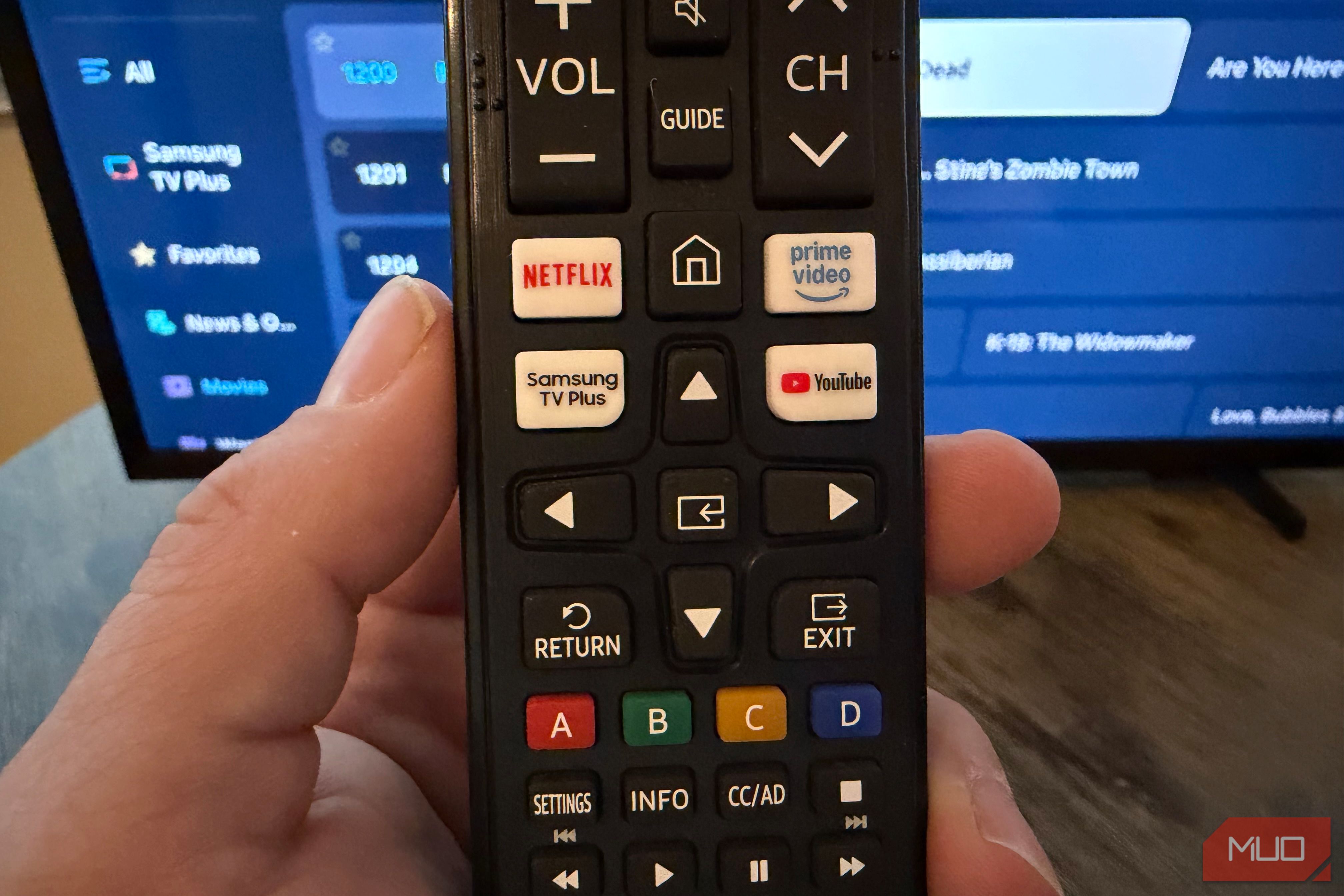
Unlock 650+ Free Channels on Your Samsung TV with One Button
Learn to instantly access over 650 free, ad-supported channels and movies on your Samsung TV with a single button press, requiring no logins or subscriptions.
How to Pick the Best Firefox for Your Android: A Guide to All 5
Explore the five distinct versions of Firefox for Android to find the perfect browser for your privacy, extension needs, or everyday use.
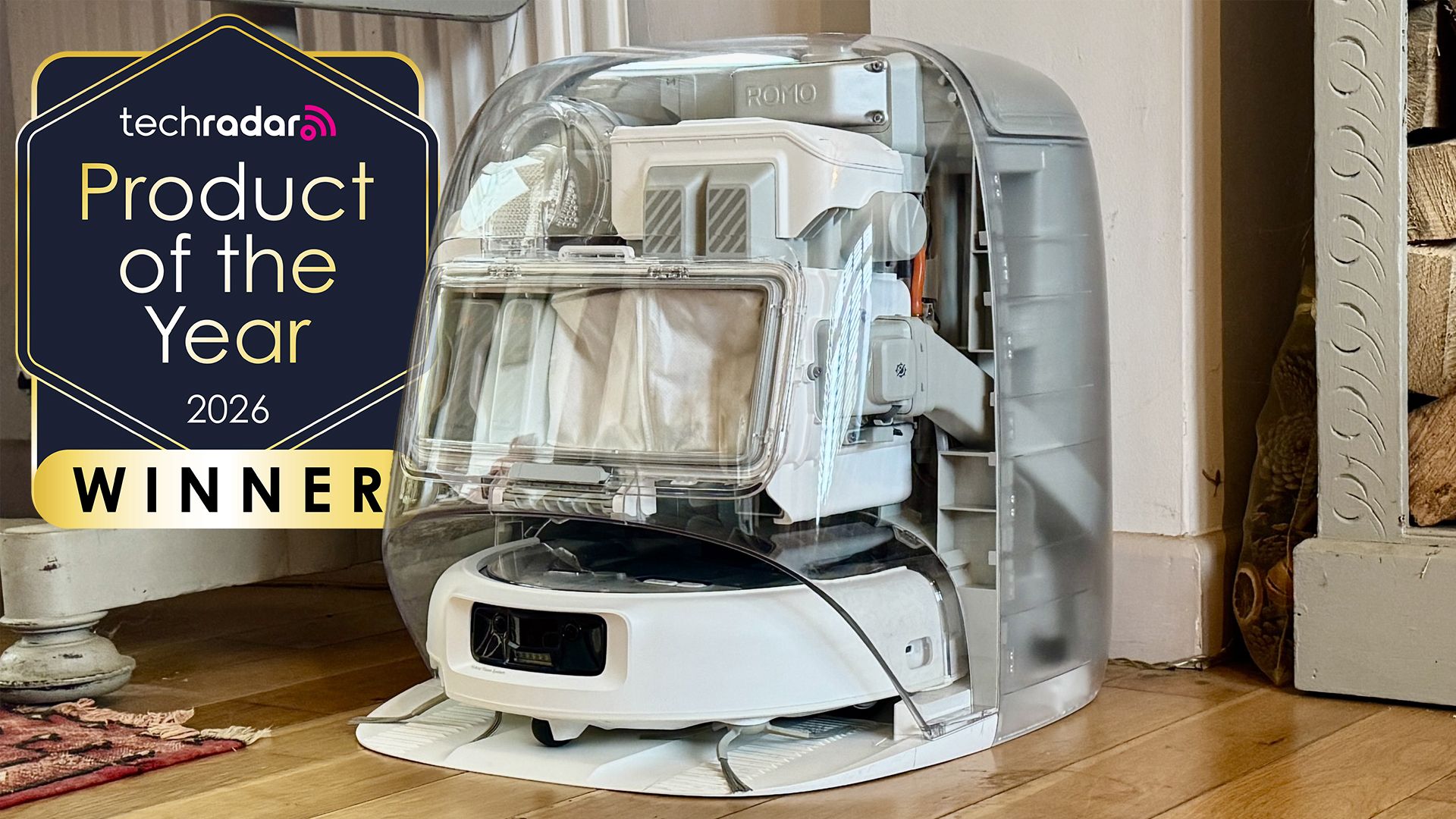
DJI Romo P Review: Drone Navigation Hits Your Floors with Impressive
Quick Verdict The DJI Romo P, our Home Device of the Year for 2026, marks an astonishing debut for DJI in the robot vacuum market. Leveraging its unparalleled drone-navigation technology, the Romo P offers class-leading

November 2026 Skywatching Guide: Your Stellar Companion for Autumn
The "November 2026 Skywatching Guide: Meteors, Planets, Stars and a Full Moon" from CNET positions itself as an essential companion for celestial enthusiasts. This comprehensive guide delivers a detailed roadmap to the
Securely Empower Your Smart Home: Integrating Claude Code with Home
Learn to integrate Claude Code with Home Assistant to automate and manage your smart home devices, focusing on secure practices for token usage and deployment.

How to Pick 3 Brilliant Netflix Documentaries for Your Weekend Binge
Discover 3 brilliant Netflix documentaries—covering music, comedy, and a beloved actor's legacy—to binge-watch this weekend (October 30-November 1).