
USB Port Selection: Optimize for Mouse & Keyboard Input
The Quick Verdict: Don't Waste Your Best Ports When setting up your PC, it's easy to assume any open USB port will do for your mouse and keyboard. However, as an experienced tech reviewer, I'm here to tell you that
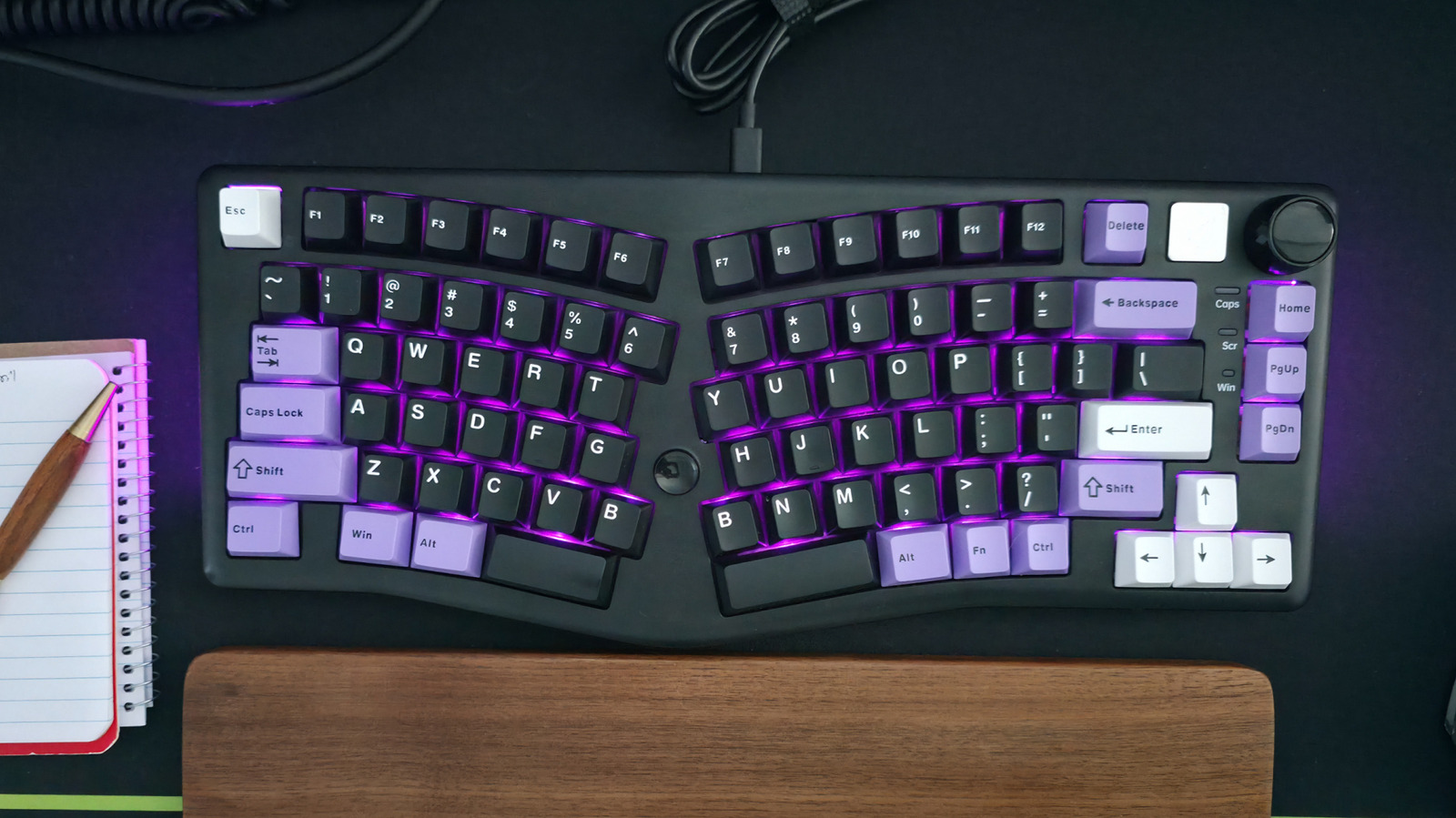
The Quick Verdict: Don't Waste Your Best Ports
When setting up your PC, it's easy to assume any open USB port will do for your mouse and keyboard. However, as an experienced tech reviewer, I'm here to tell you that strategic port selection can significantly impact your overall system efficiency. The bottom line? Your mouse and keyboard are incredibly low-demand devices. Therefore, you should always connect them to your computer's lowest-speed USB ports, typically USB 2.0, to reserve high-speed ports (USB 3.x, USB4, Thunderbolt) for peripherals that genuinely need them, like external SSDs, high-resolution monitors, or multi-port hubs. This simple practice ensures your most data-intensive devices operate at their peak, preventing bottlenecks and maximizing performance where it truly counts.
Unpacking the USB Port Maze: Why It Matters
For many users, the myriad of USB port types on a modern computer can be baffling. You might see a mix of blue, black, or red ports, and increasingly, the versatile USB-C. Each color and physical connector often signifies a different underlying standard, offering varying levels of data transfer speed and power delivery. A cutting-edge USB4 port, for instance, can offer blistering speeds crucial for large file transfers or external graphics solutions. In contrast, a legacy USB 2.0 port, while slower, is perfectly adequate for basic input devices.
The core principle here is resource management. Mice and keyboards require minimal bandwidth for operation. Their data signals are small, infrequent, and don't come close to saturating even the oldest USB standards. Plugging them into a high-speed port is akin to using a superhighway to drive a scooter – it works, but it's an inefficient use of a valuable resource. By directing these low-demand devices to less powerful ports, you free up the high-performance ports for accessories that genuinely benefit from their capabilities. This includes portable SSDs, external hard drives, high-resolution webcams, VR headsets, and external displays that utilize USB-C for video output. Mismanaging your ports can lead to frustration when your expensive external SSD isn't reaching its advertised speeds because it's sharing bandwidth or connected to a slower port that your mouse could have used.
User Experience: Smooth Input, Optimized System
The actual user experience for your mouse and keyboard won't change regardless of whether they're plugged into a USB 2.0 or USB 3.2 port. They will still respond instantly and perform flawlessly. The benefit of this strategy is entirely in the optimization of your other devices. Imagine needing to transfer gigabytes of data from a portable SSD. If you've wisely assigned your keyboard and mouse to a USB 2.0 port, your SSD can enjoy the full, unthrottled bandwidth of a high-speed USB 3.x or USB4 port, completing the transfer much faster. This thoughtful approach to peripheral connection ensures a smoother, more efficient overall computing experience, preventing potential bottlenecks and allowing all your hardware to perform at its best.
Pros and Cons of Strategic USB Port Usage
While the advantages are clear, it's also important to consider any potential downsides or nuances.
Pros:
- Optimal Performance for Demanding Devices: High-speed USB ports are reserved for accessories like SSDs, external monitors, and high-bandwidth hubs, ensuring they operate at their maximum potential.
- Prevents Bottlenecks: By dedicating appropriate ports, you avoid situations where a low-demand device occupies a port that a high-demand device truly needs, potentially slowing down critical tasks.
- Simple and Cost-Effective: This strategy doesn't require purchasing new hardware; it simply involves a mindful approach to how existing peripherals are connected.
- Future-Proofing: As more devices become bandwidth-hungry, preserving your fastest ports becomes even more crucial.
Cons:
- Requires Basic Understanding: Users need a minimal awareness of different USB standards (e.g., distinguishing USB 2.0 from 3.x) to implement this effectively, though modern port labeling often helps.
- Limited Low-Speed Ports: Some newer, minimalist devices might have fewer USB 2.0 ports, making this strategy slightly harder to implement if you have many low-demand devices.
- Niche Exceptions: Certain specialized gaming keyboards with advanced features or built-in hubs might benefit from a faster connection (discussed below).
Beyond the Basics: Specific Scenarios and Recommendations
While the general rule holds, there are a few important caveats to consider:
-
USB Hubs: If you're connecting your mouse and keyboard through a USB hub or dock, especially one that will also handle storage devices or other high-bandwidth gadgets, ensure the hub itself is connected to a high-speed USB port on your computer. Within the hub, continue the strategy: plug your mouse and keyboard into the lowest-speed ports available on the hub itself.
-
USB-C vs. USB-A Ports: Your computer might feature both traditional USB Type-A ports and newer, reversible USB-C ports. While not a universal guarantee, USB-C ports are generally more likely to support higher-speed USB standards (like USB 3.2 or USB4). If your keyboard or mouse uses a USB-C connection, but you want to preserve your computer's USB-C ports for more demanding devices, consider using a USB-C to USB-A cable for your peripherals to connect them to a lower-speed Type-A port. This frees up the potentially faster USB-C ports for critical tasks.
-
Keyboards with Built-in USB Hubs: Some advanced keyboards feature integrated USB hubs with multiple ports (sometimes even USB 3.x ports). If you intend to plug other devices (especially high-speed ones like flash drives) into your keyboard's built-in hub, then you should connect the keyboard itself to a high-powered, high-speed port on your computer. This ensures that the keyboard's internal hub has sufficient bandwidth to support any devices connected to it. However, if you only plan to connect a low-demand device like a mouse to your keyboard's hub, a lower-spec port for the keyboard itself might still be perfectly acceptable. Choose the arrangement that best suits your overall peripheral ecosystem.
Clear Buying Recommendation
Given the straightforward nature of mouse and keyboard connectivity, my recommendation is direct and actionable: Prioritize using your system's USB 2.0 ports for your mouse and keyboard. These ports are more than capable of handling the minimal data and power requirements of these essential input devices. This simple, mindful choice allows you to unleash the full potential of your higher-speed USB 3.x, USB4, and Thunderbolt ports for the demanding peripherals that truly benefit from them. Don't overthink it, but do optimize it.
FAQ
Q: Will plugging my gaming mouse/keyboard into a USB 2.0 port negatively affect its performance or responsiveness?
A: No, for almost all gaming mice and keyboards, a USB 2.0 port provides more than enough bandwidth and power to ensure optimal performance and responsiveness. The minimal data generated by these devices is easily handled by USB 2.0, so you won't experience lag or reduced capabilities.
Q: How can I tell which USB ports on my computer are high-speed (USB 3.x/USB4) and which are lower-speed (USB 2.0)?
A: Many manufacturers color-code their USB ports: blue ports typically indicate USB 3.0 or higher, while black ports are often USB 2.0. Some USB 3.x ports might also be red or yellow (especially if they offer higher power delivery). USB-C ports can be any speed, but are likely faster. Look for labels next to the ports, such as "SS" (SuperSpeed) for USB 3.0, or consult your computer's manual for definitive information.
Q: Is there any scenario where a mouse or keyboard needs a high-speed USB port?
A: Generally, no. The primary exception would be a keyboard with a built-in USB 3.x hub that you intend to use for other high-speed peripherals. In that specific case, connecting the keyboard to a high-speed port on your computer is necessary to allow the devices plugged into the keyboard's hub to achieve their optimal speeds. For the mouse and keyboard functions themselves, a USB 2.0 port is always sufficient.
Related articles
Android 17 QPR2 Beta 7.1: The Performance Relief You've Been Waiting
Android 17 QPR2 Beta 7.1: Finally Fixing the QPR1 Performance Woes Verdict: Android 17 QPR2 Beta 7.1 is a crucial and highly anticipated software update for Google Pixel users, specifically targeting and resolving the

DJI Solo Video Setups: Smart Choices for Lone Creators
This review delves into DJI's recommended solo video setups, highlighting the Osmo Pocket 3 Creator Combo as a top pick for its integrated camera, gimbal, and mic. It also covers stabilizers like the Osmo Mobile 8 and RS 4, and the DJI Mic Mini series for enhanced audio, providing honest pros, cons, and clear buying advice.

Ditch Merge & Center: The Better Way to Align Text in Excel
Learn to use Excel's "Center Across Selection" to align text across cells without merging, avoiding common data manipulation issues. This guide provides steps to utilize this newly accessible feature and add it to your Quick Access Toolbar.

Ars Technica's Rocket Report: Your Essential Space Industry Briefing
Quick Verdict Ars Technica's Rocket Report, presented by veteran space reporter Stephen Clark, offers an invaluable and meticulously organized weekly (or similar frequency, implied by "Edition 9.15") digest of the most
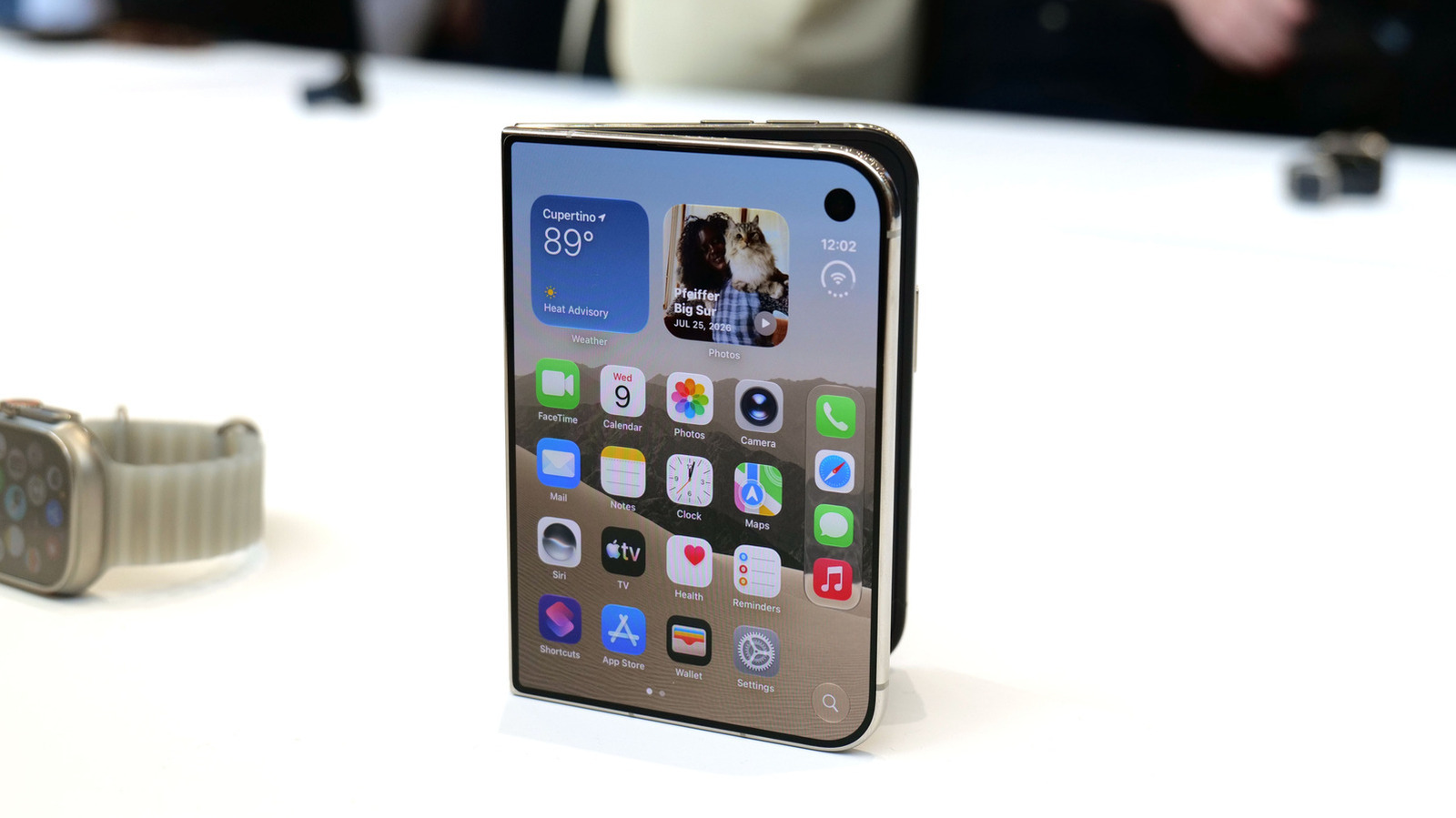
Apple iPhone Duo: A Daring Debut with Notable Compromises
Apple's highly anticipated iPhone Duo, priced at $2,000, has gone on pre-order. While hailed as "Apple's most exciting device in a decade" for its innovative foldable design and immersive display, it comes with significant drawbacks like the absence of FaceID and a premium camera.

Tesla Unveils Thruster-Equipped Roadster, 2028 Production Targeted
Tesla has unveiled its second-generation Roadster, featuring cold-gas thrusters co-developed with SpaceX, enabling it to jump and flip. The electric sports car demonstrated 0-60mph in an astonishing 0.81 seconds, with production targeted for 2028. This highly anticipated reveal also serves as a key recruitment tool for Tesla's ambitious AI and robotics initiatives.