
Unlock a Superior Windows Search with PowerToys Command Palette
Windows Search can often feel slow, inaccurate, and cluttered with irrelevant web results when you're simply trying to find a file or launch an application. Fortunately, Microsoft has already developed a powerful,
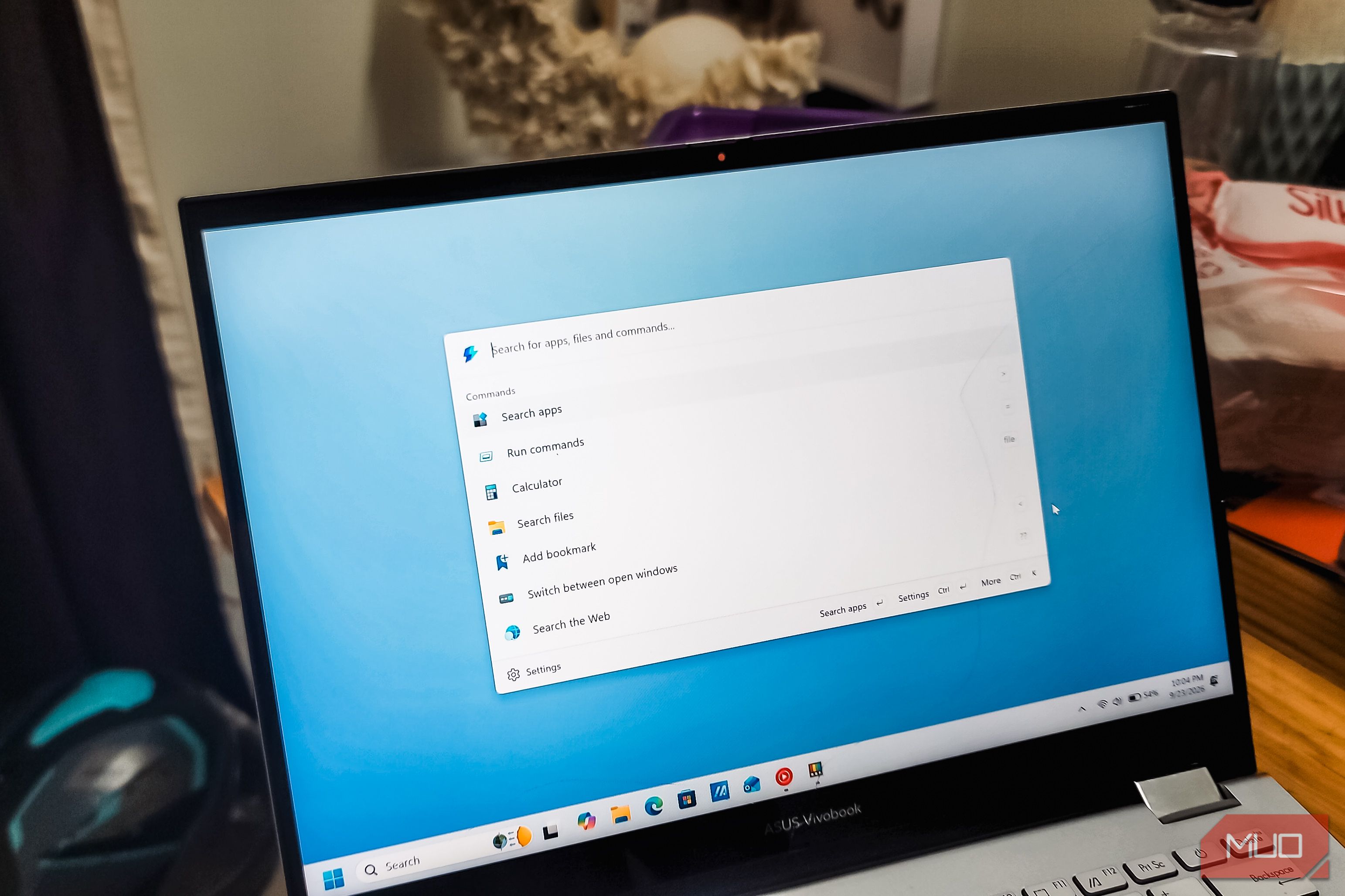
Windows Search can often feel slow, inaccurate, and cluttered with irrelevant web results when you're simply trying to find a file or launch an application. Fortunately, Microsoft has already developed a powerful, keyboard-first alternative: Command Palette, a feature within the PowerToys suite.
This guide will walk you through enabling and mastering Command Palette to transform your Windows search experience. By the end, you'll have a lightning-fast launcher that finds everything instantly, streamlines your workflow with quick actions, and can be extended to handle even more tasks, all without ever leaving your keyboard.
Prerequisites
Before you begin, ensure you have the following:
- A computer running Windows 10 or Windows 11.
- An active internet connection to download PowerToys.
- Basic familiarity with using keyboard shortcuts.
Step 1: Install and Enable PowerToys Command Palette
If you don't already have PowerToys installed, it's the first step to unlocking Command Palette's capabilities.
- Download PowerToys: Open the Microsoft Store on your Windows PC. Search for "PowerToys" and click Install. If you already have it, ensure it's updated to the latest version.
- Launch PowerToys: Once installed, open the PowerToys application from your Start menu or system tray.
- Navigate to Command Palette Settings: In the PowerToys application, look for System Tools in the left-hand navigation pane and select Command Palette.
- Enable Command Palette: On the Command Palette feature page, toggle the Enable Command Palette switch to the "On" position.
- Activate Command Palette: By default, you can press Win + Alt + Space to open the Command Palette launcher. Try it now! A sleek search bar will appear on your screen.
- Perform a Basic Search: Start typing the name of an application, like "Obsidian." Command Palette will instantly display matching results. Press Enter to launch your selection. Notice how it handles partial matches intelligently; typing "obs" will still quickly bring up "Obsidian," and it learns your preferences over time.
Unlike standard Windows Search, Command Palette prioritizes your local files and applications, eliminating irrelevant web suggestions and delivering results with impressive speed.
Step 2: Master Core Search and Quick Actions
Command Palette goes far beyond simple searching, offering a suite of features designed for efficiency.
- Create Bookmarks for Quick Access: You can save any frequently accessed file path or URL as a named bookmark. This effectively turns a location into a command. For instance, bookmark your "Downloads" folder or a specific project directory. Now, instead of navigating through File Explorer, you can open Command Palette, type your bookmark's name, and access it in moments.
- Utilize Contextual Actions: Each search result within Command Palette comes with a set of actions. Observe the bottom bar for options like "Open link" or "Copy URL." For a comprehensive list of actions, select a result and press Ctrl + K. This will reveal every available action, allowing you to copy a file path, open a folder, or perform other tasks without needing to open the item itself.
- Leverage the Preview Pane: When you select a file in the search results, a preview pane on the right side of the Command Palette window displays its details. This is incredibly useful for confirming you've found the correct document before opening it. You can continue typing to filter results further while viewing previews, ensuring you pinpoint the exact item you need quickly.
- Pin Favorite Commands: For applications, folders, or tools you use constantly throughout the day, you can pin them directly to Command Palette's main screen. Right-click on any command in the results list and select "Pin." This makes them visible immediately upon opening the palette, saving you those precious seconds of typing.
Step 3: Integrate the Command Palette Dock
The Dock is a customizable toolbar that provides constant, one-click access to your most-used commands and live system information.
- Enable the Dock: In PowerToys settings, navigate back to Command Palette and locate the Enable Dock toggle. Turn it on.
- Position and Auto-hide: Choose where you want the Dock to reside on your screen (top, bottom, left, or right edge). You can also configure it to auto-hide if you prefer it to disappear when not in use.
- Add Commands to the Dock:
- Quick Pin: Right-click any command within the Command Palette search results and choose Pin to Dock.
- Edit Dock: For more granular control, right-click an empty area on the Dock itself and select Edit Dock. Here, you can click the + button in your desired region (Start, Center, or End), pick a command, and then hit Save. You can also drag and drop items to reorder them.
- Open Command Palette from the Dock: The lightning icon on the left side of the Dock allows you to open Command Palette with a single click, providing an alternative to the keyboard shortcut.
- Monitor System Performance: The Dock can display built-in performance bands, showing real-time statistics for CPU, memory, GPU, disk usage, network activity, and battery status. This offers a quick overview without needing to open Task Manager.
- Multi-Monitor Support: If you use multiple displays, each monitor can have its own dedicated Dock with its own set of pinned items, further enhancing your workspace organization.
Note: The Dock is designed to complement your taskbar, not replace it. It doesn't show open windows, so you'll still rely on your taskbar for app switching.
Step 4: Expand Functionality with Extensions
Command Palette's true power lies in its extensibility, allowing you to integrate with other services and tools.
- Discover Existing Extensions: Command Palette comes with a few extensions pre-installed. You can view these by navigating to Settings > Extensions within the PowerToys application.
- Install New Extensions: To expand Command Palette's capabilities, type "extensions" into the Command Palette search bar. You can then choose to browse and install new extensions from the Microsoft Store or via Winget.
- Explore Useful Extensions (Examples):
- SteamPal: Search for and launch your Steam games directly from Command Palette.
- Virtual Desktop: Quickly switch between your virtual desktops.
- EverythingExt: Integrate with the popular Everything Search tool for even faster file indexing.
- Git repositories: Find your local Git repositories instantly.
- Temp Cleaner: Clean up temporary folders right from the palette.
- Customize Extensions: Many extensions offer customization options. For example, the GitHub extension allows you to save specific GitHub queries. You can apply filters on GitHub, copy the URL, paste it into a new query in Command Palette, give it a name, and even assign it a unique hotkey or alias.
Since the PowerToys project is open-source, the community constantly contributes new extensions, and you can even develop your own if you have a specific need.
Troubleshooting Tip
If Command Palette isn't opening when you use Win + Alt + Space:
- Ensure PowerToys is running in the background (check your system tray).
- Verify that the "Enable Command Palette" toggle is set to "On" in PowerToys settings.
- Restart the PowerToys application. Sometimes a quick restart can resolve minor issues.
Next Steps
Now that you've unlocked the potential of Command Palette:
- Explore other PowerToys utilities: PowerToys includes many other helpful tools, such as FancyZones for window management and Awake for keeping your computer active.
- Customize to your heart's content: Experiment with different Dock positions, explore more extensions, and tailor Command Palette to perfectly fit your daily workflow.
- Stay Updated: Keep PowerToys updated to ensure you have the latest features and performance improvements.
FAQ
Q: Can Command Palette fully replace Windows Search?
A: Yes, Command Palette offers a faster, more accurate search for files, applications, and settings, often outperforming the built-in Windows Search for most local search needs.
Q: Is PowerToys Command Palette a native Windows feature?
A: No, it's part of Microsoft PowerToys, an open-source suite of utilities developed by Microsoft. While not integrated into Windows by default, it functions seamlessly as a powerful enhancement.
Q: Can I add my own custom commands to the Command Palette?
A: Yes, you can create bookmarks for specific file paths and URLs, effectively turning them into named commands you can launch. Additionally, the open-source nature of PowerToys means developers can create and share custom extensions for even broader functionality.
Related articles

Ditch Merge & Center: The Better Way to Align Text in Excel
Learn to use Excel's "Center Across Selection" to align text across cells without merging, avoiding common data manipulation issues. This guide provides steps to utilize this newly accessible feature and add it to your Quick Access Toolbar.

Stop Android Auto Battery Drain: Essential Features to Disable and
Android Auto offers unparalleled convenience, bringing your phone's most useful features directly to your car's display. From navigation and calls to messages and music, it keeps you connected without distracting you

Windows October Update: A Must-Have Security Overhaul
Microsoft's October 2026 Windows update delivers a critical security overhaul, patching over 1,400 vulnerabilities including two zero-days, one already exploited. It's essential for all users, especially with several Windows 11 versions reaching end of support.

Turn Your Android Phone into a Powerful Desktop Replacement
Learn how to transform your Android phone into a full-fledged desktop computer using external displays and accessories, providing a cost-effective and integrated alternative to new Googlebooks.

howto: Four Ways the Fitbit Edge Is Better Than the Charge 6, and Two
Learn the key differences between the Fitbit Edge and Charge 6, including four advantages of the Edge and two areas where it falls short, to help you choose the best fitness tracker for your needs.
How to Connect Your Googlebook to a Printer - Print Documents with
Learn to quickly connect your Googlebook to a printer via Wi-Fi, USB, or Bluetooth and print documents in minutes. This guide covers direct printing, app-specific connections, troubleshooting, and even printing screenshots as a workaround.