
Turn Your Android Phone into a Powerful Desktop Replacement
Learn how to transform your Android phone into a full-fledged desktop computer using external displays and accessories, providing a cost-effective and integrated alternative to new Googlebooks.

Google recently introduced "Googlebooks," a new line of laptops running an Android-based desktop operating system. While these devices might seem innovative, they often come with a premium price tag and offer features that have largely been available on high-end Android phones for years. Before you invest in a new Googlebook, consider that the best "Googlebook" might already be in your pocket.
This guide will show you how to transform your existing Android phone into a fully functional desktop environment, saving you money and providing a seamless, integrated experience. You'll learn how to connect your phone to external displays and peripherals, effectively creating your own powerful, portable workstation.
What You'll Need: Prerequisites for Your Android Desktop
To get started, you'll need a compatible Android phone and a few accessories:
-
A Compatible Android Phone:
- Samsung Galaxy: Most modern Galaxy S and Z Fold series phones support both wired and wireless connections for Samsung DeX. The Galaxy Z Flip 7 and newer also support both, while older Z Flip models might only support wireless DeX.
- Motorola: Phones like the Razr Fold and Moto Edge+ 2023 support wired connections for Motorola Smart Connect (formerly Ready For). Most Razr Flip phones support wireless connections only.
- Google Pixel: Pixel 8 and newer models (including the "a" series) offer a native Android desktop mode when connected to an external display.
Ensure your phone is updated to the latest available Android version, as features and compatibility can improve with updates.
-
External Display:
- Lapdock: For a laptop-like experience, a lapdock (such as those from UPerfect) is ideal. Many offer both wired and wireless connectivity.
- Computer Monitor: Any computer monitor will work. A monitor with a USB-C input simplifies connection, but you can use any monitor with a USB-C dock that provides video output.
- AR Glasses: Advanced AR glasses like the RayNeo GT Max can serve as a portable, immersive display. Be aware that some AR glasses may have display scaling issues with certain phone desktops (e.g., XREAL One Pro with Motorola's desktop, where text might appear too small).
-
Input Devices:
- Bluetooth Keyboard and Mouse: Essential for a desktop-like experience. Ensure they are fully charged and ready to pair.
Setting Up Your Android Desktop: Step-by-Step
The setup process largely depends on your phone's manufacturer, as each may offer a slightly different desktop experience. Here's a general guide for the most common systems:
-
Connect Your Phone to a Display:
- Wired Connection (Recommended for Stability): Use a USB-C to USB-C cable (if your monitor supports it) or a USB-C to HDMI adapter/dock. Plug one end into your phone's USB-C port and the other into your display.
- Wireless Connection: On most compatible phones, you can enable a wireless desktop mode (e.g., Smart View on Samsung, Smart Connect on Motorola) and cast your desktop to a compatible smart TV or wireless display adapter.
- Tip: If using a lapdock, simply dock your phone as instructed by the lapdock manufacturer.
-
Enable Desktop Mode (If Not Automatic):
- Samsung DeX: Once connected, your Samsung phone should automatically prompt you to launch DeX mode. If not, pull down the notification shade and tap the "DeX" notification.
- Motorola Smart Connect: Similar to DeX, Smart Connect usually activates automatically upon connection. Look for a prompt or a notification to activate the desktop interface.
- Google Pixel Desktop: For Pixel devices, connect to an external display, and the native Android desktop interface should appear. Currently, Google's native desktop mode is considered the least mature of the three.
-
Pair Bluetooth Keyboard and Mouse:
- On your phone, go to Settings > Connected devices > Bluetooth.
- Put your keyboard and mouse into pairing mode (refer to their respective manuals).
- Select your devices from the list on your phone to pair them.
- Tip: Once paired, your phone will usually remember these devices for future sessions.
Optimizing Your Android Desktop Experience
- Display Resolution: For the most consistent and best performance, a 1080p display resolution is generally recommended for Android desktops. While newer, more powerful phones (like the Galaxy Z Fold 6 or those with recent Snapdragon chips) can handle 4K monitors with DeX, pushing that many pixels can sometimes strain the system.
- Screen Scaling: Be aware that Android desktops scale differently across various displays and phone models. Pixel's desktop mode, for instance, has been noted to handle scaling less optimally and may struggle with ultrawide monitors. Experiment with your setup to find the best configuration.
- Wired vs. Wireless: Wired connections typically offer greater stability, lower latency, and faster charging for your phone. Wireless connections provide more freedom but can be susceptible to interference and may drain your phone's battery faster. A good lapdock might offer the best of both worlds, providing a stable wired connection in a portable form factor.
Troubleshooting Common Android Desktop Quirks
While your phone makes an excellent desktop, you might encounter some minor issues, especially compared to a dedicated laptop. These are usually easier to accept as a "bonus" feature on your phone than as a flaw on an expensive new laptop.
- App Compatibility & Behavior: Most standard Android apps will work well. However, some apps designed exclusively for phone aspect ratios might not scale perfectly or behave as expected in a desktop environment. Unlike Googlebooks, which have specific Play Store limitations for apps, your phone will run any app it normally would.
- Keyboard Inconsistencies: Occasionally, certain keyboard shortcuts or key combinations might not function identically to a full desktop operating system. This is often an app-specific or system-level minor quirk.
- Display Scaling Issues: If text or elements appear too large or too small, check your phone's display settings within the desktop mode (if available) or the connected display's settings. Sometimes, simply reconnecting can resolve a temporary scaling glitch.
Why Your Phone is a Better "Googlebook"
Your current Android phone offers several distinct advantages over Google's new Android-powered laptops:
- Cost-Effectiveness: You already own the core device. The cost of accessories like a lapdock, monitor, keyboard, and mouse is significantly less than a new Googlebook, which can start at $1,000 for what is essentially a beta product.
- Seamless Integration: Your phone is the computer. This means instant access to all your files, notifications, and apps without the need for complex syncing. You can answer calls directly from your desktop environment, as it's an extension of your phone.
- Mature Desktop Experience: Solutions like Samsung DeX and Motorola Smart Connect have been refined over years, offering a more stable and feature-rich desktop interface compared to the nascent Googlebook OS. While Googlebooks boast specific Chrome browser features and Gemini integration, the core desktop experience on existing phones often feels more polished.
- Broader App Compatibility: Your phone's Play Store operates as a phone Play Store, meaning all your existing Android apps are readily available and optimized for your device. Googlebooks, surprisingly, categorize themselves differently, often requiring apps to be "ported" or sideloaded, and some struggle with Intel CPUs present in certain models.
FAQ
Q: Do I need a specific phone model to use Android desktop mode? A: Yes, you need a phone that explicitly supports an external display output. This typically includes most modern Samsung Galaxy S and Z Fold series, Motorola phones with Smart Connect, and Google Pixel 8 and newer devices. Check your phone manufacturer's specifications for "desktop mode" or "external display support."
Q: Can I run all my phone apps seamlessly on the desktop? A: Most Android apps will run, but their scaling and layout might vary depending on whether they are optimized for a larger screen or windowed environment. Unlike Googlebooks, which have certain app installation hurdles, your phone's desktop mode allows you to run any app you've installed, though some older or very specific apps might not provide an ideal desktop window experience.
Q: What's the main advantage of using my phone as a desktop over a Googlebook? A: The primary advantages are cost, seamless integration, and a more mature, refined desktop experience. You leverage hardware you already own, avoid the software limitations and "beta" feel of new Googlebooks, and enjoy instant access to all your phone's data and notifications within your desktop environment.
Conclusion: Embrace Your Phone's Hidden Power
Instead of spending a hefty sum on a new Googlebook that offers an incremental (and sometimes flawed) Android desktop experience, empower yourself with the technology you already possess. By investing in a few affordable accessories, your Android phone can transform into a capable, integrated desktop workstation. While Android desktops are continuously evolving and may have minor quirks, they offer a compelling, cost-effective, and surprisingly powerful alternative for many productivity tasks. Embrace the flexibility and convenience of having your entire digital life accessible from a single device, whether it's in your pocket or powering your desktop setup.
Related articles

Ditch Merge & Center: The Better Way to Align Text in Excel
Learn to use Excel's "Center Across Selection" to align text across cells without merging, avoiding common data manipulation issues. This guide provides steps to utilize this newly accessible feature and add it to your Quick Access Toolbar.

Ars Technica's Rocket Report: Your Essential Space Industry Briefing
Quick Verdict Ars Technica's Rocket Report, presented by veteran space reporter Stephen Clark, offers an invaluable and meticulously organized weekly (or similar frequency, implied by "Edition 9.15") digest of the most
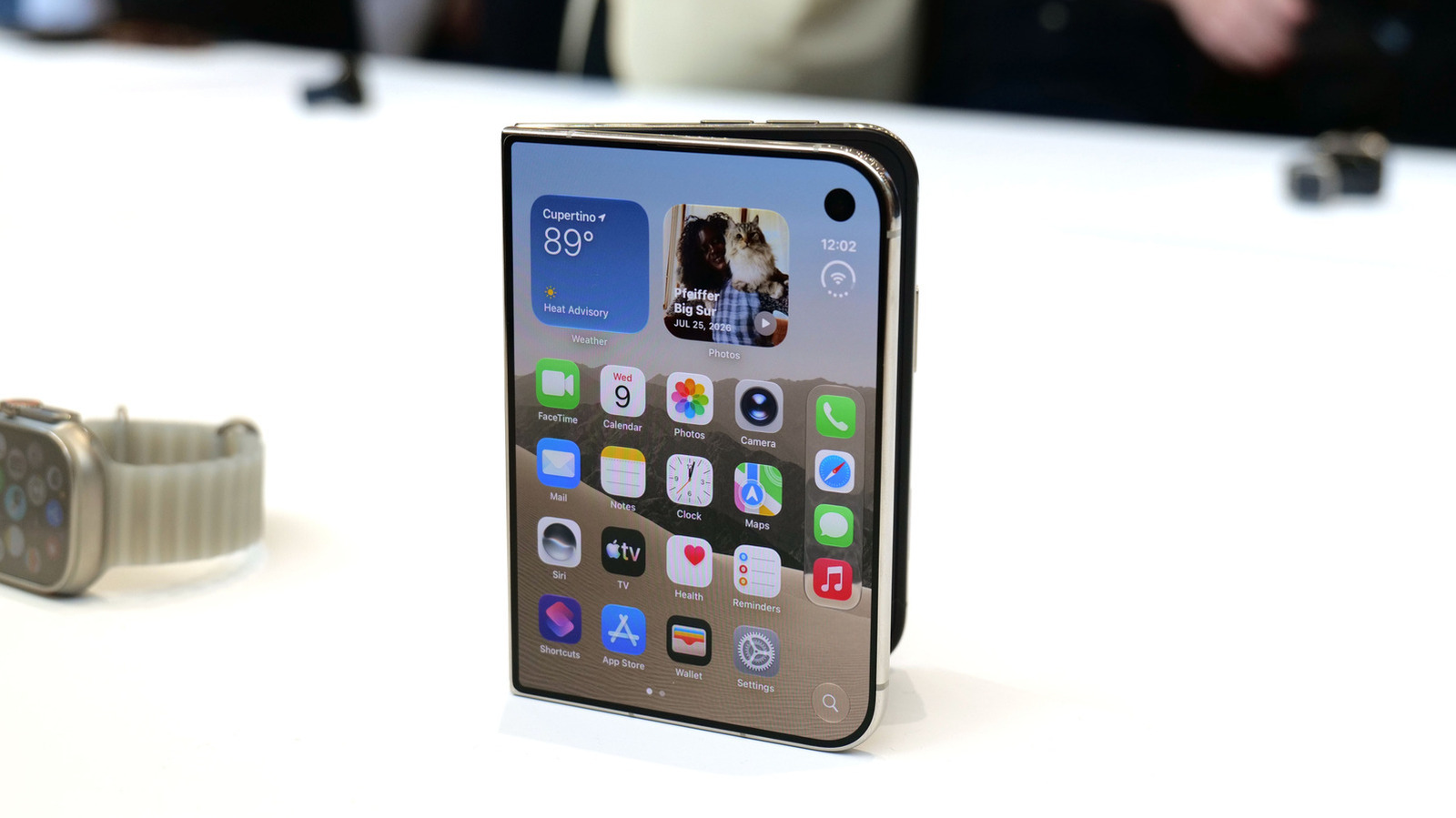
Apple iPhone Duo: A Daring Debut with Notable Compromises
Apple's highly anticipated iPhone Duo, priced at $2,000, has gone on pre-order. While hailed as "Apple's most exciting device in a decade" for its innovative foldable design and immersive display, it comes with significant drawbacks like the absence of FaceID and a premium camera.
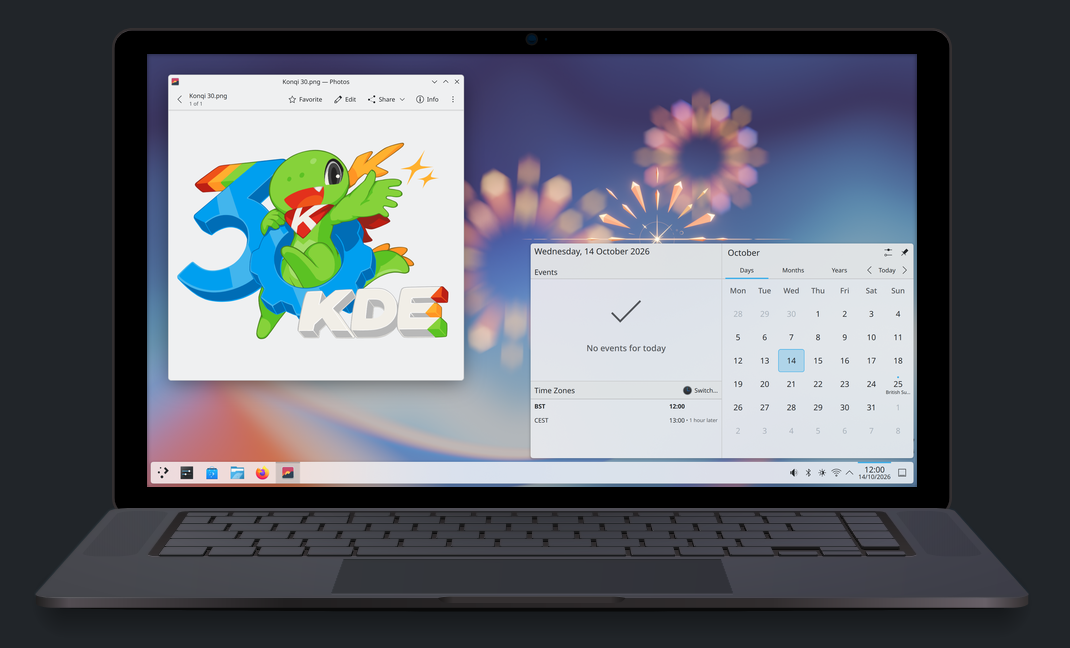
KDE Plasma 6.8: A Future-Focused 30th Anniversary Update
Quick Verdict KDE Plasma 6.8, arriving as the "30th Anniversary Edition," is a pivotal release that decisively pushes the desktop environment into the future. With a definitive farewell to native X11 sessions and a

Stop Android Auto Battery Drain: Essential Features to Disable and
Android Auto offers unparalleled convenience, bringing your phone's most useful features directly to your car's display. From navigation and calls to messages and music, it keeps you connected without distracting you
Beyond the Bugs: Conquering Studio Headaches in Indie Dev
This guide, part three in a series on running an indie studio, tackles the crucial but often overlooked aspect of dealing with non-development related issues. It introduces creating a shared 'studio backlog' for collective problems and using the IDS (Identify, Discuss, Solve) framework to address them constructively. The core message is to build powerful habits that keep studios from getting quietly derailed by lingering challenges.