
Unleash KDE's True Potential: The Hidden Customization Setting Most
KDE Plasma is a powerful and functional desktop environment for Linux, but its default appearance often leaves users wanting more. While the built-in theme manager offers some options, achieving a truly polished and
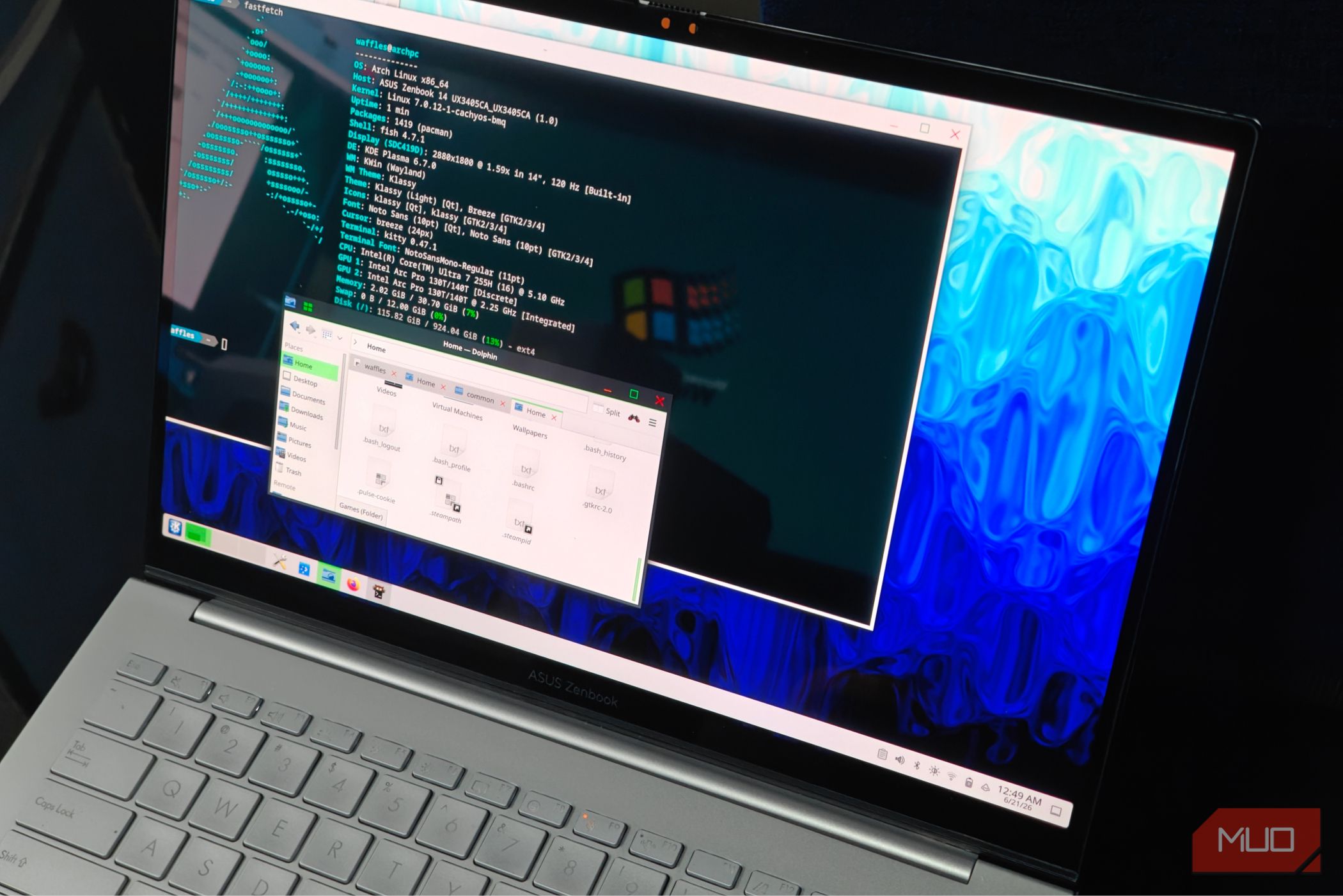
KDE Plasma is a powerful and functional desktop environment for Linux, but its default appearance often leaves users wanting more. While the built-in theme manager offers some options, achieving a truly polished and personalized look requires diving deeper into specific, often overlooked settings and tools. This guide will walk you through the process of transforming your KDE desktop into a sleek, consistent, and visually appealing workspace, focusing on a core customization method that many users tend to skip.
By following these steps, you'll gain the knowledge to go beyond basic themes, fine-tune window aesthetics, and apply a uniform style across your entire KDE experience. You'll learn how to install essential packages and configure them to create a minimalist yet highly functional desktop that truly reflects your preferences.
Prerequisites
Before we begin, ensure you have the following:
- A KDE Plasma installation: This guide specifically targets customizing the KDE Plasma desktop environment.
- Access to the Arch User Repository (AUR): The primary tools we'll be installing are sourced from the AUR. If you're using an Arch-based distribution like CachyOS, you'll likely have
paruoryayinstalled, which simplifies AUR package management. - Basic command-line familiarity: You'll need to open a terminal and execute installation commands.
Step 1: Install Essential Customization Packages
The foundation of advanced KDE customization lies in a few key packages that extend the default theming capabilities. While KDE has a theme store, these packages offer granular control and a more consistent look, especially for Qt applications.
Open your terminal and use your AUR helper (like paru) to install the following:
plaintext paru -S kvantum qt5ct qt6ct klassy-bin
Here's a breakdown of what each package does:
- Kvantum: This is a powerful KDE theme manager that offers far more tweakable configurations than KDE's native manager. It allows for deep customization of application styles.
- qt5ct and qt6ct: These packages provide consistent theming for Qt5 and Qt6 applications, respectively. Deploying them ensures that applications built with different Qt versions adhere to your chosen theme, preventing visual inconsistencies.
- klassy-bin: This is the core component for advanced window customization. Klassy completely overrides the native KDE windowing system, providing a custom window and title bar tool with many preinstalled themes and additional tweaks. It allows you to modify borders, title bar action buttons (close, minimize, maximize), and overall window appearance.
Step 2: Configure Klassy for a Polished Look
Installing the packages is only the first part; the true transformation comes from tweaking Klassy's settings. This is where you'll define the specific aesthetic for your windows.
- Access Klassy's Theme Menu: Navigate to Klassy's configuration settings. The exact path may vary slightly depending on your KDE version, but typically you'll find it within your System Settings under Application Style or Window Decorations.
- Adjust Core Parameters: Within Klassy's theme menu, focus on these key areas:
- Icons: Customize how window icons appear.
- Shapes: Define the overall shape of your windows. The author opted for a uniform look without any rounded corners for a clean, minimalist aesthetic.
- Window Radius: If you prefer rounded corners, this setting allows you to control their curvature. For a uniform, sharp look, you might set this to zero.
- Add Window Borders: To enhance visual separation and mimic aspects of tiling window managers, consider adding a distinct border around each window. The author used a subtle 4-pixel yellow border, which helps define window edges clearly.
- Refine Animations: For a snappier user experience, you can increase the speed of window animations within Klassy's settings. Faster animations can make the desktop feel more responsive.
Step 3: Personalize Icon and Cursor Themes
To complete your desktop's unified appearance, select an icon pack and cursor theme that complement your Klassy configuration. These seemingly small details significantly impact the overall visual consistency.
- Select Icon Packs: Go to your KDE System Settings, then Appearance, and find the Icons section. Browse and install an icon pack that matches your desired style. The author found the Pop Icon theme to work fantastically with their setup.
- Choose Cursor Themes: In the same Appearance section, navigate to Cursor Themes. Experiment with different cursors to find one that fits. The Bibata Cursor theme was used for a cohesive look.
Alternative: Exploring the Built-in KDE Theme Store
For users who prefer a quicker or less hands-on approach, KDE's built-in theme store offers an extensive collection of user-submitted themes. While it provides a simpler installation process, it's worth noting its limitations.
- Access the Theme Store: Go to System Settings > Appearance > Colors and Themes. Look for a “Get New” button (often on the right side of the interface) to open the theme store.
- Browse and Install: Allow a moment for the store to load, then use the search bar to find themes based on keywords (e.g., 'macOS clone', 'Aero', 'dark').
- Download and Apply: Once you find a theme you like, click 'Download' or 'Install'. After the download finishes, you will typically need to manually set the theme in your Appearance settings for it to take effect.
Best Practice: While convenient, KDE's theme store does not fully monitor all submitted packages. Exercise caution when downloading scripts or themes from unknown sources, as they are not vetted with the same rigor as official software packages.
Understanding Tiling in KDE
For users coming from tiling window managers, KDE's default window management might feel limited. While KDE technically has a manual tiler, it's not intuitive or automatic.
Extensions like Polonium and Kronhkite aim to bring automated tiling capabilities to KDE Plasma. When combined with the deep customization offered by Klassy and Kvantum, these extensions can create a powerful and unique desktop experience.
Important Note: Despite these extensions, tiling on KDE still has some drawbacks and can be inconsistent. If a full-featured, robust tiling workflow is your top priority, you might find dedicated tiling window managers (like i3 or AwesomeWM) to be a more complete solution rather than trying to force KDE into that role.
Next Steps
You've now laid the groundwork for a highly customized KDE desktop. Don't hesitate to:
- Experiment Further: Dive deeper into Klassy and Kvantum's settings to discover more fine-tuning options.
- Explore More Themes: Look for other icon packs, cursor themes, and even Plasma themes (which affect panels and widgets) that complement your new window style.
- Share Your Creations: If you've achieved a look you love, consider sharing your setup with the wider Linux community.
Embrace the power of KDE's flexibility, and enjoy a desktop environment that truly looks and feels the way you want it to.
FAQ
Q: Is Klassy the only way to achieve advanced KDE customization?
A: While Klassy is highlighted as a powerful tool for overriding and customizing the native KDE windowing system, it works in conjunction with Kvantum, qt5ct, and qt6ct to provide a comprehensive and consistent look. Many other minor tweaks and built-in KDE settings also contribute to the overall aesthetic, but Klassy offers a deep level of control over window appearance.
Q: Are themes downloaded from the KDE Theme Store safe to use?
A: The KDE Theme Store contains user-submitted content, and while generally safe, it's not as strictly monitored as official software repositories. It's wise to exercise caution, especially when downloading themes that might involve scripts or require extensive system changes. Stick to popular, well-reviewed themes if you're concerned about security.
Q: Can I make KDE function exactly like a tiling window manager?
A: While extensions like Polonium and Kronhkite can add auto-tiling features to KDE, the source content suggests that they don't fully replicate the seamless and robust experience of a dedicated tiling window manager. Some functionalities might not work perfectly, and for users who prioritize a pure tiling workflow, a specific tiling WM might still be a better choice.
Related articles

Ditch Merge & Center: The Better Way to Align Text in Excel
Learn to use Excel's "Center Across Selection" to align text across cells without merging, avoiding common data manipulation issues. This guide provides steps to utilize this newly accessible feature and add it to your Quick Access Toolbar.

Enterprise AI Beyond Chatbots: A Vision for Actionable Intelligence
Quick Verdict: Redefining Enterprise AI's Potential TechRadar Pro's opinion piece, "What it takes to move enterprise AI beyond the chatbot," delivers a refreshingly honest and vital perspective on the current state and

Stop Android Auto Battery Drain: Essential Features to Disable and
Android Auto offers unparalleled convenience, bringing your phone's most useful features directly to your car's display. From navigation and calls to messages and music, it keeps you connected without distracting you

Turn Your Android Phone into a Powerful Desktop Replacement
Learn how to transform your Android phone into a full-fledged desktop computer using external displays and accessories, providing a cost-effective and integrated alternative to new Googlebooks.

VisionQuest Cameo Insight: A Pragmatic Look at MCU TV Realities
VisionQuest Cameo Insight: A Pragmatic Look at MCU TV Realities Verdict: The news surrounding VisionQuest's initial creative discussions offers valuable, albeit potentially disappointing, insight into the realities of

howto: Four Ways the Fitbit Edge Is Better Than the Charge 6, and Two
Learn the key differences between the Fitbit Edge and Charge 6, including four advantages of the Edge and two areas where it falls short, to help you choose the best fitness tracker for your needs.