
Uncovering the Latest Updates: Five New Changes in iOS 27 Beta 5
Welcome to your guide on the latest enhancements in iOS 27 Beta 5! As Apple moves closer to the official fall release of iOS 27, each beta build brings refined features and subtle, yet impactful, adjustments. This guide

Welcome to your guide on the latest enhancements in iOS 27 Beta 5! As Apple moves closer to the official fall release of iOS 27, each beta build brings refined features and subtle, yet impactful, adjustments. This guide will walk you through five noteworthy changes introduced in Beta 5, helping you understand what's new and how to interact with these updates on your iPhone.
Whether you're already running the beta or curious about what's coming, we'll explain each change clearly. You'll learn about refreshed app icons, new Siri voice customization, enhanced search settings, a way to track your last iOS update, and a change in how your cellular network information displays.
Before You Start
To experience these changes firsthand, you'll need:
- A Compatible iPhone: Ensure your device supports iOS 27.
- iOS 27 Beta 5 Installed: If you're currently running an earlier version of iOS 27 beta, you'll need to update. If you're considering installing the beta from iOS 26, remember that beta software can be unstable. It's crucial to create a complete backup of your device before installing any beta software to prevent data loss.
Let's dive into the five new changes!
1. Refreshed App Icons Bring a Subtle Polish
Upon updating to iOS 27 Beta 5, you might notice some visual tweaks to familiar app icons. While some changes are quite subtle, others are more distinct, reflecting Apple's ongoing design evolution.
- Safari: Keep an eye out for a refined Safari icon. The compass design now features fewer 'ticks,' a slightly altered blue background, and a noticeable screw at its center, reminiscent of the flatter design principles seen in earlier iOS versions.
- Settings and App Store: The icons for Settings and the App Store have received minor adjustments. These might be hard to spot without a side-by-side comparison with their previous versions, but they contribute to the overall refreshed aesthetic.
- Siri: The Siri app icon has undergone a more noticeable transformation. The previously colorful, looping logo has been replaced with a minimalist gray, glowing orb, giving it a sleeker appearance.
- Preview: Another distinctly updated icon is for Preview. The classic loupe against a blue background has been reimagined, with the loupe now positioned in the bottom-right corner of a vibrant, rounded square. Many users, including the original reporter, find this new design particularly appealing.
These icon updates automatically appear once Beta 5 is installed, enhancing the visual experience of your home screen.
2. Expanded Siri Enhanced Voices Now Include British English
Apple's "enhanced voice" feature allows you to personalize Siri's sound by adjusting its pace and expressivity, making your digital assistant's voice more unique. Previously, this customization was limited to various American English accents. With iOS 27 Beta 5, Apple has significantly expanded this feature:
- New Language Support: You can now customize British English voices using the enhanced voice feature.
- More Options: Reports indicate that this expansion brings the total number of customizable voices to 11.
How to customize Siri's enhanced voice:
- Open the Settings app on your iPhone.
- Scroll down and tap on Siri & Search.
- Select Siri Voice.
- Look for options related to "Enhanced Voice" or voice customization. You should now find British English as an available option to select and personalize.
3. New "Before Searching" Section in Settings Offers Search Control
iOS 27 Beta 5 introduces a new section within your iPhone's Search settings, giving you more granular control over Siri Suggestions and recent searches. This helps streamline your search experience and manage privacy.
How to access and adjust these settings:
- Navigate to the Settings app.
- Scroll down and tap on Siri & Search.
- Under the "Content from Apple" section, you should find a new entry titled Search Settings.
- Inside Search Settings, you'll see a new section called Before Searching, which includes three new options:
- Suggest Apps: This setting allows you to control the number of suggested apps that appear in Siri Suggestions when you initiate a search. The default setting is typically eight, but you can adjust this to your preference.
- Suggest App Shortcuts: Here, you can toggle whether iOS suggests shortcuts for your apps during searches. This can help de-clutter suggestions if you prefer not to see app shortcuts.
- Show Recent Searches: If you wish to maintain more privacy, this option allows you to hide your recent search history from the search menu.
Take a moment to explore these options and tailor your search experience to better suit your needs.
4. Easily See Your iPhone's Last Update Date
For those who like to keep track of their device's software history, iOS 27 Beta 5 includes a new, albeit subtle, piece of information. You can now see the exact date when you installed your current version of iOS on your iPhone.
While the specific utility of this feature might vary for different users, it provides a straightforward way to confirm when your last major software update occurred.
How to find your last update date:
- Open the Settings app.
- Tap on General.
- Select About.
- Within the "About" screen, look for an entry related to your iOS Version. Alongside the version number, you should now see the date your current iOS was installed.
5. Cellular Network Type Hidden While Connected to Wi-Fi
In a move towards simplifying the Control Center display, iOS 27 Beta 5 implements a minor but noticeable change regarding how your cellular network type is displayed. When your iPhone is connected to a Wi-Fi network, the Control Center will no longer show specific cellular network types like LTE, 5G, or 5G UWB.
- Simplified Display: This means your Control Center will appear less cluttered, focusing on your primary connectivity (Wi-Fi) when it's active.
- How to check cellular type: If you need to see what cellular network type your iPhone is connected to, you'll simply need to disconnect from Wi-Fi temporarily. Once Wi-Fi is off, your cellular network type will reappear in the Control Center.
It's worth noting that while this is a reported change in Beta 5, some users might already experience similar behavior on earlier iOS versions, possibly due to carrier-specific settings.
Troubleshooting Tips for Beta Users
Running beta software can sometimes lead to unexpected behavior. If you encounter issues:
- Restart Your Device: A simple restart can often resolve minor glitches.
- Check for Updates: Ensure you've installed the latest beta. Apple frequently releases fixes in subsequent builds.
- Backup Regularly: Always maintain a recent backup of your iPhone, especially when using beta software. This is your safety net if you need to restore your device.
- Report Bugs: If you find persistent bugs, consider reporting them to Apple through the Feedback Assistant app (available with beta profiles). Your feedback helps improve the final release.
Tips for Making the Most of iOS 27 Beta 5
- Explore: Don't hesitate to poke around in Settings and different apps to discover other minor tweaks that might not be widely reported.
- Customize: Take advantage of the new Siri voice and search settings to tailor your iPhone experience.
- Stay Informed: Keep an eye on tech news outlets for further developments as iOS 27 progresses towards its public release.
Next Steps
With iOS 27 Beta 5, Apple continues to refine the user experience, paving the way for the full release this fall. Continue to explore these new features and anticipate further enhancements as the official launch approaches. Your beta testing helps shape the future of iOS for millions of users.
FAQ
Q: Should I install iOS 27 Beta 5 on my primary iPhone?
A: Installing beta software on your main device carries risks, including potential bugs, performance issues, or even data loss. While Beta 5 is generally more stable than earlier betas, it's still not a final release. It's highly recommended to install betas on a secondary device or ensure you have a complete and recent backup if you choose to install it on your primary iPhone.
Q: I don't see the new "Before Searching" section in my Settings. What should I do?
A: First, confirm that your iPhone is indeed running iOS 27 Beta 5. You can check this in Settings > General > About > iOS Version. If it's updated, try restarting your iPhone. If the section still doesn't appear, it might be a regional rollout or a minor bug that could be addressed in a subsequent beta release.
Q: How can I switch Siri's voice to British English with the enhanced voice feature?
A: You can change Siri's voice by navigating to the Settings app, then tapping on "Siri & Search," and finally selecting "Siri Voice." Within this menu, you should now find options to choose British English and further customize its pace and expressivity using the enhanced voice features.
Related articles
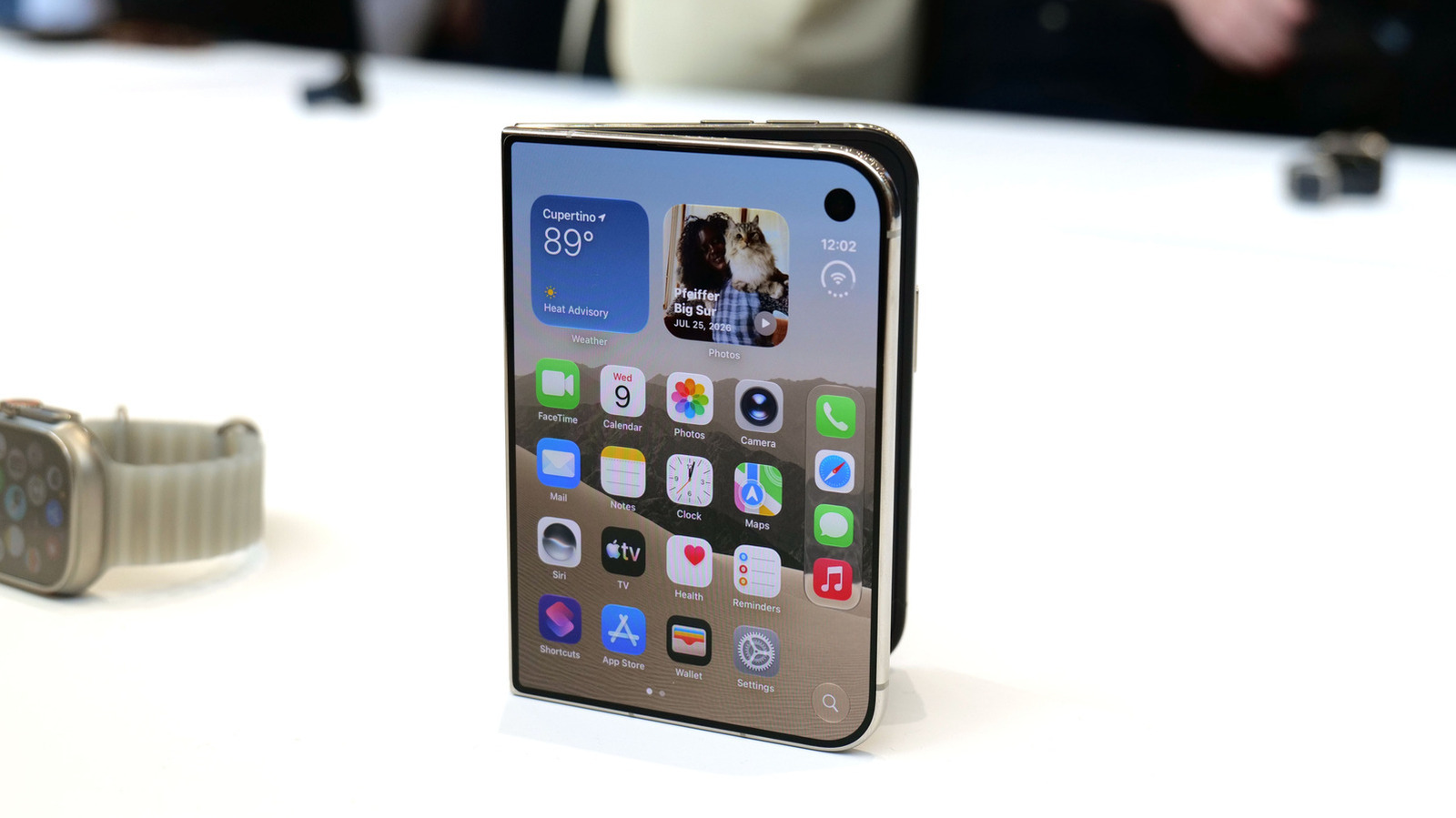
Apple iPhone Duo: A Daring Debut with Notable Compromises
Apple's highly anticipated iPhone Duo, priced at $2,000, has gone on pre-order. While hailed as "Apple's most exciting device in a decade" for its innovative foldable design and immersive display, it comes with significant drawbacks like the absence of FaceID and a premium camera.
Galaxy Watch One UI 9 Beta: Promising Progress, But Patience Needed
Galaxy Watch 8, Watch Ultra, and Watch 7 are receiving a new One UI 9 Watch beta build with bug fixes and a security patch. Active development signals progress, but a stable release date remains elusive.

Stop Android Auto Battery Drain: Essential Features to Disable and
Android Auto offers unparalleled convenience, bringing your phone's most useful features directly to your car's display. From navigation and calls to messages and music, it keeps you connected without distracting you

Apple’s new HomeView smart display is $10 cheaper at Amazon: latest
In a rare move for a new Apple product, the highly anticipated HomeView smart display is already available at a discount on Amazon, weeks before its official launch. Consumers can now pre-order Apple's first dedicated
Google Gemini Task Update: Automation Just Got Smarter
Google Gemini Task Update: Automation Just Got Smarter Verdict: Google's latest update to Gemini, focused on its task automation capabilities, is a significant step forward in user experience. By rebranding 'Spark' as

Turn Your Android Phone into a Powerful Desktop Replacement
Learn how to transform your Android phone into a full-fledged desktop computer using external displays and accessories, providing a cost-effective and integrated alternative to new Googlebooks.