
Turn Your Obsidian Notes into a Free Live Website in Under an Hour
Learn to turn your Obsidian notes into a free, live website using the Digital Garden plugin and Forestry.md in under an hour, publishing only what you choose.
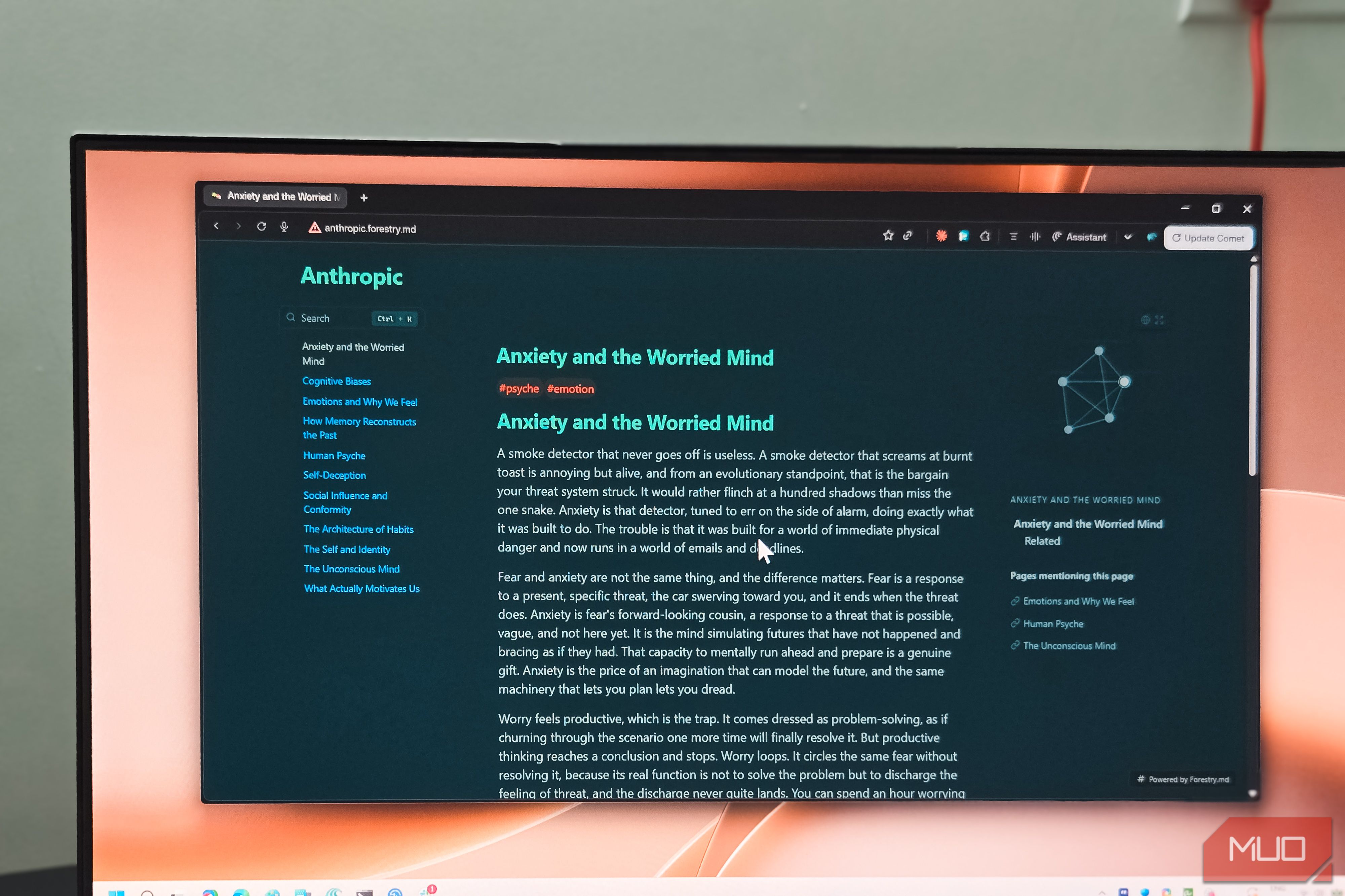
Have you ever wished you could easily share your carefully crafted Obsidian notes with the world, turning your personal knowledge vault into a public resource or blog? Obsidian Publish offers this, but at a monthly cost. What if you could achieve the same — or even better — results for free, and set it up in less than an hour?
This guide will walk you through transforming your Obsidian vault into a dynamic, live website using the free and open-source Digital Garden community plugin, hosted effortlessly on Forestry.md. You'll learn how to select which notes to publish, customize your site's appearance, and maintain full control over your private information.
Why Use Digital Garden?
As someone with a decade of experience hosting websites, the author found Obsidian Publish's $8 monthly fee a bit steep. Digital Garden emerged as the perfect, cost-free alternative. This plugin excels at taking your chosen Markdown notes and converting them into clean, static web pages. It integrates directly with Obsidian, allowing you to publish straight from the app after a simple, one-time setup.
A key benefit is its privacy focus: only notes you specifically tag with a dg-publish property will ever leave your vault. This means your unfinished drafts, private research, and sensitive information remain exactly where they belong – private within your Obsidian vault. It's a fantastic solution for sharing only what you intend to, without worrying about accidental leaks.
There are two main ways to use Digital Garden: the straightforward route with Forestry.md (which this guide covers) or a more involved self-hosting option using GitHub and services like Netlify or Vercel. For quick setup and zero cost, Forestry.md's free plan is an excellent starting point.
What You'll Accomplish
By following this guide, you will:
- Install and enable the Digital Garden plugin in Obsidian.
- Create a free account on Forestry.md and link it to your Obsidian vault.
- Learn how to mark specific notes for publication and designate a homepage.
- Publish your Obsidian notes as a live, accessible website with functional links, all within an hour and without any monthly fees.
Prerequisites
Before you begin, ensure you have the following:
- Obsidian: Installed on your computer (Windows, macOS, Linux, Android, iOS, iPadOS).
- An Obsidian Vault: With some notes you'd like to publish.
- Internet Connection: To access Obsidian's community plugins and Forestry.md.
- A Web Browser: To set up your Forestry.md account.
Step 1: Install the Digital Garden Plugin
The journey begins right inside Obsidian:
- Open Obsidian Settings: Click the gear icon in the bottom left corner.
- Navigate to Community Plugins: In the sidebar, find and click on "Community plugins."
- Turn off Restricted Mode: If it's enabled, toggle "Restricted mode" off. You'll see a warning; acknowledge it to proceed.
- Browse Community Plugins: Click the "Browse" button next to "Community plugins."
- Search for Digital Garden: In the search bar, type "Digital Garden" and press Enter.
- Install the Plugin: Locate "Digital Garden" in the search results and click "Install."
- Enable the Plugin: Once installed, click the "Enable" button. A new "Digital Garden" tab will now appear in your Obsidian Settings.
Step 2: Connect to Forestry.md
With the plugin installed, it's time to link your Obsidian vault to a hosting service. Forestry.md, developed by the same creator as Digital Garden, offers a free and simple solution.
- Sign Up for Forestry.md: Open your web browser and go to Forestry.md. Sign up for a free account.
- Create Your Garden: Once logged in, you'll be prompted to name your garden. This will form part of your free subdomain (e.g.,
yourgardenname.forestry.md). - Retrieve Your Garden Key: After naming your garden, the Forestry.md dashboard will provide you with a unique "Garden Key." This is a long, random string that securely links your account to the Obsidian plugin. Copy this key.
- Configure Digital Garden in Obsidian:
- Go back to Obsidian and open Settings.
- Click on the Digital Garden tab in the sidebar.
- Under "Publish Platform," select Forestry.md.
- Paste the Garden Key you copied from Forestry.md into the designated field.
- Verify Connection: Once the key is accepted, the plugin will display a "Base URL," which is the public address where your notes will appear. This confirms your vault is successfully connected.
- Customize Your Site (Optional but Recommended):
- Return to the Forestry.md dashboard.
- Navigate to the Site Settings tab.
- Rename Your Site: Change the default "Digital Garden" title to something more personal or relevant to your content.
- Choose a Theme: Forestry.md offers a selection of hundreds of free themes. Pick one that suits your style so your site doesn't look generic.
This completes the connection process. You've avoided complex build pipelines and access token generation, which is a major time-saver compared to self-hosting!
Step 3: Prepare Your Notes for Publishing
Now that your Obsidian vault is linked, you need to tell Digital Garden which notes to publish and which one will serve as your homepage.
-
Mark Notes for Publication:
-
Open any note in Obsidian that you wish to publish online.
-
Add the
dg-publishproperty to its YAML frontmatter. If your note doesn't have frontmatter, add it at the very top of the file:yaml
dg-publish: true
-
Tip: If you prefer not to type the dashes, you can use Obsidian's built-in property shortcuts. Open the Command Palette (
Ctrl/Cmd + P), search for "Add file property action" or use the property shortcut, set the key todg-publish, and toggle its value totrue.
-
-
Designate Your Homepage:
-
Choose one specific note to act as your website's landing page.
-
To this note's frontmatter, add both
dg-home: trueanddg-publish: true:yaml
dg-publish: true dg-home: true
-
Important: Only tag one note with
dg-home: true. The plugin will treat only one note as the homepage and ignore additionaldg-hometags.
-
Step 4: Publish Your Notes
You're ready to make your notes live!
- Initial Publish: For your very first publication, it's best to push everything tagged for publication at once.
- Open the Obsidian Command Palette (
Ctrl/Cmd + P). - Search for and run the command:
Digital Garden: Publish All Notes. - Alternatively, you can click the publish button in the Digital Garden section of the Obsidian sidebar.
- Open the Obsidian Command Palette (
- Subsequent Publishes: After the initial upload, you can publish individual notes as you edit them, rather than re-uploading the entire site each time.
Understanding Links:
- Links between two notes that are both published will function as real links on your live website, just like they do within your Obsidian vault.
- Links pointing to notes you haven't published will simply not resolve on the public site. This prevents any private information from accidentally leaking out through a stray connection.
Free Plan Considerations and Next Steps
The free Forestry.md plan is incredibly powerful for getting started, but it does come with a few limitations:
- Subdomain: Your site will live on a
yourgardenname.forestry.mdsubdomain, which might not look as professional as a custom domain. - Footer: A small Forestry.md footer will appear on your site until you upgrade to a paid plan.
- Storage: You're limited to 100 MB of storage, which can fill up quickly if your notes heavily rely on images.
These are minor trade-offs for a completely free and quickly deployed website. For many, replacing an $8 monthly bill with a site that went live in under an hour for no cost is a simple equation.
As your Digital Garden grows, you might consider moving to a custom domain or exploring the self-hosted GitHub route, which removes these limitations at the cost of some additional setup and self-maintenance. But for now, you've successfully published your notes to the open web, enhancing your beloved note-taking setup.
FAQ
Q: Can I publish only a few specific notes, or does Digital Garden publish my entire vault?
A: Digital Garden is designed for privacy. It only publishes notes that you explicitly tag with dg-publish: true in their YAML frontmatter. All other notes, including unfinished drafts or private research, remain securely within your local Obsidian vault.
Q: What if I link to a note that I haven't published? Will it show up on my website?
A: No, links pointing to notes you have not marked with dg-publish: true will not resolve on your public site. This ensures that private content cannot be inadvertently accessed through links.
Q: What are the main benefits of using Forestry.md's free plan over self-hosting?
A: The primary benefits of Forestry.md's free plan are its ease and speed of setup. It eliminates the need for managing build pipelines or generating access tokens, allowing you to get your site live in under an hour without any technical overhead. While it includes a subdomain and footer, it's completely free and perfect for starting out. Self-hosting offers full control and custom domains but requires more initial setup and ongoing maintenance.
Related articles

DJI Solo Video Setups: Smart Choices for Lone Creators
This review delves into DJI's recommended solo video setups, highlighting the Osmo Pocket 3 Creator Combo as a top pick for its integrated camera, gimbal, and mic. It also covers stabilizers like the Osmo Mobile 8 and RS 4, and the DJI Mic Mini series for enhanced audio, providing honest pros, cons, and clear buying advice.

in-depth: Chicago-Area Cops Helped HSI Spy on Minnesota Anti-ICE
Chicago-area law enforcement, including local police and HSI agents, conducted undercover surveillance on Minnesota anti-ICE activists at an April 2, 2022, talk in Chicago. This operation was part of a federal conspiracy probe into 15 Minnesota activists facing felony charges related to immigration enforcement resistance. Civil liberties advocates have condemned the surveillance as a troubling intrusion into protected political activity.

Ditch Merge & Center: The Better Way to Align Text in Excel
Learn to use Excel's "Center Across Selection" to align text across cells without merging, avoiding common data manipulation issues. This guide provides steps to utilize this newly accessible feature and add it to your Quick Access Toolbar.

Ars Technica's Rocket Report: Your Essential Space Industry Briefing
Quick Verdict Ars Technica's Rocket Report, presented by veteran space reporter Stephen Clark, offers an invaluable and meticulously organized weekly (or similar frequency, implied by "Edition 9.15") digest of the most
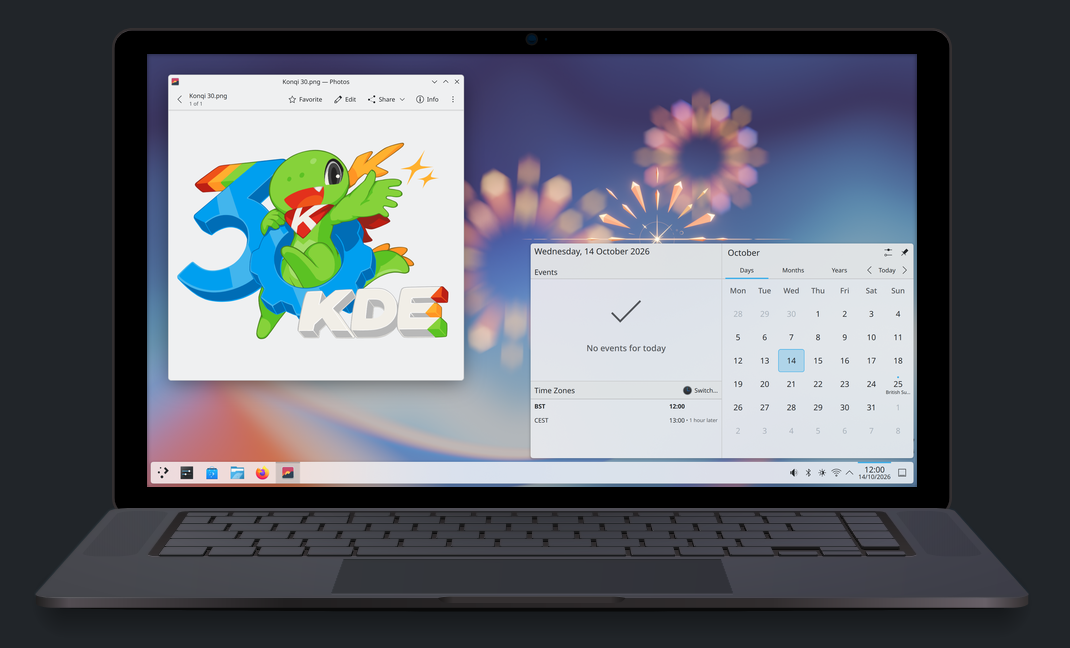
KDE Plasma 6.8: A Future-Focused 30th Anniversary Update
Quick Verdict KDE Plasma 6.8, arriving as the "30th Anniversary Edition," is a pivotal release that decisively pushes the desktop environment into the future. With a definitive farewell to native X11 sessions and a

Stop Android Auto Battery Drain: Essential Features to Disable and
Android Auto offers unparalleled convenience, bringing your phone's most useful features directly to your car's display. From navigation and calls to messages and music, it keeps you connected without distracting you