
Android Auto Troubleshooting: Your Go-To Fix Guide
Quick Verdict: Your Essential Guide to a Smooth Ride Android Auto, when it works, seamlessly integrates your smartphone into your car's infotainment system, putting navigation, messages, and media right at your
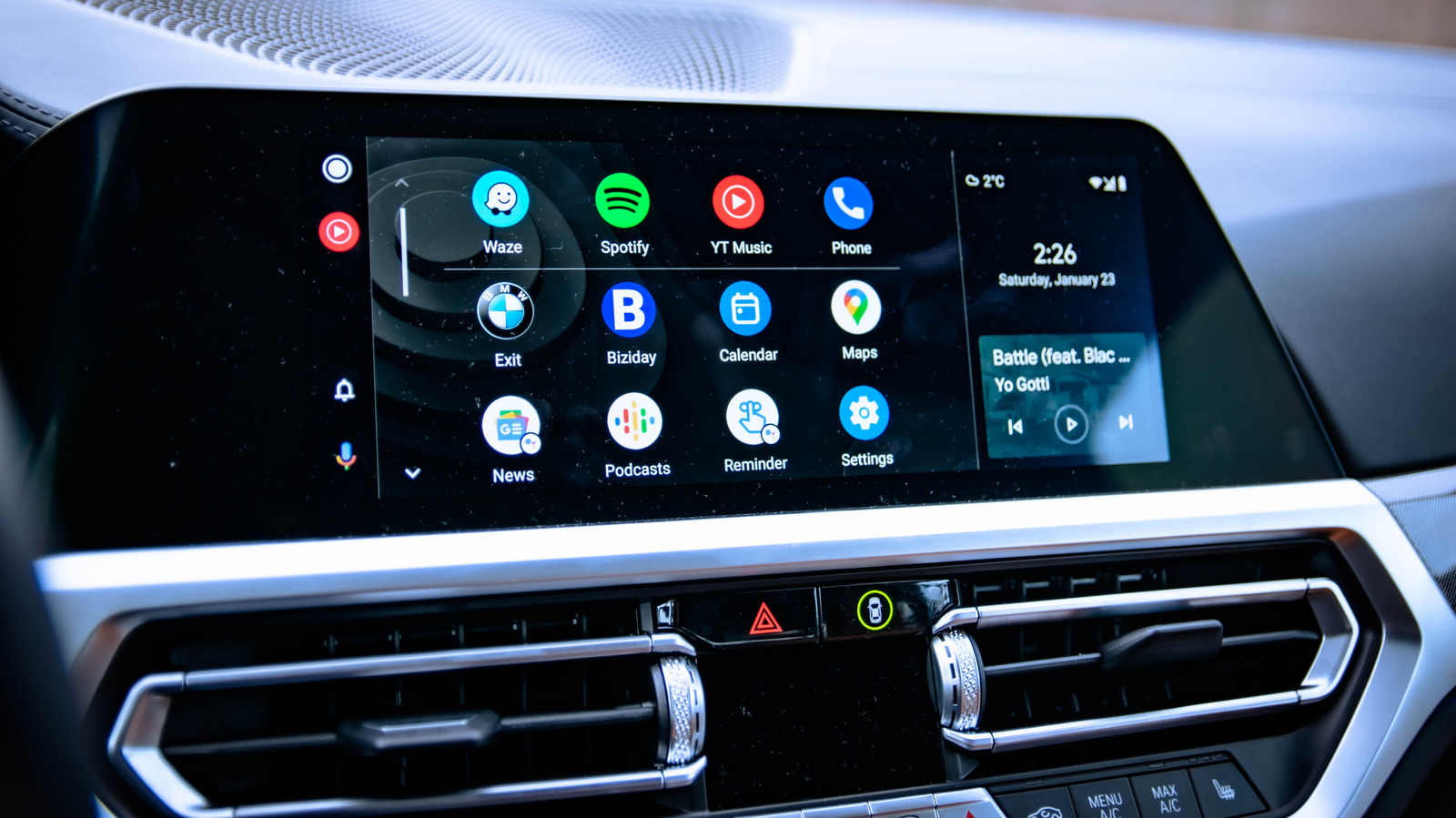
Quick Verdict: Your Essential Guide to a Smooth Ride
Android Auto, when it works, seamlessly integrates your smartphone into your car's infotainment system, putting navigation, messages, and media right at your fingertips. However, like any sophisticated tech, it's prone to occasional hiccups. When your Android Auto suddenly refuses to connect, it can be incredibly frustrating. This Engadget guide, "Android Auto not working? Here's what to check first," serves as an exceptionally thorough and practical roadmap for diagnosing and resolving those common connection issues. It's an honest, no-nonsense resource that starts with the simplest fixes and progressively guides you toward more complex solutions, making it an indispensable tool for any Android Auto user.
Getting Started: The Android Auto Foundation
At its core, Android Auto is designed to be an extension of your smartphone, mirroring essential apps and functionalities to your car's display. It aims for a seamless, intuitive experience, relying on a robust connection between your phone and your vehicle. The fundamental requirements include a compatible Android smartphone, a car that supports Android Auto (either wired or wireless), and, crucially, a reliable connection medium. The guide rightly points out that compatibility and connection integrity are the bedrock of a functioning Android Auto setup, and issues often stem from these foundational elements.
The Troubleshooting Journey: Step-by-Step Solutions
The strength of this guide lies in its methodical approach, leading users through a series of logical troubleshooting steps, starting with the most common and easiest to resolve.
The First Line of Defense: Cables and Wireless Links
The guide immediately hones in on the most frequent culprit: the connection itself. For wired connections, the advice is practical and often overlooked. It emphasizes checking the physical cable for damage, ensuring it's properly seated, and, critically, using a high-quality USB cable designed for data transfer, not just charging. A key recommendation is to keep cables under six feet and avoid extensions, echoing Google's own advice. This detail alone can save many headaches, as flimsy or overly long cables are notorious for intermittent connectivity.
For wireless users, the focus shifts to ensuring Bluetooth and Wi-Fi are active, as both are necessary for the connection. The common-sense suggestion to disconnect and force a manual re-connection is a quick way to refresh the link. Equally important is verifying that the car's infotainment system is actively searching or prepared to accept an Android Auto connection. This initial phase sets a strong foundation, addressing the most basic points of failure before delving deeper.
The Classic Reboot: Restart, Remove, Reconnect
When basic connection checks don't yield results, the guide progresses to the universally effective "three R's": restart, remove, and reconnect. Restarting your phone is often underestimated; it clears out background processes and can resolve temporary software glitches that might be interfering with Android Auto. Following this, the guide clearly outlines how to "forget" your car from the Android Auto settings on your phone, effectively wiping any potentially corrupted pairing data. Re-pairing as if for the first time forces a fresh handshake between your devices, often resolving underlying communication issues. The added tip about configuring automatic start and screen lock preferences during this process ensures the user optimizes their settings for future convenience, making the reconnection more robust.
A Deeper Cleanse: Clearing App Cache and Data
If the problem persists, the guide correctly escalates to app-specific troubleshooting: clearing Android Auto's app cache. Cache files can become corrupted over time, leading to unexpected behavior. The instructions are straightforward for most Android users: navigate to Settings > Apps > Android Auto, then Force Stop, and finally Clear Cache. For more stubborn issues, the option to Clear Data is also presented, which essentially resets the app to its factory state, requiring a fresh setup but eliminating any conflicting configurations. This step is crucial for software-related issues that aren't resolved by a simple restart.
Beyond the Basics: Advanced Checks and Common Pitfalls
Finally, the guide covers a range of more nuanced issues that can plague Android Auto connectivity. It stresses the importance of keeping your phone's Android OS and Google Play Services updated, as new versions often contain critical bug fixes. It also wisely suggests swapping between wired and wireless connections to isolate whether the issue is specific to one method.
Permissions are another frequently overlooked aspect; the guide reminds users to ensure Android Auto has the necessary access to functions like contacts for calling or messaging. A particularly insightful point is the interference caused by VPNs. For users who rely on a VPN, the recommendation to utilize split tunneling (allowing Android Auto to bypass the VPN) is a practical solution that prevents a common, yet often perplexing, connectivity block.
Less obvious culprits like battery-saving mode, which can restrict background app activity, are also mentioned. The guide smartly suggests trying another Android phone (if available) to definitively determine if the problem lies with your phone or the car's infotainment system. Lastly, a fundamental check, yet one often forgotten, is to simply verify if your vehicle is officially compatible with Android Auto. This comprehensive array of advanced checks ensures that almost every potential cause is addressed.
The Guide's Strengths and Weaknesses
Pros:
- Clear and Logical Progression: The guide moves from simple, common fixes to more complex, app-specific solutions in a sensible order.
- Comprehensive Coverage: It addresses a wide array of potential issues, including hardware (cables), software (app cache, updates), and settings (permissions, VPN, battery saver).
- Practical and Actionable Advice: Each step is accompanied by clear instructions on how to perform the troubleshooting, often with real-world examples (e.g., cable length).
- Addresses Both Wired and Wireless: It covers the specific nuances of troubleshooting both connection types.
- User-Centric Tone: The advice is helpful and empathetic, acknowledging the frustration users face.
Cons:
- Android Auto's Inherent Fickleness: While the guide is excellent, it indirectly highlights that Android Auto itself can be somewhat temperamental, often requiring users to engage in detailed troubleshooting.
- Varying Android Menus: Acknowledges that Android settings menus can differ between phone models, which might cause slight confusion for some users, though it provides general navigation.
Final Recommendation: Don't Let Connection Issues Drive You Crazy
This Engadget troubleshooting guide is an absolute must-read for anyone experiencing issues with Android Auto. It's balanced, detailed, and provides a logical, step-by-step framework for resolving connectivity problems. By following its recommendations, you're equipped with a robust set of tools to get your car and smartphone communicating smoothly again. It's a testament to good technical writing – taking a frustrating problem and breaking it down into manageable, actionable steps. Instead of fumbling around, reach for this guide first; it will undoubtedly save you time and aggravation and help you reclaim the convenience of Android Auto.
FAQ
Q: What's the most common reason Android Auto stops working?
A: Based on the guide, connection issues are the most common culprit, whether it's a faulty USB cable for wired connections or an issue with Bluetooth or Wi-Fi for wireless setups. The guide strongly recommends starting by checking your cable and wireless settings.
Q: Should I always clear Android Auto's data if clearing the cache doesn't work?
A: Clearing the app cache is generally the first step. If that doesn't resolve the issue, then clearing the data is a more drastic measure that resets the app entirely. This can often fix deeper software conflicts but will require you to set up Android Auto from scratch.
Q: Can my VPN interfere with Android Auto?
A: Yes, VPNs are known to interfere with Android Auto's connection. The guide recommends using split tunneling within your VPN app to allow Android Auto to bypass the VPN connection, ensuring it doesn't cause any conflicts.
Related articles
Android 17 QPR2 Beta 7.1: The Performance Relief You've Been Waiting
Android 17 QPR2 Beta 7.1: Finally Fixing the QPR1 Performance Woes Verdict: Android 17 QPR2 Beta 7.1 is a crucial and highly anticipated software update for Google Pixel users, specifically targeting and resolving the

DJI Solo Video Setups: Smart Choices for Lone Creators
This review delves into DJI's recommended solo video setups, highlighting the Osmo Pocket 3 Creator Combo as a top pick for its integrated camera, gimbal, and mic. It also covers stabilizers like the Osmo Mobile 8 and RS 4, and the DJI Mic Mini series for enhanced audio, providing honest pros, cons, and clear buying advice.

Ditch Merge & Center: The Better Way to Align Text in Excel
Learn to use Excel's "Center Across Selection" to align text across cells without merging, avoiding common data manipulation issues. This guide provides steps to utilize this newly accessible feature and add it to your Quick Access Toolbar.

Ars Technica's Rocket Report: Your Essential Space Industry Briefing
Quick Verdict Ars Technica's Rocket Report, presented by veteran space reporter Stephen Clark, offers an invaluable and meticulously organized weekly (or similar frequency, implied by "Edition 9.15") digest of the most
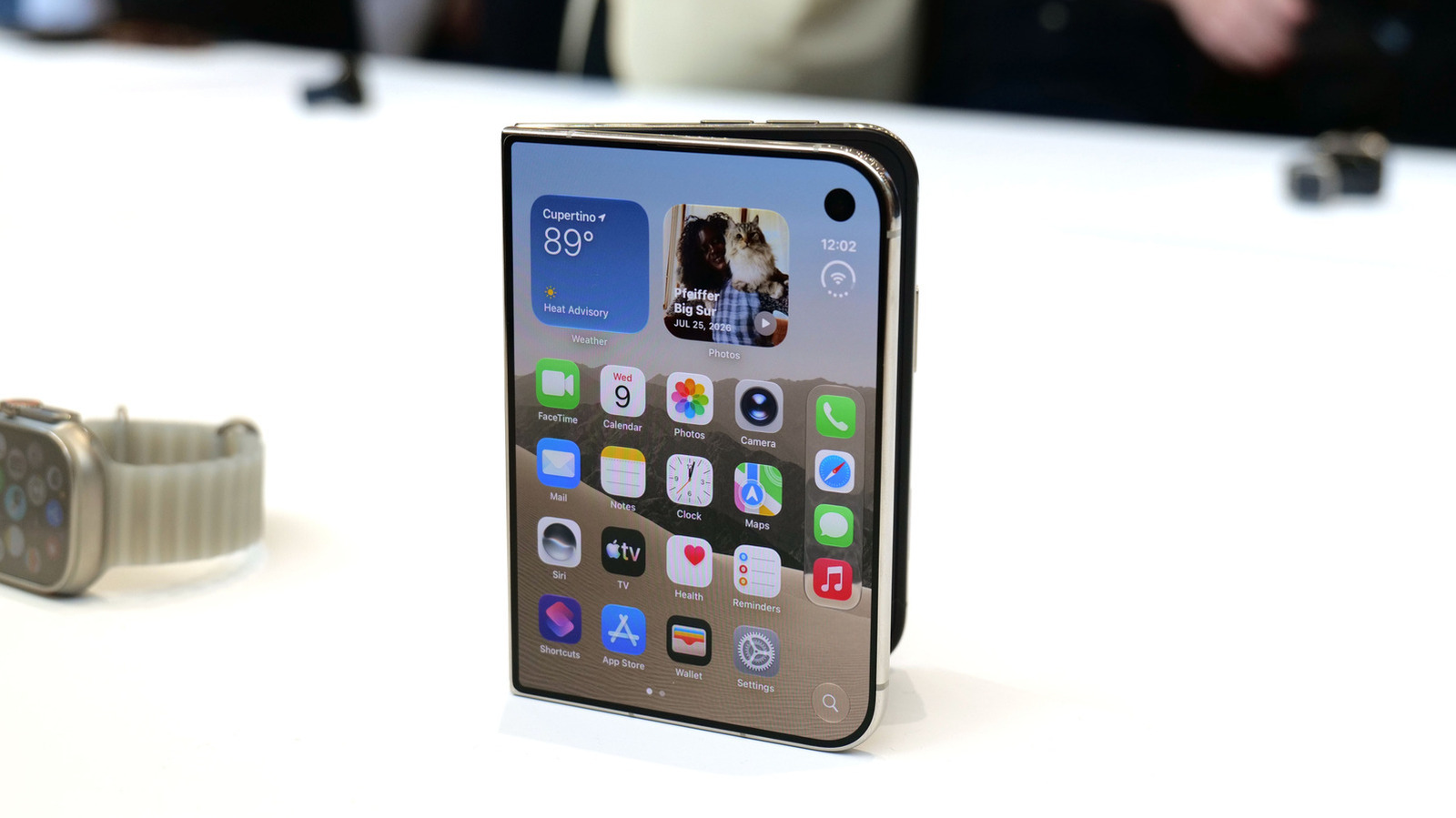
Apple iPhone Duo: A Daring Debut with Notable Compromises
Apple's highly anticipated iPhone Duo, priced at $2,000, has gone on pre-order. While hailed as "Apple's most exciting device in a decade" for its innovative foldable design and immersive display, it comes with significant drawbacks like the absence of FaceID and a premium camera.
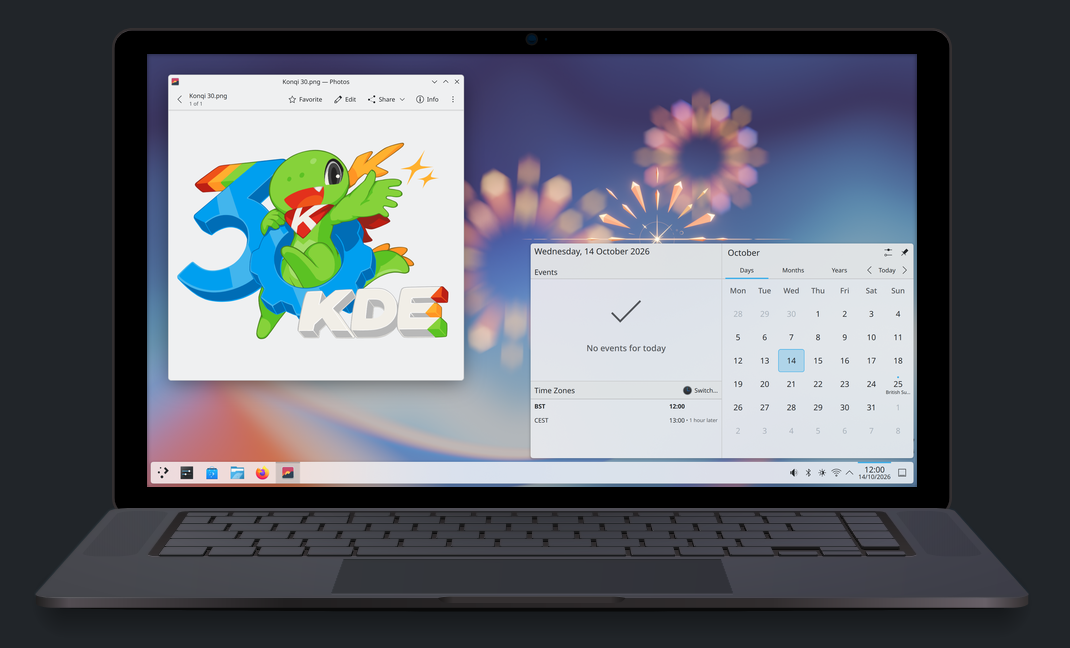
KDE Plasma 6.8: A Future-Focused 30th Anniversary Update
Quick Verdict KDE Plasma 6.8, arriving as the "30th Anniversary Edition," is a pivotal release that decisively pushes the desktop environment into the future. With a definitive farewell to native X11 sessions and a