
Stop Spam Calls: 4 Essential Android Settings to Boost Your Privacy
Learn to reduce spam calls and improve call clarity on your Android phone in four simple steps by enabling built-in settings like Caller ID & spam filtering, blocking unknown numbers, and enhancing voice quality.
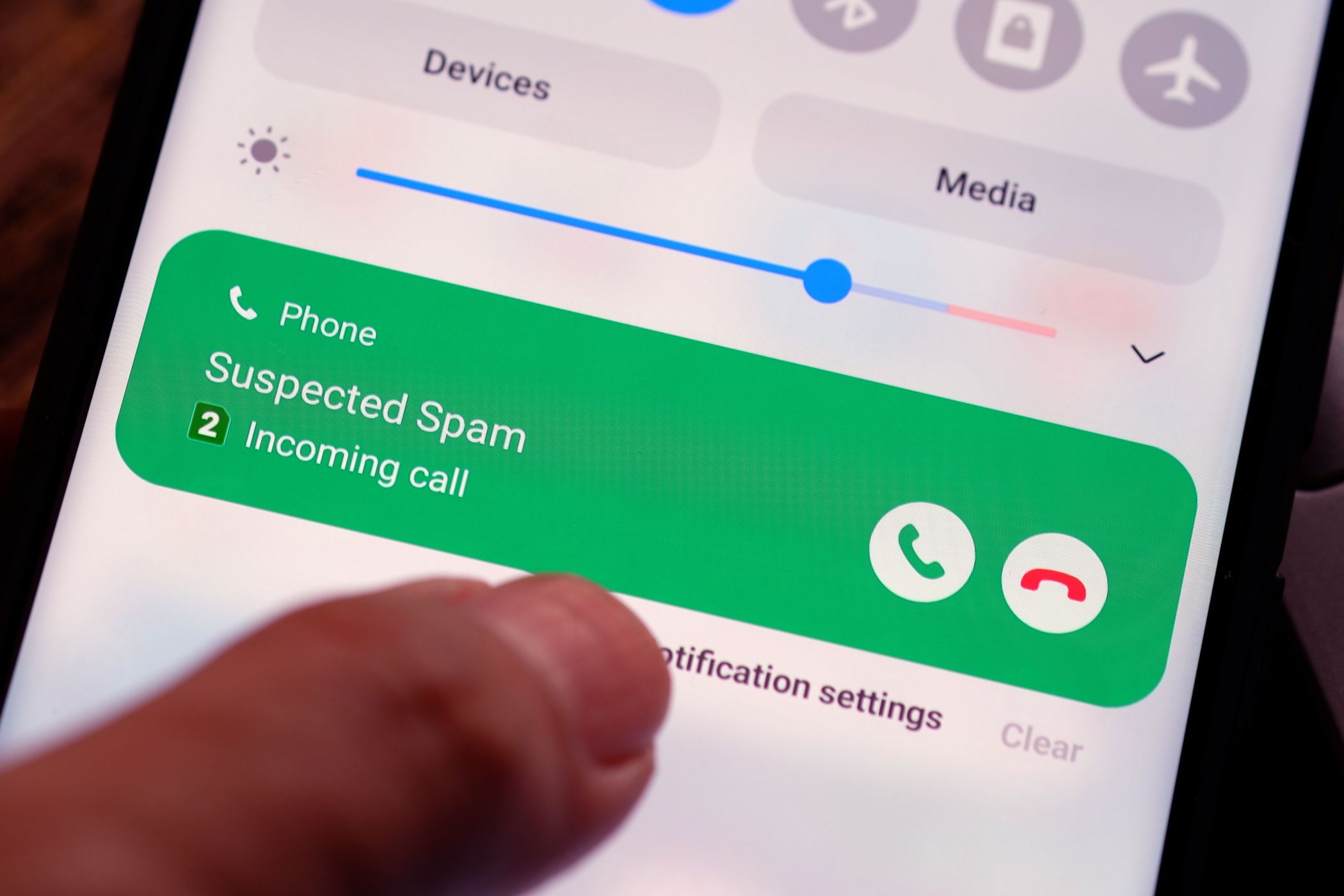
Are you tired of your Android phone constantly ringing with unwanted spam calls? Do you find yourself missing important calls because you're hesitant to answer unknown numbers? You're not alone. Spam calls are a persistent nuisance for smartphone users worldwide, often disrupting your day at the worst possible moments.
While many people turn to third-party call-blocking applications, your Android device likely has powerful, built-in features designed to tackle this problem without needing extra software. These native settings are often overlooked but can significantly improve your calling experience by identifying, filtering, and even blocking unwanted calls, all while enhancing call clarity.
This guide will walk you through enabling four crucial Android settings. By following these clear, step-by-step instructions, you can reclaim control over your phone, drastically reduce spam interruptions, and make your conversations clearer for everyone involved. Get ready to enjoy a more peaceful and efficient smartphone experience!
Prerequisites
Before you begin, ensure you meet these basic requirements:
- Modern Android Smartphone: The features discussed are available on recent versions of Android. While menu names may vary slightly between manufacturers (like Samsung, Google Pixel, OnePlus), the core functionality remains consistent.
- Google Services: For caller identification and spam filtering features, your device should have Google services enabled and not be a "de-Googled" Android phone.
Step 1: Identify Potential Spam with Caller ID & Spam
The first step to stopping spam calls is knowing who's calling. Android's "See Caller and Spam ID" feature helps you identify incoming calls, including those that have been reported as spam. This setting provides crucial information before you even answer, giving you the discretion to decide whether to pick up.
What this setting does: Your phone cross-references incoming numbers against an extensive directory, which includes data from Google and other providers. If a number matches a known spam record, your device will flag the call as "suspected spam" on your screen. This helps you visually distinguish legitimate calls from potential nuisances.
How to enable it:
- Open the Phone app on your Android device (the app you use to make calls).
- Tap the three-dot menu (usually in the top right corner) to open further options.
- Select Settings from the menu.
- Tap on Caller ID & spam.
- Toggle on the option labeled See Caller and spam ID.
Important Note: This setting identifies and flags calls but does not automatically block them. This approach is beneficial if you want to be informed but prefer to have the final say on blocking a number, preventing legitimate but unfamiliar calls from being missed.
Step 2: Automatically Filter Spam Calls
Building on the identification capabilities of the first setting, "Filter spam calls" takes a more proactive approach. If you're constantly bombarded with spam and want them stopped before they even ring, this is the setting for you.
What this setting does: Once enabled, your Android phone will automatically block incoming calls that are strongly identified as spam. These calls will not ring on your device, and in many cases, they'll be sent directly to voicemail or simply disappear without a trace. This significantly reduces interruptions and allows you to focus without constant spam distractions.
How to enable it:
- Follow steps 1-4 from "Step 1: Identify Potential Spam with Caller ID & Spam" to navigate to Phone > Settings > Caller ID & spam.
- Within the same "Caller ID & spam" menu, toggle on the option labeled Filter spam calls.
Caution: While highly effective, this feature relies on crowdsourced data. There's a slight possibility that an important, legitimate number could be mistakenly identified and blocked as spam. If you're expecting a call from an unfamiliar number, you might want to temporarily disable this setting or monitor your voicemail for any missed calls.
Step 3: Block Unidentified Numbers
Those calls showing "Unknown" or "Blocked" on your screen can be particularly annoying, often coming at inconvenient times. These aren't just numbers you haven't saved; they are callers whose identity is deliberately withheld by their service provider. Android offers a direct solution to silence these persistent disruptions.
What this setting does: Enabling this option tells your phone to automatically block any incoming call that does not display a caller ID. This typically includes calls marked as "Unknown," "Blocked," or similar indicators. These are often used by telemarketers, robocallers, or international numbers designed to bypass standard identification. By blocking them, you eliminate a significant source of nuisance calls.
How to enable it:
- Open the Phone app on your Android device.
- Tap the three-dot menu for options.
- Select Settings.
- Tap on Blocked Numbers.
- Toggle on the option labeled Unknown (or similar, such as "Block calls from unidentified callers").
Benefit: This setting is highly effective in stopping those irritating early morning or late-night calls from anonymous sources. It clarifies that this doesn't block calls from numbers not in your contacts, but specifically those where the caller ID information is absent or hidden.
Step 4: Enhance Your Voice with Clear Calling
While the first three settings deal with who calls you, this fourth setting addresses how you sound to the person you're speaking with. Background noise can make conversations frustrating for both parties. Android's "Clear Calling" or "Clear Voice" feature helps ensure your voice comes through clearly, even in noisy environments.
What this setting does: This feature intelligently uses your phone's processing power to detect and remove ambient background noise from your end of the call. So, whether you're in a bustling cafe, a busy street, or a noisy home, the person on the other end will hear your voice more distinctly and with less interference.
How to enable it:
- Open your device's main Settings app (not the Phone app settings).
- Scroll down and tap on Voice & Vibration (on some devices, this might be under "Sound & vibration").
- Look for an option called Clear Calling, Clear Voice, or a similar name related to noise reduction during calls.
- Toggle this setting on.
Privacy Note: This background noise removal is typically processed directly on your device, meaning your call audio doesn't need to be sent to external servers for processing, maintaining your privacy.
Troubleshooting and Best Practices
Even with these powerful settings enabled, a few things might still slip through, or you might encounter unexpected behavior. Here are some tips:
- Legitimate Calls Being Blocked: If you're expecting an important call from an unfamiliar number (e.g., a doctor's office, delivery service), consider temporarily disabling "Filter spam calls" or checking your phone's blocked call log/voicemail. You can often whitelist specific numbers manually in your Phone app's settings.
- Some Spam Still Gets Through: Spammers are constantly evolving their tactics. These built-in tools are excellent first lines of defense, but some sophisticated or very new spam numbers might not yet be in the reference databases. If you're still experiencing a high volume of persistent spam, you might consider reputable third-party call-blocking apps as a supplementary measure.
- Keep Your Software Updated: Ensure your Android operating system and Phone app are always up to date. Updates often include enhancements to spam detection and call quality features.
Next Steps
By enabling these four settings, you've taken significant steps to improve your Android calling experience. You should notice a dramatic reduction in unwanted calls and clearer conversations.
If you find that occasional spam calls still bother you, or if you want even more robust filtering capabilities, you might explore some highly-rated third-party call-blocking applications available on the Google Play Store. These apps often offer advanced features like personalized blocklists, reverse phone lookups, and community-reported spam numbers.
FAQ
Q: Will enabling "Filter spam calls" block calls from people I know but haven't saved in my contacts? A: Not typically. "Filter spam calls" primarily targets numbers identified as known spam, often by Google's extensive database. It doesn't automatically block all unsaved numbers. However, if an unsaved number has been widely reported as spam, it might be filtered. The "Block Unknown Numbers" setting, on the other hand, specifically targets calls where the caller ID is hidden, not just unsaved.
Q: How can I check if a legitimate call was accidentally blocked? A: Most Android phones have a "Blocked calls" or "Spam calls" section within the Phone app's history or settings. You can usually access this from the three-dot menu in the Phone app. Additionally, if blocked calls are sent to voicemail, checking your voicemail regularly can help identify any important missed calls.
Q: Do these settings consume more battery or data? A: The impact on battery and data is generally minimal. The caller ID and spam filtering features use a small amount of data to cross-reference numbers, but this is usually negligible. "Clear Calling" processes audio on your device, so it uses some processing power, but it's optimized to be efficient and designed as a standard feature of your phone's calling functions, so any battery effect is typically not noticeable.
Related articles
howto: 4 Photoshop plugins so essential they should be built-in
Discover four essential Photoshop plugins that streamline your workflow, save time, and unlock new creative possibilities, making you wonder why they aren't built-in features.

Xreal Unveils Aura Wired Smart Glasses Running Android XR
At the Android Dev Summit on Wednesday, Xreal, Google's smart glasses collaborator, officially introduced its new Xreal Aura wired smart glasses. The device, which had been teased earlier in the year at Google's I/O
Solve Annoying PDF Problems Locally in Your Browser with BentoPDF
Dealing with PDFs can often feel like a never-ending series of small, annoying tasks. You might need to combine several documents, reduce the size of a bulky file, or even make an image-only scan searchable. Typically,

Your Guide to LG's 115-inch QNED evo TV: Features, Gaming & Price
Welcome to an exciting exploration of LG's latest innovation in home entertainment: the colossal 115-inch QNED evo AI Mini LED TV. This guide is designed to walk you through everything you need to know about this

Apple's Touchscreen MacBook Pro: A Long-Awaited Touch
The Verdict Apple's rumored touchscreen MacBook Pro represents a long-overdue evolution, promising to blend the convenience of direct screen interaction with the powerful macOS laptop experience. While not an essential

How to Stop Google Using Your Gmail & Drive Data for Ads
Google's "Personal Intelligence" feature, designed to offer more tailored AI responses, may inadvertently lead to your personal data from apps like Gmail, Google Drive, and Google Photos being used for targeted