
Stop Random USB Disconnections: Disable Windows Power Saving
Learn to fix random USB device disconnections by disabling Windows' power-saving features in Settings, Control Panel, and Device Manager.
Tired of Your USB Devices Randomly Disconnecting?
It's a common and frustrating issue: your USB mouse, keyboard, external hard drive, or even your entire USB hub suddenly disconnects, only to reconnect a few seconds later (or sometimes not at all). You've checked the cables, and they seem fine. This often happens after a fresh Windows installation, where everything reverts to default settings. The culprit? Windows' built-in power-saving features for USB devices.
Windows is designed to optimize power consumption, especially on laptops, by temporarily cutting power to USB ports it believes are idle. While this intention is good for battery life, Windows doesn't always get the timing right. Imagine your external drive disconnecting mid-transfer because you stepped away for a moment, or your mouse becoming unresponsive while you're simply scrolling through your phone. These interruptions are annoying and can disrupt your workflow. Luckily, you can take control of these settings.
This guide will walk you through disabling these power-saving features, putting an end to those frustrating, random USB disconnects. After implementing these changes, your USB devices should remain consistently powered and connected.
What You'll Accomplish
By following these steps, you will:
- Prevent Windows from automatically suspending power to your USB devices.
- Ensure a stable connection for all your USB peripherals.
- Reduce frustrating interruptions caused by unexpected disconnections.
Prerequisites
To complete this guide, you will need:
- A computer running Windows 11.
- Administrative access to your Windows system.
- Basic familiarity with navigating Windows Settings and Control Panel.
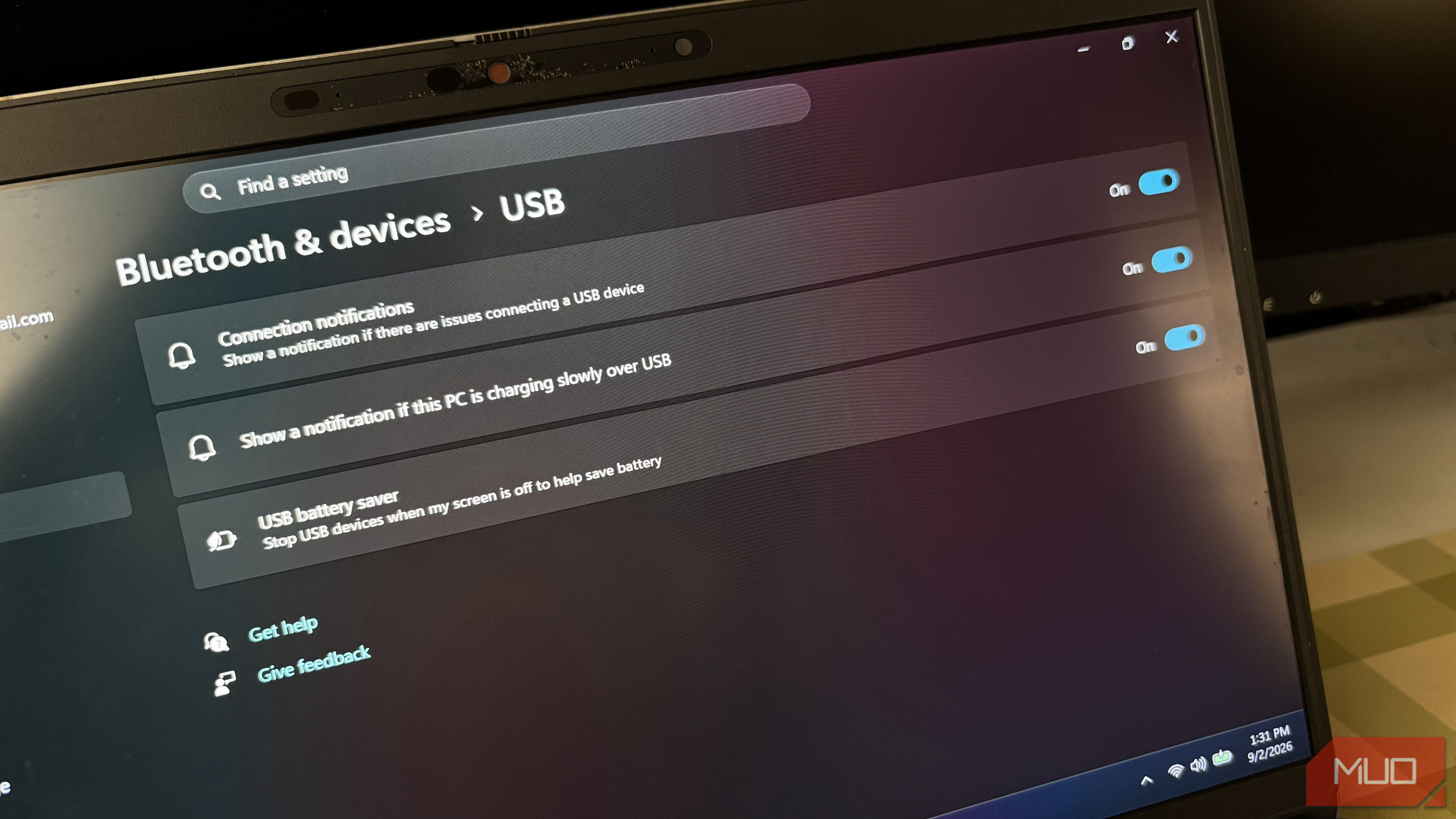
Method 1: Disable USB Battery Saver in Windows 11 Settings (Newer Builds)
For more recent versions of Windows 11, Microsoft has made the USB power-saving option more accessible directly within the Settings app. This is the quickest way to disable the feature if your system supports it.
- Open Windows Settings: Right-click the Start button and select Settings, or press
Windows key + I. - Navigate to Bluetooth & devices: In the left-hand menu of the Settings window, click on Bluetooth & devices.
- Access USB settings: Scroll down or look for the USB option on the right-hand pane and click it.
- Toggle off USB battery saver: Locate the USB battery saver toggle switch. Click it to set it to Off.
Once disabled, Windows will no longer attempt to reduce power to USB devices through this setting. If you don't find this option in your Settings, proceed to Method 2, as your Windows build might use the older naming convention and location.
Method 2: Disable USB Selective Suspend via Control Panel (Older Builds)
For older Windows 11 builds or if you prefer using the classic Control Panel, the power-saving feature is known as "USB Selective Suspend." This method involves adjusting your active power plan settings.
- Open Control Panel: Search for "Control Panel" in the Windows search bar and open the application.
- Go to Power Options: Change the "View by" option in the Control Panel (usually top-right) to Large icons or Small icons, then click on Power Options.
- Change plan settings: Next to your currently active power plan (e.g., "Balanced" or "High performance"), click on Change plan settings.
- Access advanced power settings: In the new window, click on Change advanced power settings.
- Locate USB settings: A small "Power Options" window will appear. Scroll down and expand USB settings by clicking the plus sign (+) next to it.
- Disable USB selective suspend: Expand USB selective suspend setting. You will likely see "Enabled" for both "On battery" and "Plugged in." Click on each of these options and change them to Disabled from the dropdown menu.
- Apply and exit: Click Apply, then OK to save your changes and close the window.
After completing these steps, the system-wide USB Selective Suspend feature will be disabled, preventing Windows from automatically powering down USB devices.
Method 3: Adjust Device Manager Power Management for Individual Hubs
Even after changing the system-wide power settings, Windows might still manage power for individual USB devices through their specific drivers. It's a good practice to check these settings for any USB Root Hubs or Generic USB Hubs that are associated with your frequently disconnecting devices.
- Open Device Manager: Right-click on the Start button and select Device Manager from the context menu.
- Expand Universal Serial Bus controllers: In the Device Manager window, locate and expand the Universal Serial Bus controllers section.
- Access device properties: Look for USB Root Hub or Generic USB Hub entries. Right-click on a relevant hub that your problematic devices are connected to, and select Properties.
- Check Power Management tab: In the Properties window, look for a Power Management tab. If it exists, click on it.
- Disable power-saving for the device: On the Power Management tab, you will typically find an option labeled Allow the computer to turn off this device to save power. If this box is checked, uncheck it.
- Confirm and repeat: Click OK to save the change. Repeat this process for any other USB Root Hubs or Generic USB Hubs that you suspect might be affecting your devices. Prioritize the hubs that your problematic devices (like your mouse, keyboard, or external drive) are connected to.
Important Note: Not all USB devices or drivers will expose the Power Management tab. It's crucial not to blindly change every setting you find. Focus on the USB hubs that your troublesome devices are connected to.
Troubleshooting Tips
- Restart Your PC: After making any changes, a system restart can help ensure the new settings are fully applied.
- Check for Physical Issues: These software solutions won't fix hardware problems. If devices continue to disconnect, inspect your USB cables for damage and try different USB ports to rule out faulty ports.
- Update Drivers: Outdated or corrupt USB drivers can also cause instability. You can update them via Device Manager (right-click the device, select "Update driver") or by visiting your computer manufacturer's website.
- Identify Problematic Devices: If only specific devices are disconnecting, try connecting them directly to different USB ports on your computer, bypassing any hubs, to see if the issue persists.
Best Practices
- Laptop Battery Life Consideration: While disabling these features solves disconnection issues, remember that on a laptop, it might lead to a negligible reduction in battery life as USB ports will remain fully powered even when idle. For desktop users, this is not a concern.
- Targeted Changes: If you have many USB devices, you might initially only disable power management for the specific hubs or devices that are causing problems, rather than every single USB entry.
Following these steps should significantly improve the stability of your USB connections, ensuring your workflow remains uninterrupted.
FAQ
Q: What exactly is "USB Selective Suspend" or "USB battery saver"?
A: Both terms refer to a Windows power management feature designed to conserve energy. It works by temporarily reducing or cutting power to individual USB ports or connected devices when the operating system determines they are idle. This is particularly useful for extending battery life on laptops but can inadvertently lead to devices disconnecting if Windows misidentifies them as inactive while they are still in use or expected to be ready instantly.
Q: Will disabling these USB power-saving settings impact my computer's performance?
A: Disabling these settings is unlikely to have a noticeable negative impact on your computer's overall performance. Its primary effect will be on power consumption. On laptops, this might lead to a slight decrease in battery life, as the USB ports will draw a consistent amount of power. On desktop computers, the power consumption difference will be negligible and typically unnoticeable.
Q: My USB devices are still disconnecting after disabling these settings. What else could be wrong?
A: If the problem persists, it's likely not related to Windows' power management. Other common causes for random USB disconnections include faulty USB cables, damaged USB ports on your computer or the device itself, outdated or corrupt device drivers, or insufficient power delivery from your computer or USB hub. Start by replacing cables, trying different ports, and ensuring all your device drivers are up to date.
Related articles
howto: 4 Photoshop plugins so essential they should be built-in
Discover four essential Photoshop plugins that streamline your workflow, save time, and unlock new creative possibilities, making you wonder why they aren't built-in features.

Here’s where you can preorder the new OLED-equipped iPad Mini: Apple
Apple has officially opened preorders for its eighth-generation iPad Mini, featuring a vibrant 8.5-inch OLED display and powerful A20 Pro chip. Starting at $699, the device can be preordered from Apple and Best Buy before its November 6th release, promising significant upgrades in visual technology and performance.

Solve Annoying PDF Problems Locally in Your Browser with BentoPDF
Dealing with PDFs can often feel like a never-ending series of small, annoying tasks. You might need to combine several documents, reduce the size of a bulky file, or even make an image-only scan searchable. Typically,

Your Guide to LG's 115-inch QNED evo TV: Features, Gaming & Price
Welcome to an exciting exploration of LG's latest innovation in home entertainment: the colossal 115-inch QNED evo AI Mini LED TV. This guide is designed to walk you through everything you need to know about this

Apple's Touchscreen MacBook Pro: A Long-Awaited Touch
The Verdict Apple's rumored touchscreen MacBook Pro represents a long-overdue evolution, promising to blend the convenience of direct screen interaction with the powerful macOS laptop experience. While not an essential

How to Stop Google Using Your Gmail & Drive Data for Ads
Google's "Personal Intelligence" feature, designed to offer more tailored AI responses, may inadvertently lead to your personal data from apps like Gmail, Google Drive, and Google Photos being used for targeted