
Stop Exposing Your Home Server: Access Securely Without Opening Ports
Learn how to securely access your home server and other devices remotely without using dangerous port forwarding. This guide explains the risks of open ports and provides step-by-step instructions on utilizing safer VPNs and overlay networks like Tailscale for robust home network security.
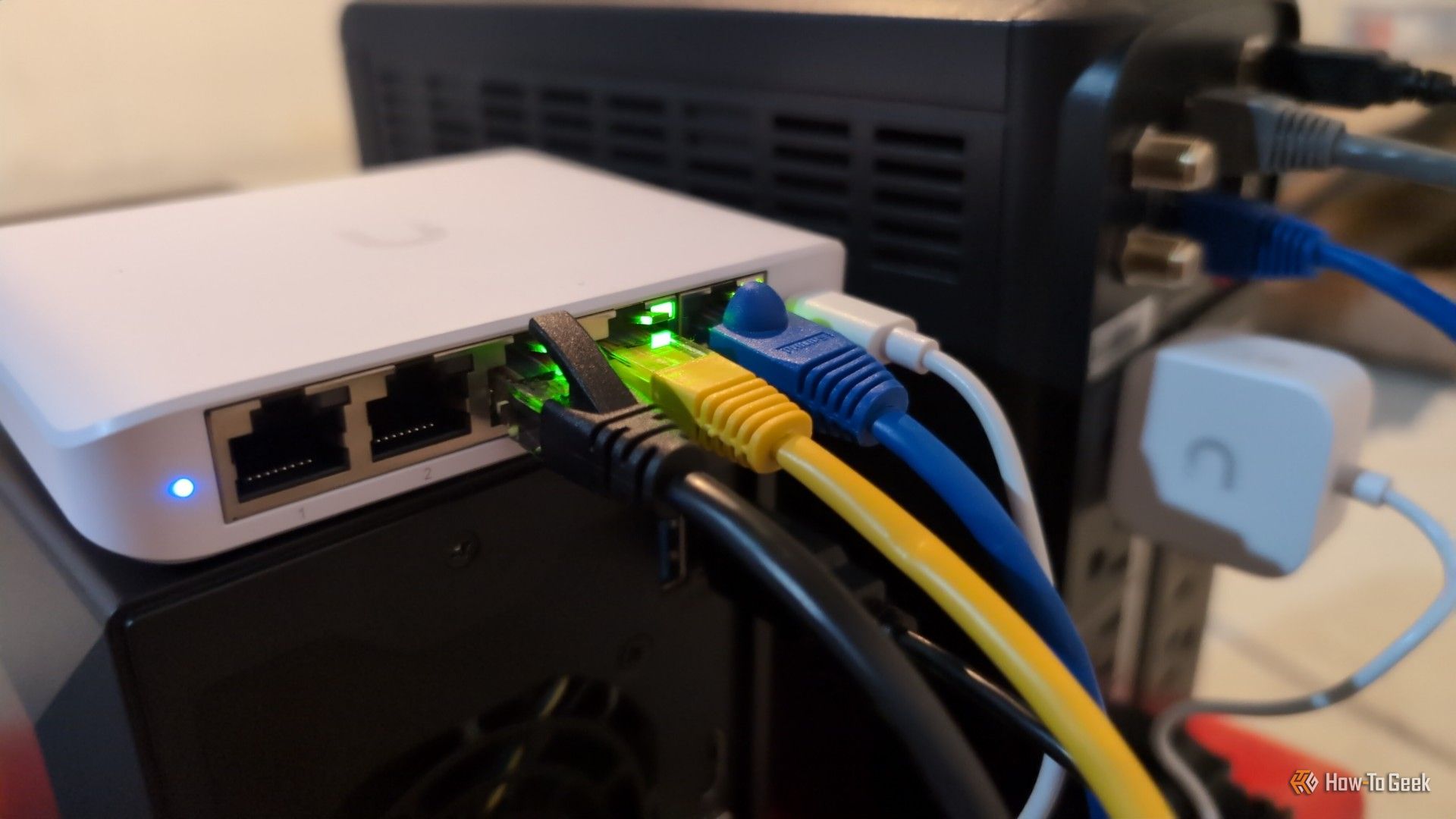
You’ve worked hard to secure your home network. You chose a robust router, set strong passwords, and maybe even invested in a mesh system or a VPN subscription. Your network feels locked down, and it probably is. But then, you want to access your home server, security cameras, or other devices while you’re away, and the common advice you find suggests 'port forwarding.'
While port forwarding might seem like an easy fix, it creates a persistent vulnerability, poking a hole directly through your network's defenses. This guide will show you why port forwarding is a significant security risk and, more importantly, what safer alternatives you can use to securely access your home devices from anywhere.
Why Opening Ports on Your Router is a Major Security Risk
To understand why port forwarding is problematic, let’s first look at how your router protects you by default.
Your Router's Default Security: A Closed Door
By default, your router uses a system called Network Address Translation (NAT), which acts like a built-in firewall. Think of your router as a bouncer for your home network. It ignores any unsolicited requests from the outside world, effectively dropping them because it doesn't know where to send them inside your home. This "I don't know you, go away" behavior is your primary defense against unwanted access, and it's a vital, free security feature.
Port Forwarding: Handing Out a Backstage Pass
When you enable port forwarding, you’re essentially telling your router, "Actually, for anything that comes knocking on this specific port, let it straight through to this specific device inside my home, every single time." You're creating a permanent, direct pathway from the public internet to a device on your private network. The significant issue is that the internet is not a friendly place, and once that door is open, it's open to everyone, not just you.
Automated Scanners Find Open Ports Instantly
Many people assume their home network is too insignificant to be targeted, but this thinking is dangerous. Attackers don't manually search for individual IP addresses. Instead, they use automated scanners that constantly sweep the entire internet, cataloging every device and open port they find. Search engines like Shodan exist specifically to index internet-connected devices, revealing thousands of exposed cameras, routers, and servers.
As a stark example, security researchers at Sophos conducted an experiment: they exposed a server's Remote Desktop to the internet. Login attempts began in under one minute, accumulating over two million failed attempts from nearly a thousand different IP addresses within 15 days. Don't believe that using a "weird" or non-standard port number will hide your service; these automated scanners can identify an open service regardless of the port it's using.
One Exposed Device Can Compromise Your Entire Network
Imagine you forward a port to a simple IP camera so you can monitor your porch. You might think the worst that could happen is someone watching your porch. Unfortunately, the risk is much higher. Once an attacker compromises that single exposed device, it can become a foothold into your entire internal network. This is known as lateral movement in cybersecurity, and it means a weakness in one device can expose all your other connected devices.
This is also how home devices are recruited into large-scale attacks. The infamous Mirai botnet, for instance, hijacked countless IoT gadgets like cameras in 2016 to launch massive denial-of-service attacks. Furthermore, ransomware gangs actively scan the internet for network-attached storage (NAS) devices that are exposed, turning your most critical files into a target. One open port can literally lead to your data being held for ransom.
Prerequisites Before You Begin
Before exploring the alternatives, ensure you have:
- A basic understanding of your home network devices (router, server, client devices).
- Administrative access to your home server or the device you wish to access remotely.
- Internet access on both your home network and your remote client device.
The Secure Alternative: VPNs and Overlay Networks
Fortunately, there are much safer and more effective ways to access your home server and other devices remotely without exposing them to the entire internet. The best approach for most users is to utilize a Virtual Private Network (VPN) or an overlay network.
Instead of opening a permanent door to a specific device, these solutions create a private, encrypted tunnel between your remote device and your home network. Once you connect through this tunnel, your remote device behaves as if it's physically connected to your home network, allowing secure access to all your internal resources.
Steps to Set Up a Secure Remote Access Solution
1. Choose an Overlay Network or VPN Solution:
Modern tools have made setting up a secure tunnel surprisingly straightforward. The source content specifically recommends:
- Tailscale: An overlay network that builds a private mesh between your devices using the WireGuard protocol. Crucially, it requires no port forwarding on your router.
- WireGuard: A fast, modern VPN protocol that can be self-hosted for more advanced users.
Other options like a reverse proxy exist for more complex self-hosting scenarios, but they require a higher level of technical comfort and configuration.
2. Install Software on Your Home Server/Devices:
Once you’ve chosen a solution, install the necessary client software on your home server or any other device you want to make remotely accessible (e.g., a mini-PC running a media server, a Raspberry Pi). For Tailscale, this typically involves downloading an application specific to your device's operating system.
3. Install Software on Your Remote Client Devices:
Next, install the same client software on the devices you'll use to access your home network remotely (e.g., your laptop, smartphone, tablet). This client will be the "other end" of your secure tunnel.
4. Configure and Connect to Your Private Network:
Follow the specific instructions for your chosen service (e.g., Tailscale). Generally, this involves:
- Creating an account and logging in.
- Authorizing your devices within the service's dashboard.
- Once configured, your devices will automatically establish secure, encrypted connections to each other over the internet, behaving as if they are on the same local network.
5. Access Your Home Server Remotely:
With the VPN or overlay network active on your remote device, you can now access your home server using its internal IP address or hostname, just as you would if you were sitting at home. The encrypted tunnel handles the secure connection, bypassing the need for any open ports on your router.
Essential Best Practices for Home Network Security
To maximize your network security, especially when accessing devices remotely, consider these best practices:
- Prioritize VPNs/Overlay Networks: Always opt for a VPN or overlay network solution like Tailscale over port forwarding. They provide a much more secure method for remote access.
- Disable UPnP: Universal Plug and Play (UPnP) is a router setting that allows devices on your network to automatically open ports. This can create vulnerabilities without your knowledge or consent. Turn UPnP off in your router's settings to maintain explicit control over your network's firewall.
- Limit Port Forwarding (If Unavoidable): In rare cases where port forwarding is absolutely necessary and no alternative exists (e.g., for some legacy gaming consoles), forward the absolute minimum number of ports to the minimum number of devices. Implement additional security measures on the exposed device, such as strong, unique passwords and up-to-date software.
Troubleshooting Tips
- Cannot connect after setting up an alternative: Double-check that the VPN or overlay network client is running and properly configured on both your home server and your remote device. Ensure both devices are connected to the internet. Verify that the client on your remote device is actively connected to your private network (e.g., Tailscale showing a connected status).
- Still considering port forwarding for convenience: Revisit the "Why Opening Ports is a Major Security Risk" section. Understand that the convenience of port forwarding comes at a steep price for your network's overall security. Most modern applications and devices have secure, built-in remote access features or can leverage VPNs/overlay networks.
FAQ
Q: What is UPnP and why should I disable it?
A: UPnP (Universal Plug and Play) is a protocol that allows devices on your network to automatically discover each other and, crucially, to automatically open ports on your router without your direct intervention. While this can make certain applications or devices easier to set up, it's a significant security risk. Malicious software or compromised devices on your internal network could use UPnP to open ports, creating backdoors that bypass your firewall. Disabling UPnP gives you explicit control over your router's security and prevents unauthorized port openings.
Q: Will using a "weird" or non-standard port number make my forwarded port safer?
A: No, using a non-standard port number does not significantly increase security. Automated internet scanners are sophisticated enough to identify the service running behind a port, regardless of the specific number used. For example, if you run a web server on port 8080 instead of the standard port 80, scanners will still detect a web server service. The vulnerability comes from the port being open at all, not from its number.
Q: Are there any situations where port forwarding is genuinely necessary and safe?
A: For most home users and common applications (like accessing home servers, cameras, or media libraries), safe alternatives like VPNs or overlay networks exist and should always be preferred. While there might be highly specialized or legacy applications (e.g., some specific online gaming scenarios or very old, unsupported smart home devices) that only function with port forwarding, these are increasingly rare. Even in such cases, it is critical to forward as few ports as possible, apply the strongest possible passwords, and ensure the exposed device is fully patched and secure.
Next Steps
Now that you understand the risks of port forwarding and the benefits of secure alternatives, consider exploring dedicated guides on setting up Tailscale or WireGuard for your specific home server and devices. Investing a little time in these secure solutions will pay dividends in peace of mind and network safety.
Related articles

Ditch Merge & Center: The Better Way to Align Text in Excel
Learn to use Excel's "Center Across Selection" to align text across cells without merging, avoiding common data manipulation issues. This guide provides steps to utilize this newly accessible feature and add it to your Quick Access Toolbar.

Ars Technica's Rocket Report: Your Essential Space Industry Briefing
Quick Verdict Ars Technica's Rocket Report, presented by veteran space reporter Stephen Clark, offers an invaluable and meticulously organized weekly (or similar frequency, implied by "Edition 9.15") digest of the most

AI's Confidence vs. Formal Methods' Rigor: Design Flaws & Verification
While AI accelerates code generation, formal methods remain critical for ensuring system correctness. Languages like TLA+ and tools like Quint enable developers to model and verify system designs before coding, catching subtle flaws. Quint makes formal methods more accessible with developer-friendly syntax and executability. This approach is vital for verifying AI-generated code through trace validation and model-based testing, ensuring reliability against real-world data.
Secure Internal API Access for AI Agents with MCP
AI agents accessing internal APIs directly pose significant risks, including identity loss, unrestricted queries, and security bypasses. The Model Context Protocol (MCP) offers a solution by defining explicit tools. A secure architecture involves an MCP server wrapping the API with strict input validation, coupled with a gateway that handles authentication, rate limiting, and audit logging, ensuring safe and accountable access.

regional: ‘What is fusion?’ Helion Energy harnesses the power of
Helion Energy, the Everett-based fusion startup, gained mainstream attention this week after being featured as a clue on the popular game show "Jeopardy!". The $800 clue, part of a "Y Combinator" category, highlighted Helion's mission to build the first fusion power plant, bringing the concept of clean energy to a wider audience. CEO David Kirtley celebrated the "surreal" moment as a sign that reliable clean power is becoming more accessible.

Stop Android Auto Battery Drain: Essential Features to Disable and
Android Auto offers unparalleled convenience, bringing your phone's most useful features directly to your car's display. From navigation and calls to messages and music, it keeps you connected without distracting you