
Stop Excessive Android Location Checks & Reclaim Your Battery Life
Learn to stop your Android phone from constantly checking your location, often hundreds of times daily, by adjusting app permissions and disabling background scanning. This guide provides clear, sequential steps to identify culprits and reclaim significant battery life, potentially adding hours to your phone's daily usage.
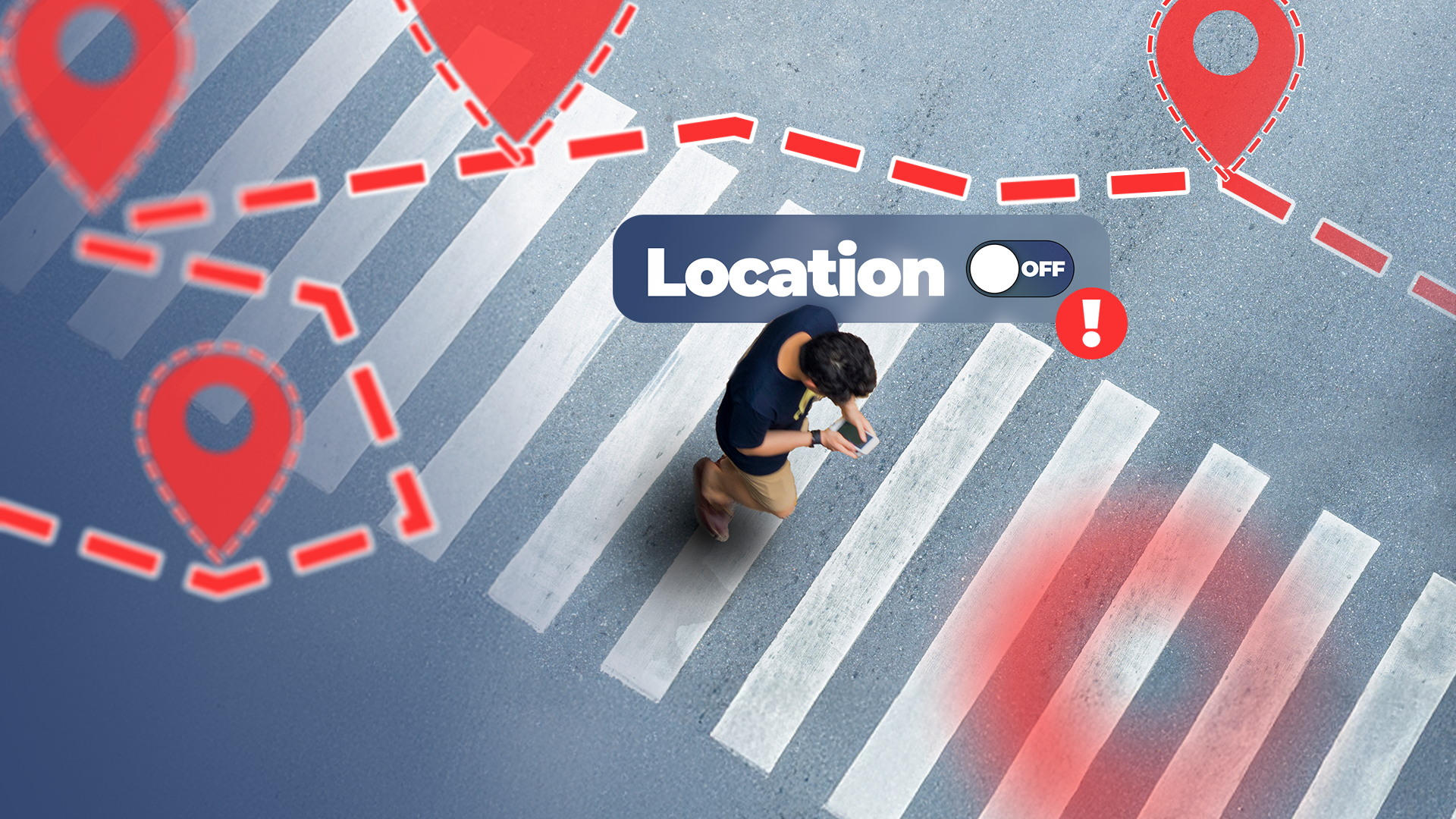
Ever feel like your Android phone's battery is draining faster than it should, even when it's just sitting idle? You might be surprised to learn that apps could be checking your location hundreds of times a day, silently sipping away at your precious battery life. This constant activity keeps your phone from entering its deepest power-saving modes, leading to significant idle drain.
But don't worry, you're not powerless! By following this clear, step-by-step guide, you'll learn how to identify which apps are overusing your location and how to adjust your settings to regain control over your privacy and extend your phone's battery life. Based on real-world testing, these adjustments can add hours to your daily usage.
What You'll Accomplish
By the end of this guide, you will be able to:
- Identify which applications are frequently accessing your phone's location.
- Restrict background location access for non-essential apps.
- Disable precise location tracking for apps that don't need it.
- Turn off background Wi-Fi and Bluetooth scanning that contributes to location checks.
- Significantly improve your Android phone's standby battery life.
Prerequisites
- An Android smartphone running a modern version of the Android operating system (Android 10 or newer is recommended for the Privacy Dashboard feature).
- Basic familiarity with navigating your phone's Settings menu.
Step 1: Uncover Your Apps' Location Habits Using the Privacy Dashboard
The first step is to pinpoint the apps that are frequently accessing your location. Android's built-in Privacy Dashboard is your secret weapon for this.
- Open your phone's Settings app.
- Search for and tap on "Security & privacy" or "Privacy" (the exact name may vary slightly by manufacturer).
- Look for and select "Permission usage history" or "Privacy Dashboard."
- Within the dashboard, tap on "Location."
Here, you'll see a detailed log of all apps that have accessed your location within the last 24 hours, including how many times they accessed it and whether it was in the foreground or background. You might be surprised to find non-essential apps, like social media platforms, showing high numbers of background location pings.
Tip: Pay close attention to apps that show "Background access" frequently, as these are often the biggest culprits for idle battery drain.
Step 2: Fine-Tune App Location Permissions
Once you've identified the apps that are overusing your location, it's time to adjust their permissions. This step focuses on restricting access, especially for apps that don't genuinely need to know your precise whereabouts at all times.
-
From the Location permission usage history screen (where you left off in Step 1), tap on any app that you want to restrict.
-
This will take you to that specific app's Location permission page. Here, you'll typically see options like:
- Allow all the time: Grants continuous location access, even when the app isn't actively in use.
- Allow only while using the app: Grants location access only when the app is open and active on your screen.
- Ask every time: The app will prompt you for permission each time it tries to access your location.
- Don't allow: Completely denies location access.
-
For most non-essential apps (like social media, games, or shopping apps), change the permission to "Ask every time" or "Allow only while using the app."
A note on the "While using the app" loophole: Even with this setting, some social media or other apps that stay "cached" in your phone's memory after you swipe to the home screen can still perform background sync jobs that attempt to fetch an approximate or precise location. This is why further restrictions are beneficial.
-
Below these options, you'll often see a toggle for "Use precise location." For apps that don't require pinpoint accuracy (e.g., a weather app that only needs your general city, or a social app), turn this toggle OFF. Giving apps only your approximate location significantly reduces the CPU load and power consumption associated with GPS requests.
By implementing these changes, you prevent apps from constantly waking up your phone's CPU and activating radios (cellular, Wi-Fi, GNSS) to obtain and send location data, which are major battery drainers.
Step 3: Disable Background Wi-Fi and Bluetooth Scanning
Even when you've turned off Wi-Fi and Bluetooth from your Quick Settings, your Android phone's antennas might still be in a low-power scanning state. This background scanning, often used by Google Play Services, helps provide approximate location data (by scanning for known Wi-Fi router MAC addresses and Bluetooth Low Energy beacons) even when precise GPS is disabled. Turning these off can further reduce unnecessary background activity and conserve battery.
- Open your phone's Settings app.
- Search for the term "location" and tap on the main Location settings entry.
- Look for and tap on "Location Services."
- Within Location Services, you'll find options for "Wi-Fi scanning" and "Bluetooth scanning." Both are often enabled by default.
- Toggle both "Wi-Fi scanning" and "Bluetooth scanning" to the OFF position.
This action will prevent your phone from continuously scanning its environment for networks and devices for location purposes, effectively closing another backdoor for apps to gain approximate location data in the background and reducing further idle battery drain.
Troubleshooting Tips
- Battery Drain Persists: If you're still experiencing significant battery drain after a few days, revisit your Permission Usage History. Some apps might still be finding ways to access location, or there might be other high-drain apps not related to location. Consider uninstalling apps you rarely use.
- App Functionality Issues: If an app stops working correctly after you've restricted its location permissions, try changing its permission back to "Allow only while using the app" and disabling "Use precise location" first. If problems continue, you might need to re-evaluate whether that app truly needs more access.
Best Practices for Ongoing Battery Health
- Regular Reviews: Periodically check your Permission Usage History (perhaps once a month) to see if any new apps or app updates have started behaving undesirably.
- Mindful Installation: When installing new apps, be conscious of the permissions they request, especially location. Only grant what's absolutely necessary.
- Fully Close Apps: For apps like social media that you want to prevent from running any background tasks, consider truly closing them (swiping them away from your recent apps menu) rather than just navigating to the home screen.
Conclusion
By proactively managing your Android phone's location permissions and disabling background scanning, you take a significant step towards better privacy and drastically improved battery life. The original investigation found that restricting these 500+ daily location requests resulted in an additional two hours of battery life. Imagine what that could mean for your daily phone usage! Start implementing these changes today and enjoy a longer-lasting Android experience.
FAQ
Q: Will disabling Wi-Fi and Bluetooth scanning affect my ability to connect to Wi-Fi networks or Bluetooth devices?
A: No, disabling these scanning features only prevents your phone from scanning for networks and devices specifically for location services. Your phone will still be able to connect to Wi-Fi networks and Bluetooth devices as normal when you actively choose to do so.
Q: What if an essential app, like a navigation app, requires "precise location" or "allow all the time"?
A: For essential apps that genuinely need continuous or precise location (e.g., Google Maps, Uber, emergency services), you may need to grant those permissions for them to function correctly. The goal is to be discerning and restrict permissions only for non-essential apps that are unnecessarily draining your battery.
Q: How often should I check my Permission Usage History?
A: It's a good practice to check it periodically, perhaps once a month, or whenever you notice a sudden drop in battery performance. It's also wise to check after installing new apps or after major system or app updates, as permissions can sometimes be reset or new background activities introduced.
Related articles
Android 17 QPR2 Beta 7.1: The Performance Relief You've Been Waiting
Android 17 QPR2 Beta 7.1: Finally Fixing the QPR1 Performance Woes Verdict: Android 17 QPR2 Beta 7.1 is a crucial and highly anticipated software update for Google Pixel users, specifically targeting and resolving the

Ditch Merge & Center: The Better Way to Align Text in Excel
Learn to use Excel's "Center Across Selection" to align text across cells without merging, avoiding common data manipulation issues. This guide provides steps to utilize this newly accessible feature and add it to your Quick Access Toolbar.

Stop Android Auto Battery Drain: Essential Features to Disable and
Android Auto offers unparalleled convenience, bringing your phone's most useful features directly to your car's display. From navigation and calls to messages and music, it keeps you connected without distracting you

Turn Your Android Phone into a Powerful Desktop Replacement
Learn how to transform your Android phone into a full-fledged desktop computer using external displays and accessories, providing a cost-effective and integrated alternative to new Googlebooks.
Android Auto 18 Beta: Glimpse into Google's Car Makeover
Verdict: A Sneak Peek at Tomorrow's Drive Android Auto 18.0 beta isn't the flashy, fully-realized redesign many might be hoping for, but it offers an invaluable look under the hood. What Google is signaling here,

howto: Four Ways the Fitbit Edge Is Better Than the Charge 6, and Two
Learn the key differences between the Fitbit Edge and Charge 6, including four advantages of the Edge and two areas where it falls short, to help you choose the best fitness tracker for your needs.