
Stop Embarrassing Android Ads: Reclaim Your Privacy and Ad Feed
Learn to reset your Android advertising ID, block sensitive ad topics, adjust social media preferences, and use Private DNS to stop embarrassing ads and enhance privacy on your phone.
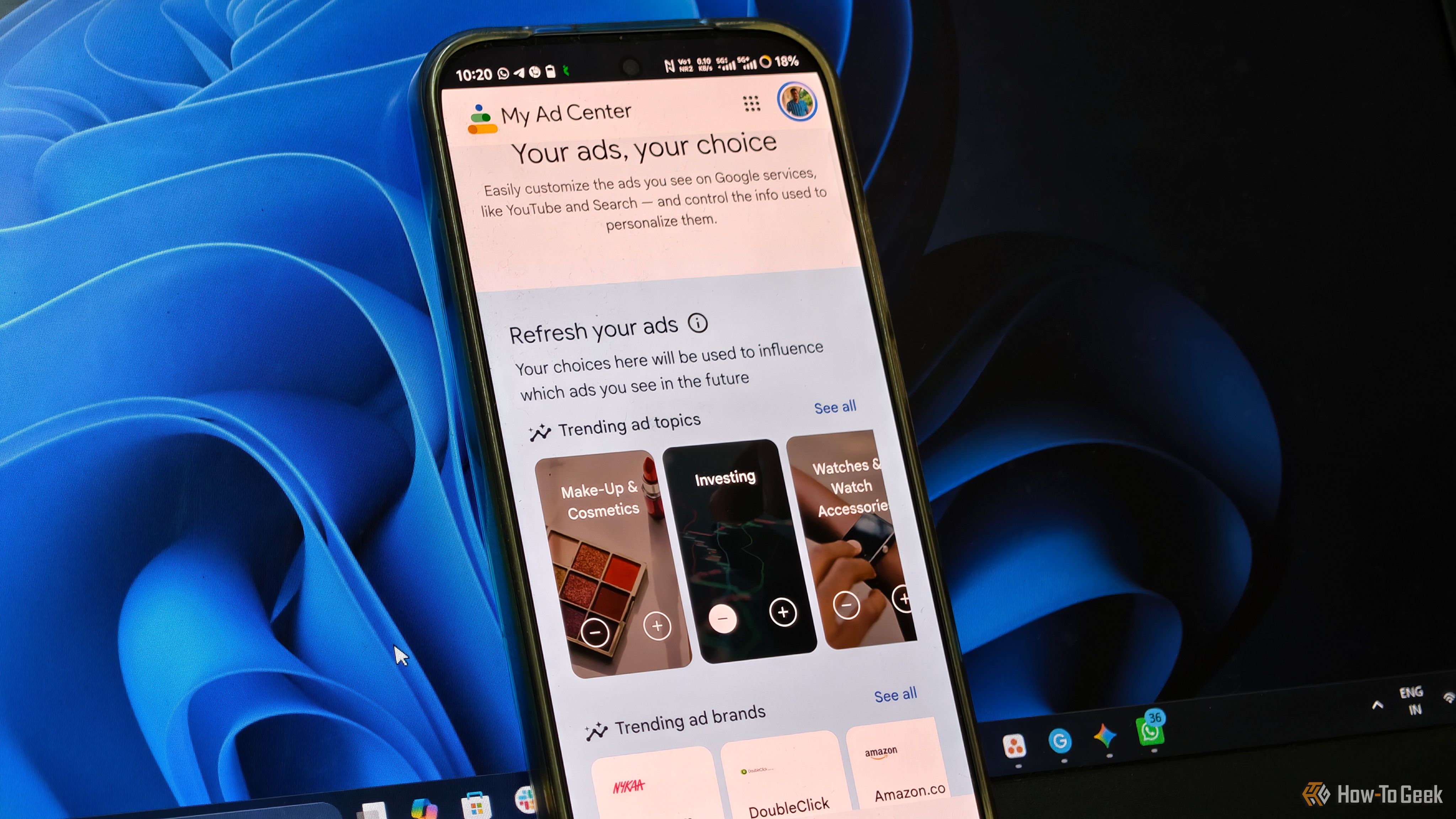
Tired of seeing ads that feel a little too personal, or worse, outright embarrassing, on your Android device? You're not alone. Your Android phone uses a unique Google Advertising ID (GAID) to help advertisers serve personalized content across various apps and services. While this can sometimes be useful, it often leads to highly targeted ads based on a single late-night search or an impulse click, leaving you with awkward ad experiences.
This guide will walk you through several effective strategies to take control of your ad experience, helping you reset your ad profile, manage your preferences directly with Google and Meta, and even block ads at the network level. By the end, you'll have a much cleaner, less embarrassing ad feed.
Prerequisites
Before you begin, ensure you have:
- An Android smartphone with Google Play Services.
- An active internet connection.
- Access to your Google account.
- (Optional) The Instagram and/or Facebook app installed and logged in, if you wish to adjust Meta ad preferences.
1. Reset or Delete Your Google Advertising ID
Your Google Advertising ID (GAID) is a unique string of letters and numbers on your Android phone, functioning similarly to a web browser cookie, used to deliver personalized ads. Resetting or deleting it can give you a fresh start.
To manage your GAID:
- Open your Android phone's Settings.
- Scroll down and tap Google.
- Under the "All Services" tab, tap Ads.
- You will see your current Advertising ID. You have two main options:
- Delete Advertising ID: This is the recommended option for a comprehensive reset. It prevents advertisers from accessing your old ID, effectively wiping your cross-app tracking footprint and providing you with a clean slate.
- Reset Advertising ID: This disconnects your past online activity from your current ID, similar to clearing your browser's cookies. A new, unique ID is then generated for you.
- Confirm your choice when prompted.
While both options help refine the personalized ads you see, neither will make ads vanish entirely. Your new activity will quickly begin to build a new ad profile, so consistent browsing habits may lead to similar ads returning over time.
2. Block Sensitive Topics in Google My Ad Center
For an account-wide adjustment, Google offers a dedicated "My Ad Center" dashboard. This tool allows you to control ad personalization directly from your Google account.
To customize your ad experience:
- Open a web browser on your phone or computer and go to myadcenter.google.com.
- Sign in with the Google account associated with your Android phone if you are not already.
- Tap the Customize Ads tab.
- Here, you can manage your ad preferences by Topic, Brands, and Sensitivity.
- Navigate to the Sensitive tab. You can then review and toggle off ads related to sensitive categories such as Dating, Gambling, Pregnancy, and Weight Loss. This helps to purge awkward ad categories directly from your Google account.
- Optional but recommended: At the top of the My Ad Center dashboard, you can also toggle off the Personalized Ads setting completely. This action stops Google from using your saved information and activity to personalize ads, resulting in more general, less targeted advertisements across services linked to your Google account.
3. Adjust Ad Preferences in Instagram and Meta Apps
Social media platforms like Instagram and Facebook (both owned by Meta) have their own ad-personalization systems that operate independently of your device's global advertising ID. Even if you reset your Android GAID, Meta can still use your in-app interactions to profile you and serve targeted ads.
To fine-tune your ad experience within Meta platforms (using Instagram as an example; steps are similar for Facebook):
- Open the Instagram app and go to your Profile.
- Tap the three horizontal lines (hamburger menu) in the top right corner.
- Select Settings and privacy.
- Scroll down and tap Account Center.
- Under the "Account Settings" section, tap Ad preferences.
- Explore the various options available, focusing on these two particularly effective controls:
- Categories used to reach you: Under "Managing Info," you'll find categories that Meta uses to target you based on your interactions within their apps. Review this list and remove any categories you find irrelevant or undesirable.
- Advertisers you saw ads from: Under the "Customize" section, this tab lists advertisers whose ads you've recently viewed. Skim through the list and tap Hide Ads next to any specific advertisers you wish to stop seeing content from.
These adjustments can significantly help cleanse your ad profile within Meta's ecosystem and reduce embarrassing or irrelevant social media ads. Always review the explanations provided for each setting to understand its impact.
4. Block Ad Trackers at the Network Level with Private DNS
For a more aggressive approach to reduce ads before they even reach your phone, you can implement DNS filtering. By connecting your Android phone's DNS to a reputable private DNS provider like AdGuard, you enable advanced privacy safeguards that block many known ad and tracking domains.
To configure Private DNS on your Android phone:
- Open your Android phone's Settings.
- Use the search bar at the top to search for "Private DNS" and tap on the corresponding setting (it might be found under "Network & internet" or "Connection & sharing" on some devices).
- By default, Private DNS might be set to "Off" or "Automatic." Select the option for Private DNS provider hostname.
- In the hostname field, carefully enter:
dns.adguard-dns.com - Tap Save.
This setting instantly adds DNS-level filtering to your Android phone, blocking many ad and tracking domains, encrypting your DNS queries, preventing ISPs from tracking your DNS activity, and adding a layer of security on public Wi-Fi networks.
A Cleaner Ad Feed Takes Maintenance, Not Magic
Achieving a truly clean and embarrassment-free ad experience is an ongoing process, not a one-time fix. Modern ad networks constantly rely on behavioral signals, meaning your digital ad profile evolves the moment you search for a new product or visit a different site. If you prefer personalized ads but want to avoid awkward ones, consider resetting your Google Advertising ID every few months. Deleting your Ad ID provides a stronger reset but won't eliminate ads entirely, just their personalization. Regularly reviewing ad-personalization settings across all the apps you use, especially social media, is crucial for maintaining control over the ads you see.
FAQ
Q: Will deleting my Google Advertising ID stop all ads on my Android phone? A: No, deleting or resetting your Google Advertising ID will not stop all ads. It primarily prevents advertisers from using your previous activity to personalize ads. You will still see ads, but they will be less targeted and more generic.
Q: How often should I reset my Google Advertising ID or review my ad settings? A: If you find embarrassing or irrelevant ads returning, it's a good practice to reset your Google Advertising ID every few months. Regularly reviewing your ad preferences in Google My Ad Center and within social media apps like Instagram and Facebook is also recommended, especially after significant changes in your online activity.
Q: Does using a Private DNS like AdGuard block ads within all apps? A: While Private DNS providers like AdGuard effectively block many known ad and tracking domains at the network level, their effectiveness can vary across different apps. Some apps may use alternative methods to display ads that are not filtered by DNS. However, it significantly reduces the overall number of ads and enhances privacy across your device.
Related articles
Android 17 QPR2 Beta 7.1: The Performance Relief You've Been Waiting
Android 17 QPR2 Beta 7.1: Finally Fixing the QPR1 Performance Woes Verdict: Android 17 QPR2 Beta 7.1 is a crucial and highly anticipated software update for Google Pixel users, specifically targeting and resolving the

Ditch Merge & Center: The Better Way to Align Text in Excel
Learn to use Excel's "Center Across Selection" to align text across cells without merging, avoiding common data manipulation issues. This guide provides steps to utilize this newly accessible feature and add it to your Quick Access Toolbar.

Ars Technica's Rocket Report: Your Essential Space Industry Briefing
Quick Verdict Ars Technica's Rocket Report, presented by veteran space reporter Stephen Clark, offers an invaluable and meticulously organized weekly (or similar frequency, implied by "Edition 9.15") digest of the most

Stop Android Auto Battery Drain: Essential Features to Disable and
Android Auto offers unparalleled convenience, bringing your phone's most useful features directly to your car's display. From navigation and calls to messages and music, it keeps you connected without distracting you

Turn Your Android Phone into a Powerful Desktop Replacement
Learn how to transform your Android phone into a full-fledged desktop computer using external displays and accessories, providing a cost-effective and integrated alternative to new Googlebooks.
Android Auto 18 Beta: Glimpse into Google's Car Makeover
Verdict: A Sneak Peek at Tomorrow's Drive Android Auto 18.0 beta isn't the flashy, fully-realized redesign many might be hoping for, but it offers an invaluable look under the hood. What Google is signaling here,