
Solve Windows Network Problems with 4 PowerShell Commands
Learn to diagnose and solve common Windows network problems in four essential steps using PowerShell commands.
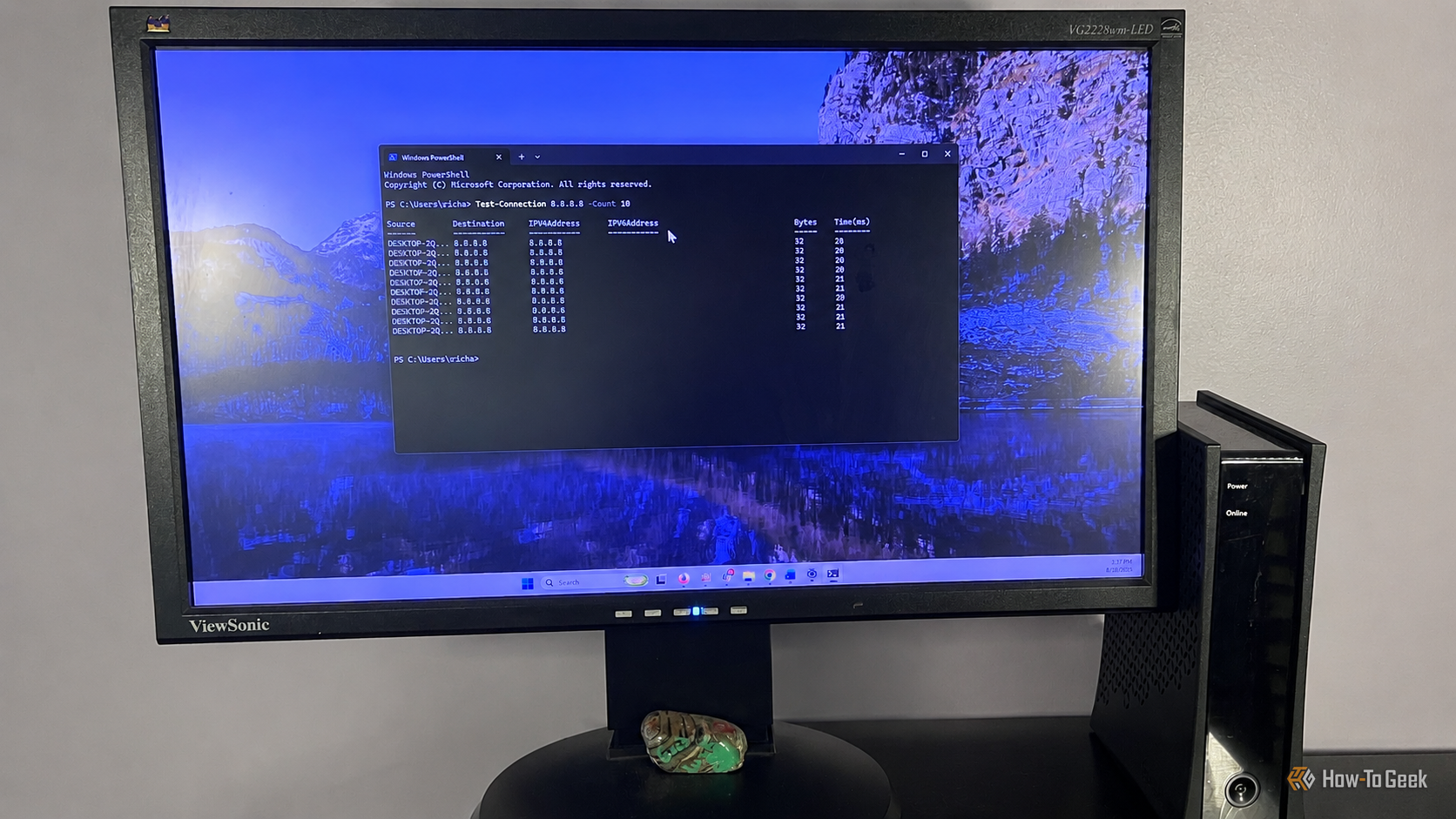
Windows network issues, from slow page loading to dropped video calls, can be frustrating. While rebooting your modem and router is often the first step, sometimes you need to dig deeper to pinpoint the exact cause. This guide will walk you through four essential PowerShell commands that can help you diagnose and resolve many common Windows networking problems, without needing to be a PowerShell expert.
These commands offer a systematic approach to check your local connection, verify DNS settings, review your network configuration, and reset core network components when things get stuck. By following these steps, you can often identify whether the problem lies with your PC, your local network, your DNS provider, or something else entirely.
What You'll Accomplish
By the end of this guide, you will be able to:
- Determine Connection Health: Test connectivity to both local and external network points.
- Verify DNS Configuration: Check which DNS servers your Windows PC is actively using.
- Inspect Network Settings: Get a comprehensive overview of your adapter's IP address, gateway, and other critical details.
- Reset Network Components: Troubleshoot persistent issues by resetting Windows' Winsock catalog.
Prerequisites
Before you begin, ensure you have:
- A Windows PC with PowerShell installed (it's built into all modern Windows versions).
- Basic understanding of network terms like IP address and DNS.
- Administrator access for one specific command (
netsh winsock reset).
Step-by-Step Guide to Diagnosing Network Issues
1. Test Your Connection with Test-Connection
The Test-Connection command, similar to the traditional ping utility, helps you quickly determine if a device is reachable and how quickly it responds. This is your starting point to figure out if the slowdown is happening inside your local network or further out on the internet.
How to use it:
-
Open PowerShell: Type "PowerShell" into the Windows Search bar and select "Windows PowerShell" from the results.
-
Find Your Default Gateway: First, you need your router's IP address, also known as your default gateway. Type
ipconfigand press Enter. Look under the network adapter you're currently using (e.g., "Wireless LAN adapter Wi-Fi" or "Ethernet adapter Ethernet") for the Default Gateway address. It often looks like192.168.1.1or192.168.x.x. -
Test Your Local Network: Run the following command, replacing
[Your_Gateway_IP]with the Default Gateway address you just found: powershell Test-Connection [Your_Gateway_IP] -Count 10- What to look for: Fast and consistent response times (e.g., 1-10ms) are good. You're looking for signs of trouble like repeated timeouts, dropped replies, or response times that suddenly jump into the hundreds of milliseconds. A few slower responses, especially on Wi-Fi, aren't usually a concern.
-
Test an External Connection: Next, test connectivity to a reliable external server, such as Google's public DNS server: powershell Test-Connection 8.8.8.8 -Count 10
- What to look for: Compare these results to your gateway test. If your gateway responds normally but the external test shows timeouts or significant latency spikes, the problem likely lies beyond your PC and router. If both tests show poor results, then the issue is probably closer to home (your PC, Wi-Fi connection, router, or mesh network).
2. Verify DNS Server Settings with Get-DnsClientServerAddress
If web pages are loading slowly even though your connection appears stable (based on Test-Connection), your DNS settings might be the culprit. This command helps you see which DNS servers Windows is configured to use.
How to use it:
- Open PowerShell: Open PowerShell if you haven't already.
- Run the command: Type
Get-DnsClientServerAddressand press Enter.- You do not need administrator privileges for this command.
- Examine the Output: Look for the network adapter you are actively using (e.g., "Wi-Fi" or "Ethernet") and check the ServerAddresses column. This lists the DNS server IP addresses Windows is currently utilizing.
- What to look for: Recognize common public DNS servers like Google's (
8.8.8.8,8.8.4.4) or Cloudflare's (1.1.1.1,1.0.0.1). If you're letting your Internet Service Provider (ISP) handle DNS automatically, you'll see their specific server addresses. The goal here is to identify if an unexpected or misconfigured DNS server might be causing issues. The author of the source content found that changing a previously tested DNS server back to their ISP's helped resolve part of their problem.
- What to look for: Recognize common public DNS servers like Google's (
3. Get a Full Network Picture with Get-NetIPConfiguration
This command provides a comprehensive overview of your network adapter's configuration, combining several key details into one easy-to-read output. It's useful for confirming that Windows has correctly configured your connection.
How to use it:
- Open PowerShell: Open PowerShell.
- Run the command: Type
Get-NetIPConfigurationand press Enter. - Analyze the Details: Focus on the network adapter you are currently connected through.
- What to look for:
IPv4Address: Ensure Windows has been assigned a normal local IP address (typically starting with192.168.x.xor10.x.x.x). An address beginning with169.254.x.x(an Automatic Private IP Addressing or APIPA address) indicates that your PC isn't getting a proper IP configuration from your router or DHCP server.IPv4DefaultGateway: Confirm that Windows knows where to send network traffic leaving your local network.DNSServer: Double-check these addresses against your findings fromGet-DnsClientServerAddressto ensure consistency.
- Tip: This command also helps confirm you are troubleshooting the correct network adapter, especially if you have multiple (e.g., Ethernet, Wi-Fi, VPN).
- What to look for:
4. Reset Winsock with netsh winsock reset
If you've systematically checked the above, and nothing appears obviously wrong, but your network connection is still misbehaving, resetting Winsock can often resolve persistent issues. Winsock (Windows Sockets API) is a crucial part of Windows that manages how applications communicate over the network. Resetting it can clear out corrupted configurations or "stuck" network settings.
How to use it:
- Open PowerShell as Administrator: This step is critical. Type "PowerShell" into Windows Search, then right-click "Windows PowerShell" and select "Run as administrator."
- Run the command: Type
netsh winsock resetand press Enter. - Restart Your Computer: PowerShell will confirm that the Winsock catalog was successfully reset and prompt you to restart your computer to finalize the changes. Do not skip this step.
- Test Again: After rebooting, test your connection by browsing the web, joining a video call, or running
Test-Connectionagain. The main goal here is to see if the network problems have disappeared.- What to look for: There isn't much to interpret from the command output itself other than confirmation of success. The real test is the behavior of your network after the reboot.
Conclusion
These four PowerShell commands provide a powerful, yet straightforward, toolkit for troubleshooting many common Windows network problems. By using them systematically, you can move beyond guesswork and pinpoint the root cause of connectivity issues. As demonstrated by the source author, a combination of these checks—even when no single "smoking gun" is found—can lead to a full resolution.
Keeping these commands in your troubleshooting arsenal can save you significant time and frustration the next time your Windows network acts up.
FAQ
Q: Why should I use PowerShell commands instead of graphical tools or just rebooting?
A: While graphical tools and reboots can help, PowerShell commands provide deeper insight and more precise control over network diagnostics. They allow you to systematically gather specific information about your connection, DNS, and configuration, helping you identify exact points of failure more efficiently than broad troubleshooting steps.
Q: When is it necessary to run PowerShell as an administrator?
A: For the commands in this guide, you only need to run PowerShell with administrator privileges for netsh winsock reset. This command modifies system-level network components. Commands like ipconfig, Test-Connection, Get-DnsClientServerAddress, and Get-NetIPConfiguration are for displaying information and do not require elevated permissions.
Q: What if these commands don't fix my network problem?
A: If these PowerShell commands don't resolve your network issues, consider expanding your troubleshooting. Check all physical network cables, update your network adapter drivers, test your connection with a different device, or bypass your router by connecting directly to your modem (if applicable). If problems persist, the issue might be with your modem or router hardware itself, or an external problem with your Internet Service Provider (ISP), in which case contacting them would be the next step.
Related articles

Ditch Merge & Center: The Better Way to Align Text in Excel
Learn to use Excel's "Center Across Selection" to align text across cells without merging, avoiding common data manipulation issues. This guide provides steps to utilize this newly accessible feature and add it to your Quick Access Toolbar.

Stop Android Auto Battery Drain: Essential Features to Disable and
Android Auto offers unparalleled convenience, bringing your phone's most useful features directly to your car's display. From navigation and calls to messages and music, it keeps you connected without distracting you

Beyond the Bugs: Conquering Studio Headaches in Indie Dev
This guide, part three in a series on running an indie studio, tackles the crucial but often overlooked aspect of dealing with non-development related issues. It introduces creating a shared 'studio backlog' for collective problems and using the IDS (Identify, Discuss, Solve) framework to address them constructively. The core message is to build powerful habits that keep studios from getting quietly derailed by lingering challenges.

Windows October Update: A Must-Have Security Overhaul
Microsoft's October 2026 Windows update delivers a critical security overhaul, patching over 1,400 vulnerabilities including two zero-days, one already exploited. It's essential for all users, especially with several Windows 11 versions reaching end of support.

Turn Your Android Phone into a Powerful Desktop Replacement
Learn how to transform your Android phone into a full-fledged desktop computer using external displays and accessories, providing a cost-effective and integrated alternative to new Googlebooks.

howto: Four Ways the Fitbit Edge Is Better Than the Charge 6, and Two
Learn the key differences between the Fitbit Edge and Charge 6, including four advantages of the Edge and two areas where it falls short, to help you choose the best fitness tracker for your needs.