
Regaining Control After a Bambu Lab 3D Printer Firmware Update
Learn to understand the implications of Bambu Lab's restrictive firmware update and how to enable Developer Mode to regain local control, balancing cloud features against full interoperability.
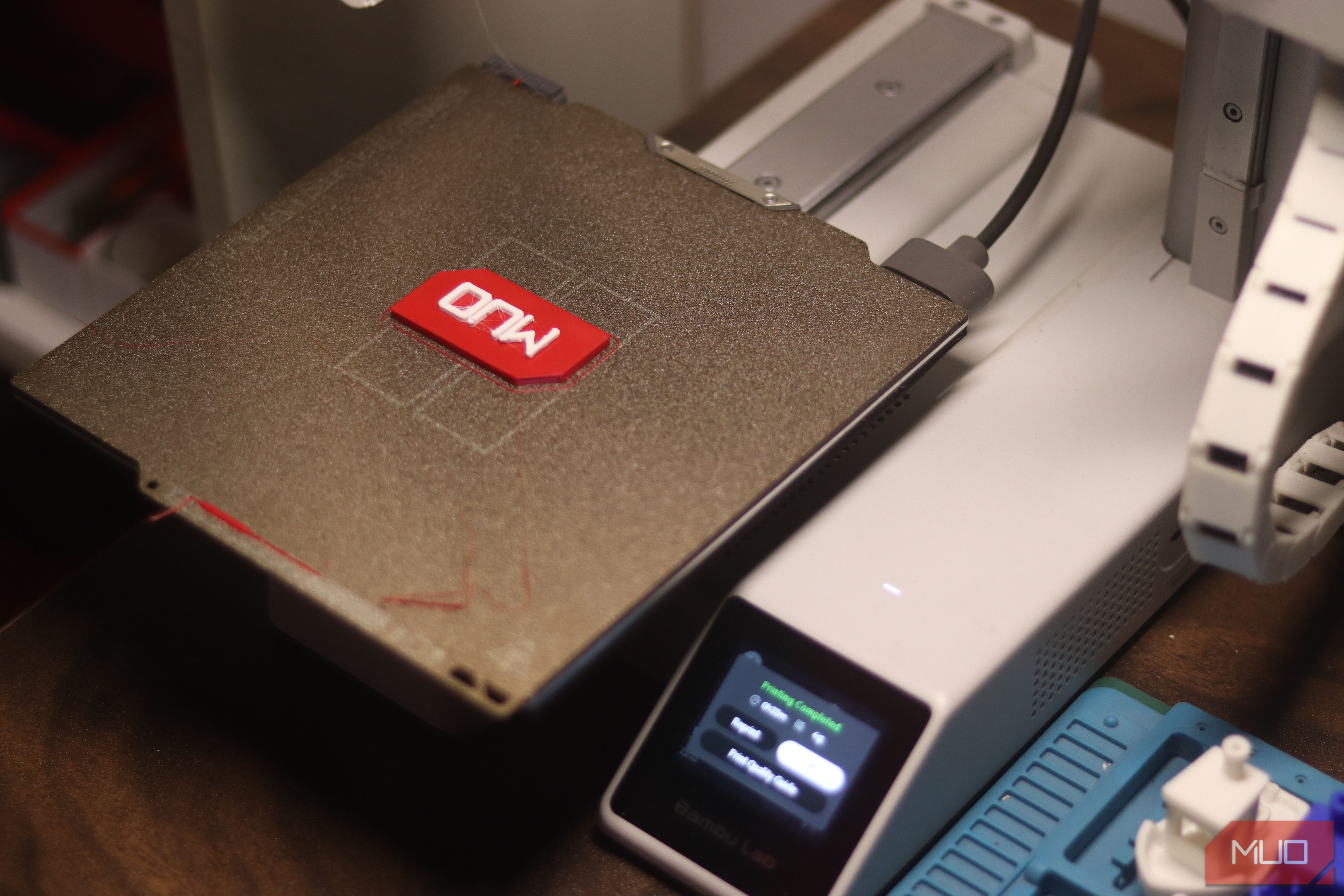
A recent firmware update for Bambu Lab 3D printers introduces an "authorization-control system" that fundamentally alters how your printer interacts with software and accessories. While designed to patch vulnerabilities, this update restricts direct network control, potentially making your printer less capable than when you first bought it. This guide will walk you through understanding these changes, assessing your needs, and activating Developer Mode to reclaim local control.
What You'll Accomplish
By following this guide, you will:
- Understand the key changes introduced by Bambu Lab's authorization-control firmware.
- Identify the trade-offs between cloud features and direct local control.
- Learn how to enable Developer Mode to restore direct third-party software and accessory control.
- Gain insights into managing your printer's capabilities and making informed choices for your workflow.
Prerequisites
Before you begin, ensure you have:
- A Bambu Lab 3D printer that has received (or is considering) the authorization-control firmware update.
- Basic familiarity with your printer's physical interface and network settings.
- An understanding that enabling Developer Mode involves a trade-off, specifically the loss of cloud functionality.
Understanding the Firmware Update's Impact
The authorization-control firmware implements a system where your printer checks if commands originate from official or authorized software. Prior to this update, various third-party applications, such as OrcaSlicer, and local integrations could directly communicate with and control supported Bambu printers over your network. The new firmware now rejects critical control commands (like initiating prints, moving axes, or running calibrations) if they come from unauthorized programs.
While this doesn't "brick" your printer, ban third-party filament, or require constant internet access for every print, it significantly changes the landscape of third-party interoperability. Bambu Lab has introduced "Bambu Connect" as its official answer, acting as middleware. You can export a job from an external slicer, and Bambu Connect will then pass it to the printer via an authorized route. Bambu states that this LAN mode through Bambu Connect doesn't require an internet connection or a Bambu account, but it does mean a previously direct workflow now depends on proprietary software.
This change has a clear practical impact on third-party tools. For instance, a Home Assistant setup might still receive MQTT status messages but could lose the ability to control the printer directly. Accessories that relied on the direct network interface also face a similar reduction in functionality.
Assess Your Control Needs and Workflow
Before deciding on a course of action, it's crucial to evaluate how you primarily use your 3D printer. The new firmware essentially presents an artificial choice between two key functionalities:
- Cloud Features and Convenience: Do you frequently use Bambu Cloud services for remote access via the Bambu Handy app, cloud-based print job management, and the seamless integration offered by Bambu Lab's ecosystem?
- Direct Local Control and Third-Party Integration: Do you prefer using specialized slicers like OrcaSlicer for advanced features, integrating your printer into smart home systems (e.g., Home Assistant), or utilizing custom accessories that communicate directly with the printer?
Previously, many users enjoyed the benefits of both. Now, you must consider which aspect of control is more essential to your 3D printing experience. Your preference here will dictate whether enabling Developer Mode is the right path for you.
Enable Developer Mode (The Escape Hatch)
Following significant community feedback, Bambu Lab introduced "Developer Mode" as an option within LAN mode. This mode functions as an escape hatch, allowing advanced users to bypass the authorization verification and reclaim much of the direct local control they had previously.
To activate Developer Mode:
- On your Bambu Lab printer's screen, navigate to the Settings menu.
- Look for options related to Network or LAN Mode.
- Within these settings, locate and enable Developer Mode. (The exact menu path may vary slightly depending on your specific Bambu Lab printer model and firmware version.)
Once activated, Developer Mode provides the following benefits:
- Restored Direct Communication: It re-opens critical interfaces like MQTT (for messaging), FTP (for file transfer), and the live video stream from your printer.
- Disabled Authorization Verification: This is the core benefit, allowing unauthorized third-party software and hardware to once again send control commands directly to your printer.
However, it's vital to understand the trade-offs:
- Local-Only Operation: When Developer Mode is enabled, your printer cannot connect to Bambu Cloud. This means you lose access to all cloud-dependent features, including convenient remote access via the Bambu Handy app.
- Unsupported Configuration: Bambu Lab explicitly states that Developer Mode is unsupported. This means that if you encounter any issues or problems while using this mode, official customer support may be limited or unavailable.
Enabling Developer Mode restores much of the original interoperability your printer had, but it requires a conscious decision to forego cloud features.
Navigating the Security vs. Gatekeeper Dilemma
Bambu Lab's rationale for implementing authorization controls centers on legitimate security concerns. A 3D printer, with its heating elements and rapid moving parts, presents potential risks. Implementing authentication, encrypted communications, signed updates, and safer defaults are, in principle, reasonable goals for securing such a device. The concern among users is not that Bambu Lab secured the printer, but how it was secured.
The company chose to position itself as the sole gatekeeper, rather than providing users with a documented, owner-controlled method for authorizing third-party interactions. This approach is further highlighted by Section 7.4 of Bambu Lab's terms of use, which states that products may automatically search for and download updates and might even block new print jobs if a critical update isn't installed. While Bambu maintains that firmware installation remains the user's choice and has not yet been observed disabling printers without warning, this policy reserves significant control over the future use of hardware that customers have already purchased.
Ultimately, the printer you own with this new firmware is different from the one you bought. While offline printing still works and Developer Mode offers a path for tinkerers, the default product is less interoperable. You are now presented with a choice among proprietary mediation, reduced cloud functionality, or the risk of staying on aging firmware.
Troubleshooting and Best Practices
- Cannot Connect After Enabling Developer Mode: If you've enabled Developer Mode but your third-party software still won't connect, first verify that Developer Mode is indeed active on your printer's screen. Confirm that your software is configured to use the correct local IP address and communication protocols (e.g., MQTT). Also, check for any network firewalls on your computer or router that might be blocking the connection.
- Desire Both Cloud and Full Local Control: Unfortunately, with the current firmware architecture, Bambu Lab has made these mutually exclusive options. Developer Mode specifically disables cloud connectivity. You must prioritize whether cloud convenience or direct local control is more critical for your printing needs.
- The Dilemma of Older Firmware: While remaining on older firmware preserves the original direct control, it means you'll miss out on important security fixes, bug patches, and new features released in subsequent updates. This represents a trade-off between current functionality and potential future vulnerabilities or improvements.
Tips for Managing Your Printer's Capabilities:
- Stay Informed: Actively follow community discussions and official announcements regarding Bambu Lab firmware updates to understand any new changes or potential workarounds.
- Review Before Updating: Always read firmware release notes carefully before installing any updates. Pay close attention to sections detailing changes in connectivity, third-party support, or control mechanisms.
- Document Your Setup: If you use complex third-party integrations, make sure to document your configurations and settings, which can be invaluable for troubleshooting after updates.
- Acknowledge Hardware Evolution: Recognize that connected hardware can evolve and change its capabilities even after purchase. This incident highlights the importance of understanding the long-term implications of smart device ownership.
FAQ
Q: Does the firmware update prevent me from using third-party filament? A: No, the authorization-control firmware update does not impact your ability to use third-party filament. Its focus is on regulating how software and accessories communicate with and control the printer, not the physical materials you print with.
Q: Will my Bambu Lab printer become completely unusable if I install this update? A: Your printer will remain fully functional. It can still print jobs offline, and Bambu Connect provides an authorized pathway for third-party files. However, direct network control by unauthorized third-party software and accessories is removed by default, meaning the printer's interoperability is reduced compared to its original state.
Q: What are the primary disadvantages of enabling Developer Mode on my printer? A: The main disadvantages of activating Developer Mode are the complete loss of all Bambu Cloud features, including remote access via the Bambu Handy app, and the fact that Bambu Lab explicitly states this mode is unsupported, which might limit your access to official customer support if issues arise.
Next Steps
Having explored the implications of the Bambu Lab firmware update and the options available, you are now equipped to make an informed decision about managing your 3D printer. If you've chosen Developer Mode, take the time to reconfigure your third-party software and accessories. If cloud features are paramount, adapt your workflow to utilize Bambu Connect. Continue to engage with the vibrant 3D printing community to stay abreast of new developments, user experiences, and potential future solutions.
Related articles

Ditch Merge & Center: The Better Way to Align Text in Excel
Learn to use Excel's "Center Across Selection" to align text across cells without merging, avoiding common data manipulation issues. This guide provides steps to utilize this newly accessible feature and add it to your Quick Access Toolbar.

regional: ‘What is fusion?’ Helion Energy harnesses the power of
Helion Energy, the Everett-based fusion startup, gained mainstream attention this week after being featured as a clue on the popular game show "Jeopardy!". The $800 clue, part of a "Y Combinator" category, highlighted Helion's mission to build the first fusion power plant, bringing the concept of clean energy to a wider audience. CEO David Kirtley celebrated the "surreal" moment as a sign that reliable clean power is becoming more accessible.

Stop Android Auto Battery Drain: Essential Features to Disable and
Android Auto offers unparalleled convenience, bringing your phone's most useful features directly to your car's display. From navigation and calls to messages and music, it keeps you connected without distracting you

Turn Your Android Phone into a Powerful Desktop Replacement
Learn how to transform your Android phone into a full-fledged desktop computer using external displays and accessories, providing a cost-effective and integrated alternative to new Googlebooks.

howto: Four Ways the Fitbit Edge Is Better Than the Charge 6, and Two
Learn the key differences between the Fitbit Edge and Charge 6, including four advantages of the Edge and two areas where it falls short, to help you choose the best fitness tracker for your needs.
How to Connect Your Googlebook to a Printer - Print Documents with
Learn to quickly connect your Googlebook to a printer via Wi-Fi, USB, or Bluetooth and print documents in minutes. This guide covers direct printing, app-specific connections, troubleshooting, and even printing screenshots as a workaround.