
Never Miss an Alert: Enable Android's Essential Notification History
Have you ever cleared a flurry of notifications only to realize later you dismissed something important? Or perhaps you pick up your phone after hours of focused work, only to be overwhelmed by a wall of alerts, making
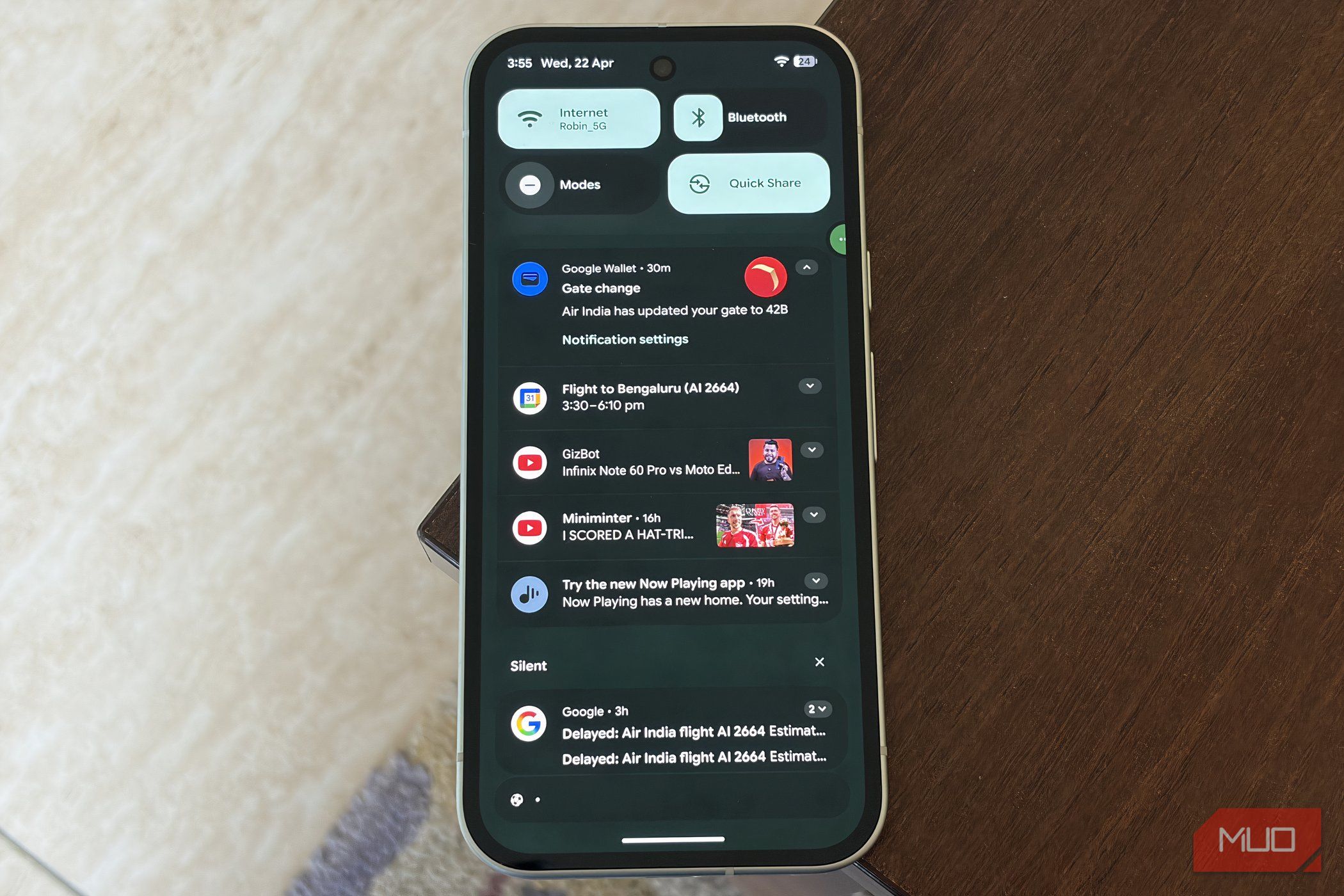
Have you ever cleared a flurry of notifications only to realize later you dismissed something important? Or perhaps you pick up your phone after hours of focused work, only to be overwhelmed by a wall of alerts, making it impossible to sort through them efficiently? This common frustration often leads to missed messages, forgotten reminders, or simply the stress of trying to keep up.
There's a simple Android setting, often overlooked and usually turned off by default, that can dramatically change how you manage your notifications. It acts as a safety net, ensuring that even if you swipe something away too quickly, it's not truly gone. This guide will walk you through enabling Notification History, a feature that many consider essential for staying on top of their digital life without feeling constantly tethered to their device.
What You Will Accomplish
By following this guide, you will learn how to activate Notification History on your Android phone. Once enabled, your device will keep a record of all notifications for 24 hours, allowing you to:
- Review missed alerts: Easily check any notification you might have accidentally dismissed.
- Reduce overwhelm: Process notifications at your own pace, without feeling pressured to respond immediately.
- Stay organized: See notifications grouped by app, making it simple to find what you need.
- Regain control: Decide when and how you engage with your notifications, rather than letting them control you.
Prerequisites
To enable Notification History, you'll need:
- An Android smartphone.
- Access to your phone's Settings app.
Understanding Notification History: Your Digital Safety Net
Notification History is a built-in Android feature that logs every notification your phone receives, even those you've dismissed. Imagine it as a temporary inbox for all your alerts, conveniently accessible and organized. Instead of a chaotic, endless stream, notifications are grouped by their respective applications, making them much easier to sift through. This means you can quickly expand an app's section, review its alerts, and then move on, transforming a potentially messy experience into a manageable one.
Many users, including the author, find this feature to be a game-changer. It allows for a more relaxed approach to phone usage; you don't need to check your device every few minutes for fear of missing something critical. Instead, you can set aside a specific time, perhaps at the end of the day, to review your Notification History, respond where necessary, and clear the rest, all from a single, organized place. This shift in habit can significantly reduce screen time and notification anxiety.
Addressing Common Concerns: Privacy and Performance
It's natural to wonder why such a useful feature isn't enabled by default. The primary reasons revolve around privacy and, to a lesser extent, performance.
Privacy: Notifications often contain sensitive personal information, such as messages, one-time passcodes (OTPs), or calendar reminders. Storing this data, even temporarily, raises privacy considerations. If someone gained unauthorized access to your phone, your Notification History could expose sensitive details. However, it's important to remember that the data is only kept for a maximum of 24 hours, after which it is automatically cleared. This time limit positions Notification History as a short-term safety net rather than a long-term archive, mitigating much of the privacy concern for most users.
Performance: Logging and organizing every notification in the background requires a small amount of system resources. If your phone receives a high volume of alerts, this continuous processing could have a minor impact on battery life and overall performance. In practice, however, the impact is generally quite minimal. Many users, including the author, report experiencing only a negligible battery drain, typically around 3-4% over a full day, with no noticeable slowdowns in performance. For the convenience and peace of mind it offers, this trade-off is often considered more than reasonable.
Ultimately, the decision to enable Notification History is a personal one, weighing the benefits of never missing an important alert against these minor considerations. For many, the reassurance and control it provides far outweigh the potential downsides.
Step-by-Step: Enabling Notification History
Activating this feature is quick and straightforward. Follow these steps on your Android device:
- Open the Settings app. You can usually find this by swiping down from the top of your screen and tapping the gear icon, or by locating the 'Settings' icon in your app drawer.
- Tap on Notifications. This option might be labeled slightly differently on some devices, such as "Apps & notifications" or "Sound & notification."
- Select Notification History. This will typically be found under a 'Manage' or 'Advanced settings' section within the Notifications menu.
- Turn on the "Use Notification History" toggle. Simply tap the switch to enable the feature. It will likely change color to indicate it's active.
That's it! From this moment on, your phone will begin logging all notifications you receive and dismiss. The next time you find yourself wondering where that fleeting alert went, you'll know exactly where to find it.
Troubleshooting Tips
Android devices, especially across different manufacturers like Samsung, Google Pixel, Xiaomi, and OnePlus, often have slightly customized settings menus. While the core functionality remains the same, the exact path to Notification History might vary.
- Can't find "Notifications" or "Notification History"? If the steps above don't exactly match your phone's interface, don't worry. The easiest solution is to use the search bar within the Settings app. Open Settings and look for a magnifying glass icon or a 'Search settings' bar at the top. Type "Notification History" or "Notification log" into the search bar, and your phone should direct you straight to the correct setting.
- Feature not available? While most modern Android versions (Android 11 and above) include Notification History, very old devices might not have it. Ensure your phone's operating system is up to date.
Tips and Best Practices
- Regular Review: Consider incorporating a quick check of your Notification History into your daily routine, perhaps during your morning coffee or before bed. This ensures you catch anything important without needing to be constantly vigilant.
- Selective Engagement: Use Notification History as a tool to engage with apps on your terms. If you're constantly bombarded by a particular app, you can review its alerts in history and then adjust its notification settings directly to be less intrusive.
- The Power of Peace of Mind: The greatest benefit is the peace of mind. Knowing that you have a 24-hour backup means you can confidently dismiss notifications without the nagging fear of missing out.
Not a Must-Have, Until It Is
For many, Notification History quickly becomes an indispensable part of their Android setup. It transforms the often-chaotic experience of managing alerts into a streamlined, stress-free process. While the potential privacy and performance trade-offs are valid concerns, the minimal impact on daily use and the significant boost in productivity and peace of mind make it a worthwhile feature for a vast number of users. If you've been struggling with notification overload or the fear of missing something critical, give Notification History a try. You might find, like many others, that it's a feature you can't live without once you've experienced its benefits.
FAQ
Q: What kind of information does Notification History store?
A: Notification History stores a record of all notifications your phone receives and that you dismiss. This includes messages, app alerts, reminders, and potentially sensitive information like OTPs, grouped by the app that sent them.
Q: How much does enabling Notification History impact battery life or performance?
A: The impact is generally quite minimal. Users typically report a small drop of roughly 3-4% in battery life over the course of a day, and no noticeable slowdowns in overall phone performance. For most, this slight trade-off is acceptable given the convenience and control the feature provides.
Q: Is my notification data stored permanently when I enable this feature?
A: No, your notification data is not stored permanently. Notification History is designed as a short-term safety net; all stored notifications are automatically cleared after 24 hours. This means the record is only temporary and designed to help you catch recently missed items.
Related articles

How to Quote Movies Accurately - Avoid Common Misquotes
Learn to identify and correct 10 frequently misquoted movie lines to impress your friends and become a true cinematic aficionado.
Pixel Connectivity: Battery Drain, Not Data Speed, Is the Real
Google's Pixel series has consistently offered a compelling Android experience, often earning a spot on recommendation lists for its clean software and camera prowess. However, a recurring shadow has loomed over the

How to Choose and Maximize Your Bissell Pet Carpet Cleaner Deal
Dealing with unexpected pet messes or persistent carpet stains can be a real headache. Whether it’s muddy paw prints, accidental spills, or allergens from pet dander, keeping carpets clean and fresh is an ongoing
The One Zero Company Achievement That Got Away From Me
Star Wars Zero Company is a stellar turn-based tactics game, but the author is playfully irked by one missing achievement: a reward for completing the game without losing any squad members to its brutal permadeath system. Despite this minor gripe, the game is lauded as one of the year's best, showcasing deep strategic gameplay.

Failing NASA Satellite Embarks on Its Final Cosmic Mission
NASA's Swift Observatory Begins Final Observations Before Atmospheric Reentry NASA's Neil Gehrels Swift Observatory, a venerable sentinel of the cosmos for 21 years, is embarking on its final mission as it inexorably

How to Pick and Play Top Roblox Games with Your Siblings This Weekend
Looking for the perfect way to connect and have fun with your siblings this weekend? Roblox offers a vast universe of experiences designed to entertain players across various age groups and preferences. Whether you have