
Master Spacing to Elevate Your Slideshows from Amateur to Pro
Ever sat through a presentation where something just felt...off? Your eyes might have been unconsciously fixing on text that was too close in one spot, then oddly spread out in another, or bullet points that seemed to
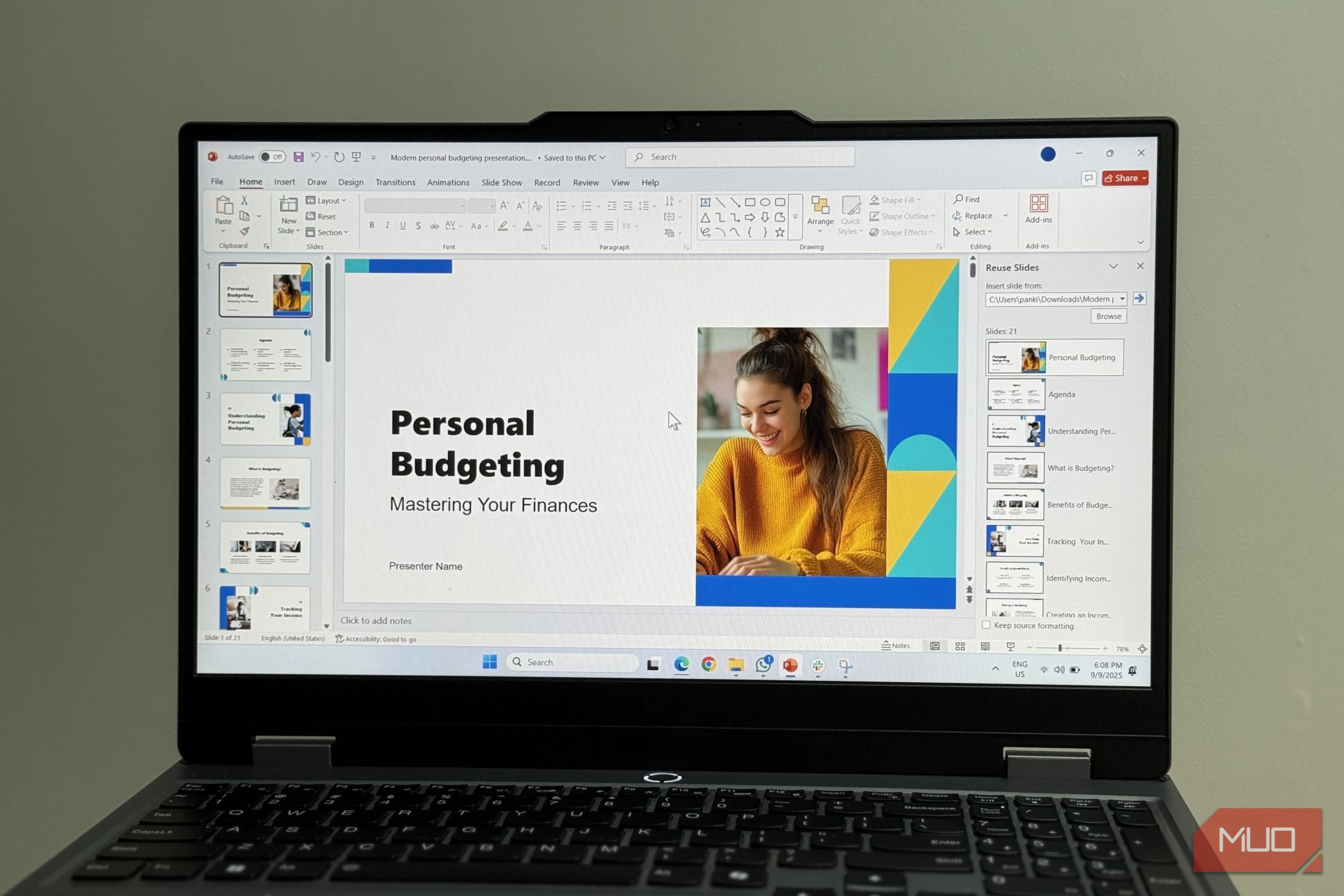
Ever sat through a presentation where something just felt...off? Your eyes might have been unconsciously fixing on text that was too close in one spot, then oddly spread out in another, or bullet points that seemed to have a mind of their own. This common issue—inconsistent spacing—is the number one culprit that makes otherwise great content look amateurish in Microsoft PowerPoint or Google Slides.
Indeed, inconsistent gaps between elements, tight line spacing, or uneven margins can quickly derail an audience's focus. Instead of absorbing your message, viewers might find themselves distracted by the visual disarray. The good news? This frustrating problem is entirely avoidable. Once you understand a few simple, powerful techniques, you can transform your presentations from distracting to dazzling.
This guide will walk you through the essential steps to master spacing, ensuring your slides look clean, professional, and keep your audience focused exactly where they should be: on your valuable content.
What You'll Accomplish
By the end of this guide, you’ll be able to:
- Define consistent spacing rules at the template level for effortless uniformity across all your slides.
- Precisely control paragraph and line spacing to achieve a refined and polished textual appearance.
- Import text seamlessly without introducing rogue formatting, maintaining your design integrity.
- Confidently create presentations that radiate professionalism, allowing your crucial message to shine brightly.
Prerequisites
To effectively follow along with this guide and implement the suggested improvements, you'll simply need:
- Access to Microsoft PowerPoint or Google Slides.
- An existing presentation deck that you wish to refine, or the intention to create a new one with best practices in mind.
Step 1: Establish Spacing at the Source with Master Slides
Trying to fix spacing inconsistencies one slide at a time is a losing battle. Small inconsistencies will inevitably creep in. Instead, define your spacing rules at the template level, ensuring every slide inherits them automatically and stays consistent without constant manual adjustment.
How to Configure Master Spacing:
- Open your presentation in PowerPoint or Google Slides.
- Access the Master View:
- In PowerPoint: Go to the
Viewtab, locate theMaster Viewsgroup, and selectSlide Master. - In Google Slides: The equivalent is
Theme Builder, found under theViewtab.
- In PowerPoint: Go to the
- Adjust Spacing: Within the Master View or Theme Builder, set the line spacing and paragraph spacing for your text placeholders. New slides built on these layouts will automatically respect these rules.
Troubleshooting & Tips for Master Spacing:
- Resetting Existing Slides (PowerPoint): If a deck has gone off track, you can reset individual slides. Find the
Resetbutton in PowerPoint (usually near theNew Slideoption). Clicking it forces the slide's elements back into alignment with the master, clearing inconsistent formatting. - Set as Default Text Box: Once you've formatted a text box exactly as you want, right-click its edge and choose
Set as Default Text Box. Every new text box you create will then follow these settings.
Step 2: Fine-Tune Paragraph and Line Spacing for Precision
Default spacing settings from word processors don't always translate well to slides, which require more intentional spacing. You'll often need to override these defaults for a polished look.
How to Get Precise with Your Text Adjustments:
- Select the Text: Highlight the paragraph or text block you wish to adjust.
- Access Paragraph Controls:
- In PowerPoint: Expand the
Paragraphgroup on theHometab. - In Google Slides: Find similar controls under the
Formattab.
- In PowerPoint: Expand the
- Adjust Before and After Paragraph Spacing: Set both
BeforeandAfterparagraph spacing fields to zero for clean, predictable line breaks. This prevents unexpected gaps and spacing shifts when you pressEnter. - Refine Line Spacing with Decimal Values: Standard presets like single or double rarely look right on slides. Choose
Multipleand enter decimal values (e.g.,1.4or1.25) for finer control over text density based on your font and layout.
Troubleshooting & Tips for Fine-Tuning:
- Use Shift + Enter for Line Breaks: To move to a new line within the same paragraph without adding extra paragraph spacing, use
Shift + Enterinstead ofEnter. This keeps your spacing tight and predictable. - Disable AutoFit (PowerPoint):
AutoFitautomatically shrinks text or adjusts spacing when a text box is full, often working against consistency. Since it's usually enabled by default, turn it off in PowerPoint to prevent it from overriding your manual settings. Go toFile->Options->Proofing->AutoCorrect Options…and uncheck theAutoFitoptions.
Step 3: Manage Formatting When Importing Text
Text copied from external sources (documents, emails, web pages) often carries hidden formatting that clashes with your slide’s template. This is a major source of spacing inconsistency. You can't avoid copying and pasting, but you can control how that content behaves.
How to Paste Text Without Bringing its Baggage:
- Copy your desired text from its source.
- Do NOT use the default paste option. Always choose
Keep Text OnlyorPaste without formattingto strip out hidden formatting and let your slide’s predefined spacing rules take over. - Use the Shortcut: On a Windows machine, the
Ctrl + Shift + Vshortcut is ideal for quick, plain text pasting.
Troubleshooting & Tips for Pasted Text:
- Bullet Lists in Google Slides: Applying bullets in Google Slides can sometimes act as a local override, ignoring your template’s spacing. If bullets still look off after pasting as plain text, select the text, go to the
Formattab, and chooseClear Formatting. This usually resets the list to your theme’s settings.
Conclusion
While you might prioritize color or typefaces, spacing fundamentally determines how polished your slides look and how easily your audience follows along. Inconsistent spacing throws off the entire presentation, regardless of content quality.
By setting spacing at the template level, taking control of your paragraph settings, and diligently stripping formatting when pasting text, you'll eliminate most common problems before they appear. Do this consistently, and your slides will look clean, intentional, and highly professional, empowering your audience to focus squarely on the message you're there to deliver.
FAQ
Q: Why do default spacing settings often look bad on slides?
A: Default spacing in presentation tools often comes from word processors, where more generous spacing aids document readability. Slides, however, benefit from tighter, more intentional spacing to convey information clearly and concisely without visual clutter. Overriding these defaults allows for better visual balance.
Q: What's the biggest benefit of setting spacing at the master slide level?
A: The biggest benefit is automatic, effortless consistency. By defining spacing rules once in the master slide or theme builder, every new slide you create will automatically adhere to those rules. This saves immense time and prevents the frustrating, never-ending battle of trying to fix spacing slide by slide, ensuring a unified and professional look for your entire presentation.
Q: I used "Paste without formatting," but my bullet points still look wrong in Google Slides. What should I do?
A: If your bullet points still appear inconsistent in Google Slides after pasting as plain text, it's likely a local formatting override. Select the problematic bulleted text, then navigate to the Format tab and choose Clear Formatting. This action will typically reset the list to align with your theme's established spacing and style, ensuring consistency.
Related articles

Ditch Merge & Center: The Better Way to Align Text in Excel
Learn to use Excel's "Center Across Selection" to align text across cells without merging, avoiding common data manipulation issues. This guide provides steps to utilize this newly accessible feature and add it to your Quick Access Toolbar.

Ars Technica's Rocket Report: Your Essential Space Industry Briefing
Quick Verdict Ars Technica's Rocket Report, presented by veteran space reporter Stephen Clark, offers an invaluable and meticulously organized weekly (or similar frequency, implied by "Edition 9.15") digest of the most

Stop Android Auto Battery Drain: Essential Features to Disable and
Android Auto offers unparalleled convenience, bringing your phone's most useful features directly to your car's display. From navigation and calls to messages and music, it keeps you connected without distracting you

Turn Your Android Phone into a Powerful Desktop Replacement
Learn how to transform your Android phone into a full-fledged desktop computer using external displays and accessories, providing a cost-effective and integrated alternative to new Googlebooks.

howto: Four Ways the Fitbit Edge Is Better Than the Charge 6, and Two
Learn the key differences between the Fitbit Edge and Charge 6, including four advantages of the Edge and two areas where it falls short, to help you choose the best fitness tracker for your needs.
How to Connect Your Googlebook to a Printer - Print Documents with
Learn to quickly connect your Googlebook to a printer via Wi-Fi, USB, or Bluetooth and print documents in minutes. This guide covers direct printing, app-specific connections, troubleshooting, and even printing screenshots as a workaround.