
Master Podcasts in Android Auto with Pocket Casts for
Navigating podcast apps in Android Auto can often feel cumbersome, adding unnecessary complexity to your driving experience. Many apps force you to browse extensive libraries or fiddle with intricate menus while on the
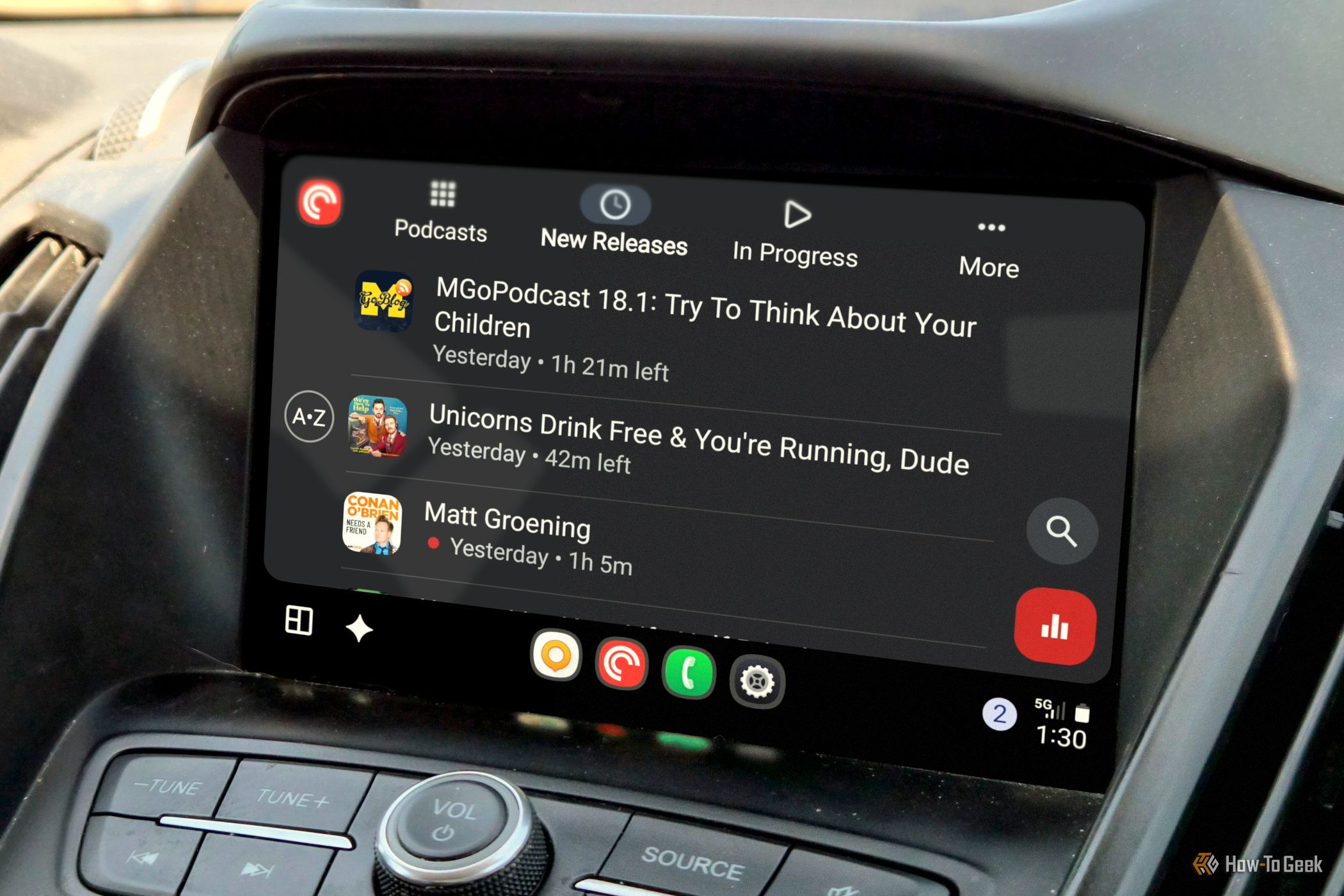
Navigating podcast apps in Android Auto can often feel cumbersome, adding unnecessary complexity to your driving experience. Many apps force you to browse extensive libraries or fiddle with intricate menus while on the road, which is far from ideal. However, one podcast app stands out for its intelligent design and user-friendly approach in the car: Pocket Casts.
Pocket Casts strikes the perfect balance by offering powerful organization tools on your phone and a streamlined, essential-focused interface in Android Auto. This guide will walk you through how to leverage Pocket Casts to transform your in-car podcast listening into a seamless, distraction-free experience.
What You'll Accomplish
By the end of this guide, you will be able to:
- Set up customized podcast playlists on your phone for automatic queueing.
- Navigate Pocket Casts in Android Auto with minimal distraction.
- Enjoy seamless podcast playback continuity across all your devices.
- Maintain focus on driving while effortlessly consuming your favorite audio content.
Prerequisites
Before you begin, ensure you have the following:
- An Android smartphone with the Pocket Casts app installed and set up.
- An active Pocket Casts account (free or Plus).
- Your vehicle or head unit supports Android Auto.
- A stable connection between your Android phone and Android Auto (wired or wireless).
- Your Pocket Casts app is updated to the latest version on your phone.
Step 1: Organize Your Podcasts with Smart Playlists (On Your Phone)
The true power of Pocket Casts for Android Auto begins on your smartphone. Unlike other apps that might replicate a complex library interface in your car, Pocket Casts encourages you to do the heavy lifting before you even start your engine. This is where its playlist features, particularly the Smart Playlists, become invaluable.
- Open the Pocket Casts app on your phone. This is your command center for discovery and organization.
- Explore and Subscribe to Podcasts. Pocket Casts offers excellent discovery features, including top charts, curated lists, and recommendations, in addition to a standard search function. Take the time to subscribe to all your desired podcasts here.
- Create Custom Smart Playlists. This is the core of preparing your listening experience for Android Auto. Smart Playlists automatically update with podcast episodes based on criteria you define. To create one:
- Navigate to the Playlists section within the app.
- Look for an option to create a new playlist, often indicated by a “+” or similar icon.
- Select “Smart Playlist.”
- Define your criteria. You can choose which specific podcasts to include, narrow down episodes by their release date, specify episode length (e.g., short episodes for quick commutes, long episodes for road trips), and more. This allows for incredible customization.
- Name your playlist meaningfully. For example, you might create a “Daily Commute” playlist for shorter, newer episodes, or a “Long Drive” playlist for extended listening sessions with longer episodes.
- Utilize the Up Next Queue (Optional). If you prefer manual control, you can still add individual episodes to your “Up Next” queue on your phone. However, Smart Playlists offer a hands-free, automated alternative that excels in a driving environment.
By setting up these playlists in advance, you ensure a continuous stream of content tailored to your needs, without needing to browse or search while driving.
Step 2: Experience the Simplified Android Auto Interface (In Your Car)
Once your playlists are set up, the Android Auto interface for Pocket Casts becomes incredibly user-friendly. It’s designed to be simple and distraction-free, focusing purely on essentials so you can keep your eyes on the road.
- Connect your phone to Android Auto. Plug in your phone or connect wirelessly, and launch Android Auto on your car’s infotainment screen.
- Select Pocket Casts from the Android Auto app launcher. You’ll notice the interface is intentionally stripped back compared to the phone app.
- Access your Playlists. Your custom Smart Playlists and the “Up Next” queue will be prominently displayed and easy to find. This allows you to quickly select the pre-prepared listening stream you want.
- Control Playback. The buttons for playback (play/pause, skip forward/backward) are large, clear, and highly visible, adhering to Google’s standard UI templates for in-car safety. You won't have to hunt for small icons.
- Adjust Playback Speed. Important features like playback speed controls are still accessible, but they don't clutter the main interface, ensuring simplicity without sacrificing functionality.
The design philosophy of Pocket Casts in Android Auto is to get out of your way. It’s not built for deep browsing or discovery while driving, but rather for accessing your carefully curated content with minimal interaction. This makes it feel more like a personal radio station, constantly serving up relevant content for as long as you need it.
Step 3: Enjoy Seamless Syncing Across Devices
Beyond its intelligent design for driving, Pocket Casts excels at keeping your listening experience consistent across all your devices.
- Start listening on one device. You can begin an episode on your phone, desktop web player, or any other platform where Pocket Casts is available.
- Continue in your car. When you get into your car and connect to Android Auto, Pocket Casts will automatically remember your exact playback position within the episode.
- Pick up anywhere else. Later, you can seamlessly resume listening on another device, precisely where you left off. The app consistently syncs your podcast list, playback status, and position across all platforms.
This robust syncing capability means your Android Auto listening is not an isolated experience but an integrated part of your overall podcast consumption, much like a modern streaming service. You’ll never miss a word, no matter where you transition your listening.
Troubleshooting Tips
While Pocket Casts is generally reliable, here are some common troubleshooting steps if you encounter issues with the app in Android Auto:
- Ensure App Updates: Verify that both the Pocket Casts app and your Android Auto app on your phone are updated to their latest versions. Outdated software can often cause compatibility issues.
- Restart Android Auto: Sometimes, simply disconnecting and reconnecting your phone to Android Auto, or restarting your car's infotainment system, can resolve minor glitches.
- Check Phone Connection: Ensure your phone has a stable connection to your car, whether it's a secure USB cable connection or a strong wireless link.
- Clear Cache (Phone): If the app is acting sluggish or buggy, try clearing the cache for Pocket Casts on your phone (Settings > Apps > Pocket Casts > Storage > Clear Cache). This can often resolve performance issues without deleting your data.
Best Practices
- Prepare Before Driving: Always create and manage your Smart Playlists or Up Next queue on your phone before you start driving. This minimizes in-car interaction and maximizes safety.
- Utilize Smart Playlists: Experiment with different Smart Playlist criteria to create varied listening experiences for different scenarios (e.g., short commutes, long trips, specific podcast types).
- Keep Your App Updated: Regularly update Pocket Casts and Android Auto to benefit from the latest features, improvements, and bug fixes.
By following these practices, you'll find that Pocket Casts makes your Android Auto podcast experience truly enjoyable and efficient.
Conclusion
Pocket Casts excels in Android Auto because it intelligently handles the compromise between functionality and driver safety. By empowering you to organize and curate your content on your phone, it delivers a genuinely streamlined, distraction-free experience behind the wheel. Its seamless syncing further integrates your car listening into your daily life, making it the most sensible podcast app for Android Auto.
FAQ
Q: Can I search for new podcasts directly within Pocket Casts on Android Auto?
A: While Pocket Casts in Android Auto does retain some discovery features, its interface is primarily designed for simple navigation of your existing library and playlists. For extensive searching and discovery, it's best to use the full-featured Pocket Casts app on your phone before you drive.
Q: Does Pocket Casts require a paid subscription to work with Android Auto?
A: No, the core functionality of Pocket Casts, including its Android Auto integration and Smart Playlists, is available with the free version of the app. A paid 'Pocket Casts Plus' subscription offers additional features like cloud storage and desktop apps, but it's not required for basic Android Auto usage.
Q: My podcasts aren't syncing between my phone and Android Auto. What should I do?
A: First, ensure you have an active internet connection on your phone for syncing to occur. Then, check if Pocket Casts has background data access enabled in your phone's settings. If issues persist, try signing out and back into your Pocket Casts account on your phone to refresh the sync, or check the troubleshooting tips above.
Related articles
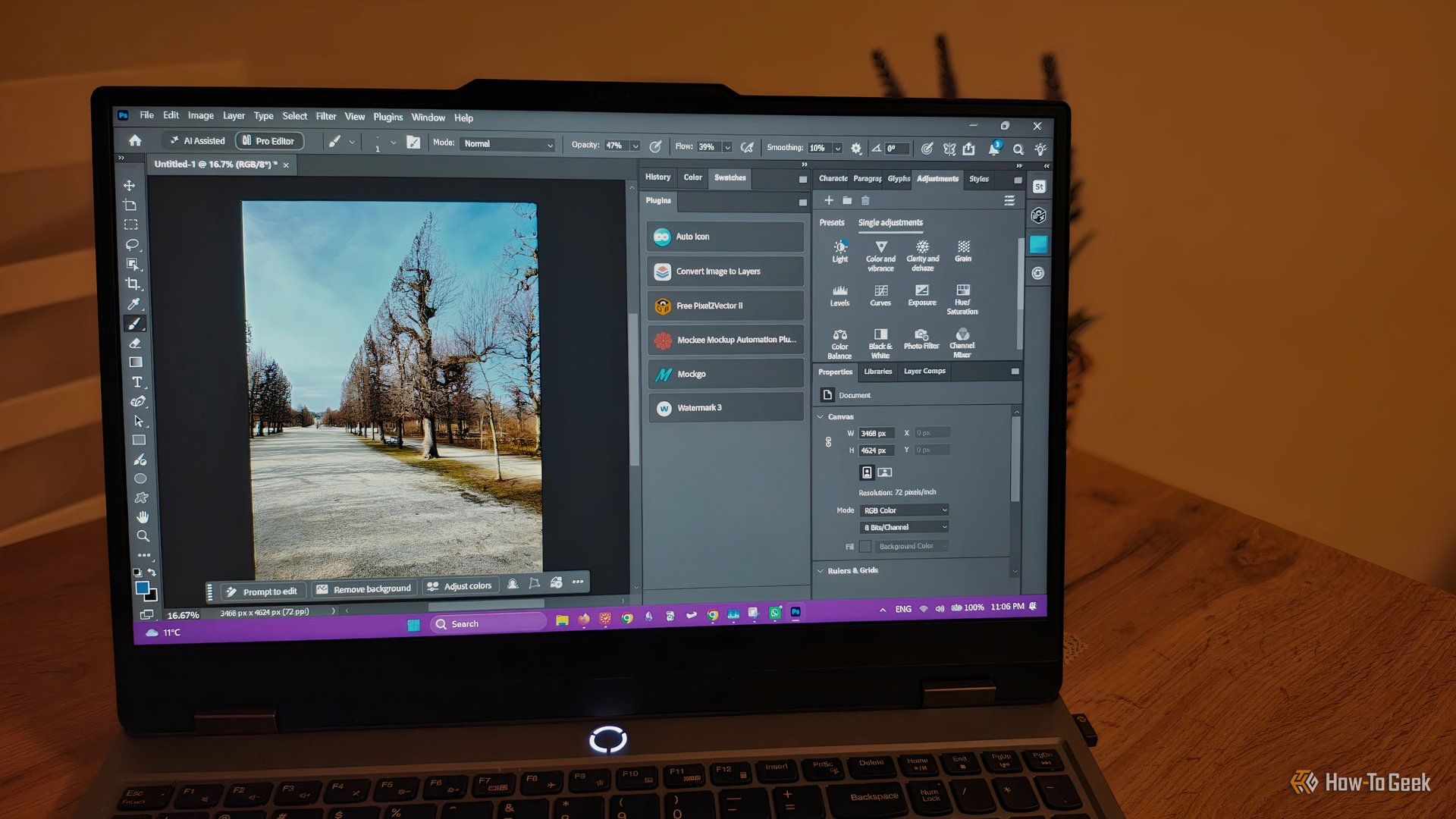
howto: 4 Photoshop plugins so essential they should be built-in
Discover four essential Photoshop plugins that streamline your workflow, save time, and unlock new creative possibilities, making you wonder why they aren't built-in features.

Xreal Unveils Aura Wired Smart Glasses Running Android XR
At the Android Dev Summit on Wednesday, Xreal, Google's smart glasses collaborator, officially introduced its new Xreal Aura wired smart glasses. The device, which had been teased earlier in the year at Google's I/O
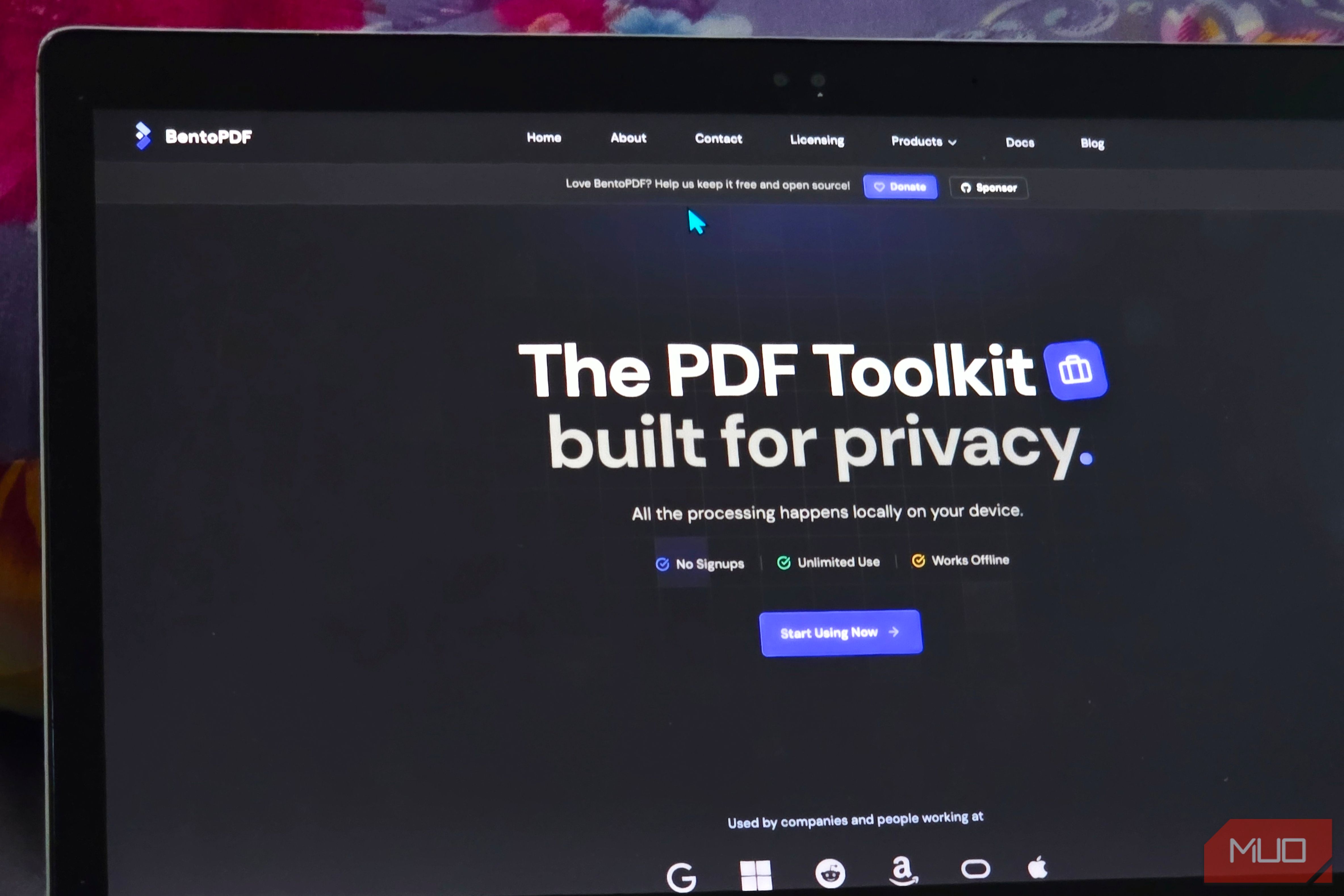
Solve Annoying PDF Problems Locally in Your Browser with BentoPDF
Dealing with PDFs can often feel like a never-ending series of small, annoying tasks. You might need to combine several documents, reduce the size of a bulky file, or even make an image-only scan searchable. Typically,

Your Guide to LG's 115-inch QNED evo TV: Features, Gaming & Price
Welcome to an exciting exploration of LG's latest innovation in home entertainment: the colossal 115-inch QNED evo AI Mini LED TV. This guide is designed to walk you through everything you need to know about this

How to Stop Google Using Your Gmail & Drive Data for Ads
Google's "Personal Intelligence" feature, designed to offer more tailored AI responses, may inadvertently lead to your personal data from apps like Gmail, Google Drive, and Google Photos being used for targeted
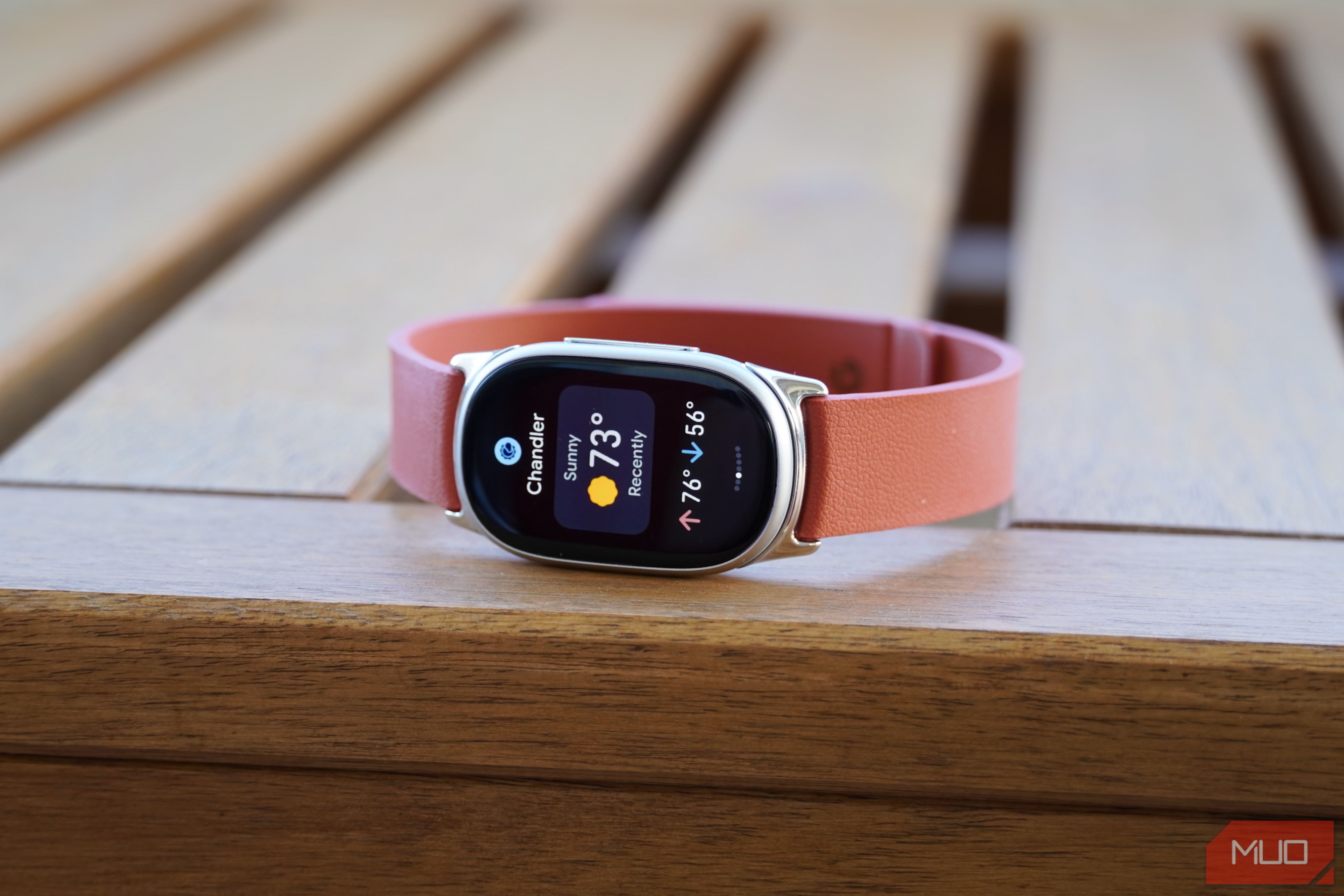
Google Fitbit Edge Review: Your Anti-Smartwatch Fitness Sweet Spot
Learn if the Google Fitbit Edge is the right fitness tracker for you, balancing core health features with a simplified experience. Discover its design, advanced tracking, and software insights to make an informed decision.