
How to Unlock Dynamic Lighting with Linkind Smart Light Sticks
Learn to set up, use, and troubleshoot Linkind Smart Light Sticks to unlock their dynamic 50-zone multi-color lighting effects and integrate them with your smart home system.
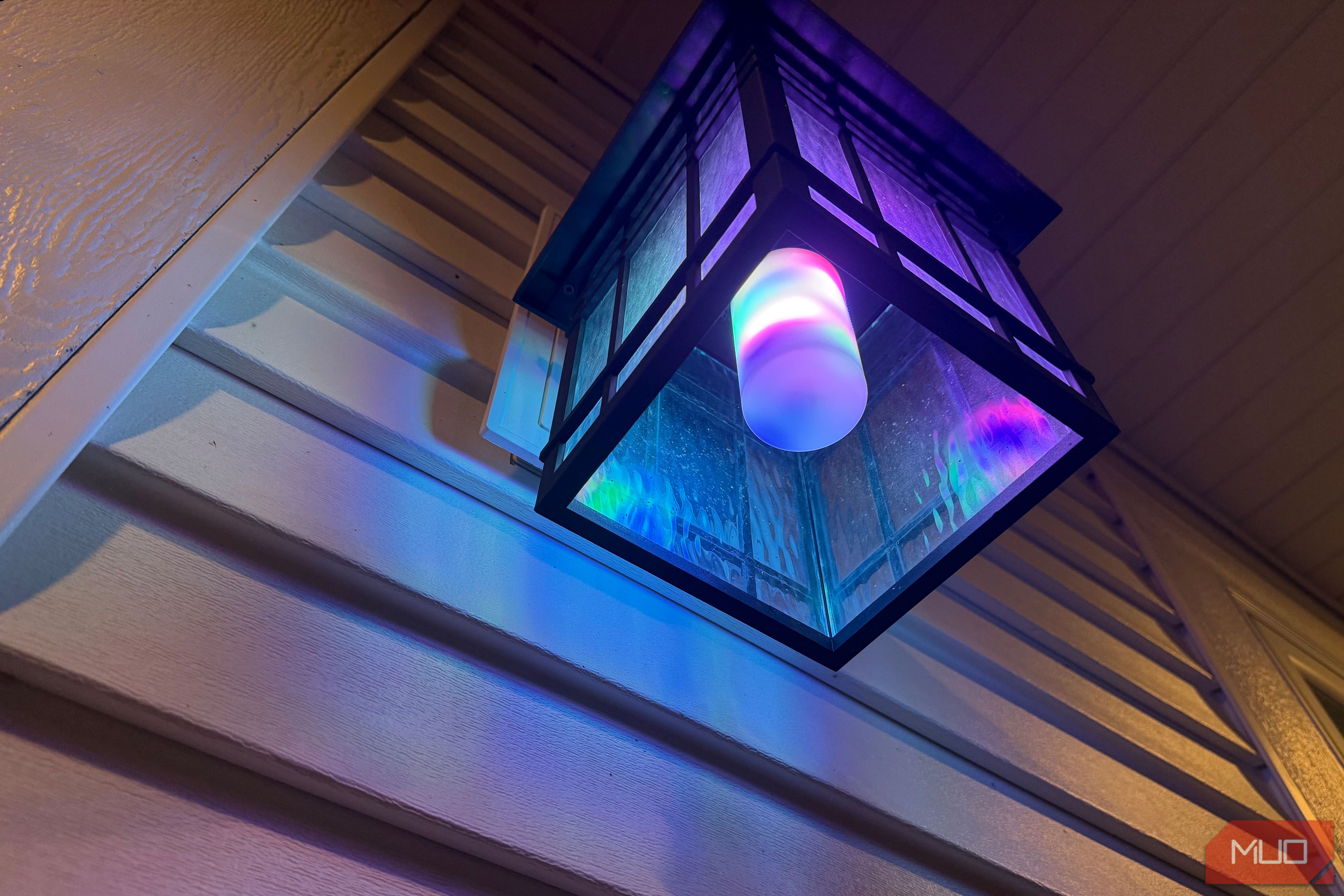
Welcome to the exciting world of Linkind Smart Light Sticks! If you're looking to add vibrant, dynamic lighting to your home that goes beyond what traditional smart bulbs offer, you've come to the right place. These innovative bulbs boast 50 individually controlled color zones, allowing for breathtaking multi-color effects that can transform any space.
This guide will walk you through setting up your Linkind Smart Light Sticks, harnessing their unique multi-zone capabilities, and integrating them seamlessly into your existing smart home ecosystem. Get ready to illuminate your home with captivating visuals that are impossible to ignore!
What You'll Accomplish
By following this guide, you will be able to:
- Successfully install and pair your Linkind Smart Light Sticks.
- Utilize the AiDot app to explore and apply over 120 unique dynamic lighting presets.
- Integrate your bulbs with major smart home platforms like Alexa, Apple Home, Google Home, and SmartThings using Matter.
- Set up schedules and automations for effortless control.
- Troubleshoot common issues and optimize your lighting display.
Before You Begin: Prerequisites
To ensure a smooth setup experience, gather the following:
- Linkind Smart Light Sticks: These are T19 tube-shaped bulbs with a standard E26 base. Available individually or in multi-packs.
- Appropriate Light Fixtures: Your fixtures should have an E26 screw-in socket. For the best visual effects, choose fixtures with clear glass or an exposed bulb design.
- 2.4GHz Wi-Fi Network: The bulbs connect exclusively to 2.4GHz Wi-Fi. Most modern routers support this frequency.
- Smartphone: An iPhone or Android device is required to download and use the Linkind AiDot app.
- Matter-Compatible Smart Home Hub (Optional): If you plan to integrate with Alexa, Apple Home, Google Home, or SmartThings, a Matter-compatible hub (like an Amazon Echo device for Alexa) can simplify the process.
- No Traditional Dimmer Switches: Linkind advises against using traditional dimmer switches, as they can cause flickering or buzzing. The bulbs are designed for smart dimming through the app or voice control.
Step-by-Step Guide to Dynamic Lighting
1. Choose Your Fixtures Wisely
The Linkind Smart Light Sticks are designed to be seen. Their unique 50 color zones create stunning multi-color effects, but these can be lost if the bulb is obscured. Before installation:
- Prioritize Clear or Exposed Fixtures: For maximum impact, install your bulbs in fixtures with clear glass or an open design that allows the bulb itself to be visible. Outdoor wall lanterns, exposed pendants, or torchiere lamps are excellent choices.
- Avoid Shaded or Frosted Fixtures: If placed in fixtures with translucent or frosted shades, the multi-color effects will often blend into a single, soft glow, negating the bulb's best feature.
- Benefit from Auto-Orientation: The bulbs feature an auto-orientation sensor, so effects like the flame preset will always appear to rise correctly, regardless of whether the bulb is pointing up or hanging upside down.
2. Install Your Linkind Smart Light Sticks
Once you've selected your ideal fixtures, installation is straightforward:
- Simply screw each Linkind Smart Light Stick into its designated E26 socket.
- Ensure the light fixture's power switch is in the 'On' position.
3. Download and Set Up the AiDot App
The AiDot app is your primary control center for the Linkind Smart Light Sticks' advanced features.
- Download the App: Search for "AiDot" in the Apple App Store or Google Play Store and download it.
- Create an Account: Open the app and follow the prompts to create a new user account.
4. Pair Your Bulbs with the AiDot App
Pairing your bulbs is typically a quick process.
- Initiate Pairing: In the AiDot app, look for an option to "Add Device" or a similar prompt.
- Automatic Discovery: The app should quickly detect your Linkind Smart Light Sticks that are powered on.
- Complete Pairing: Follow any on-screen instructions to finalize the connection for each bulb. You may be asked to name each bulb.
Troubleshooting Tip: If a bulb fails to pair on the first attempt, don't worry. This can occasionally happen even with strong Wi-Fi. Simply retry the pairing process, and it usually connects successfully on the second try.
5. Explore and Apply Dynamic Presets
This is where the Linkind Smart Light Stick truly shines! The AiDot app offers a vast library of pre-programmed effects.
- Access Presets: Once your bulbs are paired, select a bulb or a group of bulbs in the AiDot app and navigate to the effects or scenes section.
- Discover 120+ Presets: Browse through the extensive collection, which ranges from slow, elegant color gradients to fun strobe effects. Examples include "Heart" (a rotating heart shape) and "Halloween - Spiral" (a spinning spider).
- Master the Flame Effect: The flame effect is a highlight. You can adjust its height, speed, color (e.g., orange/yellow), and brightness to create a remarkably realistic flickering lantern appearance from a distance. While close-up it's more like a polished animation, it's far superior to static flame bulbs.
- Embrace Presets: The pre-programmed effects are generally the easiest and most effective way to utilize the multi-color zones. While the app allows for custom zone design, many users find it fiddly on a small phone screen. Start with the presets; you're almost guaranteed to find something you love.
6. Integrate with Your Smart Home System (Optional but Recommended)
Linkind Smart Light Sticks offer broad compatibility through Matter, making them easy to add to your preferred smart home platform.
- Matter Support: The bulbs natively support Matter, allowing connection to Alexa, Apple Home, Google Home, and SmartThings.
- Method A: Link AiDot Account: Within your smart home app (e.g., Alexa app), search for the "AiDot skill" or service and link your AiDot account. This will import your Linkind bulbs.
- Method B: Matter Pairing: Use your smart home app to "Add Device" and select Matter. You'll then scan the Matter pairing code provided on the bulb's packaging or within the AiDot app.
- Voice Control Basics: Once integrated, you can typically use voice commands to control basic functions like turning the lights on/off, changing to a single color, or adjusting brightness.
- Advanced Effects in AiDot: Keep in mind that the unique multi-zone effects and creative presets will generally need to be activated through the AiDot app, as most smart home platforms don't offer such granular control over individual bulb zones.
7. Set Up Schedules and Automations
Automating your lighting can enhance convenience and energy efficiency.
- Use Your Primary Smart Home App: Create schedules and automations within your preferred smart home app (Alexa, Google Home, Apple Home, etc.) to control your Linkind bulbs.
- Example Automations: Schedule outdoor lights to turn on at sunset and off at sunrise, or create routines for specific times of day.
- Best Practice: Centralize your lighting automations in one app for easier management, especially if you have other smart lights.
Troubleshooting Tips
- Failed Pairing: If a bulb doesn't connect on the first try, simply power cycle the bulb (turn the fixture off and on) and retry the pairing process in the AiDot app. It usually works on the second attempt.
- Bulb Unresponsive: Occasionally, a bulb might temporarily freeze or become unresponsive when changing scenes for a group. In most cases, it will catch up and resume normal operation within a few minutes. If it persists, try cycling the power to that specific fixture.
- Traditional Dimmer Switches: Avoid using traditional wall dimmer switches. They are not compatible and can cause issues like flickering or buzzing. Always use the smart dimming features available in the AiDot app or through your integrated smart home platform.
- Quick Reconnection: If guests accidentally flip a wall switch off and back on, the Linkind bulbs are designed to reconnect quickly to the app, minimizing frustration and the need for re-pairing.
Tips for Best Results
- Visibility is Paramount: To truly appreciate the multi-color zone effects, ensure your Linkind Smart Light Sticks are installed in fixtures where the bulb itself is clearly visible.
- Embrace the Presets: Don't underestimate the power and creativity of the AiDot app's 120+ presets. They are well-designed and showcase the bulbs' capabilities effortlessly.
- AiDot for Creativity: While your main smart home app can handle basic controls, always return to the AiDot app for the most immersive and dynamic lighting effects.
- Consider Your Ecosystem: If you're new to smart lighting, Linkind offers an excellent, feature-rich starting point. If you're already heavily invested in another ecosystem (like Philips Hue) and primarily desire simple, single-color ambient lighting, evaluate if adding another app and system for Linkind's unique effects is worthwhile for your specific needs.
Next Steps
Now that you've mastered the basics, consider these ideas to further enhance your smart lighting experience:
- Group Control: Experiment with grouping multiple Linkind bulbs in the AiDot app to synchronize their effects and create stunning displays across larger areas.
- Seasonal Themes: Utilize the wide range of presets to match holiday seasons, special occasions, or even your mood.
- Explore More Matter Integrations: As the Matter standard evolves, so will the possibilities for seamless integration with an even wider array of smart home devices.
FAQ
Q: What's the main advantage of Linkind Smart Light Sticks over Philips Hue bulbs?
A: The Linkind Smart Light Stick's standout feature is its 50 individually controlled color zones, allowing a single bulb to display multiple colors simultaneously and create dynamic effects like rotating hearts or spiders. Traditional Philips Hue color bulbs typically show only one solid color across the entire bulb at a time.
Q: Can I use Linkind Smart Light Sticks with my existing smart home system?
A: Yes, Linkind Smart Light Sticks support Matter, allowing seamless integration with major platforms like Alexa, Apple Home, Google Home, and SmartThings without needing a separate hub. You can also link them through specific integrations within the AiDot app for broader control.
Q: Why do my Linkind bulbs look plain even with dynamic effects enabled?
A: The unique multi-color effects are best showcased in fixtures where the bulb is clearly visible, such as clear glass lanterns or exposed-bulb pendants. If your fixtures have frosted or shaded glass, they will diffuse the light, causing the individual color zones and dynamic patterns to blend into a single soft glow, thereby diminishing the effect's impact.
Related articles
Proper Ethernet Cable Routing: Prevent Connector Failure & Boost
Learn to properly route Ethernet cables by understanding bend radius and connector limitations, preventing common failures, and boosting network reliability.
Boost Your Old HDD's Life: What 400k Drives Reveal About Reliability
Discover how HDD reliability varies by brand, backed by a study of over 400,000 drives. Learn which manufacturers offer the most robust drives, understand age-related failure patterns, and get actionable tips to optimize drive temperature and safeguard your data for maximum longevity.

regional: Seattle Space Week shines a light on eight problems and
Seattle Space Week highlighted significant growth in Washington's space industry, alongside critical challenges like a launch crisis and workforce shortages. Leaders discussed four problems and four prospects, including securing local funding, competing with rival states, and the potential for new launchers and even a homegrown launchpad. State initiatives, like Governor Ferguson's Space Council, aim to foster public-private partnerships and retain key businesses.

Google Wallet on Pixel: Tap-to-Pay Troubles Persist
Google Wallet's tap-to-pay feature is failing intermittently or completely on many Pixel phones, including Pixel 9 series and later, despite Wallet's expanded utility. Google has not acknowledged the bug, but user-reported fixes like restarting, clearing cache, or using a smartwatch offer temporary relief for this frustrating reliability issue.

Agentic AI in Financial Services: Unseen Workflow Risks
This review analyzes the risks of agentic AI in financial services, highlighting the 'black-box journey flow' problem and lack of accountability. It stresses the need for robust governance, end-to-end visibility, and effective human oversight to scale AI responsibly.

Understanding Why a Tiny Kindle Isn't Coming Soon - Amazon's
Understand Amazon's official stance on small e-readers and the key reasons why a tiny Kindle isn't in their immediate plans, from market focus to design compromises.