
How to Understand Windows 8: Unpacking Its Split Personality
Explore the dual interface and underlying innovations of Windows 8, dissecting its "split personality" to understand why it was both criticized and ahead of its time.
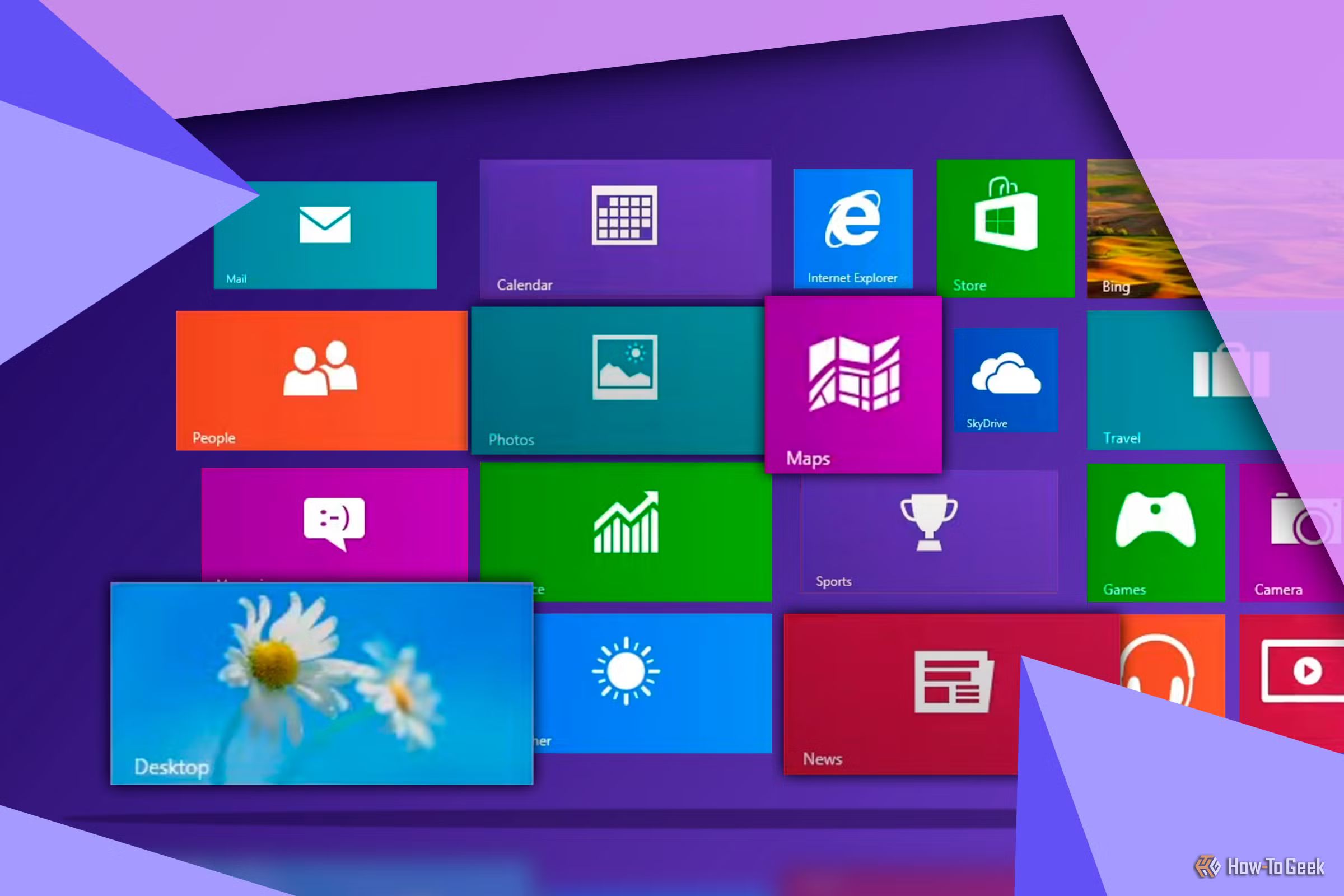
Windows 8 is often remembered as a misstep in Microsoft's operating system history, but its story is more nuanced than a simple failure. While it introduced significant user interface changes that frustrated many, beneath the surface lay substantial technical improvements. This guide will help you unpack Windows 8's "split personality" and gain a clearer, more balanced understanding of its ambitious design and lasting impact.
What You'll Accomplish
By following this guide, you will:
- Grasp Microsoft's original vision for Windows 8 and its dual-interface approach.
- Identify the key user interface challenges and frustrations that led to its negative reputation.
- Learn how Windows 8.1 attempted to address these criticisms.
- Discover the powerful, often overlooked, technical advancements that Windows 8 brought to the table.
- Form a more informed opinion about this controversial operating system.
Prerequisites
- Basic familiarity with Windows operating systems (e.g., Windows 7, 10, or 11).
- An open mind to re-evaluate common perceptions of past technology.
1. Unveiling Microsoft's Dual Vision: Desktop Meets Tablet
At its core, Windows 8 represented Microsoft's bold attempt to unify two distinct computing experiences: the traditional mouse-and-keyboard desktop PC and the emerging touch-based tablet. This ambition led to an operating system with a "split personality," where the familiar desktop environment coexisted with an entirely new, full-screen, tile-based interface known as Metro (or Modern UI).
The challenge was immense: designing a user interface that felt natural for both precise mouse clicks and broad fingertip gestures. Unfortunately, this hybrid approach often resulted in a compromise that satisfied neither. Desktop users found the large, touch-friendly elements cumbersome and space-wasting when using a mouse, while tablet users might still encounter desktop elements ill-suited for touch. This fundamental design conflict meant Windows 8 often delivered the drawbacks of both worlds, rather than the benefits.
2. Navigating the New Landscape: A Steep Learning Curve
For users accustomed to Windows 7 and earlier versions, Windows 8 presented a significant departure from established conventions. Basic actions, once intuitive, now required a new set of gestures and memorization. The traditional Start Menu was replaced by a full-screen Start screen filled with live tiles, and critical functions were hidden within "Charms" – a set of buttons that appeared when swiping from the right edge or moving the mouse to a "hot corner."
Finding common controls like the power options, searching for apps, or even understanding how to close a full-screen application became a frustrating guessing game. This forced users to actively learn new interaction patterns, akin to "learning to walk again" in a familiar environment. Such a dramatic shift in muscle memory contributed significantly to the widespread user dissatisfaction upon release.
3. The Clash of Two Worlds: Desktop vs. Metro Applications
Windows 8's split personality extended to its applications. Users encountered both traditional desktop applications and new full-screen Metro apps. This often meant having two versions of the same app, such as a compact desktop Calculator and an oversized, touch-optimized Metro Calculator. This duality created confusion and hindered seamless workflow.
Multitasking between desktop and Metro apps proved clunky and inefficient. For instance, clicking on an image file would frequently launch the full-screen Metro Photos app, pulling users out of their desktop workflow without warning. The constant, often unwelcome, switching between the two distinct environments disrupted productivity and underscored the awkward integration of the dual UI strategy.
4. Microsoft's Course Correction: The Windows 8.1 Update
Recognizing the user outcry, Microsoft swiftly responded with Windows 8.1, an update designed to address many of the core complaints. This update represented a significant effort to walk back the most controversial changes of the original release while retaining the underlying advancements.
Key improvements in Windows 8.1 included:
- The Return of the Start Button: While not a full Start Menu, a Start button reappeared on the taskbar, offering a familiar anchor for users.
- Boot to Desktop: Users gained the option to bypass the tile-based Start screen and boot directly into the traditional desktop environment.
- Improved Multitasking: Tweaks were made to make switching and managing apps across both interfaces less jarring.
- Enhanced UI Controls: Later updates also introduced mouse-accessible buttons for closing or minimizing Metro apps, making power controls less cryptic, and improving the visibility and usability of the taskbar.
These adjustments significantly improved the user experience, showing Microsoft's responsiveness to feedback, even if the fundamental dual nature of the OS remained.
5. The Unsung Strengths: Under-the-Hood Innovations
Despite its UI woes, Windows 8 was far from a technical failure. It introduced numerous substantial improvements "under the hood" that often go uncredited, overshadowed by the interface controversy. Many of these foundational advancements laid the groundwork for future Windows versions, including Windows 10 and 11.
Notable technical improvements included:
- Native USB 3.0 Support: Offering significantly faster data transfer speeds.
- A Revamped Task Manager: Providing more detailed insights into system performance and processes.
- Fast Startup: Utilizing a hybrid shutdown mode to accelerate boot times.
- UEFI Support: Enabling faster and more secure boot processes for modern hardware.
- Improved Power Management: Leading to more efficient battery usage in laptops and mobile devices.
These enhancements made Windows 8 a more robust and performant operating system than its predecessor, Windows 7, a fact often overlooked by those who skipped directly to Windows 10. The stability of Windows 8.1, for instance, even surpassed the initial release of Windows 10 for some users, highlighting its underlying technical competence.
Key Takeaways for a Balanced Perspective
- Beyond the UI: Don't let the initial interface frustrations completely overshadow the significant technical advancements Windows 8 introduced.
- Bold Innovation, Flawed Execution: Microsoft's attempt at a unified OS was ambitious but struggled with implementation, especially for traditional desktop users.
- Foundational for the Future: Many core improvements in Windows 8 became standard features, benefiting subsequent Windows versions.
Next Steps & Related Topics
- Explore Windows 10 and 11: Observe how Microsoft refined and integrated elements from Windows 8's design, ultimately moving towards a more cohesive experience.
- Learn About UI/UX Design: Understand the principles behind creating intuitive user interfaces and the challenges of designing for multiple device types.
FAQ
Q: Was Windows 8 truly a "disaster"?
A: According to the source, Windows 8 was "perfectly usable at launch" and had "substantial improvements under the hood." Its negative perception stemmed more from its "split personality" and jarring UI changes rather than fundamental instability, especially after the 8.1 update.
Q: What was the main reason for user frustration with Windows 8?
A: The primary cause of frustration was the operating system's attempt to be both a touch-based tablet OS and a traditional mouse-based desktop OS simultaneously. This led to a confusing user interface with hidden controls, a full-screen Start screen, and clunky transitions between the two distinct "Metro" and desktop environments.
Q: What key improvements did Windows 8 introduce that are often overlooked?
A: Beneath its controversial UI, Windows 8 brought significant technical advancements. These included native USB 3 support, a more efficient Task Manager, faster startup times, UEFI support for modern hardware, and improved power management. Many of these foundational improvements carried over into subsequent Windows versions.
Related articles

Ditch Merge & Center: The Better Way to Align Text in Excel
Learn to use Excel's "Center Across Selection" to align text across cells without merging, avoiding common data manipulation issues. This guide provides steps to utilize this newly accessible feature and add it to your Quick Access Toolbar.

Stop Android Auto Battery Drain: Essential Features to Disable and
Android Auto offers unparalleled convenience, bringing your phone's most useful features directly to your car's display. From navigation and calls to messages and music, it keeps you connected without distracting you

Windows October Update: A Must-Have Security Overhaul
Microsoft's October 2026 Windows update delivers a critical security overhaul, patching over 1,400 vulnerabilities including two zero-days, one already exploited. It's essential for all users, especially with several Windows 11 versions reaching end of support.

Turn Your Android Phone into a Powerful Desktop Replacement
Learn how to transform your Android phone into a full-fledged desktop computer using external displays and accessories, providing a cost-effective and integrated alternative to new Googlebooks.

howto: Four Ways the Fitbit Edge Is Better Than the Charge 6, and Two
Learn the key differences between the Fitbit Edge and Charge 6, including four advantages of the Edge and two areas where it falls short, to help you choose the best fitness tracker for your needs.
How to Connect Your Googlebook to a Printer - Print Documents with
Learn to quickly connect your Googlebook to a printer via Wi-Fi, USB, or Bluetooth and print documents in minutes. This guide covers direct printing, app-specific connections, troubleshooting, and even printing screenshots as a workaround.