
How to Set Up & Maximize Your Asus VM670KA AiO Desktop
All-in-one (AiO) desktops offer a fantastic solution for those who desire a large-screen computing experience without the complexity of assembling a traditional PC. The Asus VM670KA stands out as a prime example,
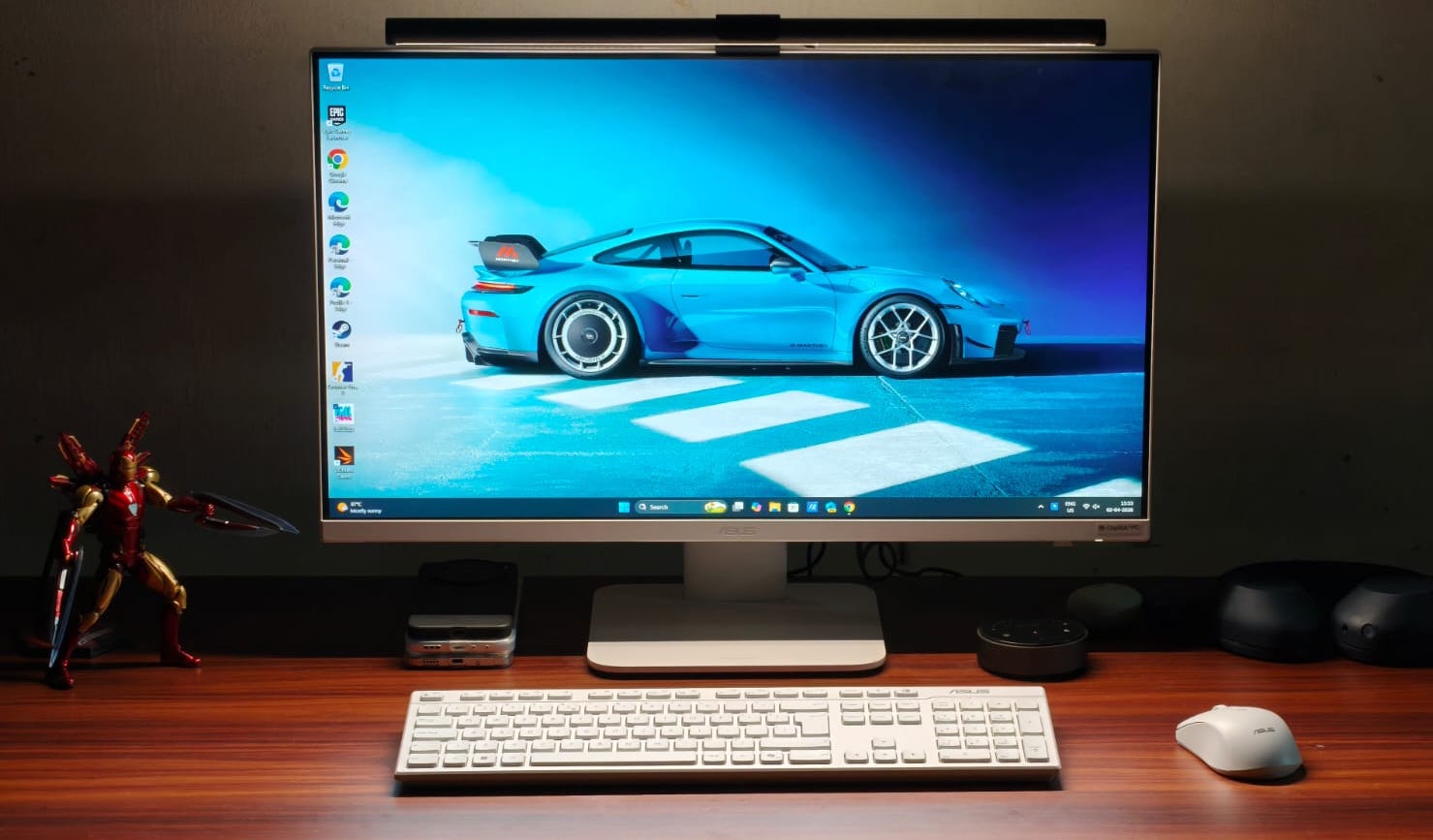
All-in-one (AiO) desktops offer a fantastic solution for those who desire a large-screen computing experience without the complexity of assembling a traditional PC. The Asus VM670KA stands out as a prime example, combining a beautiful design with robust performance, featuring the Ryzen AI 7 processor. This guide will walk you through setting up your new Asus VM670KA and help you unlock its full potential, whether for work, study, or light entertainment.
By following these steps, you'll learn how to quickly get your VM670KA up and running, connect all your peripherals, optimize its display and sound, and leverage its powerful components for your daily tasks. We'll cover everything from initial unboxing to performance tips and troubleshooting, ensuring you have a smooth and productive experience with your new AiO.
Prerequisites: What You'll Need
Before you begin, ensure you have the following components from your Asus VM670KA package:
- The Asus VM670KA All-in-One desktop unit
- The metal stand
- Screws for the stand (usually one)
- Power cable
- Bundled wireless keyboard
- Bundled wireless mouse
- A clear, stable surface for your AiO
Step-by-Step Setup and Optimization
1. Initial Unboxing and Assembly
- Carefully Unbox: Gently remove all components from the packaging, placing the AiO unit on a soft, flat surface to prevent scratches.
- Attach the Stand: Locate the sturdy metal stand. It is designed for easy attachment, often requiring just a single screw. Secure the stand to the back of your VM670KA until it's firmly in place. This stand allows you to tilt the screen up or down, which is useful for different working postures.
- Position Your AiO: Place the assembled AiO on your chosen desk or table. Consider your viewing distance; the 27-inch display is best enjoyed from a normal working distance to minimize any perceived pixelation from its Full HD resolution.
2. Connecting Power and Peripherals
- Connect Power: Plug the DC-in power cable into the corresponding port on the back of the AiO, then connect it to a wall outlet.
- Connect Keyboard and Mouse: The bundled wireless keyboard and mouse connect via a 2.5GHz dongle, which is conveniently stored inside the mouse. Retrieve the dongle and plug it into one of the USB ports. Asus recommends using the dedicated USB 2.0 port located underneath the belly for these peripherals to keep the more accessible USB 3.2 ports free for other devices.
- Initial Boot-up: Press the power button to turn on your VM670KA. Follow the on-screen instructions to complete the Windows setup process. The touchscreen makes navigation during setup particularly intuitive.
3. Optimizing Your Workspace with Ports and Display
The VM670KA is rich with connectivity options:
- Back Ports: Utilize the three USB 3.2 Gen 1 Type A ports for external drives or accessories, and the USB 3.2 Gen 1 Type-C for modern devices. The LAN port ensures a stable wired internet connection, while the HDMI-out allows you to connect an external monitor for extended screen space. The HDMI-in port is a unique feature, enabling you to use your AiO as a secondary display for a laptop, which can be a huge productivity booster. Don't forget the HDMI mode switcher when using the HDMI-in.
- Underneath Ports: Besides the USB 2.0 for keyboard/mouse, you'll find a headphone/microphone jack for audio peripherals and a Kensington Lock for security.
- Display Adjustments: While there's no height adjustment, tilt the matte-coated 27-inch Full HD IPS display to your preferred angle. Its 100% sRGB coverage ensures accurate and vibrant colors, making it excellent for media consumption and general work. The 75Hz refresh rate also contributes to smoother motion.
- Webcam and Privacy: The VM670KA features a retractable webcam. This is great for privacy, as you can hide it when not in use. However, be aware that this design might prevent you from mounting certain monitor lightbars directly above the screen.
4. Leveraging Performance for Work, Play, and AI
The Asus VM670KA is powered by an AMD Ryzen AI 7 350 processor, 16GB of LPDDR5x RAM, and a 1TB M.2 NVMe PCIe 4.0 SSD, making it highly capable for a variety of tasks.
- Everyday Productivity: This AiO excels in daily workloads. You can comfortably run numerous browser tabs (up to 30 Chrome tabs were tested), watch HDR videos, and quickly switch between applications without experiencing stutters. It's more than sufficient for typical office work, online classes, and general browsing.
- Creative Tasks: For light video editing, especially 1080p or even 4K reels, the VM670KA performs admirably. The timeline remains smooth, and rendering times are reasonable, allowing for efficient content creation.
- Light Gaming: While not designed for demanding AAA titles like Cyberpunk 2077 at high settings, the integrated Radeon 860M graphics can handle popular light games. Expect over 60 FPS in titles like Counter-Strike 2 and Valorant at medium settings, and similar performance in Fall Guys. F1 2025 achieves around 45 FPS on medium, and GTA V can run at 35-40 FPS. For a casual gaming experience, it's quite capable.
- Immersive Audio: The integrated Dolby Atmos stereo speakers deliver powerful, room-filling sound with decent bass and clear dialogue, enhancing your multimedia experience without needing external speakers.
- Touchscreen Benefits: The 27-inch touchscreen adds a unique layer of interaction, particularly useful for children's online classes or projects, making navigation and drawing simpler and more intuitive.
Troubleshooting & Best Practices
- Display Clarity: If you find the 1080p resolution on a 27-inch screen less sharp than desired, try adjusting your viewing distance. Sitting a bit further back often makes the pixels less noticeable. Keep the matte finish clean for optimal glare reduction.
- Webcam Lighting: If you rely on a monitor lightbar and your retractable webcam prevents its use, consider alternative desktop lighting solutions to illuminate your face evenly during video calls.
- Cable Management: With numerous ports available, take the time to organize your cables behind the AiO for a cleaner, more professional setup. This also improves airflow.
- Software Updates: Regularly update your operating system, drivers, and applications to ensure optimal performance, security, and access to the latest features.
Conclusion
The Asus VM670KA All-in-One desktop offers a compelling blend of elegant design, versatile features, and robust performance, making it an excellent choice for a wide range of users. From its large, vibrant touchscreen display and powerful Ryzen AI 7 processor to its excellent speakers and thoughtful port selection, it delivers a comprehensive desktop experience without the clutter. By following this guide, you can confidently set up and maximize your VM670KA, transforming your workspace into a productive and enjoyable environment.
FAQ
Q: Can I connect external monitors to the VM670KA?
A: Yes, the Asus VM670KA features an HDMI-out port, allowing you to easily connect one or more external monitors for an expanded display setup, boosting your productivity.
Q: Is the VM670KA suitable for heavy gaming?
A: The VM670KA is not designed for demanding AAA titles at high settings. However, its integrated Radeon 860M graphics can comfortably handle lighter games like Counter-Strike 2, Valorant, Fall Guys, and even some medium-setting experiences in F1 2025 or GTA V.
Q: How does the touchscreen feature benefit daily use?
A: The 27-inch touchscreen on the VM670KA makes navigation more intuitive, especially for non-traditional users like children engaging in online classes or creative projects. It simplifies interaction with the interface and can enhance certain applications and educational tools.
Related articles

Ditch Merge & Center: The Better Way to Align Text in Excel
Learn to use Excel's "Center Across Selection" to align text across cells without merging, avoiding common data manipulation issues. This guide provides steps to utilize this newly accessible feature and add it to your Quick Access Toolbar.

Ars Technica's Rocket Report: Your Essential Space Industry Briefing
Quick Verdict Ars Technica's Rocket Report, presented by veteran space reporter Stephen Clark, offers an invaluable and meticulously organized weekly (or similar frequency, implied by "Edition 9.15") digest of the most
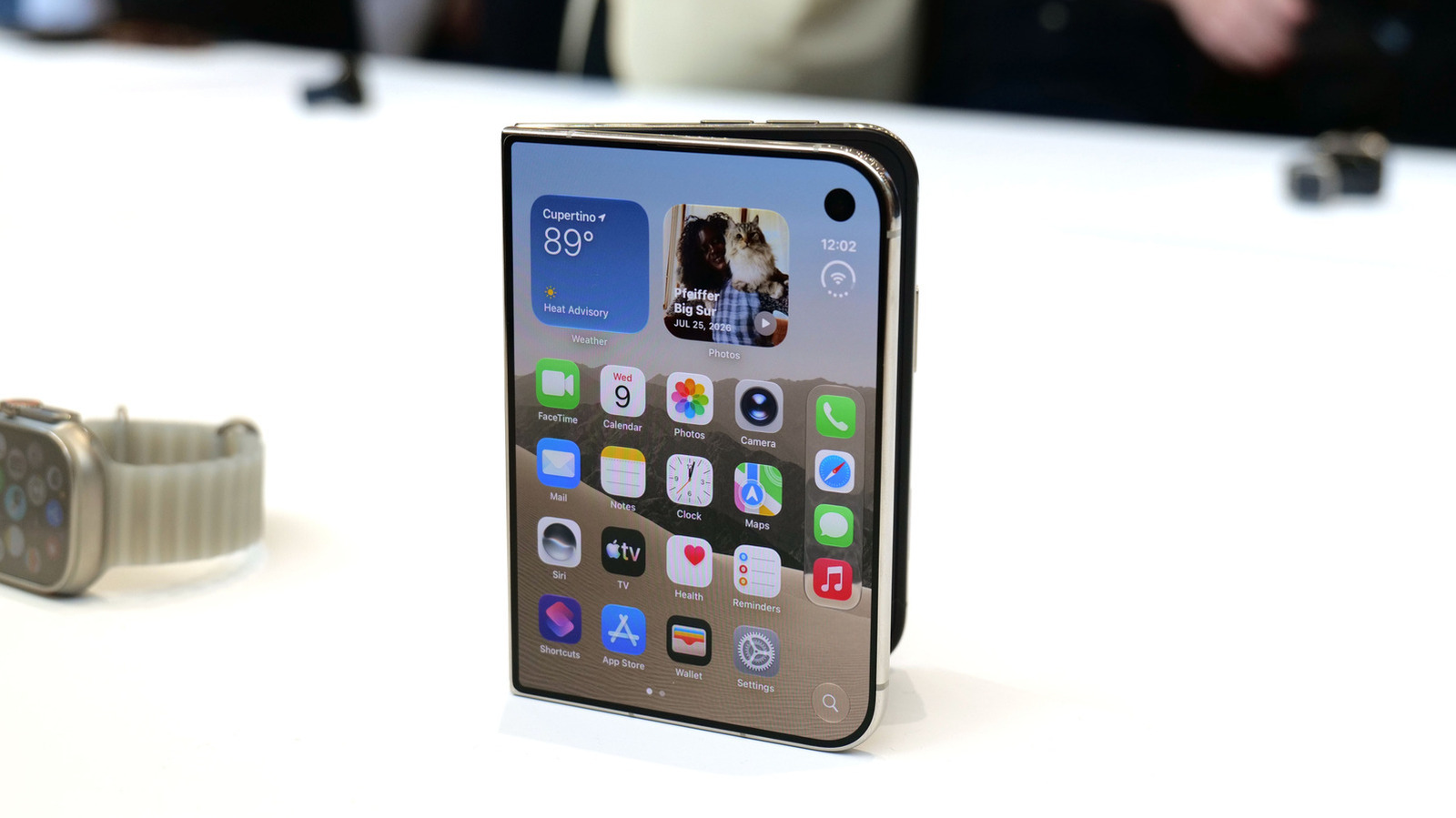
Apple iPhone Duo: A Daring Debut with Notable Compromises
Apple's highly anticipated iPhone Duo, priced at $2,000, has gone on pre-order. While hailed as "Apple's most exciting device in a decade" for its innovative foldable design and immersive display, it comes with significant drawbacks like the absence of FaceID and a premium camera.
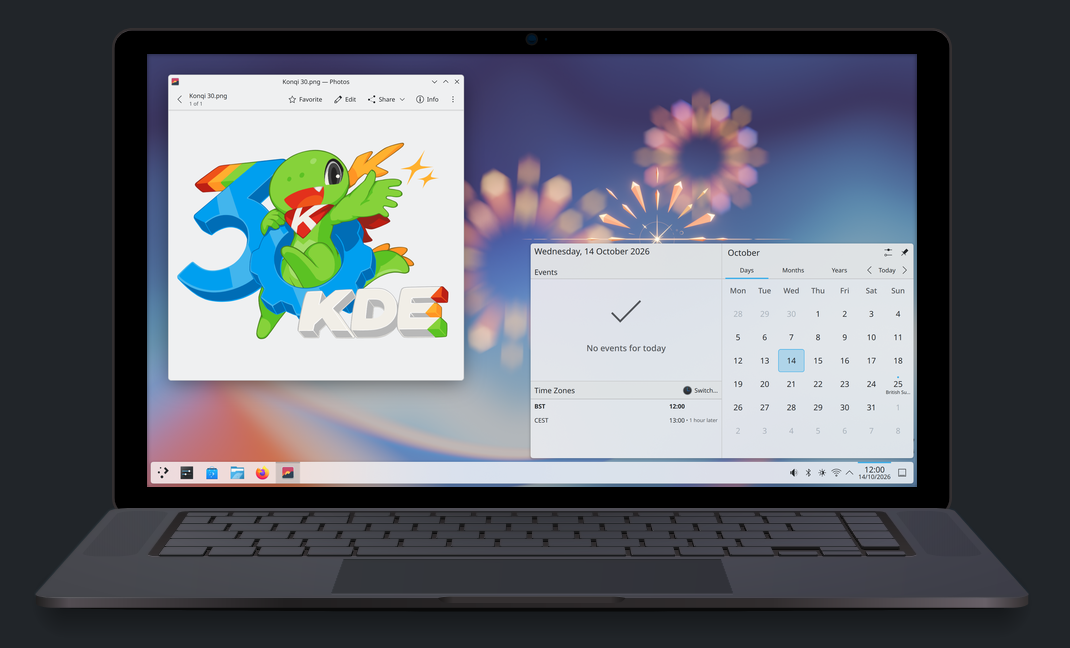
KDE Plasma 6.8: A Future-Focused 30th Anniversary Update
Quick Verdict KDE Plasma 6.8, arriving as the "30th Anniversary Edition," is a pivotal release that decisively pushes the desktop environment into the future. With a definitive farewell to native X11 sessions and a

Stop Android Auto Battery Drain: Essential Features to Disable and
Android Auto offers unparalleled convenience, bringing your phone's most useful features directly to your car's display. From navigation and calls to messages and music, it keeps you connected without distracting you

Turn Your Android Phone into a Powerful Desktop Replacement
Learn how to transform your Android phone into a full-fledged desktop computer using external displays and accessories, providing a cost-effective and integrated alternative to new Googlebooks.