
How to Remotely Factory Reset Your Android with Find Hub
Learn to remotely factory reset your Android phone using Google Find Hub, understanding key network dependencies and the critical importance of verifying the wipe, as Find Hub may not always clearly indicate if a command has failed or is pending.
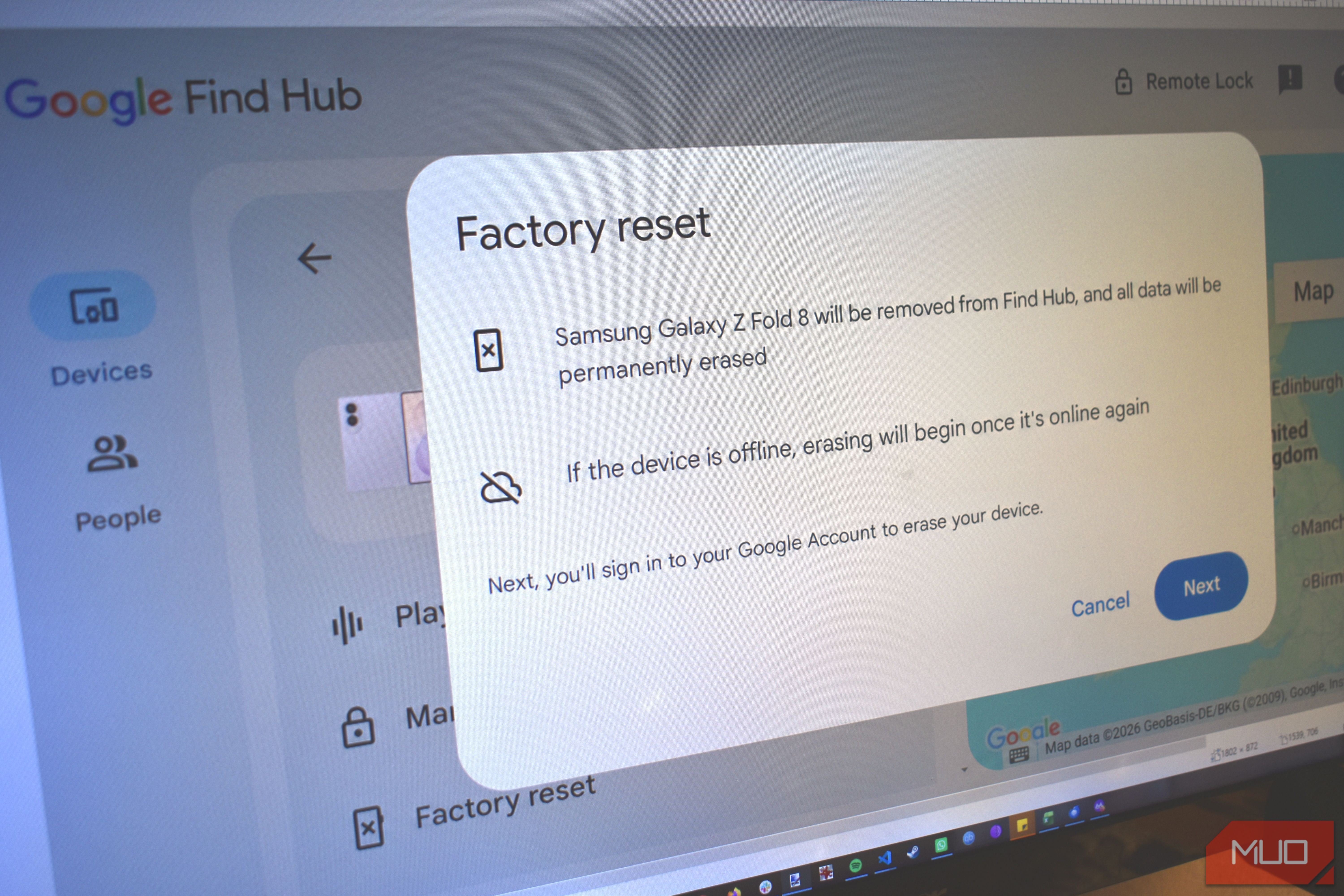
Google's Find Hub is a powerful tool designed to help you locate, secure, and even erase your Android devices if they go missing. While it excels at tracking your phone's location, performing remote actions like a factory reset can sometimes be less straightforward than it appears. This guide will walk you through the process of remotely wiping your Android device using Find Hub, highlighting important considerations and potential pitfalls so you can ensure your data is truly secure. If you're sending a device back or have lost one, understanding these nuances is crucial.
What You'll Accomplish
By following this guide, you will learn how to initiate a remote factory reset on your Android device using Google's Find Hub. More importantly, you'll gain an understanding of how to interpret Find Hub's responses and what precautions to take, as the service may not always explicitly warn you if a remote wipe command hasn't been successfully executed on the device itself, even if it appears to complete on your end.
Before You Begin: Prerequisites
To successfully use Find Hub for a remote factory reset, ensure the following:
- Android Device: The device you wish to erase must be an Android phone or tablet.
- Powered On: The device needs to be powered on. While location data can sometimes be relayed by other nearby Android devices via the Find Hub network, active commands like a factory reset typically require the target device to be fully operational.
- Google Account Linked: The device must be linked to your Google Account and have Find Hub (or Find My Device, its predecessor) enabled.
- Internet Connection: Both the device you are using to access Find Hub (your computer, another phone) and the target Android device must have an active internet connection (Wi-Fi or mobile data). Even if Find Hub can locate a device offline through its network, executing a command often requires a direct online connection.
- Google Account Credentials: You will need your Google Account login details.
Step-by-Step: Remotely Factory Resetting Your Android Device
Follow these steps to attempt a remote factory reset of your Android device through Find Hub.
Step 1: Access Google Find Hub
Open a web browser on your computer or another device and navigate to the Google Find Hub website. Alternatively, you can use the Find Hub app on another Android device. Log in with the Google Account associated with the device you want to erase.
Step 2: Select Your Device
Once logged in, Find Hub will display a list of your linked Android devices. Select the specific device you wish to factory reset from the list.
Step 3: Initiate the "Erase Device" Command
On the device's information panel, you will see several options like "Play Sound," "Secure Device," and "Erase Device." Click or tap on Erase Device.
Step 4: Confirm the Action
A warning message will appear, explaining that all data on the device will be permanently deleted. It will also typically state: "If the device is offline, erasing will begin once it's online again." Review this warning carefully, then confirm your intention to proceed with the erase by clicking Erase again.
Step 5: Observe and Understand the Outcome
Here's where it gets critical. Ideally, Find Hub would provide a clear indication of whether the command was successfully sent and received by the device, or if it's pending. However, based on user experiences, Find Hub might remove the device from your list and show the process as "completed" even if the device hasn't actually been wiped yet, especially if its connection was intermittent or absent at the time the command was sent. The system queues the command but may not explicitly inform you that it's waiting for the device to come online.
Troubleshooting and Best Practices
Remote device wiping is a critical security measure. Here's how to troubleshoot common issues and ensure your data is protected.
Device Appears Online But Wipe Fails
Find Hub's ability to locate a device might not always mean it has a strong enough connection to receive and execute remote commands immediately. Location data can be relayed via a crowdsourced network of other Android devices, even if your specific device lacks an active internet connection. However, commands like a factory reset require a direct, stable connection. If the wipe appears to complete but the device isn't actually erased:
- Understand "Online" vs. "Connected": Recognize that being locatable doesn't always equal being actively connected for command execution.
- The Command Might Be Queued: Assume the command has been queued. Find Hub documentation confirms it collects information about actions and whether they complete successfully, but the user interface might not always convey this in real-time. The system should tell you if it's offline and the action is queued, but sometimes this warning is absent.
- Re-check Later: If possible, try accessing Find Hub again later to see if the device re-appears or if there's any updated status. If the device was returned, like in the source's example, it's best to confirm the wipe through other means.
No Confirmation/Device Removed But Not Wiped
This is the most problematic scenario. If Find Hub removes the device from your list without a clear "action pending" or "device offline" notification, leading you to believe the wipe was successful when it wasn't:
- Do Not Assume Success: Never assume a remote wipe is complete solely because the device disappeared from your Find Hub list. This is a crucial vulnerability.
- Manual Reset is King: Whenever feasible (e.g., you still have the device or are returning it), perform a manual factory reset directly from the device's settings. This is the most reliable method.
- Verify Physically: If the device is accessible to you, physically check it to confirm that the factory reset has occurred. Look for the initial setup screen as a clear indicator.
If the Device is Truly Offline
Find Hub's own warning states: "If the device is offline, erasing will begin once it's online again." While this is the intended behavior, the issue arises when this message isn't displayed, and the action is simply queued silently. If you suspect your device is offline, be patient. The command will ideally execute once the device re-establishes an internet connection.
Next Steps and Related Topics
While remote wiping has its complexities, Find Hub still offers vital functions. Remember to:
- Explore Other Features: Use Find Hub to play a sound (useful for misplaced phones), lock your device, or display a contact message on the lock screen.
- Prioritize Data Security: Always back up important data regularly. For devices being returned or sold, a physical factory reset is always the most secure method.
FAQ
Q: Can Find Hub locate a device that's turned off?
A: Find Hub documentation indicates that Android devices store encrypted recent locations with Google. Additionally, the Find Hub network, a crowdsourced network of Android devices, can use end-to-end encrypted location information to help users find lost devices even if they are offline. This means your device's last known location might be available, or it could be located if it's powered on and near another Find Hub network device, even without an active internet connection of its own. However, remote commands like a factory reset generally require the device to be powered on and have an active internet connection to receive the command.
Q: What should I do if my device is removed from Find Hub but I find out it wasn't actually wiped?
A: If you discover the device wasn't wiped despite being removed from your Find Hub list, you'll need to take immediate action. If you still have physical access to the device, perform a manual factory reset through its settings. If the device is out of your hands (e.g., returned to a manufacturer), contact the recipient or the relevant support channels (as the author did with Samsung) to ensure they wipe the device for you. This highlights the importance of not solely relying on Find Hub's interface for wipe confirmation.
Q: Does Find Hub always notify me if a remote wipe fails or is queued?
A: Ideally, Find Hub should notify you if a remote wipe command is queued because the device is offline or if it fails for another reason. The official documentation suggests it tracks whether actions are completed successfully. However, as demonstrated by the user's experience, the system might sometimes remove the device from your list as if the process is complete, without explicitly informing you that the command is merely queued and awaiting the device to come online, or that it encountered an issue. Therefore, it's crucial to be cautious and verify the wipe by other means if possible.
Related articles

Ditch Merge & Center: The Better Way to Align Text in Excel
Learn to use Excel's "Center Across Selection" to align text across cells without merging, avoiding common data manipulation issues. This guide provides steps to utilize this newly accessible feature and add it to your Quick Access Toolbar.

Ars Technica's Rocket Report: Your Essential Space Industry Briefing
Quick Verdict Ars Technica's Rocket Report, presented by veteran space reporter Stephen Clark, offers an invaluable and meticulously organized weekly (or similar frequency, implied by "Edition 9.15") digest of the most

Stop Android Auto Battery Drain: Essential Features to Disable and
Android Auto offers unparalleled convenience, bringing your phone's most useful features directly to your car's display. From navigation and calls to messages and music, it keeps you connected without distracting you

Turn Your Android Phone into a Powerful Desktop Replacement
Learn how to transform your Android phone into a full-fledged desktop computer using external displays and accessories, providing a cost-effective and integrated alternative to new Googlebooks.
Android Auto 18 Beta: Glimpse into Google's Car Makeover
Verdict: A Sneak Peek at Tomorrow's Drive Android Auto 18.0 beta isn't the flashy, fully-realized redesign many might be hoping for, but it offers an invaluable look under the hood. What Google is signaling here,

howto: Four Ways the Fitbit Edge Is Better Than the Charge 6, and Two
Learn the key differences between the Fitbit Edge and Charge 6, including four advantages of the Edge and two areas where it falls short, to help you choose the best fitness tracker for your needs.