
How to Master Android AI with Arc Assistant - Boost Productivity
Fed up with constantly switching between apps just to use your AI assistant? Whether you're trying to summarize a lengthy article, draft a quick email, or understand complex information, the 'app-switching dance' can
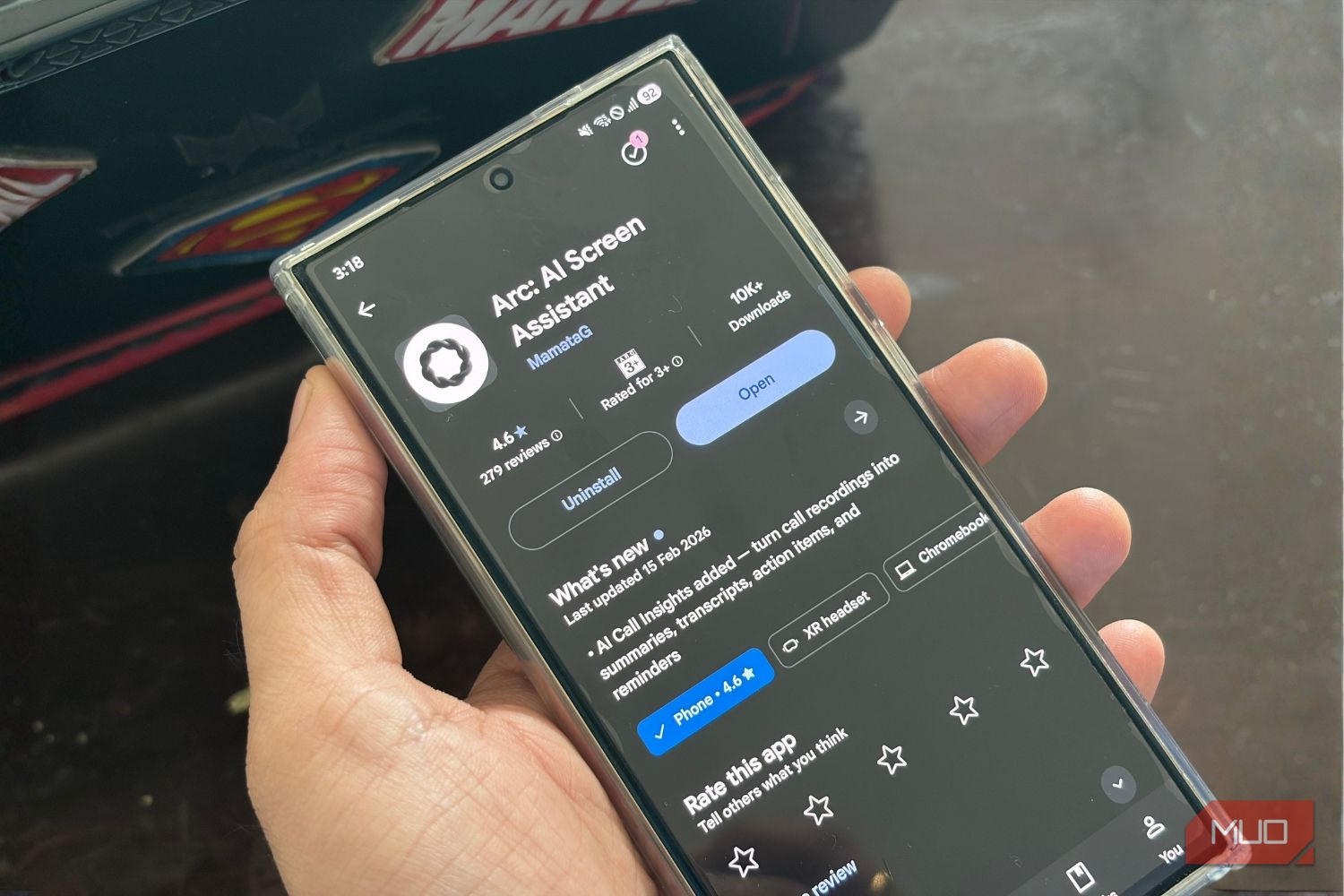
Fed up with constantly switching between apps just to use your AI assistant? Whether you're trying to summarize a lengthy article, draft a quick email, or understand complex information, the 'app-switching dance' can seriously disrupt your workflow and productivity. Thankfully, there's a smarter way to integrate AI directly into your Android experience.
This guide introduces you to the Arc AI Assistant, an innovative overlay app that brings the power of AI right to your fingertips, no matter what app you're currently using. Imagine having a personal AI that lives in a hidden sidebar, ready to assist with a simple swipe. That's the seamless experience Arc offers, transforming how you interact with your Android device.
What You'll Accomplish
By the end of this guide, you will be able to:
- Understand the benefits of a system-wide AI assistant.
- Install and set up the Arc AI Assistant on your Android device.
- Utilize Arc's powerful features like instant summarization, context-aware writing, and smart data extraction.
- Integrate AI seamlessly into your daily tasks without ever leaving your current app, significantly boosting your mobile productivity.
Before You Begin: Requirements
To get started with Arc AI Assistant, you'll need:
- An Android smartphone.
- An active internet connection for AI processing.
- The Arc AI Assistant app downloaded and installed from your preferred app store (e.g., Google Play Store).
- Permission to grant Android Accessibility Services for Arc to function correctly.
Getting Started with Arc AI Assistant
Integrating Arc into your Android workflow is straightforward. Follow these steps to set up and start using this powerful overlay tool:
Step 1: Download and Install Arc AI Assistant
Search for "Arc AI Assistant" in your Android device's app store and proceed with the installation. Once installed, open the app to begin the initial setup.
Step 2: Grant Accessibility Services Permission
Arc requires Android Accessibility Services to read your screen content and overlay its features. When prompted, you'll need to navigate to your device's Accessibility settings and enable Arc AI Assistant. Arc respects your privacy: it does not monitor your screen in the background and only reads text when you explicitly activate an action like "Summarize" or "Chat."
Step 3: Understand the Floating Sidebar
Once enabled, Arc AI Assistant operates as a hidden floating sidebar, similar to the Edge Panels found on some Samsung Galaxy phones. A quick swipe from the edge of your screen (usually left or right, depending on your settings) will bring the sidebar into view, instantly overlaying whatever app you're currently using. This means you can summon Arc over WhatsApp, Gmail, your browser, or any other application.
Unleash Productivity: Key Features of Arc AI Assistant
Arc brings several powerful AI capabilities directly to your screen, designed to save you time and effort.
Harness Instant AI Summarizer
Reading lengthy articles, dense Reddit threads, or long documents on your phone can be exhausting. Arc's Instant AI Summarizer cuts through the clutter.
- Open the content: Navigate to the long article, email, or web page you want to summarize.
- Summon Arc: Swipe from the edge of your screen to open the Arc sidebar.
- Select Summarizer: Choose the "Instant AI Summarizer" option within Arc.
- Get Insights: Within moments, Arc will analyze the on-screen content and provide key insights, pros and cons, or even alternatives related to the topic. It also tracks the source URL, so you can easily return to the original content.
Tip: While highly effective, note that this feature might not work seamlessly with all browsers. For example, it has been observed not to function when used on Samsung Internet Browser. If you encounter issues, try using a different browser.
Draft Replies with Context-Aware Suggestions
Crafting professional or polite replies on a mobile keyboard, especially when you're busy, can be a pain. Arc's AI writer, featuring Context-Aware Suggestions, simplifies this process.
- View the message: Open the email or chat message (e.g., Slack, Gmail) you need to reply to.
- Activate Arc: Swipe to bring up the Arc sidebar.
- Use Suggestions: Select the "Context-Aware Suggestions" feature. Arc will understand the conversation on your screen.
- Generate Reply: Tap on options like "Polite" or "Professional" to instantly draft a contextual reply, which you can then drop directly into your messaging or email app.
Personalize Responses with My Info Vault
Do you find yourself repeatedly typing the same personal details, like your professional bio, dietary preferences, or portfolio links? My Info Vault stores this reusable information.
- Populate Vault: Go into Arc's settings and add your frequently used personal information to "My Info Vault."
- Access on Demand: When Arc is generating a response (e.g., through Context-Aware Suggestions), it can draw upon this stored information to create highly personalized replies without you having to type them out each time.
Understand Anything with Chat With Your Screen
Sometimes, a message isn't just long; it's confusing. Arc's "Chat With Your Screen" feature allows you to interact with your on-screen content for deeper understanding.
- Display content: Open the confusing message, document, or image (e.g., an energy bill with a complex graph).
- Summon Arc: Open the Arc Assistant sidebar.
- Initiate Chat: Choose the "Chat With Your Screen" feature.
- Ask Questions: Type your query, such as "explain why there is a spike in the graph like I'm 5." Arc will analyze the visual and textual information to provide a digestible explanation.
Act on Information Instantly with Smart Extract
Arc can intelligently detect actionable information on your screen, saving you the hassle of manually copying and pasting details.
- View content: Display any content containing addresses, dates, phone numbers, or other relevant data.
- Activate Arc: Bring up the Arc sidebar.
- Utilize Smart Extract: Arc automatically checks for and highlights actionable info.
- One-Tap Action: You'll be presented with one-tap options to instantly add detected dates to your Google Calendar or open addresses directly in Google Maps.
Tips for Seamless Integration & Troubleshooting
- Privacy Assurance: Remember, Arc's use of Accessibility Services is designed with your privacy in mind. It only reads your screen when an action is explicitly requested, and your personal memories and history are stored securely on your local device. This ensures your data remains under your control.
- Financial App Security: For enhanced security, Arc automatically disables itself when you open over 200 recognized banking, cryptocurrency, or password manager apps. It's always a good practice to verify if your specific financial applications are supported by this automatic disabling feature before using Arc extensively.
- Browser Compatibility: If you encounter issues with the Instant AI Summarizer, particularly on specific browsers like Samsung Internet Browser, try switching to an alternative browser for that task.
Embracing Your New AI Workflow
Once you integrate Arc AI Assistant into your daily routine, you'll likely find that your other dedicated AI apps start gathering 'digital dust.' Arc serves as an all-in-one tool, eliminating the need to search for the best AI app for a particular task. Its system-wide, overlay functionality truly brings AI to your work, rather than forcing you to bring your work to the AI. Enjoy a smoother, more efficient, and interruption-free Android experience!
FAQ
Q: Is Arc AI Assistant constantly monitoring my screen in the background?
A: No, Arc AI Assistant is designed with privacy in mind. It only reads the text on your screen when you explicitly tap an action, such as "Summarize" or "Chat With Your Screen." It does not continuously monitor your screen in the background.
Q: Does Arc AI Assistant work with every Android app?
A: Arc is a system-wide assistant designed to work across nearly all Android applications, including messaging apps, social media, and browsers. However, please note that the Instant AI Summarizer feature has a known limitation with Samsung Internet Browser, and Arc automatically disables itself when you open recognized banking, crypto, or password manager apps for security reasons.
Q: How does Arc AI Assistant handle my personal data and history?
A: Arc prioritizes local storage for your data. Your memories and interaction history are stored securely on your local device, ensuring your personal information remains private and under your control.
Related articles
Android 17 QPR2 Beta 7.1: The Performance Relief You've Been Waiting
Android 17 QPR2 Beta 7.1: Finally Fixing the QPR1 Performance Woes Verdict: Android 17 QPR2 Beta 7.1 is a crucial and highly anticipated software update for Google Pixel users, specifically targeting and resolving the

Ditch Merge & Center: The Better Way to Align Text in Excel
Learn to use Excel's "Center Across Selection" to align text across cells without merging, avoiding common data manipulation issues. This guide provides steps to utilize this newly accessible feature and add it to your Quick Access Toolbar.

Stop Android Auto Battery Drain: Essential Features to Disable and
Android Auto offers unparalleled convenience, bringing your phone's most useful features directly to your car's display. From navigation and calls to messages and music, it keeps you connected without distracting you

Turn Your Android Phone into a Powerful Desktop Replacement
Learn how to transform your Android phone into a full-fledged desktop computer using external displays and accessories, providing a cost-effective and integrated alternative to new Googlebooks.
Android Auto 18 Beta: Glimpse into Google's Car Makeover
Verdict: A Sneak Peek at Tomorrow's Drive Android Auto 18.0 beta isn't the flashy, fully-realized redesign many might be hoping for, but it offers an invaluable look under the hood. What Google is signaling here,

howto: Four Ways the Fitbit Edge Is Better Than the Charge 6, and Two
Learn the key differences between the Fitbit Edge and Charge 6, including four advantages of the Edge and two areas where it falls short, to help you choose the best fitness tracker for your needs.