
How to Get Your Google Maps Monthly Travel Recaps
Learn to enable Google Maps monthly travel recaps to see your journeys and visits, with step-by-step instructions and privacy tips. Discover what your recaps include and troubleshoot common issues.
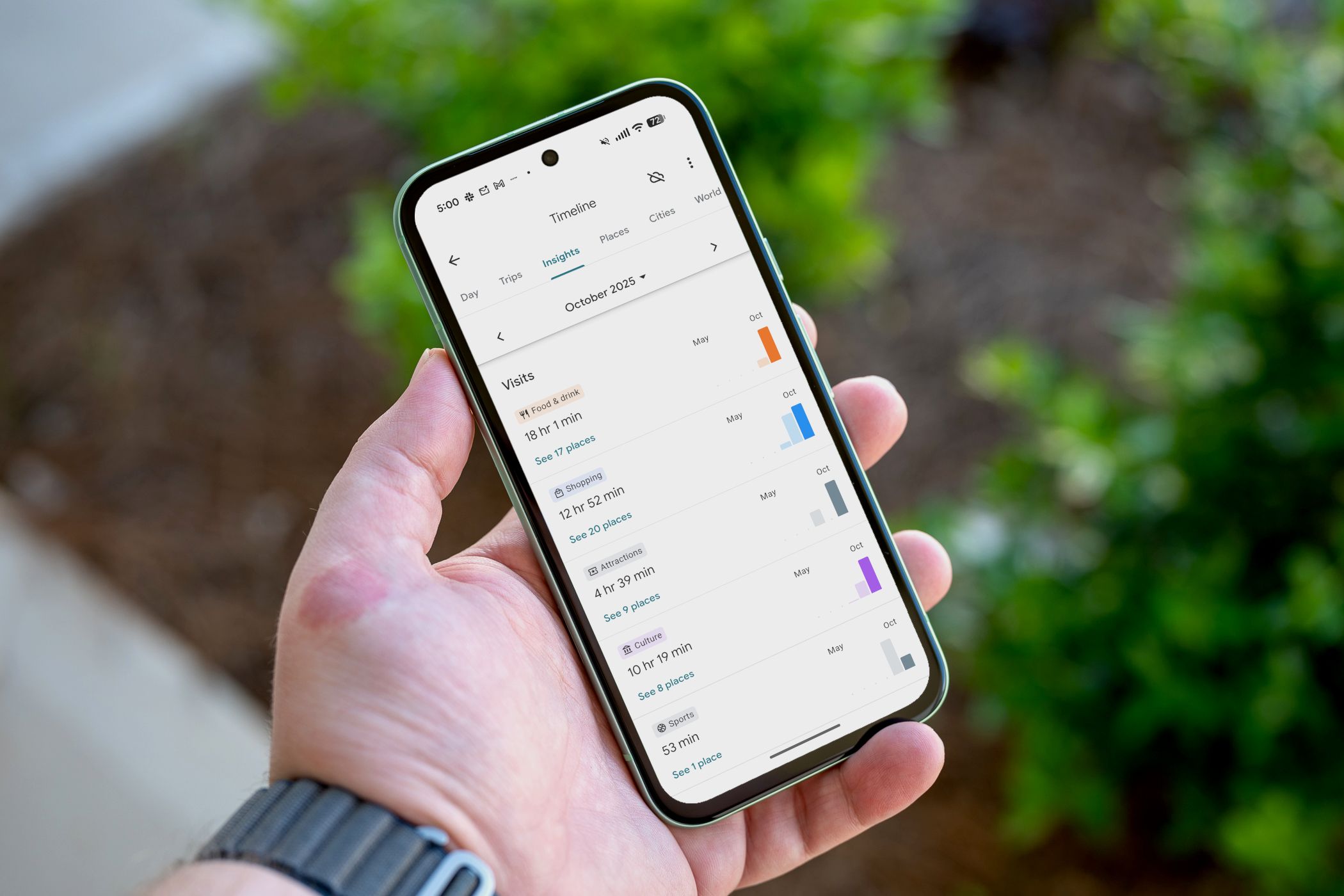
Recaps are a fun way to reflect on your travels, and Google Maps offers monthly travel recaps that summarize your journeys and visits directly on your phone. In 2024, Google updated its location data storage for enhanced privacy, moving it primarily to your device instead of the cloud. This means you can no longer view your Timeline on the web or across multiple devices. As a result, Google has stopped sending monthly recap emails; now, you'll receive a notification directly within the Google Maps app, inviting you to view your latest recap. This guide will show you how to activate and receive these personalized insights, along with essential privacy tips. Get ready to explore your past adventures!
Prerequisites
To successfully receive your Google Maps monthly travel recaps, ensure you have the following:
- Google Maps App: Installed and updated on your Android or iPhone.
- Active Location History: Your device's location services and Google Account's Location History must be enabled for Google Maps to record your movements.
- Internet Connection: Required for initial setup and periodically to ensure data syncing and notification delivery.
Step-by-Step Guide: Enabling Google Maps Monthly Recaps
Step 1: Activate Your Google Maps Timeline
The foundation for your travel recaps is the Google Maps Timeline feature. If it's not already on, here's how to enable it:
-
Open Google Maps.
-
Tap your profile icon in the top right corner of the screen.
-
Select "Your Timeline."
-
If your Timeline is currently off, you’ll see a prompt floating over the map that says "Timeline is off." Tap on this message.
-
You'll be directed to your Google Account settings, specifically the Timeline section. Tap the prominent "Turn on" button. Read through the information page that appears, then tap "Turn on" once more to confirm your decision. Don't tap "Got it" just yet, as we have another important setting to adjust.
- Privacy Tip: Set Up Auto-Delete Immediately after enabling your Timeline, you'll notice a related control: "Set up auto-delete for Timeline." This is a crucial step for maintaining your privacy while still enjoying the recap feature. You have the option to automatically delete your location data after 3 months, 18 months, or 36 months. Choosing any of these options is better than never deleting your history, providing a good balance between insight and data control. Select the duration that best suits your comfort level.
Step 2: Enable Monthly Recap Notifications
With your Timeline active, the next step is to ensure you actually get notified when your monthly recap is ready.
- Return to the Maps home screen.
- Tap your profile icon again.
- From the menu, select "Settings," then scroll down and tap "Notifications."
- Within the Notifications section, tap on "Location and profile."
- Locate the setting titled "Google Maps timeline." Turn this toggle to "On" to receive push notifications. Alternatively, if you prefer to only see the notification appear when you open the app, you can set it to "App only."
Now, you’re all set! When your monthly recap is ready, you'll receive a notification titled "Your [Month] Timeline: See new travel & visit insights." Tapping this notification will take you directly to the "Insights" tab within your Timeline, with the past month's data pre-selected for your review. You can also manually access this screen anytime by navigating through your profile icon > Your Timeline > Insights, and then using the month drop-down selector.
What Your Monthly Recap Includes
Once enabled, your Google Maps monthly recap offers a detailed summary of your movements:
- Travel Section: The top part shows miles covered by walking, driving, cycling, public transit, and more. Bar graphs compare current activity to past months.
- Visits Section: This lists categories of places you visited (e.g., "Food & Drink," "Shopping," "Attractions"). It displays time spent in each, with an option to "See places" for specific locations. Bar graphs also show comparisons.
- Highlights Section (if applicable): For active months, this section points out noteworthy activities, like "You visited 3 bars in September," highlighting changes from previous months.
These recaps offer a fascinating personal snapshot, easily accessible via monthly notifications.
Troubleshooting Tips
-
"I haven't received a recap notification."
- Verify Settings: Double-check that "Your Timeline" (Step 1) and "Google Maps timeline" notifications (Step 2) are enabled.
- Location History: Ensure your device's location services and Google Account's Location History are active.
- Patience: If newly enabled, allow a full month for your first recap to compile.
-
"My recap data seems inaccurate or incomplete."
- High Accuracy Location: Set your phone's location settings to high accuracy.
- App Usage: Regularly opening Google Maps and granting background location permissions helps improve data collection.
-
"Can I access old recaps or view them on other devices?"
- Due to Google's 2024 shift to on-device storage, Timeline data and recaps are generally only viewable on the collecting device. Older cloud-based recaps (pre-2024) are not accessible via this new app system.
Next Steps
Now that you know how to get your monthly travel recaps, feel free to explore your Timeline further. You can manually browse your history by day, week, or month, and even edit places or activities if something was misidentified. Regularly reviewing your auto-delete settings is also a good practice to manage your data privacy effectively. Enjoy reflecting on your journeys and discovering new patterns in your movements!
FAQ
Q: Why did my monthly recap emails stop?
A: Google stopped sending recap emails after a 2024 privacy update. Location data is now primarily stored on your device, with recaps delivered as in-app notifications.
Q: Can I see recaps from previous years or on other devices?
A: With on-device storage, recaps are generally accessible only on the specific device that collected the data. Old cloud-based recaps (before 2024) are not available through this new app system.
Q: How can I improve the accuracy of my Google Maps recaps?
A: Ensure your phone's location services are set to high accuracy and that Google Maps has background location permissions. Regularly opening the app also helps gather comprehensive data.
Related articles
Google Fitbit Edge Review: Your Anti-Smartwatch Fitness Sweet Spot
Learn if the Google Fitbit Edge is the right fitness tracker for you, balancing core health features with a simplified experience. Discover its design, advanced tracking, and software insights to make an informed decision.

AI's Hunger Pains: Google's Data Centers Bring Wolves to Finland's
Alright, gamers, gather 'round, because we've got a wild one that sounds like it was ripped straight from a post-apocalyptic survival sim. You know how AI is all the rage, powering everything from our favorite NPCs to
Unlock Your Pixel's Hidden Potential: Essential Features to Enable
Learn to enable six essential features on your Pixel phone, including Lockscreen Widgets, Screen Saver, Notification History, Clear Calling, Smooth Display, and Adaptive Vibration, to enhance your user experience in just a few steps.
Enable LE Audio on Android for Longer Earbud Battery Life
Learn to enable LE Audio on your Android phone in just a few steps to significantly extend your earbud's battery life, improve audio sync, and enhance connection stability.
6 3D Printing Projects to Make Your Home Feel Custom-Built
Discover 6 creative 3D printing projects to customize your home, from organizing cables and enhancing lighting to creating custom smart device mounts and modular storage systems, making your space truly your own.

The Boox Palma 2 Pro finally got me to stop reading on my phone
The $400 Boox Palma 2 Pro, an Android-powered E Ink e-reader, successfully replaces phone reading for many, offering a comfortable, eye-friendly experience. Its smartphone-sized design and Google Play access allow for diverse app use, despite some E Ink display limitations.