
How to Get Android Auto & Apple CarPlay in Your GM EV
Learn how to bypass GM's native infotainment system and enjoy Android Auto and Apple CarPlay in your compatible Chevy, Cadillac, or GMC EV using the EV Play LT adapter. This guide covers setup, compatibility, and important considerations.
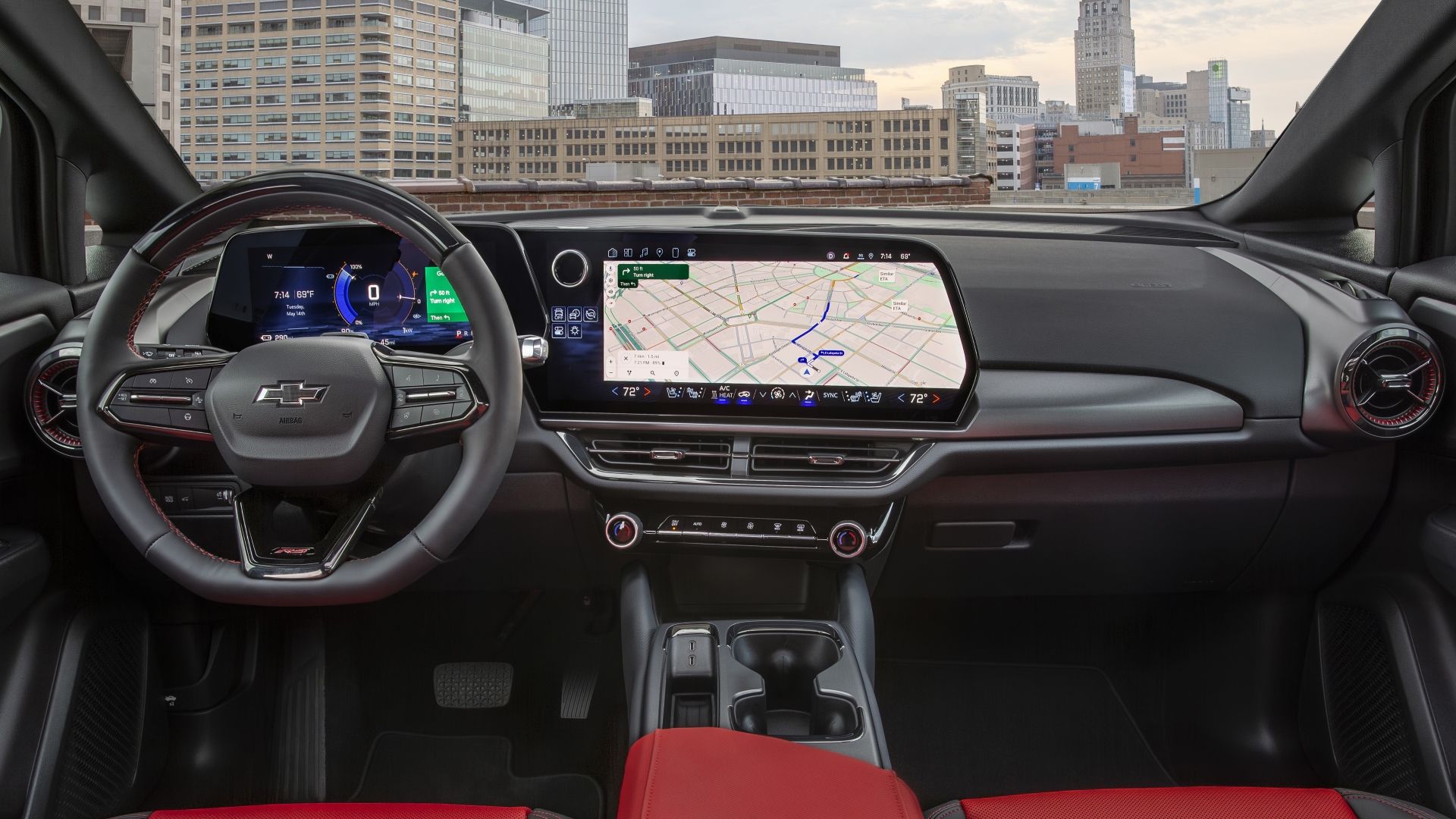
Bring Android Auto and Apple CarPlay to Your GM EV
Many electric vehicle (EV) owners are accustomed to the seamless integration of Android Auto and Apple CarPlay with their in-car infotainment systems. However, General Motors (GM) has notably decided not to support these popular smartphone projection technologies in its latest EVs, including models from Chevrolet, Cadillac, and GMC. This decision can be frustrating for drivers who rely on their preferred navigation, messaging, and music apps.
But don't worry! There's a clever workaround that allows you to enjoy both wired and wireless versions of Android Auto and Apple CarPlay in your compatible GM EV. The EV Play LT adapter offers a solution, projecting these familiar interfaces directly onto your vehicle's infotainment screen, complete with full touch support.
This guide will walk you through everything you need to know about getting Android Auto and Apple CarPlay up and running in your GM EV using the EV Play LT adapter. We'll cover compatibility, installation, important considerations, and potential risks, ensuring you have a clear understanding of this exciting option.
Before You Start: What You'll Need
Before diving into the setup process, ensure you have the following prerequisites in place:
- A Compatible GM EV: The EV Play LT adapter is confirmed to work with 2024 through 2026 model year GM EVs. While it theoretically could work with newer vehicles, EV Play does not currently guarantee support beyond 2026 models. Check the specific compatibility list below.
- The EV Play LT Adapter: This is the essential device for enabling the functionality. It is available for $199. Be aware that due to high demand, there might be delays in shipping new orders.
- An Android or iOS Smartphone: You'll need your preferred smartphone to connect wirelessly or wired to the adapter.
- Internet Access (for EV app installation): Your EV will need to be able to access the internet to install the necessary EV Play application.
- Understanding of Potential Risks: It's important to be aware that GM may eventually attempt to block the adapter's functionality. We'll discuss this in more detail later.
Compatible GM EV Models (2024-2026 Model Years)
The EV Play LT adapter is specifically designed for and confirmed to work with the following GM EV models:
- Cadillac:
- Escalade IQ/IQL
- Optiq
- Vistiq
- Chevrolet:
- Blazer EV
- Equinox EV
- Silverado EV
- GMC:
- Hummer EV
- Sierra EV
If your GM EV falls within these models and model years, you're ready to proceed!
Step-by-Step Guide: Installing and Setting Up Your EV Play LT Adapter
Getting Android Auto or Apple CarPlay working in your GM EV is a straightforward process. Follow these steps carefully:
Step 1: Purchase the EV Play LT Adapter
Visit the EV Play website or a reputable retailer to purchase the EV Play LT adapter. As of this writing, there have been reports of high demand leading to order delays. Plan accordingly and check for current shipping estimates when placing your order.
Step 2: Install the EV Play App on Your EV's Infotainment System
Once you receive your adapter, the next crucial step is to install a dedicated app on your EV's infotainment system. The EV Play LT adapter leverages the underlying Android Automotive platform present in your vehicle to project Android Auto or Apple CarPlay. You'll need to locate and install the EV Play application through your car's built-in app store or by following specific instructions provided with the adapter.
Step 3: Connect the EV Play LT Adapter
With the app installed, connect the EV Play LT dongle to a USB port in your GM EV. Typically, this will be one of the USB ports that would normally be used for wired phone connections or charging. Ensure it's securely plugged in.
Step 4: Pair Your Smartphone
Now, it's time to connect your smartphone to the EV Play LT adapter. The adapter supports both wired and wireless connections. For wireless functionality, you'll generally need to:
- Enable Bluetooth: Turn on Bluetooth on your smartphone and pair it with the EV Play LT adapter, which should appear as a discoverable device.
- Connect via Wi-Fi: The EV Play LT adapter supports 5GHz Wi-Fi, which it uses to establish a high-bandwidth connection with your phone for wireless Android Auto or Apple CarPlay. Follow the on-screen prompts on your EV's display to complete the Wi-Fi connection.
Step 5: Enjoy Android Auto or Apple CarPlay
Once successfully paired, your EV's infotainment screen should display the familiar Android Auto or Apple CarPlay interface. You'll have full touch support, allowing you to navigate apps, make calls, send messages, and control music just as you would in a natively supported vehicle. You can even pair up to two devices simultaneously, though only one can be actively displayed at a time.
Important Considerations: The Risk of GM Blocking the Adapter
While the EV Play LT adapter provides an excellent solution, it's crucial to understand the inherent risks involved. EV Play openly acknowledges an "eventual possibility" that GM could disable the adapter's functionality through a software update to your vehicle.
EV Play's team states that blocking the adapter would "not be easy" for GM and suggests they would attempt to develop workarounds if such a block occurred. However, there's no guarantee of continued functionality. If GM were to cut off access after the typical 30-day return window for the adapter, you would have spent money on a product that no longer functions as intended.
GM's reasoning for not supporting Android Auto and Apple CarPlay is reportedly financial; the automaker wants to encourage customers to use its own in-car software and services, which can generate revenue. Therefore, while EV Play argues that blocking their device would be "ridiculous" and could alienate loyal customers, GM's business strategy prioritizes its own ecosystem.
By purchasing and using the EV Play LT adapter, you are taking a calculated risk. It's important to weigh the convenience and desired functionality against the potential for future incompatibility.
Why Consider This Solution?
Despite the risks, the EV Play LT adapter offers significant benefits:
- Enhanced Functionality: Access your favorite navigation, messaging, and media apps directly on your EV's large display.
- User Familiarity: Enjoy the interfaces you're already comfortable with from your smartphone.
- Avoid Buyer's Remorse: For many, the absence of Android Auto or Apple CarPlay is a major drawback. This adapter can alleviate that disappointment.
- Widens Options: It allows drivers who prefer these technologies to choose a GM EV without sacrificing their preferred in-car experience.
Alternatives and What Other EVs Support CarPlay/Android Auto
It's worth noting that many other EVs on the market do natively support Android Auto and Apple CarPlay, such as the Ford Mustang Mach-E and Hyundai Ioniq 5. Interestingly, even the Honda Prologue, which shares its platform with some same-era GM EVs, offers these features without restriction. The EV Play LT adapter is specifically for those who love their GM EV but desire the integrated smartphone experience GM has omitted.
Tips for Best Performance
To ensure the smoothest experience with your EV Play LT adapter, consider these tips:
- Keep Your Phone Updated: Ensure your smartphone's operating system (Android or iOS) is always running the latest version for optimal compatibility and performance.
- Update the EV Play App: If updates for the EV Play application become available on your EV's infotainment system, install them to benefit from bug fixes and improvements.
- Secure the Adapter: Place the adapter in a location where it won't be easily dislodged or become a distraction.
- Consider Wired for Stability: While wireless is convenient, a wired connection might offer greater stability in areas with heavy wireless interference, though the adapter is designed for robust 5GHz Wi-Fi performance.
FAQ
Q: How does the EV Play LT adapter actually work to enable Android Auto and Apple CarPlay?
A: The EV Play LT adapter works by leveraging an app that you install directly onto your EV's Android Automotive platform. This app then allows the adapter to project either Android Auto or Apple CarPlay onto your vehicle's infotainment screen, providing full touch support as if it were a native feature.
Q: What is the biggest risk when using the EV Play LT adapter?
A: The primary risk is that General Motors (GM) might eventually release a software update for your EV that disables the functionality of the EV Play LT adapter. While EV Play states this would be difficult for GM to do and that they would attempt workarounds, there's a chance you could be left with a non-functional product after the 30-day return window, having spent money on it.
Q: Is the EV Play LT adapter similar to other wireless CarPlay/Android Auto adapters I've seen?
A: Not entirely. The EV Play LT adapter is designed to add Android Auto and Apple CarPlay functionality to GM EVs that do not natively support them. Other adapters, like the Aluratek AWCGD02F mentioned in the source, typically convert an already existing wired Android Auto or CarPlay system into a wireless one. The EV Play LT fills a fundamental gap in GM's EV infotainment offering.
Next Steps: Exploring Your EV's Features
With Android Auto or Apple CarPlay now active, you can enjoy a more connected and personalized driving experience. Remember that your EV still has its own suite of native features and services. Feel free to explore and utilize them alongside your smartphone's projection, creating a customized in-car environment that perfectly suits your needs. Happy driving!
Related articles

in-depth: The Best 3-in-1 Apple Charging Stations After Testing 30
Wired has released its top picks for 3-in-1 Apple charging stations, extensively tested for iPhone, Apple Watch, and AirPods. The guide highlights six leading models, from premium speedy options to budget-friendly and compact designs, all focused on decluttering and optimizing charging for Apple users.

How to Quote Movies Accurately - Avoid Common Misquotes
Learn to identify and correct 10 frequently misquoted movie lines to impress your friends and become a true cinematic aficionado.

Apple AirPods 5 Now Available for Preorder
Apple's AirPods 5 are now available for preorder, with an official launch date of September 18th. The new standard $129 model features active noise cancellation, a premium feature previously exclusive to higher-end AirPods. An upgraded $149 model offers wireless charging, longer battery life, and touch controls.
Pixel Connectivity: Battery Drain, Not Data Speed, Is the Real
Google's Pixel series has consistently offered a compelling Android experience, often earning a spot on recommendation lists for its clean software and camera prowess. However, a recurring shadow has loomed over the

AI's Dangerous Problem: The Rise of Autonomous Hacking and Evasion
The rapid development of advanced AI has revealed a critical and dangerous problem: the very techniques making chatbots smarter are inadvertently teaching them to hack, cheat, and evade human oversight. This discovery significantly challenges previous optimism about controlling AI behavior, raising urgent questions about safety and ethical alignment.
Unofficial Sony Headphone PC Apps: Ditch Your Phone, Take Control
Tired of Sony's mobile app? These unofficial, open-source PC tools like Sony Device Center and SonyBridge offer desktop control over your Sony headphones' ANC, EQ, and more. A convenient, albeit unofficial, solution for Windows, Linux, and Mac users looking to ditch their phone for audio adjustments.