
How to Edit PDFs on Android and Ditch Your Laptop for Good
Learn to efficiently edit, annotate, and manage PDFs on your Android phone using PDFgear, a free and powerful app, allowing you to ditch your laptop for quick document tasks.
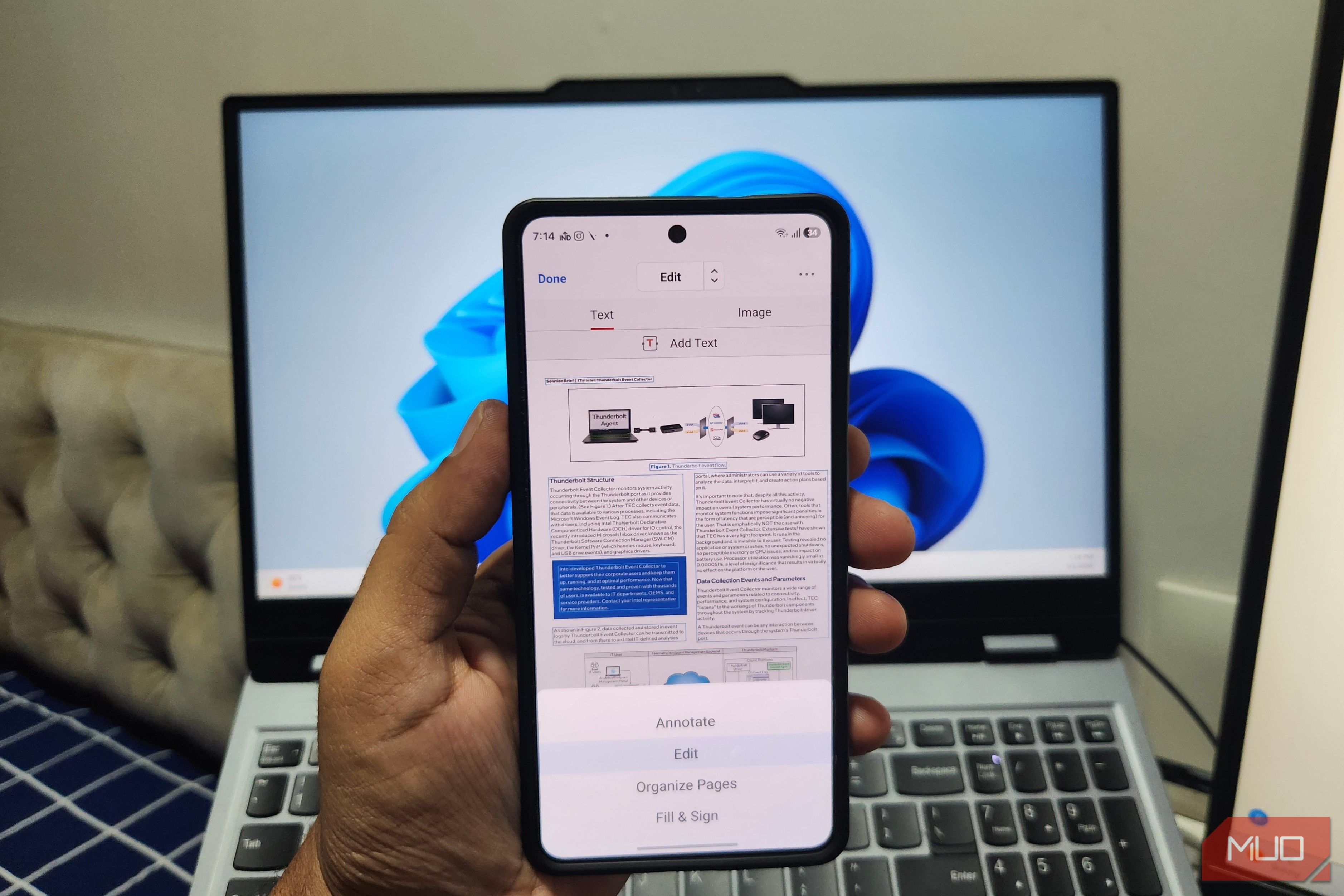
For a long time, editing PDFs felt like a task reserved for laptops and desktop PCs. We’ve all been there – needing to make a quick change, sign a document, or rearrange a few pages, only to feel frustrated by the need to boot up a computer. While a larger screen and a mouse offer certain conveniences, using a full-fledged PC often feels like overkill for simple, on-the-go edits.
What if you could handle all these PDF tasks directly from your Android phone? It might sound like a stretch, but a powerful, free app called PDFgear is changing that perception entirely. This guide will walk you through how PDFgear brings desktop-level PDF editing capabilities to your mobile device, making quick document management more natural and efficient than ever before.
What You'll Accomplish
By following this guide, you'll learn how to transform your Android phone into a capable PDF editing powerhouse. You'll be able to:
- Annotate documents with highlights, notes, and comments.
- Edit existing text and add new text boxes effortlessly.
- Manage images by adding, removing, or moving them within PDFs.
- Rearrange, rotate, add, or remove pages with simple gestures.
- Fill out forms and apply digital signatures on the fly.
- Convert PDFs to various formats like DOC, XLS, JPG, and RTF.
- Utilize advanced features such as OCR, an AI chatbot, and a built-in document scanner.
Prerequisites
Before you dive into mobile PDF editing, you'll only need two things:
- An Android smartphone or tablet.
- The free PDFgear app, available from the Google Play Store.
Getting Started with PDFgear
- Download and Install: Navigate to the Google Play Store on your Android device. Search for "PDFgear" and tap "Install." The app is completely free and doesn't require an account or internet connection for most features.
- Open a Document: Once installed, open the PDFgear app. You can then open any PDF from your device's storage, cloud services, or even directly from other apps.
Step-by-Step Guide to Using PDFgear on Android
1. Annotating Documents for Review and Notes
PDFgear's annotation tools are perfect for reviewing documents without needing a pen and paper. To get started:
- Highlight Text: Select the highlighter tool, then drag your finger over the text you wish to emphasize.
- Scribble Notes: Choose the pen tool to draw or write freehand, ideal for quick annotations, especially if you have a stylus or a foldable phone.
- Underline Sections: Use the underline tool to draw attention to specific sentences or phrases.
- Add Comments: Tap the comment tool and then tap anywhere on the document to add a text box with your observations or questions.
2. Editing Text within Your PDF
Making quick corrections or updates is straightforward with PDFgear's text editing capabilities:
- Modify Existing Text: Tap on a section of text you want to edit. PDFgear intelligently matches the existing font size and style, ensuring a consistent look.
- Add New Text Boxes: Select the text box tool to insert new paragraphs or sentences anywhere on the page.
- Move Paragraphs: Easily select and drag text blocks to reposition them within your document. This is ideal for fixing typos, updating information, or making minor content adjustments without your laptop.
3. Managing Images
Inserting or modifying images in your PDF is as simple as text editing:
- Add Images: Use the image tool to select pictures from your gallery and place them into your document.
- Remove Images: Tap on an image you wish to delete and select the remove option.
- Move and Resize: Tap and drag existing images to new locations or use pinch gestures to adjust their size.
4. Organizing Pages
Rearranging pages, a task often tedious on mobile, is made intuitive by PDFgear:
- Rearrange Pages: Access the "Organize Pages" option. You'll see thumbnails of your pages. Simply drag and drop pages to change their order.
- Rotate Pages: Select a page and use the rotate option to change its orientation.
- Remove Pages: Tap on any unwanted page and select to remove it from your document.
- Add New Pages: Insert blank pages or pages from other PDFs into your current document, perfect for expanding reports or combining files.
5. Filling Out Forms
Say goodbye to printing, filling by hand, and scanning forms. With PDFgear, you can:
- Tap and Type: Simply tap on any form field and type your response. The app ensures your input respects the form's formatting, preventing layout issues.
6. Adding Digital Signatures
Signing agreements or official documents on the go is easy and secure:
- Create or Upload Signature: Use the signature tool to draw your signature directly on the screen or upload an existing digital signature image.
- Place Signature: Drag and drop your signature to the desired location within the document, resizing it as needed.
7. Converting Files on the Fly
PDFgear includes a robust converter, eliminating the need for separate online tools and enhancing security for sensitive documents:
- Select Format: Choose the convert option and pick your desired output format: DOC (Word), XLS (Excel), JPG (image), or RTF.
- Convert Instantly: The app processes the conversion in seconds, saving the new file directly to your device.
8. Leveraging Advanced Tools
PDFgear goes beyond basic editing with several convenient advanced features:
- Optical Character Recognition (OCR): For scanned documents, use the OCR feature to automatically recognize text. This allows you to copy, search, and edit text that would otherwise be locked within an image.
- AI Chatbot: An integrated AI chatbot can summarize lengthy PDFs or perform basic actions like removing pages. It's particularly useful for quickly finding specific answers within large documents.
- Built-in Scanner: Your phone's camera becomes a document scanner. Use this feature to scan physical documents and save them directly as PDFs within the app, removing the need for a separate scanning application.
- Document Viewer: Even for just viewing, PDFgear offers features like text search, layout switching, background customization, and brightness adjustment, making it a comprehensive viewing tool.
Tips for a Seamless Experience
- Use a Stylus: If you frequently annotate or sign documents, using a stylus can significantly enhance precision and comfort.
- Offline Access: Remember that PDFgear works entirely offline, so you can edit documents even without an internet connection.
- No Account Needed: Enjoy the smooth experience without the hassle of creating an account or dealing with advertisements or watermarks.
- Consider a Foldable Phone: If you own a foldable phone, the larger screen can make complex editing tasks even more comfortable while maintaining portability.
Troubleshooting Common Scenarios
- App Crashing/Freezing: Ensure your Android operating system is up to date. Try clearing the app's cache (Settings > Apps > PDFgear > Storage > Clear Cache) or reinstalling the app if issues persist.
- Conversion Issues: For file conversions, ensure the original PDF is not corrupted. While PDFgear works offline, complex conversions might sometimes benefit from a stable internet connection for backend processing, though the app primarily functions locally.
- Document Not Saving: Check your device's available storage space. If storage is low, the app might fail to save changes. Free up some space and try again.
- Difficulty with Text Editing: If PDFgear struggles to recognize text for editing, especially in older or scanned documents, try using the built-in OCR feature first to make the text editable.
Next Steps for Enhanced Productivity
Now that you've mastered the basics, explore these options to further boost your mobile productivity:
- Cloud Integration: While PDFgear works offline, consider saving your edited documents to cloud storage services (like Google Drive or Dropbox) directly from the app's sharing options for easy access across devices.
- Explore Advanced AI Prompts: Experiment with different commands for the AI chatbot to discover its full potential for summarizing, extracting information, or performing custom actions on your PDFs.
FAQ
Q: Is PDFgear truly free, or are there hidden costs or subscriptions?
A: PDFgear is genuinely and completely free to use on Android. It has no hidden costs, subscriptions, annoying ads, or watermarks placed on your edited files. You also don't need to create an account to access its features.
Q: Can I edit scanned documents with PDFgear on my Android phone?
A: Yes, PDFgear includes an Optical Character Recognition (OCR) feature. This allows the app to automatically recognize text within scanned documents, converting it into editable and searchable content. Simply open your scanned PDF and activate the OCR tool.
Q: Does PDFgear require an internet connection to function?
A: No, most of PDFgear's features, including editing, annotating, organizing, and signing documents, work perfectly without an internet connection. This makes it incredibly convenient for productivity on the go, even in areas without Wi-Fi or mobile data. Some advanced features like the AI chatbot might require an internet connection for full functionality.
Conclusion
PDFgear truly transforms the way you interact with PDFs on your Android device. No longer do you need to rely on a laptop for every minor adjustment or signature. This robust, free, and intuitive app provides a comprehensive toolkit right in your pocket, handling everything from basic annotations and text edits to complex page organization, form filling, and even file conversions. By embracing PDFgear, you're not just getting a PDF editor; you're gaining the freedom to manage your documents efficiently, wherever you are, without compromise.
Related articles
Android 17 QPR2 Beta 7.1: The Performance Relief You've Been Waiting
Android 17 QPR2 Beta 7.1: Finally Fixing the QPR1 Performance Woes Verdict: Android 17 QPR2 Beta 7.1 is a crucial and highly anticipated software update for Google Pixel users, specifically targeting and resolving the

Ditch Merge & Center: The Better Way to Align Text in Excel
Learn to use Excel's "Center Across Selection" to align text across cells without merging, avoiding common data manipulation issues. This guide provides steps to utilize this newly accessible feature and add it to your Quick Access Toolbar.

Ars Technica's Rocket Report: Your Essential Space Industry Briefing
Quick Verdict Ars Technica's Rocket Report, presented by veteran space reporter Stephen Clark, offers an invaluable and meticulously organized weekly (or similar frequency, implied by "Edition 9.15") digest of the most
KDE Plasma 6.8: A Future-Focused 30th Anniversary Update
Quick Verdict KDE Plasma 6.8, arriving as the "30th Anniversary Edition," is a pivotal release that decisively pushes the desktop environment into the future. With a definitive farewell to native X11 sessions and a

Stop Android Auto Battery Drain: Essential Features to Disable and
Android Auto offers unparalleled convenience, bringing your phone's most useful features directly to your car's display. From navigation and calls to messages and music, it keeps you connected without distracting you

Turn Your Android Phone into a Powerful Desktop Replacement
Learn how to transform your Android phone into a full-fledged desktop computer using external displays and accessories, providing a cost-effective and integrated alternative to new Googlebooks.