
How to Create Your Own Custom Map in Google Maps: Personalize Your
Learn to create personalized custom maps in Google Maps by using the "Lists" feature to organize locations, plan trips, and document your favorite places.
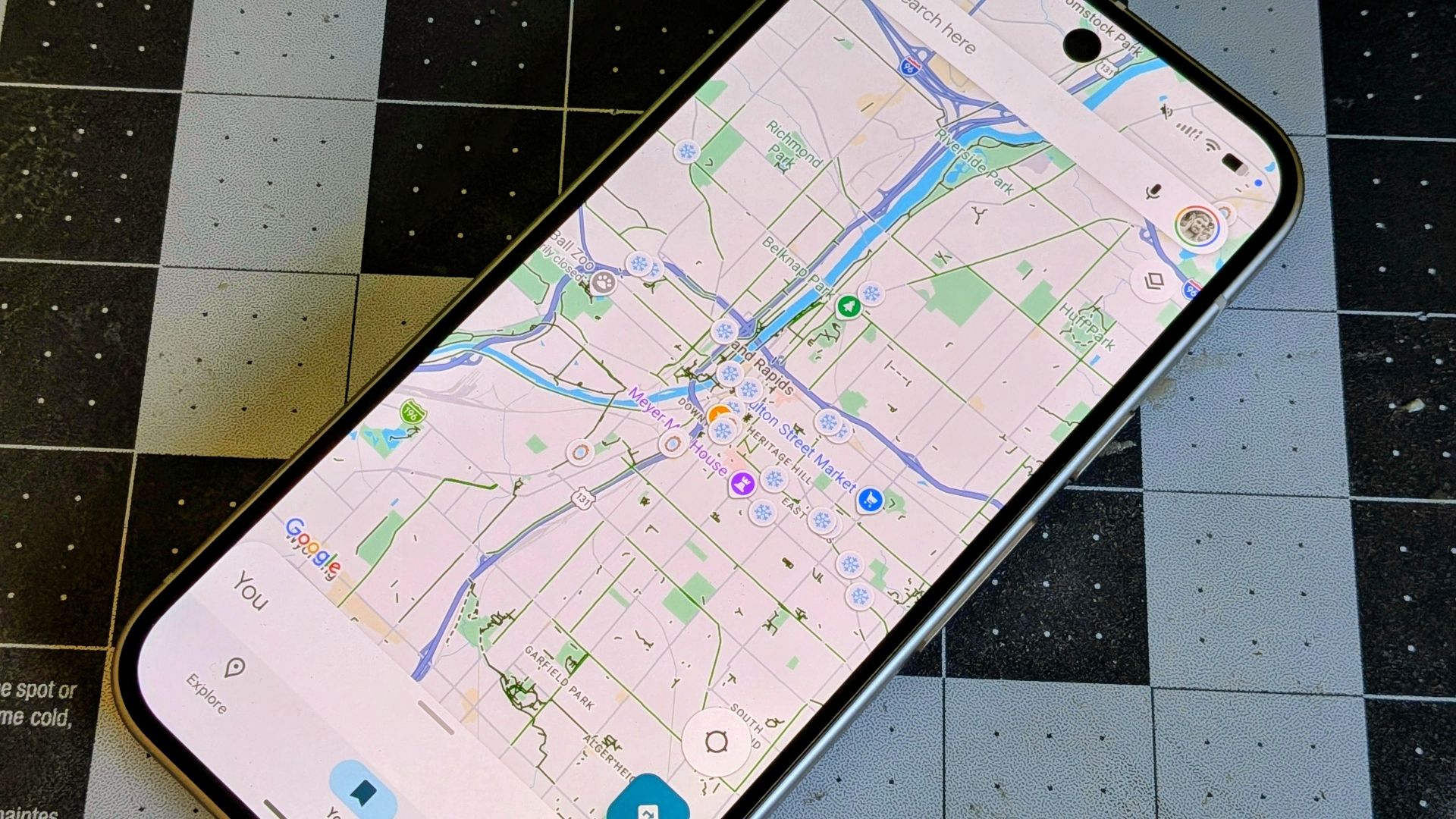
How to Create Your Own Custom Map in Google Maps: Personalize Your Travel & Exploration
Google Maps is an indispensable tool for navigation and discovery, helping us find places, explore new routes, and locate services. Beyond its core navigation features, Google Maps offers a powerful tool called "Lists" that allows you to create your own custom maps. These custom maps can serve as a personal travel journal, an itinerary planner, or simply a way to remember important locations.
By organizing saved places into personalized lists, you transform your Google Maps experience into an interactive record of your journeys and discoveries. You can add notes to each location and a general description to the list, ensuring you always recall the significance of each saved spot.
This guide will walk you through the simple steps to create your custom maps, helping you curate your own unique mapping experience, whether you're planning a trip, exploring your local area, or simply documenting your favorite places.
Prerequisites:
- A device with the Google Maps app installed (e.g., smartphone, tablet).
- A Google Account to sign in to Google Maps.
- An active internet connection.
Step 1: Identify and Select a Location
To begin creating your custom map, you first need to choose a location you wish to save. This can be an existing place that already has a listing in Google Maps (like a restaurant, landmark, or hotel), or it can be a specific spot on the map where you want to drop a pin.
- To select an existing place: Search for the location using the search bar at the top of the Google Maps app. Once found, tap on its listing to view its details.
- To drop a pin manually: If the location doesn't have an official listing or you want to mark a precise spot, simply tap and hold your finger on the desired place on the map for a couple of seconds. A red pin will appear, and a panel with location details will slide up from the bottom of the screen.
Step 2: Initiate the Saving Process
Once you have selected a location or dropped a pin, a panel displaying information about that spot will appear. Look for the "Save" or bookmark icon within this panel. Tapping this icon will open the options for adding the location to one of your lists.
- Tap the Save (bookmark) icon. This will present you with a list of default saving options, such as "Favorites," "Want to go," or "Starred places," along with any existing custom lists you may have created.
Step 3: Create a New, Personalized List
While Google provides some general lists by default, the essence of creating a custom map lies in making your own personalized lists. This allows you to organize places exactly how you prefer.
- From the list of saving options, tap on New List. This will open a screen where you can define your new custom map.
- Name your list: Give your list a descriptive name that reflects its purpose (e.g., "Paris Honeymoon 2023," "Best Coffee Shops in My City," "European Bakeries").
- Add a description (optional): Provide more context for your list. This can be a short summary of what the list contains or its overall theme.
- Choose an icon (optional): Select an appropriate icon to visually represent your list on the map and in your saved places.
Step 4: Add the Location to Your New Custom Map
After you've named, described, and optionally added an icon to your new list, the final step is to confirm adding the selected location to it.
- Once you've finished customizing your new list, tap the button to Create or Save (the exact wording may vary slightly).
- The location you initially selected or the pin you dropped will now be saved to your newly created custom map (list). You will see a unique label appear on your main Google Maps view, marking the saved spot.
Tips for Maximizing Your Custom Maps
- Organize Your Lists Flexibly: You have complete freedom in how you structure your custom maps. You might create one general list for an entire city or region you're visiting, or you could create multiple specialized lists based on categories, such as "Best Bakeries in Paris" or "Historical Sites in Rome." The key is to organize them in a way that is most intuitive for you.
- Collaborate by Sharing: Google Maps allows you to share your custom lists with others. This feature is incredibly useful if you're traveling with a partner or a group of friends, enabling everyone to contribute to the same map, coordinate meeting points, or simply share interesting spots. Remember to add notes so collaborators understand why a place is on the list!
- Add Detailed Notes: For each location you save, you can add personal notes. This is where your custom map truly becomes a journal. Jot down why you saved a place, what you liked about it, or any specific details you want to remember. You can also add a general description to the entire list to summarize its purpose.
- Use for Local Discoveries: Custom maps aren't just for international travel. They are perfect for organizing local spots you frequent or want to explore. Keep a list of your favorite coffee shops, restaurants to try, or interesting landmarks in your own city or nearby towns as handy reminders.
- Retroactive Mapping: Even if you regret not starting sooner, you can always create lists for places you've already visited and add them retroactively. This allows you to build a comprehensive travel history over time.
Frequently Asked Questions
Q: Can I share my custom maps (Google Maps Lists) with friends or family? A: Yes, Google Maps allows you to share your custom lists. This is an excellent option for coordinating trips with partners or groups, making it easier for everyone to explore and contribute to the same collection of places.
Q: Can I create a traditional, time-specific itinerary using Google Maps Lists? A: While Google Maps Lists are superb for organizing locations, they don't offer an easy way to create a traditional, time-specific plan within the app itself. However, you can tap the "Share" button on your saved locations and integrate those links into an itinerary you create in another app.
Q: Do I need to be traveling to another country to start using custom maps? A: Not at all! Custom maps are incredibly versatile and beneficial for organizing places in your local area too. You can save your favorite coffee shops, local restaurants, or any points of interest in your own city or nearby towns as a personal reminder system.
Next Steps
With your first custom map created, the journey has just begun! Continue to add more locations, expand your lists, and explore your saved places using features like Google Street View. Over time, your Google Maps will transform into a rich, interactive world map, filled with your personal experiences and discoveries. Keep building your collection of places and make Google Maps truly your own personal guide.
Related articles
Android 17 QPR2 Beta 7.1: The Performance Relief You've Been Waiting
Android 17 QPR2 Beta 7.1: Finally Fixing the QPR1 Performance Woes Verdict: Android 17 QPR2 Beta 7.1 is a crucial and highly anticipated software update for Google Pixel users, specifically targeting and resolving the

Ditch Merge & Center: The Better Way to Align Text in Excel
Learn to use Excel's "Center Across Selection" to align text across cells without merging, avoiding common data manipulation issues. This guide provides steps to utilize this newly accessible feature and add it to your Quick Access Toolbar.

Ars Technica's Rocket Report: Your Essential Space Industry Briefing
Quick Verdict Ars Technica's Rocket Report, presented by veteran space reporter Stephen Clark, offers an invaluable and meticulously organized weekly (or similar frequency, implied by "Edition 9.15") digest of the most

Stop Android Auto Battery Drain: Essential Features to Disable and
Android Auto offers unparalleled convenience, bringing your phone's most useful features directly to your car's display. From navigation and calls to messages and music, it keeps you connected without distracting you
Google Gemini Task Update: Automation Just Got Smarter
Google Gemini Task Update: Automation Just Got Smarter Verdict: Google's latest update to Gemini, focused on its task automation capabilities, is a significant step forward in user experience. By rebranding 'Spark' as

Turn Your Android Phone into a Powerful Desktop Replacement
Learn how to transform your Android phone into a full-fledged desktop computer using external displays and accessories, providing a cost-effective and integrated alternative to new Googlebooks.