
How to Boost Your Desktop PC's Connectivity with a Thunderbolt Dock
Learn to expand your desktop PC's connectivity, consolidate peripherals, and declutter your workspace in 4 easy steps using a Thunderbolt dock, even without a laptop.
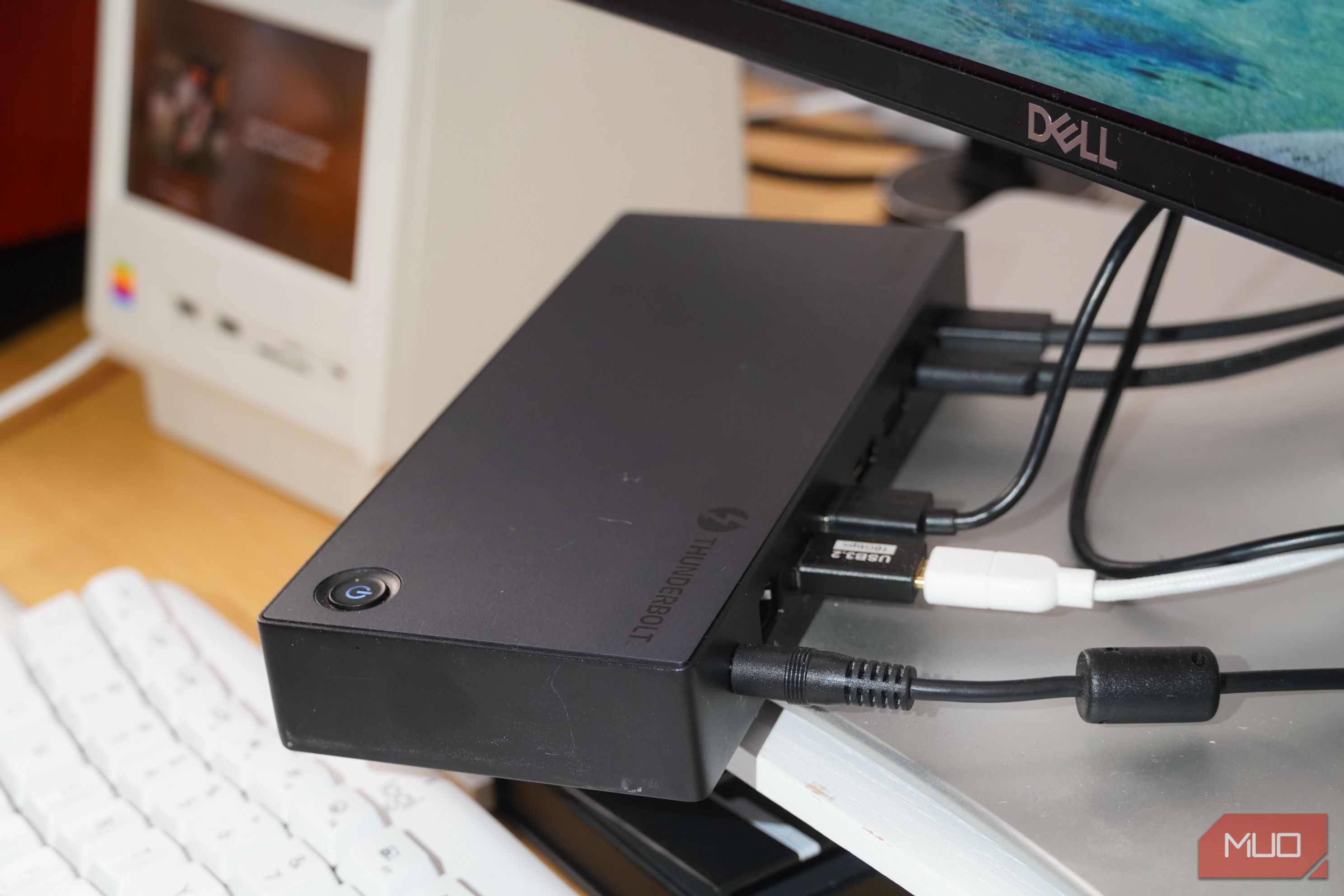
Introduction
Thunderbolt technology has revolutionized accessory connections, especially for laptops and tablets, allowing a single cable to manage multiple displays, peripherals, and storage. However, Thunderbolt docks offer immense utility beyond portable devices. Many users, like our source, find these powerful hubs indispensable for optimizing desktop workstations, providing a centralized connection point for accessories that would otherwise overwhelm a desktop's built-in ports. If you’re running a complex desktop setup with a Mac Mini or a Windows mini PC, a Thunderbolt dock can unlock its full potential.
What You'll Accomplish
By integrating a Thunderbolt dock into your desktop setup, you will:
- Expand your port selection: Overcome limitations on your desktop PC, gaining high-speed USB-A, USB-C, Ethernet, and various video outputs.
- Connect all essential peripherals simultaneously: Manage multiple displays, external storage, audio equipment, webcams, card readers, and specialized input devices from one central hub.
- Achieve a cleaner, organized workspace: Consolidate numerous cables into a single connection to your PC, reducing clutter and improving aesthetics.
- Enhance workflow efficiency: Gain convenient access to specialized ports like SD and microSD card readers, crucial for photography or transferring data.
- Future-proof your setup: Leverage Thunderbolt 4's 40Gbps data transfer and advanced video capabilities (e.g., single 8K or triple 4K displays).
Before You Begin: What You'll Need
To set up your desktop PC with a Thunderbolt dock, ensure you have:
- A Desktop Computer with Thunderbolt Ports: Such as a Mac Mini, a Windows 11 mini PC, or any desktop with at least one Thunderbolt 4 port.
- A Thunderbolt 4 Docking Station: Choose a dock offering the variety and number of ports you require, like a 13-in-1 station (e.g., Ugreen Revodok Max 313).
- Peripherals and Accessories: Gather all devices you intend to connect, including external displays, amplifiers, MIDI keyboards, optical drives, webcams, light bars, and other USB-A or USB-C devices.
- Thunderbolt Cables: Essential for connecting your dock to your PC and potentially other Thunderbolt-enabled devices.
Step 1: Assess Your Desktop's Port Limitations
Start by evaluating your desktop computer's existing ports. Compact desktops often have a limited number of accessible ports. For instance, a Mac Mini might offer key ports on the back, but only slower USB-C ports and an audio jack on the front. Similarly, Windows mini PCs might lack rear USB-C ports or have faster ports only on the front. This inconvenient placement and limited quantity often demand an external solution.
- Actionable Tip: Inventory your desktop's ports, noting their type, speed, and location. This helps identify precise connectivity needs for your Thunderbolt dock.
Step 2: Choose the Right Thunderbolt Dock
Thunderbolt docks are a significant investment, typically priced higher than standard USB hubs due to their advanced capabilities. When selecting a dock, consider:
- Port Variety: Look for a comprehensive selection of USB-A, USB-C, Ethernet, DisplayPort, HDMI, and crucial additions like SD and microSD card readers for diverse workflows.
- Data Transfer Speed and Video Output: Thunderbolt 4 docks inherently provide 40Gbps data transfer and support high-resolution video outputs (e.g., single 8K or triple 4K), features that justify their cost.
- Power Delivery (PD): While less critical for self-powered desktop PCs, PD can charge connected devices or offer future flexibility.
- Reliability: Research reputable brands and user reviews to ensure compatibility and long-term performance.
Step 3: Connect Your Dock to Your Desktop PC
This central connection activates all expanded functionality:
- Power On the Dock: Most Thunderbolt docks require external power. Plug the dock into a wall outlet using its dedicated power adapter.
- Connect to Your PC: Use a high-quality Thunderbolt cable to connect one of the dock's upstream Thunderbolt ports to a Thunderbolt 4 port on your desktop PC.
- Best Practice: Always use a Thunderbolt 4 port on your PC for the dock connection to ensure optimal bandwidth and full functionality.
Step 4: Integrate Your Peripherals with the Dock
With your Thunderbolt dock connected, begin plugging in all your accessories:
- Displays: Connect external monitors (e.g., ultrawide, secondary screens) to the dock's video output ports (DisplayPort, HDMI, or Thunderbolt passthrough).
- USB Devices: Plug in your USB-A and USB-C peripherals, such as your Stream Deck, webcam, desktop amplifier, MIDI keyboard, and optical drive.
- Card Readers: Utilize the integrated SD and microSD card readers for efficient data transfers from cameras or gaming handhelds, a feature many desktops lack.
- Networking: If available, connect an Ethernet cable to the dock for a stable wired network, freeing up your PC's port or adding one.
- Tip: By centralizing connections through the dock, you can route the main Thunderbolt cable discreetly to the back of your PC, maintaining a clean, clutter-free front desk area.
Enjoy Your Expanded and Tidy Workspace
Once all peripherals are connected, you'll immediately experience the benefits of a robust, versatile, and clutter-free workstation. Your desktop PC, be it a Mac Mini or a Windows mini PC, will seamlessly interact with numerous devices, transforming it into a powerhouse for photo editing, high-resolution audio, music creation, and general productivity, all while maintaining aesthetics. The source highlights how a single 13-in-1 Thunderbolt dock can manage a complex array of accessories, proving invaluable for a clean and efficient setup, even without a laptop.
Tips for Power Users
- Multipurpose Setups: A Thunderbolt dock is ideal for workstations serving multiple functions (work, gaming, creative projects). It centralizes specific peripherals, making task transitions smoother.
- Superior Cable Management: Docks significantly reduce cable clutter. With just one Thunderbolt cable to your PC, the dock handles all other connections, keeping your desk front clean, especially useful when PC ports are awkwardly located.
- Desktop-Centric Advantages: Using a Thunderbolt dock with a dedicated desktop PC avoids laptop-specific concerns like battery health management or thermal issues in a closed, docked state. Your primary computing device remains optimized and ready.
- Understanding the Investment: Thunderbolt docks are premium devices. Their cost reflects advanced features like 40Gbps data transfer, support for multiple high-resolution displays, and robust power delivery, ensuring high performance for demanding setups.
FAQ
Q: Why use a Thunderbolt dock with a desktop PC if it already has ports?
A: Desktop PCs often have limited or inconveniently located high-speed ports. A Thunderbolt dock significantly expands your available port selection (USB-A, USB-C, Ethernet, display outputs, SD/microSD readers), which is ideal for power users with many peripherals or for achieving a cleaner setup by centralizing cables.
Q: Are Thunderbolt docks expensive, and what justifies the cost?
A: Yes, they are generally more expensive than standard USB hubs. Their cost is justified by mandatory high-performance features, including 40Gbps data transfer speeds, support for high-resolution video transmission (single 8K or multiple 4K displays), and robust power delivery capabilities, ensuring top-tier performance and versatility.
Q: Can a Thunderbolt dock genuinely improve desk cable management?
A: Absolutely. A key benefit is consolidating numerous peripheral cables into a single Thunderbolt connection to your PC. This drastically reduces clutter, allowing for a much cleaner and more organized workspace, especially when your PC's fast ports are awkwardly placed at the front.
Next Steps
With your Thunderbolt dock enhancing your desktop's connectivity, consider:
- Optimize Your Setup: Refine cable management and peripheral placement for maximum efficiency.
- Explore Thunderbolt Accessories: Discover other Thunderbolt-enabled devices that could seamlessly integrate into your enhanced setup.
Related articles

Ditch Merge & Center: The Better Way to Align Text in Excel
Learn to use Excel's "Center Across Selection" to align text across cells without merging, avoiding common data manipulation issues. This guide provides steps to utilize this newly accessible feature and add it to your Quick Access Toolbar.

Ars Technica's Rocket Report: Your Essential Space Industry Briefing
Quick Verdict Ars Technica's Rocket Report, presented by veteran space reporter Stephen Clark, offers an invaluable and meticulously organized weekly (or similar frequency, implied by "Edition 9.15") digest of the most
KDE Plasma 6.8: A Future-Focused 30th Anniversary Update
Quick Verdict KDE Plasma 6.8, arriving as the "30th Anniversary Edition," is a pivotal release that decisively pushes the desktop environment into the future. With a definitive farewell to native X11 sessions and a

Stop Android Auto Battery Drain: Essential Features to Disable and
Android Auto offers unparalleled convenience, bringing your phone's most useful features directly to your car's display. From navigation and calls to messages and music, it keeps you connected without distracting you

Turn Your Android Phone into a Powerful Desktop Replacement
Learn how to transform your Android phone into a full-fledged desktop computer using external displays and accessories, providing a cost-effective and integrated alternative to new Googlebooks.

howto: Four Ways the Fitbit Edge Is Better Than the Charge 6, and Two
Learn the key differences between the Fitbit Edge and Charge 6, including four advantages of the Edge and two areas where it falls short, to help you choose the best fitness tracker for your needs.