
Fix Terrible Windows 11 HDR: Ensure You're Using the Right Laptop
Learn to fix poor Windows 11 HDR on your laptop by ensuring you're using the correct, high-wattage power adapter, not an underpowered USB-C charger, to unlock your display's full potential.
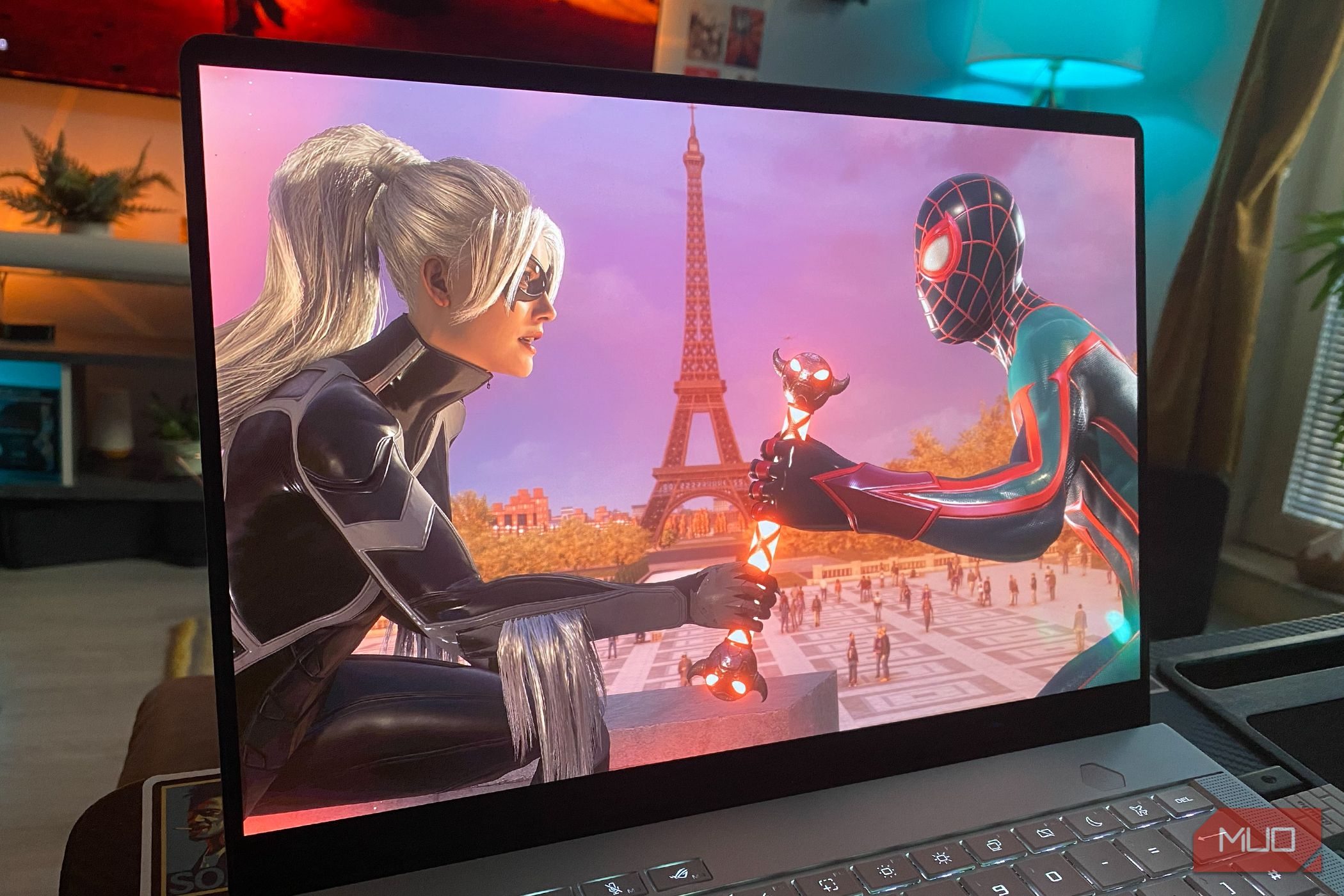
Windows 11 promises stunning High Dynamic Range (HDR) visuals, but for many laptop users, the reality can be a frustrating display of washed-out colors and disappointing performance. While Windows 11 HDR certainly has its quirks, one often-overlooked hardware mistake can be the root cause of your terrible HDR experience: using an underpowered charger.
This guide will walk you through understanding why your laptop's power adapter is crucial for HDR, how to identify and use the correct charger, and what to expect when you get it right. By the end, you'll know how to unlock your laptop's full HDR potential and transform your visual experience.
Prerequisites and Requirements
Before you dive in, ensure you have the following:
- An HDR-compatible Windows 11 laptop.
- Your laptop's primary power adapter (typically a barrel plug charger).
- (Optional) Any secondary USB-C power adapters you might use.
Why Your Laptop's Power Adapter is Critical for HDR Performance
High Dynamic Range (HDR) content is designed to deliver a vastly superior visual experience compared to Standard Dynamic Range (SDR). It achieves this by displaying a wider range of colors, brighter highlights, and deeper blacks. However, this enhanced visual fidelity comes at a significant power cost.
HDR content demands considerably more power from your laptop's display and graphics processing unit (GPU) than SDR. When HDR is enabled, the screen needs to push its overall brightness much higher. This increased demand on the panel, along with more intensive backlight control levels for LED screens, places a substantial strain on your system's power delivery.
Many laptop manufacturers, especially for high-performance gaming laptops, design their systems to operate optimally only when connected to their most powerful, dedicated charger. If your laptop is unplugged or using a weaker, underpowered adapter (such as a lower-wattage USB-C charger), it simply won't have the necessary juice to properly drive HDR. For instance, a 100W USB-C adapter may only provide half the power of a laptop's primary 180-200W barrel plug charger. In such cases, the laptop's mobile GPU will operate in a low-power state, resulting in severely crippled frame rates in games and display performance that can look eye-offending.
When your laptop can't meet the power demands for HDR, it may default to a subpar SDR mode or attempt to display HDR content with significantly reduced quality. This leads to common issues like:
- Washed-out colors: Colors lack vibrancy and depth.
- Raised black levels: Dark areas appear gray instead of true black.
- Poor contrast: The distinction between light and dark elements is diminished.
- Inaccurate tone mapping: Especially problematic for tasks like image editing, where color accuracy is vital.
Step-by-Step: Fixing Your HDR Power Mistake
Optimizing your laptop's HDR performance by using the correct power adapter is a straightforward process.
Step 1: Identify Your Laptop's Primary Power Adapter
Most gaming laptops or high-performance multimedia laptops come bundled with a dedicated, high-wattage power brick that connects via a barrel plug. This is typically the most powerful charger your laptop supports. If your laptop came with two different adapters (e.g., a barrel plug and a USB-C charger), carefully check the wattage ratings on both. The barrel plug adapter is almost always the one with the highest power output, designed for demanding tasks.
- Action: Locate your laptop's original power adapters. Read the wattage (W) printed on each brick to identify the highest-rated one.
Step 2: Connect Your Laptop to the Primary Charger for HDR Content
Whenever you plan to engage in activities that benefit from or require HDR, such as gaming, watching HDR movies, or editing HDR images, ensure your laptop is connected to its highest-wattage primary power adapter. This is crucial for providing the consistent, high-level power needed to properly activate and maintain HDR performance.
- Action: Disconnect any lower-wattage USB-C chargers (if applicable) and plug in your laptop's primary barrel plug charger. Ensure it's securely connected.
Step 3: Verify HDR Settings in Windows 11
With your laptop receiving maximum power, you can now confirm that Windows 11 is set to utilize HDR. While the focus of this guide is hardware, proper software settings are also necessary.
- Open Windows Settings: Press
Windows key + I. - Navigate to Display: Go to
System > Display. - Enable HDR: Under the 'Brightness & color' section, locate the 'HDR' setting. Toggle it
On. - Check HDR Display Capabilities: Click on 'HDR' to view your display's capabilities. Ensure 'Play streaming HDR video' and 'Use HDR' are enabled for your internal or external display.
- Action: Confirm HDR is enabled in your Windows 11 display settings.
Troubleshooting Tips
Even with the correct charger, Windows 11 HDR can sometimes be finicky. Here are some troubleshooting tips:
- Reconfirm Connection: Double-check that your primary, high-wattage barrel plug charger is firmly seated in your laptop's power port and connected to a working wall outlet.
- Driver Updates: Ensure your graphics drivers (NVIDIA, AMD, or Intel) are up to date. Outdated drivers can sometimes cause display issues.
- Windows HDR Quirks: Be aware that Windows 11 HDR still has general issues and may not function as smoothly as dedicated console HDR implementations. If visuals are still not perfect, your hardware is now at its best, and any remaining issues might stem from Windows 11's inherent HDR implementation.
Best Practices for Laptop HDR
- Prioritize Power: Always use your laptop's most powerful charger (the barrel plug) for any demanding tasks where HDR is beneficial, such as gaming, watching high-quality media, or professional content creation.
- Reserve Weaker Chargers: If you have a lower-wattage USB-C charger, reserve it for less power-intensive activities like web browsing, document writing, or light productivity where HDR isn't critical.
- Understand Battery Drain: Remember that HDR dramatically increases the demands on your laptop's battery. Manufacturers often disable HDR or cap brightness when unplugged to conserve power. If HDR is important, staying plugged in with the correct adapter is key.
Next Steps
Once you've optimized your laptop's power delivery for HDR, you might want to explore further refinements:
- Windows HDR Calibration: Windows 11 offers a built-in HDR calibration tool (
Settings > System > Display > HDR > Display calibration) to fine-tune your display for optimal HDR visuals. - Monitor Settings: If you're using an external HDR monitor, check its on-screen display (OSD) settings for any specific HDR modes or adjustments.
With the right power adapter, you can significantly improve your Windows 11 HDR experience, bringing vibrant colors and stunning contrast to your laptop screen.
FAQ
Q: Why does my laptop struggle with HDR when using a USB-C charger?
A: Many gaming laptops provide around 100W through USB-C, which is often half the power of the primary barrel plug adapter (180-200W). This reduced wattage is insufficient to deliver HDR-caliber results, leading to washed-out visuals, crippled frame rates, and an inability to properly display High Dynamic Range content.
Q: Why does HDR require so much power from my laptop?
A: HDR content significantly increases demands on a laptop's screen by pushing overall brightness much higher than SDR. This increased panel brightness and the demanding backlight control levels for LED screens drain battery life rapidly and stress the GPU pipeline, leading many manufacturers to disable or limit HDR unless the laptop is connected to its most powerful charger.
Q: My Windows 11 HDR still looks bad even with the right charger. What else could be wrong?
A: While using the correct, high-wattage charger is crucial for enabling HDR, Windows 11 HDR can still have general issues and may not function as smoothly as on modern consoles. If you've ensured your laptop is receiving maximum power, any remaining visual imperfections might stem from Windows 11's inherent HDR quirks or require fine-tuning through display calibration.
Related articles

Ditch Merge & Center: The Better Way to Align Text in Excel
Learn to use Excel's "Center Across Selection" to align text across cells without merging, avoiding common data manipulation issues. This guide provides steps to utilize this newly accessible feature and add it to your Quick Access Toolbar.

Mark Wahlberg on using AI in film ‘the right way’ and being open to
Actor Mark Wahlberg believes AI has a place in filmmaking if used responsibly for enhancement, not script generation or actor replacement. At TechCrunch Disrupt, he expressed openness to an AI likeness carrying on his legacy, managed by his family, and emphasized storytelling.
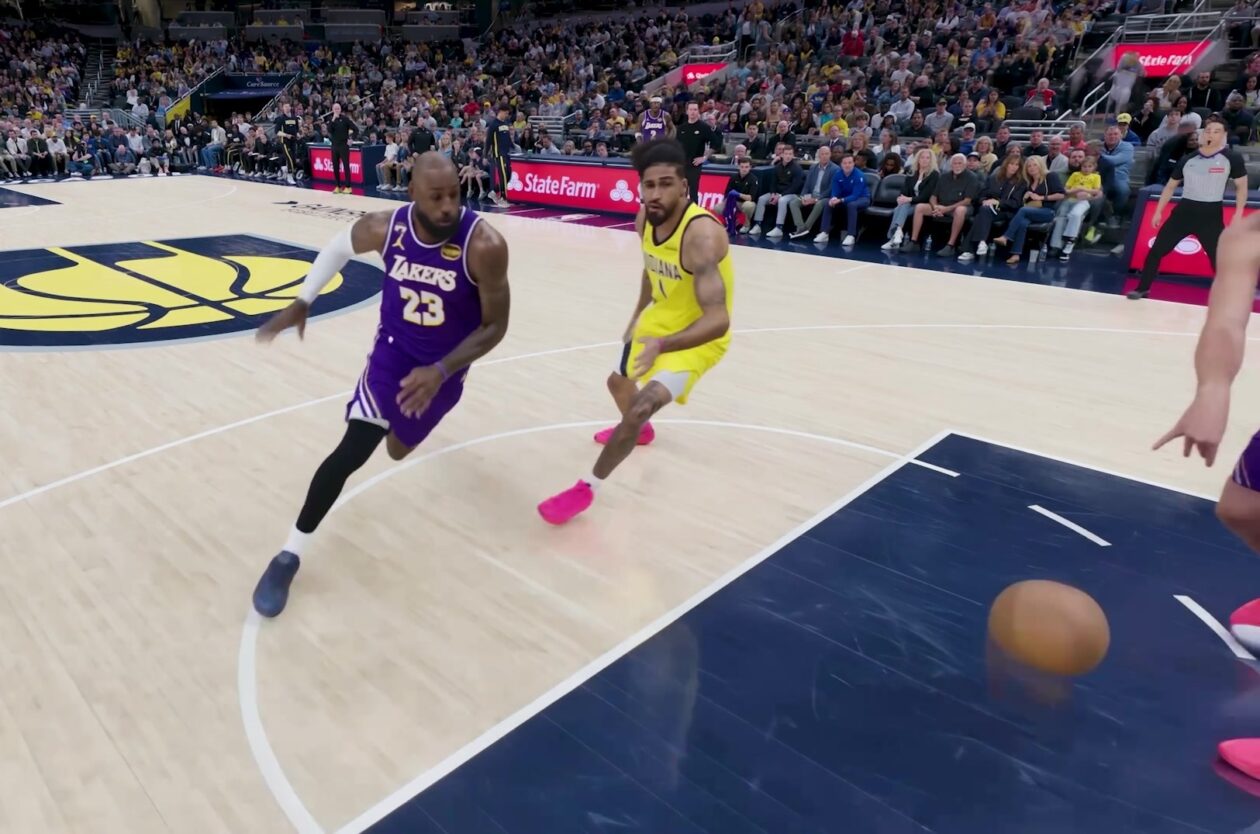
Amazon Prime Video Launches AI-Powered Prime 360 for NBA Coverage
Amazon Prime Video is elevating its NBA coverage with the introduction of Prime 360, an AI-powered replay system offering immersive, 'fly through' views of the action. Kicking off its second season, Prime Video also adds Yahoo fantasy integration and gains exclusive Eastern Conference Finals rights, expanding its tech-driven sports broadcast. The new features aim to deliver a unique and interactive viewing experience for basketball fans.

Stop Android Auto Battery Drain: Essential Features to Disable and
Android Auto offers unparalleled convenience, bringing your phone's most useful features directly to your car's display. From navigation and calls to messages and music, it keeps you connected without distracting you
Beyond the Bugs: Conquering Studio Headaches in Indie Dev
This guide, part three in a series on running an indie studio, tackles the crucial but often overlooked aspect of dealing with non-development related issues. It introduces creating a shared 'studio backlog' for collective problems and using the IDS (Identify, Discuss, Solve) framework to address them constructively. The core message is to build powerful habits that keep studios from getting quietly derailed by lingering challenges.

Windows October Update: A Must-Have Security Overhaul
Microsoft's October 2026 Windows update delivers a critical security overhaul, patching over 1,400 vulnerabilities including two zero-days, one already exploited. It's essential for all users, especially with several Windows 11 versions reaching end of support.