
Enhanced Security: Your Galaxy Phone's New Lockdown Mode Explained
Discover how Samsung Galaxy phones are adopting an iPhone-like security feature, automatically disabling biometrics when accessing the power menu. Learn what this means for your phone's safety and how to experience it.

Unlock Advanced Security: Your Galaxy Phone's New Lockdown Mode
Samsung Galaxy phones are on the verge of receiving a powerful security upgrade, mirroring a highly regarded feature found on iPhones. This upcoming change, currently in its testing phase with One UI 9 beta, significantly enhances how your phone protects your data, especially in high-pressure situations. This guide will walk you through what this new "Lockdown mode" functionality means for your Samsung device, how it improves your security, and how you can experience it today.
What You'll Accomplish
By the end of this guide, you will:
- Understand the critical security vulnerability biometrics can pose and why this new feature is so important.
- Learn how the new Lockdown mode automatically secures your device when you access the power menu.
- Discover the prerequisites for trying this feature now through the One UI 9 beta program.
- Know how to effectively use this enhanced security feature to protect your phone's data.
Understanding the Security Challenge: Biometrics and Your Safety
Biometric authentication, such as face or fingerprint scans, offers incredible convenience and generally robust security. It's often quicker to glance at your phone or tap a sensor than to type in a PIN or password. For everyday use, this is a clear win. However, biometrics have a specific Achilles' heel: situations where someone else has physical control of your phone while you are still present. In such scenarios, a determined individual could potentially force you to unlock your device using your face or fingerprint, circumventing your security.
The Original Galaxy Lockdown Mode: A Manual Solution
Recognizing this particular vulnerability, Galaxy devices have long offered a feature called "Lockdown mode." When activated, this mode disables all biometric authentication—meaning face and fingerprint scans—until you manually enter your PIN. This prevents any forced biometric unlocks, giving users an extra layer of protection. However, the previous implementation required a few manual steps:
- Long-press the power button to bring up the power menu.
- Locate the "Lockdown mode" icon.
- Tap the icon to activate it.
While effective for anticipated security scenarios, like going through airport customs, this multi-step process wasn't ideal for sudden, unexpected situations where you have only seconds to secure your device.
The New & Improved Lockdown Mode: Automatic Protection Arrives
With the second One UI 9 beta, Samsung is dramatically streamlining this crucial security measure. Drawing inspiration from how iPhones handle similar situations, Galaxy phones are set to make Lockdown mode activation more immediate and intuitive. The significant change is this: simply accessing the power menu will now automatically disable biometric authentication.
This means that once you bring up the power menu—which typically shows options like Power off, Restart, or Emergency mode—your phone will immediately switch to a PIN-only unlock requirement for the next time you try to access it. When you attempt to unlock your device, instead of your face or fingerprint scanner activating, you'll be presented directly with the PIN keypad. Your last-used app will still be ready to open, but only after you've successfully entered your PIN.
This subtle yet powerful shift eliminates the need to consciously tap a "Lockdown mode" option, making it a much faster and more reliable defense against forced biometric unlocks. It's a proactive security measure baked directly into a common interaction with your device.
How to Experience the New Lockdown Mode (Currently in Beta)
As this enhanced Lockdown mode feature made its debut with the One UI 9 beta 2, it's currently undergoing testing. This means there are no guarantees it will be included in the final official release of One UI 9, though its inclusion suggests strong consideration. If you're eager to try out this and other upcoming One UI 9 features right now, you'll need to enroll your Samsung Galaxy device in the One UI beta program.
Prerequisites and Important Considerations:
- Compatible Device: Ensure your Galaxy phone is eligible for the One UI 9 beta program (typically newer flagship models).
- Enrollment: You'll need to enroll your device through the Samsung Members app to access the beta software.
- Backup Your Data: This is a crucial step! Installing beta software carries inherent risks. You may encounter unexpected bugs or glitches that could result in data loss. Before enrolling in the beta program, make sure to thoroughly back up all your important data and files to a cloud service or another device. This precaution will help protect your information if anything goes wrong during or after the installation.
- Potential Instability: Be prepared for potential performance issues, app crashes, or other inconsistencies that are common with beta software.
Once you have successfully enrolled in the beta program and installed the One UI 9 beta 2 (or a later beta version that includes this feature), the new Lockdown mode behavior will be active on your device.
How to Use the New Lockdown Mode (Once Officially Released/After Beta Enrollment)
Using this improved security feature is incredibly straightforward, as its power lies in its automatic nature.
- Access the Power Menu: Simply long-press the Power button on your Samsung Galaxy phone. This will bring up the power menu with options like "Power off" and "Restart."
- Observe Biometric Disablement: At this point, even if you don't select any options from the power menu and simply dismiss it, your device's biometric authentication will have been disabled. You won't see an explicit notification, but the change occurs instantly.
- Unlock with Your PIN: The next time you try to unlock your phone, instead of using your fingerprint or face, you will be prompted to enter your PIN or password. The biometric options will be temporarily unavailable until you successfully unlock the device with your chosen code.
This simple action ensures that even if you're caught off guard, a quick press of the power button can secure your phone against unwanted biometric access.
Benefits of This Enhanced Security Feature
This seemingly small change has significant security implications:
- Instant Protection: It provides an immediate way to disable biometrics without needing to navigate menus, crucial in high-stress situations.
- Intuitive Use: Integrating it directly into the power menu makes it a natural and easy action to remember.
- Proactive Defense: It moves beyond a reactive measure, offering a built-in defense mechanism whenever you interact with the power menu.
Important Considerations for Beta Users
Again, if you've chosen to enroll in the One UI 9 beta, remember that this feature is still under development. While it offers a glimpse into future security enhancements, be mindful of the risks associated with running beta software. Always ensure your data is backed up, and report any bugs or unexpected behavior to Samsung to help refine the final product.
What's Next for One UI 9 and Your Security
This feature represents Samsung's commitment to enhancing user security and privacy. While the official release of One UI 9 is still some time away and features can change, the inclusion of this advanced Lockdown mode in the beta signals a promising direction for Galaxy phone security. Keep an eye out for official announcements regarding One UI 9 to confirm its final feature set and rollout.
FAQ
Q: Is this new Lockdown mode feature available on my Samsung Galaxy phone right now?
A: Currently, this feature is only available for users who have enrolled their compatible Samsung Galaxy device in the One UI 9 beta program and installed beta 2 or a later version. It is not yet part of the stable One UI release.
Q: What happens if I access the power menu but then don't select any options? Does Lockdown mode still activate?
A: Yes, according to the beta implementation, merely accessing the power menu automatically disables biometric authentication. The next time you try to unlock your phone, you will be prompted for your PIN or password, regardless of whether you selected any options from the power menu.
Q: Will enabling this new Lockdown mode behavior cause me to lose any data or affect my apps?
A: The feature itself is designed to enhance security without directly affecting your data or apps. However, because it's part of a beta software release (One UI 9 beta), there's always a risk of encountering unexpected bugs or glitches that could lead to data loss or app instability. It is strongly recommended to back up your device's data before installing any beta software.
Related articles
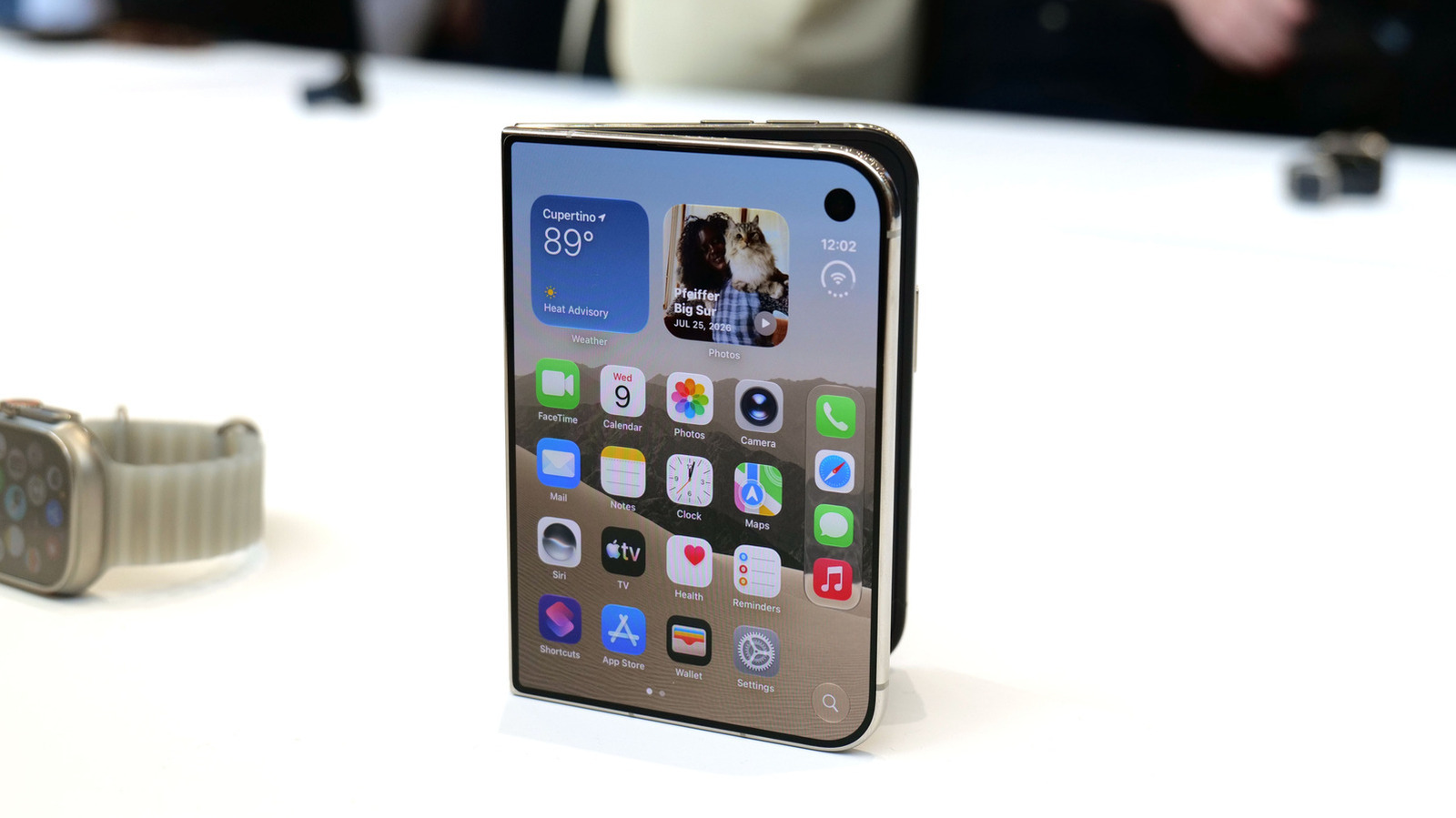
Apple iPhone Duo: A Daring Debut with Notable Compromises
Apple's highly anticipated iPhone Duo, priced at $2,000, has gone on pre-order. While hailed as "Apple's most exciting device in a decade" for its innovative foldable design and immersive display, it comes with significant drawbacks like the absence of FaceID and a premium camera.
Galaxy Watch One UI 9 Beta: Promising Progress, But Patience Needed
Galaxy Watch 8, Watch Ultra, and Watch 7 are receiving a new One UI 9 Watch beta build with bug fixes and a security patch. Active development signals progress, but a stable release date remains elusive.

Secure Internal API Access for AI Agents with MCP
AI agents accessing internal APIs directly pose significant risks, including identity loss, unrestricted queries, and security bypasses. The Model Context Protocol (MCP) offers a solution by defining explicit tools. A secure architecture involves an MCP server wrapping the API with strict input validation, coupled with a gateway that handles authentication, rate limiting, and audit logging, ensuring safe and accountable access.

Stop Android Auto Battery Drain: Essential Features to Disable and
Android Auto offers unparalleled convenience, bringing your phone's most useful features directly to your car's display. From navigation and calls to messages and music, it keeps you connected without distracting you

Windows October Update: A Must-Have Security Overhaul
Microsoft's October 2026 Windows update delivers a critical security overhaul, patching over 1,400 vulnerabilities including two zero-days, one already exploited. It's essential for all users, especially with several Windows 11 versions reaching end of support.

Turn Your Android Phone into a Powerful Desktop Replacement
Learn how to transform your Android phone into a full-fledged desktop computer using external displays and accessories, providing a cost-effective and integrated alternative to new Googlebooks.