
Diagnose & Fix Windows PC Issues with ChatGPT
Learn to analyze Windows Event Logs with ChatGPT to diagnose and fix critical PC problems like BitLocker issues and bloatware, and discern harmless errors with clear, step-by-step instructions.
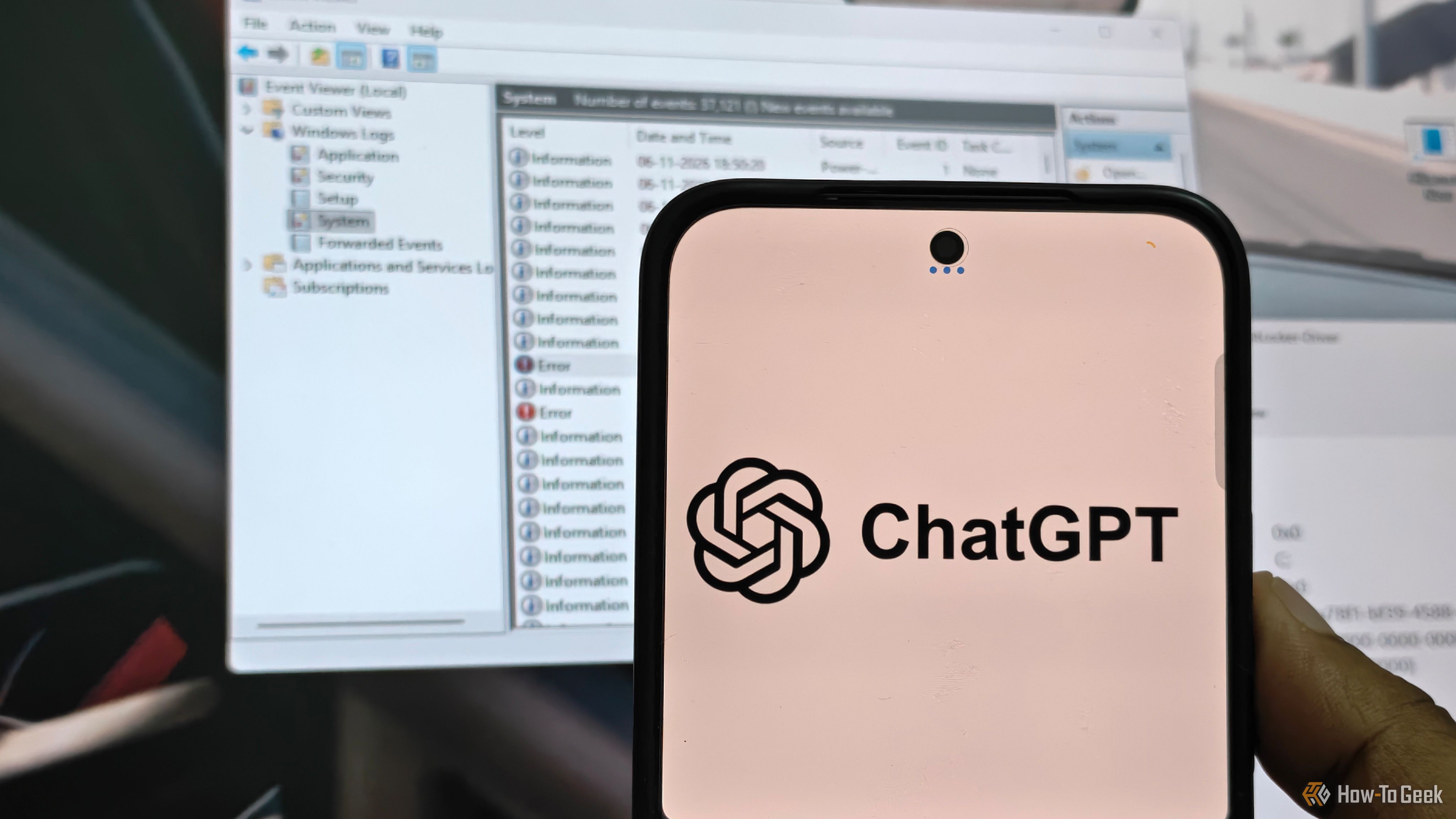
Windows PCs log countless events, often burying critical system errors in Event Viewer's "wall of red." Deciphering these logs is challenging, but AI tools like ChatGPT can be your diagnostic partner. This guide shows how to leverage ChatGPT to analyze your Windows event logs, identify hidden problems, and apply precise solutions to issues like BitLocker encryption discrepancies and unnecessary background services. You'll also learn to distinguish critical errors from harmless warnings.
Prerequisites:
- Windows 10 or 11 PC.
- Admin access to Event Viewer, PowerShell.
- ChatGPT account.
Step 1: Export Your Windows Event Logs
- Open Event Viewer: Right-click the Windows icon (Start) and select "Event Viewer."
- Navigate to Logs: Expand "Windows Logs," then choose "System" (for OS/hardware) or "Application" (for software).
- Filter for Critical Events: In the right pane, click "Filter Current Log..." Check "Critical" and "Error" under "Event level." Click "OK."
- Export Logs as CSV: With the filtered view, click "Save Filtered Log File As..." Name the file (e.g.,
WindowsErrors.csv), and change "Save as type" to "CSV (Comma Separated Values) (*.csv)". Click "Save". This format suits AI analysis.
Step 2: Analyze Logs with ChatGPT
- Open ChatGPT: Go to the ChatGPT website and log in.
- Craft Your Prompt: Start with clear instructions: "Analyze the following Windows Event Viewer CSV data. Identify recurring errors, explain them, and suggest actionable steps. Here is the log data:"
- Upload or Paste Log Data:
- If ChatGPT supports file uploads, upload your
.csvfile. - Otherwise, open the
.csvin a text editor, copy relevant columns (e.g.,Level,Source,Event ID,Description), and paste directly into the chat. Split large files into chunks.
- If ChatGPT supports file uploads, upload your
- Engage and Clarify: Review ChatGPT's analysis. Ask follow-up questions for deeper understanding or specific commands.
Step 3: Address Key Issues Diagnosed by ChatGPT
ChatGPT's analysis will highlight potential issues. Here are common problems and their solutions.
Fix A: Resolve BitLocker Encryption Discrepancies
Event ID 24641 often signals a failure to retrieve the BitLocker volume master key. Even if Windows Settings shows encryption active, your drive might lack a working recovery key, leaving it unsecure.
- Verify BitLocker Status:
- Open PowerShell as administrator.
- Execute
manage-bde -status C: - If "Protection Status" is "Off" and "No key protectors found," your drive is vulnerable.
- Generate and Back Up a Recovery Key:
- In PowerShell, type
manage-bde -protectors -add C: -RecoveryPassword. - A 48-digit numerical password will be displayed.
- Immediately back up this key securely (Microsoft account, USB drive, printout).
- In PowerShell, type
- Confirm the Fix: Re-run
manage-bde -status C:. "Protection Status" should be "On," with a "Numerical Password" key protector. Event ID 24641 errors should cease.
Important Warning: Clearing BIOS security keys without a verified BitLocker recovery key risks permanent data loss. Always back up your key before any BitLocker changes.
Fix B: Disable Unnecessary Background Services (Bloatware)
Pre-installed software (bloatware) can cause recurring background errors and waste resources. ChatGPT often identifies these as Application Event ID 0 linked to specific services (e.g., RefreshRateService).
- Access Services Manager:
- Press
Win + R, typeservices.msc, and press Enter.
- Press
- Locate and Disable the Service:
- Find the service identified by ChatGPT.
- Right-click, select "Properties."
- Change "Startup type" to "Disabled."
- Click "Stop" if running.
- Click "Apply," then "OK."
- Verify Resolution: Event Viewer errors should stop.
Insight: Know When to Ignore "Scary" Errors (TPM Example)
Not all errors are critical. ChatGPT helps distinguish problematic issues from benign warnings. For example, CertificateServicesClient-CertEnroll Event ID 87 might suggest a TPM (Trusted Platform Module) failure.
- Diagnose TPM Health:
- Open PowerShell as administrator.
- Run
Get-Tpm. - Confirm your TPM is present and operational.
- Interpret with AI: If hardware diagnostics are healthy, ChatGPT can confirm such software handshake failures are often non-critical—usually temporary communication issues Windows resolves on its own.
Troubleshooting & Best Practices:
- Verify Actions: Cross-reference ChatGPT's commands with official documentation before changes.
- Context is Key: Provide detailed error messages for accurate analysis.
- Backup Data: Back up important data before major system fixes.
- Learn from AI: Use ChatGPT to understand jargon, empowering you for future issues.
FAQ
Q: Is it safe to feed my Windows logs to an AI like ChatGPT? A: Event Logs contain system/app activity, not typically sensitive personal data. They can show installed software/network activity. Review logs for highly sensitive info, or use AI models with robust privacy policies.
Q: My Event Viewer shows hundreds of errors. Do I need to fix them all? A: No. Many logged errors are minor, harmless, or self-correcting. Focus on critical, recurring errors impacting performance. ChatGPT excels at identifying significant patterns.
Q: What if ChatGPT suggests a fix that seems too complicated or risky? A: If a solution involves complex system changes or affects data, exercise extreme caution. Always back up data first. If unsure, verify steps with official documentation or consult an IT professional. Never execute commands you don't fully understand.
Next Steps: Periodically review Windows Event Logs after updates or during performance issues. Refine ChatGPT prompts for precise diagnostics, empowering you to maintain a healthier, more secure PC.
Related articles
Get the Honeywell Smart Color Thermostat for $80 and Start Saving on
Learn to get and install the Honeywell Home Wi-Fi Smart Color Thermostat for just $80, a 55% saving, and start reducing your utility bills by leveraging its Energy Star certified features and smart home integration.
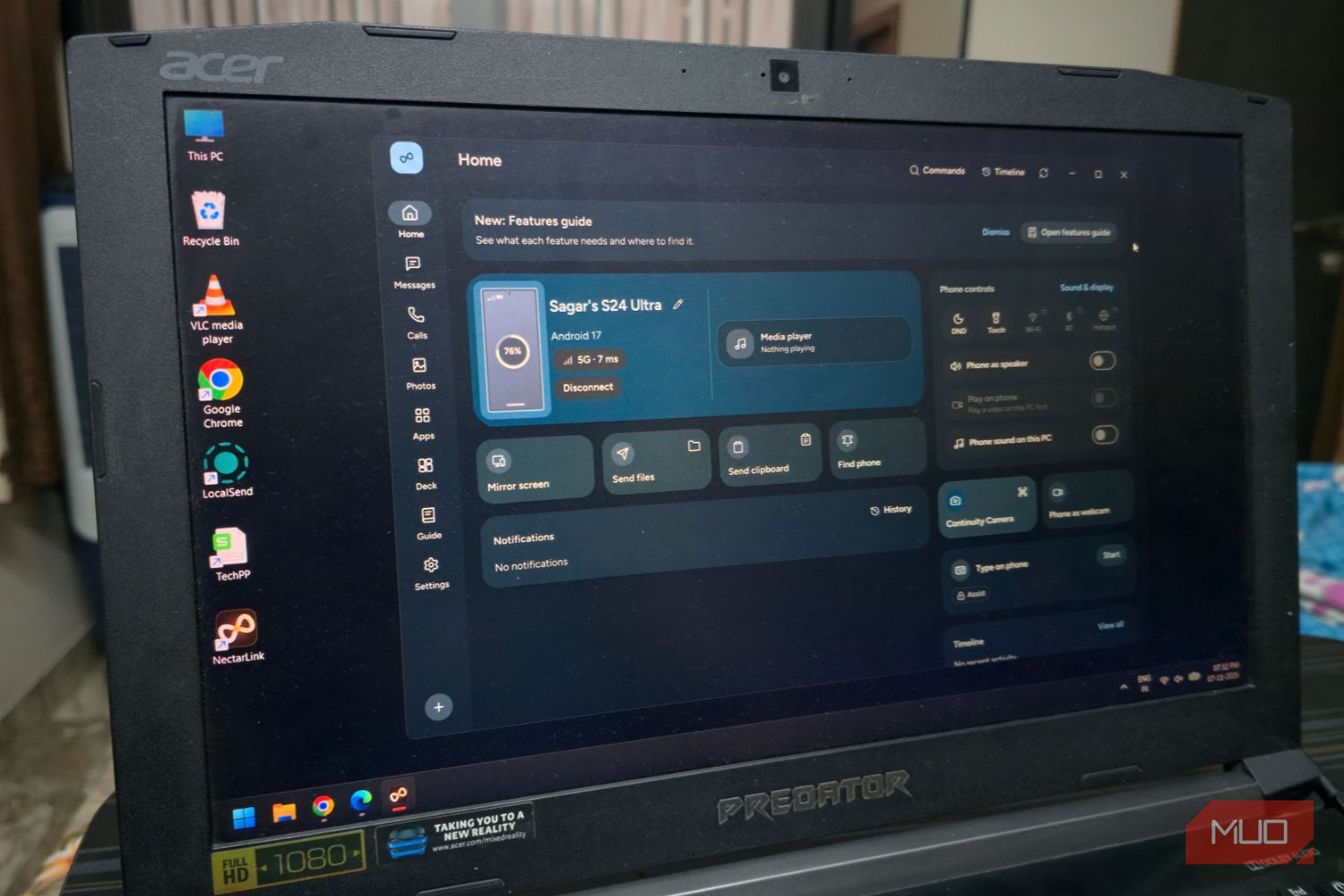
Seamlessly Connect Your Android to Windows with NectarLink
Learn to connect your Android phone to Windows using NectarLink, a free, open-source hub, in a few simple steps. Get notifications, sync files, mirror screens, and control your phone securely without cloud accounts.

Humble Bundle's "Vibe-Coded" Revamp: Security Stripped, Trust Shaken
Humble Bundle's recent redesign, described as 'vibe-coded,' has introduced critical security flaws, including the removal of two-factor authentication and inadequate password/email change verification. Users are also facing significant quality-of-life regressions like poor library sorting and forced frequent logins. Gamers are advised to remove payment info until issues are resolved.
Make 8GB of RAM Work on Windows 11 - Boost Performance
Optimize your Windows 11 PC with 8GB RAM for better performance by updating Windows, managing background apps, optimizing your browser, configuring virtual memory, and using lightweight software alternatives.

How to Understand Leaked Vivo X500 Series Prices for India Launch Prep
Get a clear, step-by-step breakdown of the rumored Vivo X500 series prices, configurations, and how they compare to previous models, helping you prepare for the official India launch.

PlayStation Pulls the Plug: Fairgames Joins the Live-Service Graveyard
PlayStation has officially canceled Fairgames, the live-service PvP shooter from Haven Studios, after mixed playtest feedback and retention issues. This marks another setback for Sony's ambitious live-service push, though Haven Studios' staff will be retained to support other PlayStation projects.