
Boost Your Productivity: Unlock Advanced Phone Link Features in
Learn to utilize advanced Windows 11 Phone Link features like Cross-Device Resume, quick Start menu access, and expanded app views to create a seamless, integrated experience between your Android phone and PC, boosting your productivity.
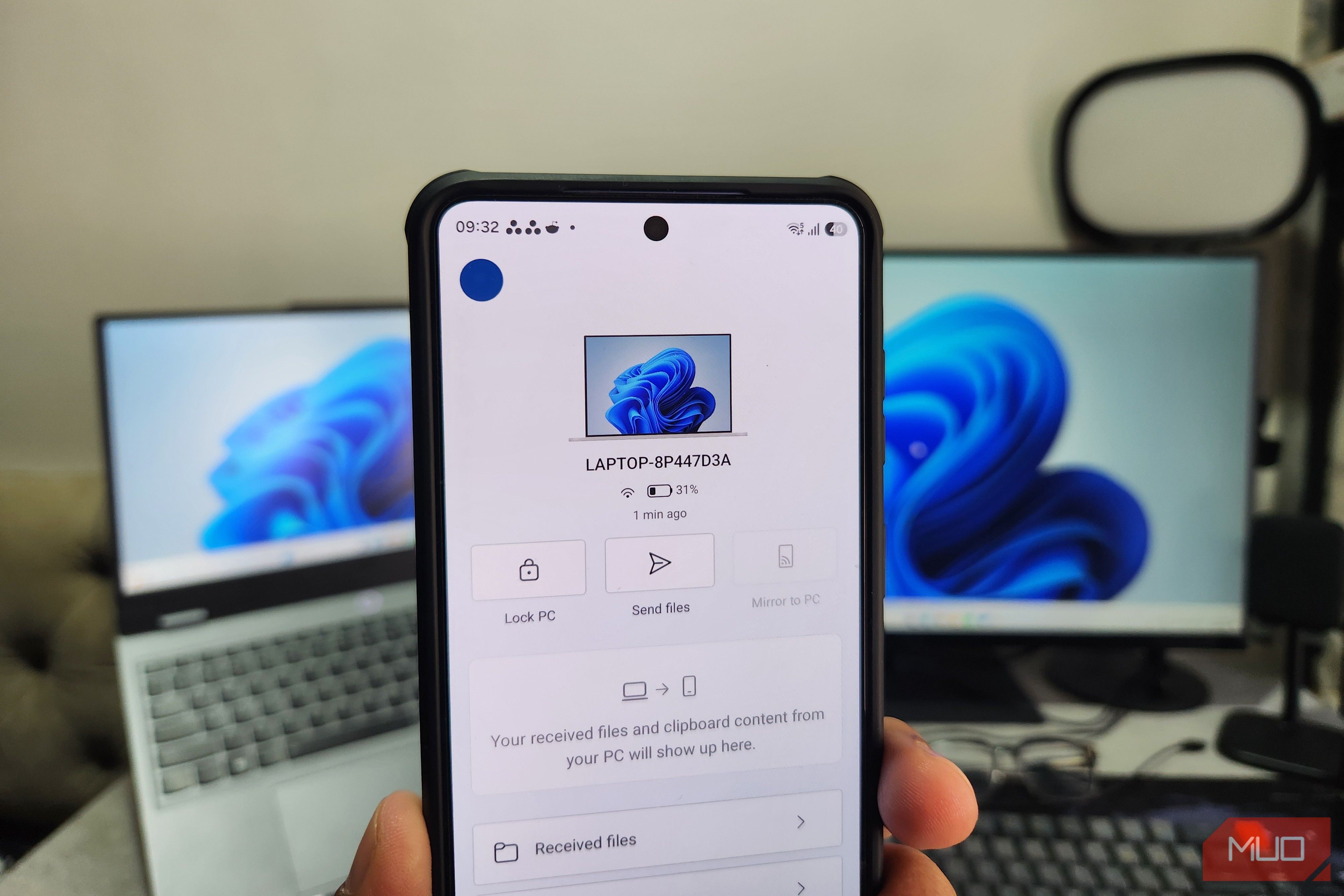
Windows 11's Phone Link has evolved far beyond its initial role as a simple notification mirror. Microsoft has continuously added powerful features that transform your Android phone and Windows PC into a truly integrated workspace. If you haven't explored Phone Link recently, you're missing out on capabilities that make reaching for your phone increasingly unnecessary.
This guide will walk you through Phone Link's most exciting new features: Cross-Device Resume, enhanced quick access from the Start menu, and an expanded view for your mobile apps. By the end, you'll be able to seamlessly switch tasks between devices, access your phone faster, and enjoy your mobile apps on a larger screen.
Prerequisites
Before you dive into these advanced features, ensure you have the following:
- Windows 11 PC: Running the latest version of Windows 11.
- Android Phone: An Android device running a recent OS version. Note that some features (like Copilot handoff or expanded view) might have specific device requirements (e.g., Samsung, Honor, Oppo, Vivo, Xiaomi phones).
- Microsoft Phone Link App: Installed and updated on both your Windows PC and Android phone.
- Connected Devices: Your Android phone must be successfully linked to your Windows 11 PC via the Phone Link app.
- Microsoft Account: You should be signed in with the same Microsoft account on both your PC and the Phone Link app on your phone.
- Stable Connection: Ensure both devices are on a reliable Wi-Fi network for optimal performance.
Pick Up Where You Left Off with Cross-Device Resume
Imagine starting a task on your phone and seamlessly continuing it on your PC. That's the power of Cross-Device Resume, a feature inspired by Apple's Handoff. It allows you to transition active tasks between your Android phone and Windows 11 PC, making your workflow smoother.
How to Use Cross-Device Resume:
- Start an activity on a supported app on your Android phone (e.g., listening to Spotify, editing an Office document, or engaging in a WhatsApp chat).
- Look at your Windows 11 taskbar. When a supported activity is detected, the corresponding app icon will appear with a small phone badge.
- Click the icon on your taskbar. Your PC will then automatically resume the activity right where you left off on your phone.
Supported Applications and Specific Device Features:
- Currently Supported: Spotify playback, Office file editing, and WhatsApp chats.
- Premium Hand-off: If you own a Samsung, Honor, Oppo, Vivo, or Xiaomi phone, you can also hand off online files you've been working on directly through the Copilot mobile app.
Managing Cross-Device Resume:
By default, this feature is enabled for all supported apps. If you prefer to disable it for specific applications:
- On your Windows 11 PC, go to Settings.
- Click on Apps in the left-hand navigation pane.
- Select Resume.
- Here, you can toggle off Cross-Device Resume for individual apps as desired.
While the list of supported apps is still growing, Cross-Device Resume is a promising step towards true device synergy, reducing interruptions in your digital day.
Access Your Phone Quicker Than Ever from the Start Menu
Windows 11 now integrates Phone Link directly into the Start menu, providing instant access to your phone's key information and functions without needing to open the dedicated Phone Link app.
Using Start Menu Integration:
- Open your Windows 11 Start menu.
- You'll now see a dedicated panel displaying your phone's notifications, battery level, and recent activity at a glance.
- Within this panel, you can quickly send files to your PC or directly jump to your call logs, messages, and photos saved on your phone.
Instant Screen Mirroring:
One of the most exciting additions is the ability to instantly mirror your phone's screen:
- From the Start menu's Phone Link panel, simply click the phone icon.
- Your Android phone's screen will immediately appear on your PC, allowing you to interact with it using your mouse and keyboard.
Tip: Microsoft has significantly optimized screen mirroring, resulting in a smooth experience with almost zero lag, making it a compelling alternative to picking up your physical device.
Streamlined App Access (Skip Unlock):
To make accessing your mobile apps even faster from your PC, you can configure Phone Link to bypass your phone's unlock security:
- On your Android phone, open the Phone Link app.
- Navigate to the Phone Link Settings within the app.
- Enable the option: Skip unlock to access mobile apps on PC.
- Enable the option: Skip device verification to access mobile apps on PC.
This setting allows you to launch and use your mobile apps from your PC via Phone Link without having to manually unlock your phone with a PIN or fingerprint each time, providing maximum convenience.
Expanded View for Supported Android Apps
Experience your Android apps in a new dimension by running them in an expanded, tablet-style view directly on your PC screen. This feature allows compatible apps to utilize up to 90% of your monitor, making them feel more like native desktop applications.
Enabling Expanded View for an App:
- Open an Android app through Phone Link on your PC.
- Look for the expand view icon (often a diagonal arrow or two opposing arrows) located at the top of the app window.
- Click this icon to switch the app into a wider, expanded layout.
Always Open Apps in Expanded View:
If you prefer certain apps to always launch in expanded view, you can set this as a default:
- On your Windows 11 PC, open the Phone Link app.
- Go to Settings within Phone Link.
- Click on Apps in the settings menu.
- Enable the option: Always open apps in expanded screen.
Important Considerations and Limitations:
- App Compatibility: Expanded view does not work perfectly with every Android app. Apps designed strictly for a vertical layout may display black bars on the sides.
- Visual Fidelity: You might notice that apps don't appear as crisp or sharp when stretched to an expanded view on a very large monitor. While not a dealbreaker, it's something to be aware of.
- Device Support: This feature is not universally available for all Android phones. You'll need a supported device running the latest version of Phone Link to utilize expanded view.
Troubleshooting Tips
- Feature Not Available/Working: Ensure both your Windows 11 and Phone Link app (on PC and phone) are fully updated. Some features have specific Android phone model requirements, so check if your device is supported.
- Laggy Performance: For screen mirroring or app usage, a strong and stable Wi-Fi connection is crucial. Try closing other bandwidth-intensive applications on both devices.
- Expanded View Issues: If an app looks distorted or shows black bars, it's likely not optimized for expanded view. Try another app or revert to the standard mirrored view.
FAQ
Q: Do all Android phones support every new Phone Link feature mentioned?
A: No, some advanced features have specific device requirements. For example, the Copilot handoff for online files is available for Samsung, Honor, Oppo, Vivo, or Xiaomi phones, and expanded app view requires a supported Android device with the latest Phone Link version.
Q: Can I disable Cross-Device Resume for specific applications if I don't want it to activate for everything?
A: Yes, you can manage this setting. On your Windows 11 PC, navigate to Settings > Apps > Resume, and you'll find options to individually toggle off the Cross-Device Resume feature for various apps.
Q: Is Phone Link's screen mirroring still prone to lag and delays?
A: Microsoft has made significant improvements to Phone Link's screen mirroring. It now offers a remarkably smooth experience with almost zero lag, especially when both your PC and phone are connected to a stable and fast Wi-Fi network.
Next Steps
With these new features, Phone Link truly elevates the experience of integrating your Android phone with Windows 11. Continue to explore other established Phone Link capabilities, such as universal clipboard sync, instant access to your phone's photos, and making and receiving calls directly from your PC. By maximizing Phone Link, you can maintain focus on your PC while keeping your phone's essential functions within easy reach.
Related articles

Apple Unveils iPhone Duo: Pricey Foldable Sees Soaring Demand
Apple has officially entered the foldable smartphone arena with the long-anticipated launch of the iPhone Duo. Priced starting at a hefty $1,999, the device features a 5.4-inch outer display and a larger 7.6-inch inner

Ditch Merge & Center: The Better Way to Align Text in Excel
Learn to use Excel's "Center Across Selection" to align text across cells without merging, avoiding common data manipulation issues. This guide provides steps to utilize this newly accessible feature and add it to your Quick Access Toolbar.

Ars Technica's Rocket Report: Your Essential Space Industry Briefing
Quick Verdict Ars Technica's Rocket Report, presented by veteran space reporter Stephen Clark, offers an invaluable and meticulously organized weekly (or similar frequency, implied by "Edition 9.15") digest of the most
Apple iPhone Duo: A Daring Debut with Notable Compromises
Apple's highly anticipated iPhone Duo, priced at $2,000, has gone on pre-order. While hailed as "Apple's most exciting device in a decade" for its innovative foldable design and immersive display, it comes with significant drawbacks like the absence of FaceID and a premium camera.

Stop Android Auto Battery Drain: Essential Features to Disable and
Android Auto offers unparalleled convenience, bringing your phone's most useful features directly to your car's display. From navigation and calls to messages and music, it keeps you connected without distracting you

Turn Your Android Phone into a Powerful Desktop Replacement
Learn how to transform your Android phone into a full-fledged desktop computer using external displays and accessories, providing a cost-effective and integrated alternative to new Googlebooks.