
Boost Your Privacy: Turn Off Cloud Typing on Android Keyboards
Learn to disable cloud typing on your Android keyboard (Gboard or Samsung) in minutes to prevent your typing data and personal vocabulary from being shared with remote servers, significantly boosting your privacy.
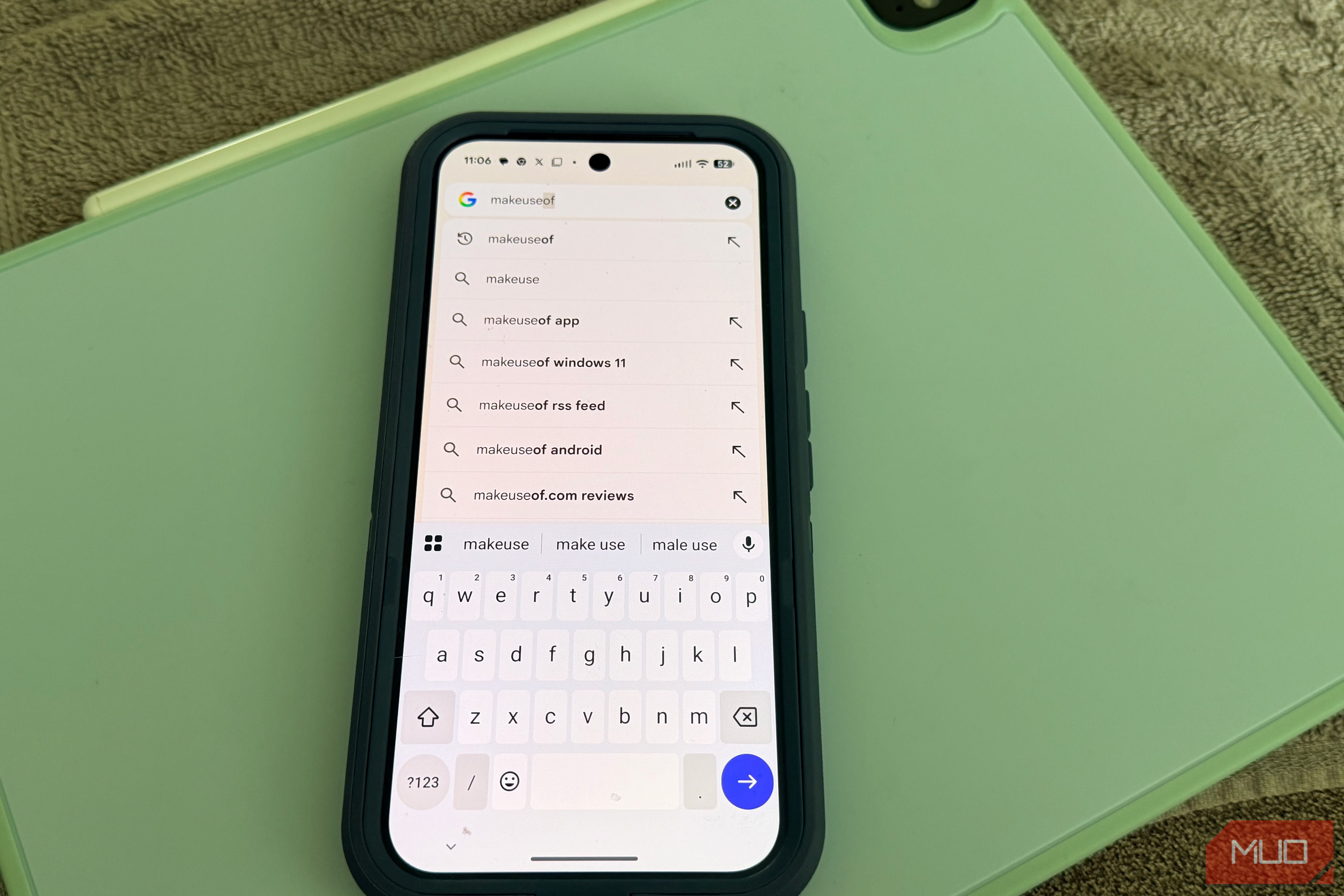
Reclaim Your Privacy: Turn Off Cloud Typing on Android Keyboards
Ever wonder how much your Android phone knows? Your keyboard might be quietly sharing typing habits and personal vocabulary with remote servers. This 'cloud typing' feature, while improving predictions, means your unique keystrokes could be leaving your device. Ready to boost your digital privacy? This guide shows how to disable it on Gboard and Samsung Keyboard, securing your information without compromising your typing experience.
What is Cloud Typing and Why It Matters
Cloud typing processes your keyboard's input online for refined predictions. This sends your typing activity off your device:
- Usage Statistics: Data like frequently tapped keys, autocorrect usage, and emoji patterns are collected to train machine learning models.
- Personalized Suggestions & Learned Words: Your keyboard learns unique vocabulary. If sync is enabled, this personal dictionary backs up to your cloud account for cross-device access.
Your keyboard handles sensitive information daily. Storing this data remotely poses a privacy risk. Disabling these features ensures your typing data, especially personal vocabulary, remains strictly on your device.
Before You Begin: Requirements
To follow this guide, you'll need:
- An Android smartphone (e.g., Pixel, Samsung Galaxy).
- Access to your phone's Settings app.
- Either the Gboard app or the Samsung Keyboard.
How to Turn Off Cloud Typing in Gboard
If Gboard is your default, easily stop it from sharing typing data with Google. Your keyboard will still offer smart suggestions and autocorrect locally.
Here’s how (steps are current for Android 15+):
- Open Gboard Settings:
- Tap the Gboard app icon in your app drawer.
- Alternatively: Go to Settings -> System -> Keyboard -> Keyboard apps -> Gboard.
- Access Privacy:
- In Gboard settings, tap Privacy.
- Disable Usage Statistics:
- Find Share usage statistics and toggle it OFF.
- Manage Learned Words Sync:
- Return to main Gboard settings.
- Tap Dictionary.
- Find Sync learned words and toggle it OFF. This prevents vocabulary backup.
- Delete Stored Learned Words (Optional):
- While in Dictionary, tap Delete learned words and data to remove existing cloud-stored vocabulary.
Gboard will still autocorrect and predict, learning new words locally. Learned words won't automatically transfer to a new phone.
How to Disable Data Sharing on the Samsung Keyboard
For Samsung Galaxy users, the Samsung Keyboard also features data sharing for personalization via its own servers.
Here’s how to adjust these settings on your Samsung device:
- Navigate to Samsung Keyboard Settings:
- Open Settings -> General Management -> Samsung Keyboard settings.
- Access Privacy Options:
- In Samsung Keyboard settings, tap Privacy.
- Turn Off Cross-Device Prediction:
- Look for Personalization settings then Predict text across devices. Toggle this OFF. This stops typing data syncing across your Samsung devices.
- Review General Personalization:
- Under the same menu, check if the main Personalization toggle is enabled. Turning this OFF keeps typing patterns on your device.
These controls are accessible in recent One UI versions. Disabling them won't affect basic autocorrect or local predictions.
What to Expect After These Changes
Your keyboard experience will feel largely unchanged:
- Effective autocorrection.
- Helpful next-word predictions.
- Local learning of new words.
Crucially, your typing patterns and personal vocabulary are no longer transmitted to remote servers, boosting digital privacy. Losing cross-device sync for learned words is a minor inconvenience, but a worthwhile trade-off.
Next Steps for Enhanced Android Privacy
Disabling cloud typing is an excellent start. To further secure your Android data:
- Review Clipboard History: Check how long copied text (including sensitive data) is retained. Clear it regularly or disable retention.
- Explore Broader Privacy Controls: In Settings -> Security & privacy -> Privacy control, review app permissions and data access.
Small, consistent adjustments lead to a more private digital experience.
FAQ
Q: Will turning off cloud typing disable autocorrect or word predictions? A: No, these features continue to work, relying on local data processing and on-device learning.
Q: What if I get a new phone? Will my learned words transfer? A: If 'Sync learned words' is off, your personal vocabulary won't automatically transfer. Your new phone's keyboard will learn locally from scratch.
Q: Is disabling cloud typing enough to ensure complete privacy? A: It's a significant step, but not the only one. Also review app permissions, location services, and other privacy settings.
Related articles
Android 17 QPR2 Beta 7.1: The Performance Relief You've Been Waiting
Android 17 QPR2 Beta 7.1: Finally Fixing the QPR1 Performance Woes Verdict: Android 17 QPR2 Beta 7.1 is a crucial and highly anticipated software update for Google Pixel users, specifically targeting and resolving the

Ditch Merge & Center: The Better Way to Align Text in Excel
Learn to use Excel's "Center Across Selection" to align text across cells without merging, avoiding common data manipulation issues. This guide provides steps to utilize this newly accessible feature and add it to your Quick Access Toolbar.

Ars Technica's Rocket Report: Your Essential Space Industry Briefing
Quick Verdict Ars Technica's Rocket Report, presented by veteran space reporter Stephen Clark, offers an invaluable and meticulously organized weekly (or similar frequency, implied by "Edition 9.15") digest of the most

Stop Android Auto Battery Drain: Essential Features to Disable and
Android Auto offers unparalleled convenience, bringing your phone's most useful features directly to your car's display. From navigation and calls to messages and music, it keeps you connected without distracting you

Turn Your Android Phone into a Powerful Desktop Replacement
Learn how to transform your Android phone into a full-fledged desktop computer using external displays and accessories, providing a cost-effective and integrated alternative to new Googlebooks.
Android Auto 18 Beta: Glimpse into Google's Car Makeover
Verdict: A Sneak Peek at Tomorrow's Drive Android Auto 18.0 beta isn't the flashy, fully-realized redesign many might be hoping for, but it offers an invaluable look under the hood. What Google is signaling here,