
Boost Your Android's Bluetooth Audio Quality from Hidden Settings
Have your Bluetooth headphones or speakers been underperforming, delivering less-than-stellar audio quality? Before you assume your device is faulty or subpar, there's a good chance the issue lies in a hidden setting on
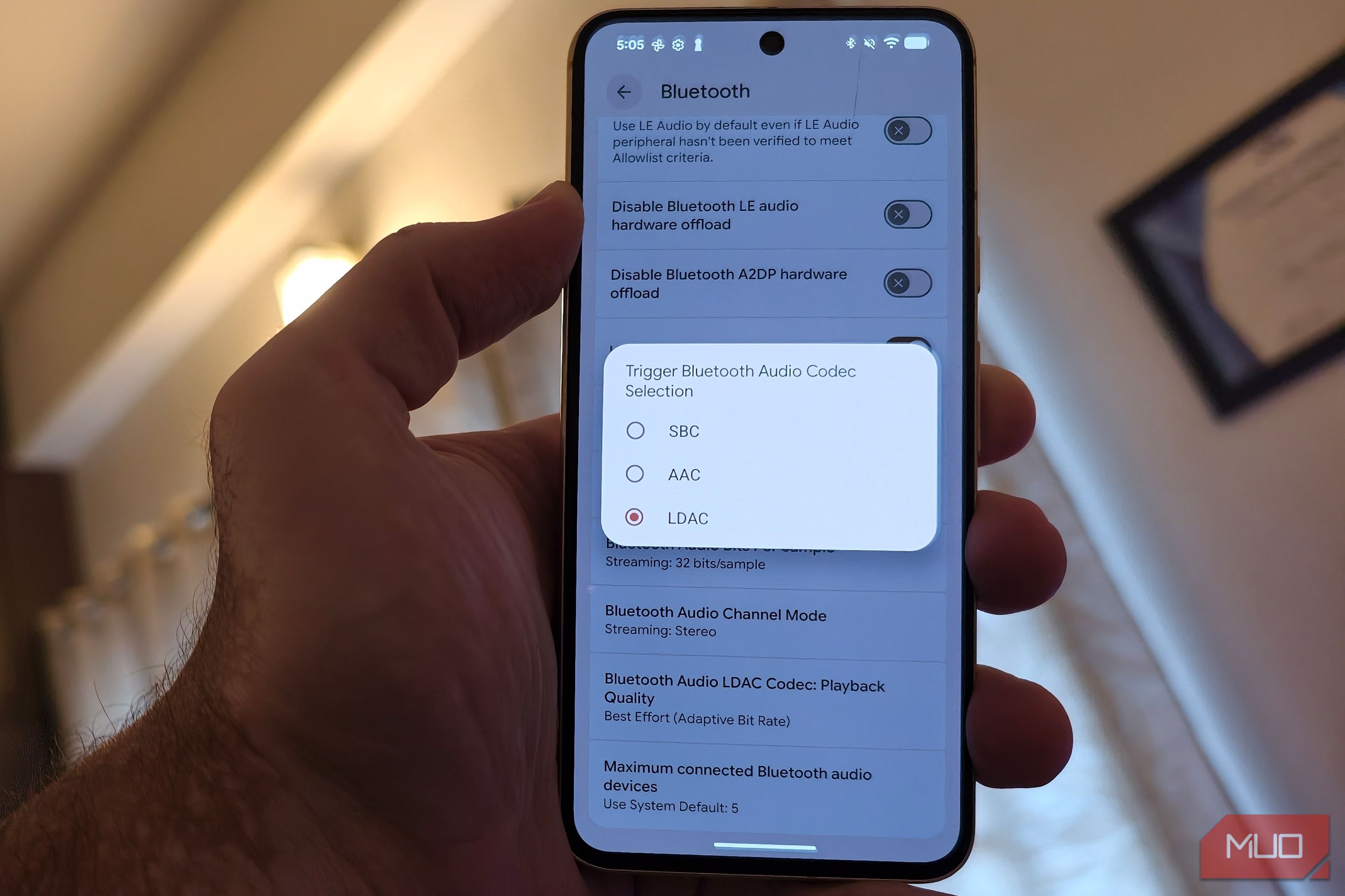
Have your Bluetooth headphones or speakers been underperforming, delivering less-than-stellar audio quality? Before you assume your device is faulty or subpar, there's a good chance the issue lies in a hidden setting on your Android smartphone or tablet. Unlike wired connections, Bluetooth audio quality is influenced by several factors, many of which can be adjusted through the Android Developer Options menu.
This guide will walk you through the steps to unlock these advanced settings and optimize your Bluetooth audio for the best possible sound. You'll learn how to identify and switch to high-quality audio codecs, manage connected devices, and troubleshoot other settings that might be degrading your listening experience.
Prerequisites
Before you begin, ensure you have:
- An Android smartphone or tablet.
- A Bluetooth audio device (headphones, speaker, etc.) connected to your Android device.
- Your device's PIN, pattern, or password readily available, as you may need it to enable Developer Options.
Step 1: Unlock Developer Options
Developer Options are disabled by default on most Android devices, as they provide access to advanced settings primarily intended for developers. However, enabling them is a simple process:
- Open the Settings app on your Android device.
- Scroll down and tap on About Phone.
- Look for Build number or Software information. The exact label might vary slightly depending on your Android version and device manufacturer.
- Tap on the Build number listing seven times in quick succession. A small pop-up notification will appear with each tap, counting down until Developer Options are enabled.
- If prompted, enter your device's PIN, pattern, or passcode to confirm.
You'll receive a final notification confirming, "You are now a developer!" or "Developer Options enabled."
Step 2: Access Developer Options
Once enabled, Developer Options can be found in your device's Settings menu:
- Return to the main Settings screen.
- Scroll down and tap on System or a similar category (e.g., "Advanced," "About device").
- You should now see Developer Options listed. Tap on it.
Step 3: Optimize Bluetooth Audio Codec
Audio codecs are crucial because they dictate how audio data is compressed for wireless transmission from your phone to your Bluetooth device and then decompressed for playback. Your phone might not be using the highest quality codec supported by your audio device, leading to reduced sound fidelity.
There are two main places to check and adjust codecs:
-
Initial Check (Device-Specific Settings):
- Go to Settings > Bluetooth.
- Tap on your currently connected Bluetooth audio device.
- Look for an Audio Codec option or connection details. Some Android phones offer basic codec control here, allowing you to enable or disable specific codecs like LDAC or aptX for that particular connection.
-
Advanced Control (Developer Options): If the initial check doesn't provide the control you need, or if you want to see all available options:
- Navigate back to Settings > System > Developer Options.
- Scroll down to the Networking section.
- Tap on Bluetooth Audio Codec. This will display a list of codecs your device supports (e.g., SBC, AAC, aptX, aptX HD, LDAC, Samsung Scalable Codec).
- Select the highest quality codec that your Bluetooth audio device also supports. For example, if your headphones support LDAC, select it for the best audio experience. If you experience glitchy or unstable sound with a high-quality codec, try switching to a slightly lower quality one, like aptX or AAC, to see if it resolves the issue.
Step 4: Explore Other Bluetooth Audio Settings for Troubleshooting
If changing the audio codec doesn't fully resolve your audio quality issues, other settings within Developer Options could be at play:
-
Bluetooth Audio Sample Rate: Still within the Networking section of Developer Options, you might find an option to adjust the Bluetooth audio sample rate. Higher sample rates generally result in better audio fidelity, but might require more bandwidth. Experiment with different settings to see what works best with your specific audio device.
-
Bluetooth Audio Channels: You can often choose between mono and stereo channels. Ensure stereo is selected for rich, immersive sound unless you have a specific reason to use mono.
-
Maximum Connected Bluetooth Audio Devices: If your phone frequently connects to multiple Bluetooth devices, it can cause connection drops, lag, or poor audio. In Developer Options, you can set the limit for how many Bluetooth audio devices your handset can connect to simultaneously (usually between one and five). Lowering this limit might improve stability if you're experiencing conflicts.
-
Disable A2DP Hardware Offload: This is a key setting to investigate if you're getting muddy or low-quality audio. When A2DP Hardware Offload is enabled, your Android device uses a dedicated, power-efficient audio chip to process and encode audio, rather than the main processor. While this can save battery, this secondary chip might not always communicate effectively with all Bluetooth devices, potentially forcing your device to use a low-quality bitrate.
- To disable this feature, find Bluetooth A2DP Hardware Offload in Developer Options and toggle it OFF.
Troubleshooting Tips and Best Practices
- Experimentation is Key: The optimal settings can vary significantly depending on your specific Android device, its software version, and the Bluetooth audio device you're using. Don't be afraid to try different combinations of settings.
- Test with Another Device: If you're still facing issues, try connecting your Bluetooth headphones or speaker to a different smartphone or tablet. If the audio quality is excellent on the other device, it strongly suggests the problem is with your Android phone's settings.
- Check for Device Updates: Many modern Bluetooth headphones and speakers have companion apps. Regularly check these apps for firmware updates, as manufacturers often release updates that improve audio quality, stability, and codec compatibility.
- Restart Your Device: After making significant changes in Developer Options, a simple restart of your Android phone can help apply the new settings effectively.
By carefully adjusting these hidden Bluetooth settings, you can unlock the full audio potential of your wireless headphones and speakers, transforming a mediocre listening experience into one that's crisp, clear, and rich.
FAQ
Q: What exactly is an audio codec, and why is it so important for Bluetooth? A: An audio codec (coder-decoder) is a program that compresses and decompresses audio data. For Bluetooth, it determines how efficiently and with what quality audio signals are packaged by your phone for wireless transmission and then unpacked by your headphones/speaker for playback. A better codec can transmit more audio data per second, resulting in higher fidelity sound, much like choosing a higher resolution for a video file.
Q: Why are these settings hidden in Developer Options? A: These settings are hidden because they are advanced configurations that, if misused, could potentially cause instability or unexpected behavior on a device. They are primarily intended for developers to test and fine-tune system performance. For most everyday users, the default settings are usually sufficient, but for audiophiles or those experiencing specific issues, Developer Options provide granular control.
Q: Can changing settings in Developer Options harm my phone or Bluetooth device? A: While Developer Options allow for significant system-level changes, adjusting the Bluetooth audio settings as described in this guide is generally safe and reversible. The primary risk is potentially degrading audio quality or connection stability if incorrect settings are chosen. If you encounter any issues, you can always revert the changes or, if necessary, disable Developer Options entirely or perform a network settings reset.
Related articles
Android 17 QPR2 Beta 7.1: The Performance Relief You've Been Waiting
Android 17 QPR2 Beta 7.1: Finally Fixing the QPR1 Performance Woes Verdict: Android 17 QPR2 Beta 7.1 is a crucial and highly anticipated software update for Google Pixel users, specifically targeting and resolving the

DJI Solo Video Setups: Smart Choices for Lone Creators
This review delves into DJI's recommended solo video setups, highlighting the Osmo Pocket 3 Creator Combo as a top pick for its integrated camera, gimbal, and mic. It also covers stabilizers like the Osmo Mobile 8 and RS 4, and the DJI Mic Mini series for enhanced audio, providing honest pros, cons, and clear buying advice.

Ditch Merge & Center: The Better Way to Align Text in Excel
Learn to use Excel's "Center Across Selection" to align text across cells without merging, avoiding common data manipulation issues. This guide provides steps to utilize this newly accessible feature and add it to your Quick Access Toolbar.

Ars Technica's Rocket Report: Your Essential Space Industry Briefing
Quick Verdict Ars Technica's Rocket Report, presented by veteran space reporter Stephen Clark, offers an invaluable and meticulously organized weekly (or similar frequency, implied by "Edition 9.15") digest of the most

Stop Android Auto Battery Drain: Essential Features to Disable and
Android Auto offers unparalleled convenience, bringing your phone's most useful features directly to your car's display. From navigation and calls to messages and music, it keeps you connected without distracting you

Turn Your Android Phone into a Powerful Desktop Replacement
Learn how to transform your Android phone into a full-fledged desktop computer using external displays and accessories, providing a cost-effective and integrated alternative to new Googlebooks.